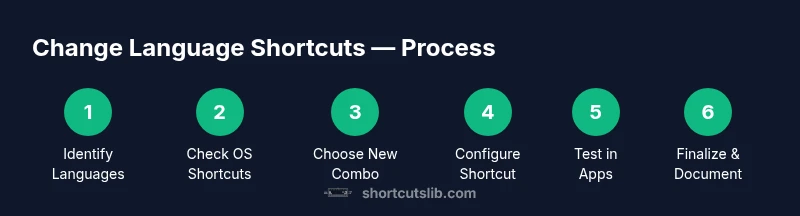
Change Language Keyboard Shortcut: Quick Guide
Learn to view, configure, and troubleshoot language-switch shortcuts across Windows, macOS, and Linux. This guide from Shortcuts Lib covers defaults, customization, and testing to keep language switching fast and reliable.


You will learn to identify, configure, and test a dedicated language-switch shortcut on Windows, macOS, and Linux. By the end, you'll be able to switch input sources with a customized key combo, and revert to defaults if needed. This quick guide, informed by Shortcuts Lib, covers defaults, customization, and troubleshooting to keep language switching fast and reliable.
What a change language keyboard shortcut means and why it matters
In today’s multilingual workflows, a reliable language-switch shortcut can save minutes every day. The ability to flip between input languages with a single key combo reduces context switching, helps you avoid mistakes when typing accented characters, and keeps your focus on the task at hand. According to Shortcuts Lib, a consistent shortcut across devices minimizes cognitive load and speeds up daily work. This section defines the term and sets expectations for what you’ll customize throughout this guide. A language keyboard shortcut is a dedicated key combination that toggles the active input language or keyboard layout. It matters most when you frequently switch between languages in documents, emails, code, or messaging apps. You’ll learn how to locate defaults, customize them to your needs, and validate behavior across your most-used programs.
- Define the concept in practical terms: a keystroke that changes the input method without opening menus.
- Why it matters: faster switching, fewer typos, and improved accessibility for multilingual users.
- What you’ll gain: a step-by-step method to locate, adjust, and test language-switch shortcuts across operating systems.
Throughout this article you’ll see examples from real workflows and tips based on our research at Shortcuts Lib to help you implement a robust solution.
-1
Tools & Materials
- Computer with a modern OS(Windows 10/11 or macOS 11+ or a Linux desktop environment (GNOME, KDE, etc.))
- Keyboard(Standard physical keyboard with a language-switching feature if available)
- At least one configured input language(Install an additional language/input method to switch to)
- Backup plan for config(Optional: export or note current shortcut settings before changing)
Steps
Estimated time: Estimated total time: 15-25 minutes
- 1
Identify current language shortcuts
Open your system language or keyboard settings and locate the existing shortcut that toggles input sources. If you don’t see a dedicated shortcut, note whether the OS uses a menu bar icon or a global hotkey. This step establishes your baseline and helps you decide whether to customize or keep defaults.
Tip: Take a screenshot of current settings before making changes. - 2
Decide your target shortcut
Choose a key combination that is memorable and unlikely to conflict with other common shortcuts in your apps. Favor combinations that use modifiers (Ctrl/Alt/Shift/Command) plus a letter or number you don’t frequently press in editing tasks.
Tip: Avoid bindings that steal essential editing shortcuts (e.g., Ctrl+C, Ctrl+V) unless you’re prepared to reconfigure them. - 3
Open the OS language/keyboard settings
Navigate to the language or input section of your operating system’s settings. On Windows, use Settings > Time & language > Language; on macOS, use System Settings > Keyboard; on Linux, access the Region & Language or Keyboard settings depending on your desktop environment.
Tip: If you’re unsure where to find it, use the OS search feature and type 'language' or 'keyboard'. - 4
Configure the new shortcut
Select the option to change the shortcut and enter your chosen key combination. If available, enable a toggle to apply the change system-wide or per-user. Save the configuration and be prepared for a brief re-run of the setup on any other device you use.
Tip: Test with a quick switch in a text editor to confirm it’s active. - 5
Test across apps
Try the shortcut in a browser, code editor, and word processor to ensure consistent behavior. Some apps may override global shortcuts, so verify in at least three representative tools you use daily.
Tip: If a conflict occurs, revisit Step 2 and select a different combination. - 6
Troubleshoot conflicts
If the shortcut does not switch languages, check for app-specific shortcuts, third-party hotkey managers, or accessibility tools that could intercept keys. Disable or remap conflicting utilities as needed.
Tip: Document any conflicting apps to streamline future changes. - 7
Back up and document
Export your new shortcut settings or write them down in a personal quick-start guide. This makes future migrations (new computer or OS update) faster and reduces the chance of losing the configuration.
Tip: Create a simple one-page reference you can carry with you. - 8
Review and refine
After a week of use, reassess the shortcut. If you find it too hard to reach or frequently conflicts, adjust the combination and re-test across key apps.
Tip: Consistency across devices yields long-term time savings.
Questions & Answers
What is a language keyboard shortcut?
A language keyboard shortcut is a key combination that switches your active input language or keyboard layout without navigating menus. It streamlines multilingual work by reducing steps to change languages.
A language shortcut lets you switch languages with a keystroke, so you don’t have to pause to click menus.
Can I have different shortcuts for Windows and macOS?
Yes. Most people use separate shortcuts per operating system to reflect their native workflows. You can tailor each OS independently while keeping a similar mental model to minimize confusion.
You can customize shortcuts separately per OS to match how you work on each device.
Will changing shortcuts impact apps I use?
Some applications override global shortcuts. It’s common for editors or browsers to use their own bindings. Always test across your key apps after updating shortcuts.
Apps may override shortcuts, so test in your main programs after making changes.
What if I forget the new shortcut?
Keep a simple reference note or export your current settings. Most OSes also offer a documented reset option to restore defaults.
If you forget, look up the shortcut in settings or reset to default in the OS.
Is there an accessibility-friendly way to switch languages?
Yes. Many OSes provide accessible shortcuts, including voice commands or on-screen keyboards. You can often enable larger cues or onscreen indicators for input methods.
Accessibility options can help you switch languages without keyboard shortcuts, if needed.
How do I test if the shortcut works?
Open several documents, emails, and browser windows, then use the shortcut to switch languages. Confirm the input source changes in each context and does not disrupt typing.
Test across the main apps you use to ensure it works reliably.
Watch Video
Main Points
- Define a language shortcut that fits your workflow.
- Customize with care to avoid conflicts.
- Test across apps to ensure consistency.
- Document the setup for future reference.