Keyboard Shortcuts to Change Language: A Practical Guide
Learn reliable keyboard shortcuts to switch input language on Windows, macOS, and Linux. Step-by-step setup, customization tips, and practical workflows from Shortcuts Lib to speed multilingual work.


Master language switching with reliable keyboard shortcuts that work across Windows, macOS, and Linux. This guide walks you through setup, customization, and best practices so you can change input language with a single keystroke during all your tasks. According to Shortcuts Lib, consistent language-switch shortcuts reduce cognitive load and speed multilingual work.
Why language-switch shortcuts matter in multilingual work
In today’s globally connected workflows, you’re likely to juggle documents, code, and chats in multiple languages. The ability to switch input language quickly—without breaking your focus—saves seconds per sentence and dozens of minutes per week. Keyboard shortcuts for language switching are not just conveniences; they reduce cognitive load, prevent context switching errors, and help you stay in flow. At Shortcuts Lib, we’ve found that teams who standardize their language-switch shortcuts across devices report smoother collaboration and fewer accidental language insertions. This section explains the core benefits and the mental model behind efficient language switching, with concrete examples you can apply immediately.
Key ideas:
- Consistent shortcuts across platforms minimize surprise and context switching.
- Shortcuts should map to your most-used languages and layouts (e.g., English, Spanish, Chinese, etc.).
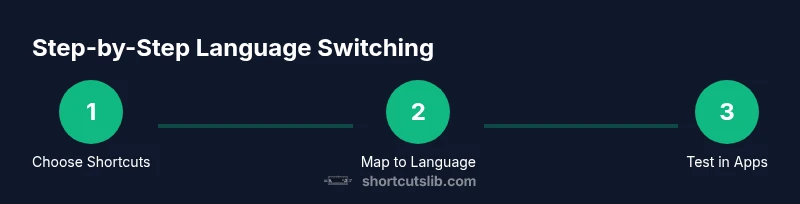
- Testing in real tasks (typing emails, coding, or chat) reveals practical resonance with your daily rhythm.
By the end of this section, you’ll know which shortcut families work best and how to align them with your OS and apps for seamless language changes.
The core shortcut families you’ll likely use
- Global language cycle: a single keystroke sequence to rotate through installed input methods.
- Language-direct switch: a shortcut dedicated to jumping straight to a chosen language/keyboard layout.
- App-aware switching: shortcuts that behave differently depending on the active application (helpful for editors vs. browsers).
- Modifier-based toggles: using Shift, Ctrl/Cmd, or Alt with a letter to toggle between specific layouts.
Choosing your family depends on your daily rhythm: frequent bilingual writers benefit from direct switches to a primary language, while multilingual coders may prefer quick cycling to avoid breaking code syntax, comments, or identifiers.
Common pitfalls include overloading a single shortcut, mixing OS-level and app-level mappings, and neglecting to test shortcuts in the tools you use most (word processors, IDEs, chat apps). The goal is a predictable, low-friction experience that keeps your hands on the keyboard and your ideas flowing.
How to map language switches to ergonomic, memorable shortcuts
A practical approach is to pick a base of two to three shortcut combinations that you can recall without looking. For example, a Windows user might map Win + Space to cycle through languages, while a macOS user could assign Control + Space to switch input sources. The key is to assign distinct shortcuts for cycling versus direct language jumps, so you never confuse the two during fast typing.
To keep things maintainable:
- Use consistent modifier keys (e.g., always involve Ctrl/Cmd with a single-letter key).
- Avoid common keys used by your editor or browser (like Ctrl+S or Ctrl+P).
- Document mappings in a quick guide within your notes or a shared wiki so teammates can reproduce the setup.
Next, we’ll walk through platform-specific steps for Windows, macOS, and Linux, plus cross-platform tips to unify your experience across devices.
Platform-agnostic setup: a mental model and workflow
If you’re using multiple devices, you’ll want a central mental model for language switching that applies everywhere. Start by establishing two baseline shortcuts:
- A cycling shortcut to move through all installed layouts (e.g., Cycle: English → Spanish → French → Chinese).
- A direct jump shortcut to your primary language (e.g., Jump to English).
With these, you can stay in flow when typing in different languages, coding with multilingual comments, or communicating across teams. The practical trick is to keep shortcuts consistent across OS updates and across similar apps (word processors, IDEs, and chat tools).
In the following sections, you’ll find concrete, step-by-step instructions for Windows, macOS, and Linux, plus a consolidated testing plan and troubleshooting tips.
Testing language-switch shortcuts in real tasks
Testing is essential to ensure your shortcuts work where you need them. Try these workflows:
- Email drafting in English, then switch to Spanish to complete a paragraph.
- Code comments in one language, while the code remains unaffected by input language.
- A chat conversation that alternates languages to confirm the shortcuts don’t trigger unintended actions.
Pro tip: test in each frequently-used application, save your test scenarios as a checklist, and adjust mappings if you notice conflicts with application shortcuts. When you’re comfortable, document the exact steps you used to configure each platform.
Accessibility considerations when changing language
Language-switch shortcuts should be accessible to all users, including those relying on keyboard navigation and screen readers. Ensure that your mappings are visible in OS accessibility settings, and consider providing audible confirmations (like a brief spoken cue or a screen reader message) when a language switch occurs. If you work in a shared environment, select shortcuts that are easy to discover and transcription-friendly so teammates can follow along. Shortcuts Lib emphasizes accessibility as a core aspect of robust shortcut design.
Tools & Materials
- Computer with Windows/macOS/Linux(Admin access may be needed to install or modify language packs)
- Installed languages / input methods(Add target language keyboards or input methods (e.g., English, Spanish, Chinese))
- Documentation for shortcuts(Optional: a shared wiki or notes file to record mappings)
- External keyboard (optional)(Can help with dedicated language-switch keys if your main keyboard lacks them)
Steps
Estimated time: 60-90 minutes
- 1
Open language and input settings
Open the language or keyboard settings panel for your operating system. This is the first step to see which languages and layouts are installed and ready to assign shortcuts to. Knowing the exact list keeps future steps precise.
Tip: If you’re unsure where to find this, use the OS search feature (Windows: Start Menu, macOS: Spotlight) and type 'Language' or 'Input source'. - 2
Add or confirm target languages
Ensure your target languages are added as input methods. Some systems auto-detect, others require manual addition. You’ll need at least two languages for cycling.
Tip: Keep the list lean—avoid enabling many layouts you rarely use to reduce cognitive load. - 3
Choose a cycling shortcut
Pick a base shortcut to rotate through all installed input methods. Use a consistent modifier key and a simple letter that doesn’t collide with other apps.
Tip: Avoid keyboard shortcuts tied to common editor commands in your primary apps. - 4
Assign a direct-language jump shortcut
Create a separate shortcut to jump straight to your most-used language. This saves time when you switch back and forth.
Tip: Limit the number of direct jumps to keep the shortcut map manageable. - 5
Test the shortcuts in your top apps
Open your typical tools (email, IDE, chat) and test both cycling and direct jump shortcuts. Confirm that the correct language appears and that typing remains normal.
Tip: Record a quick video or notes of outcomes for future reference. - 6
Resolve conflicts and refine mappings
If a shortcut conflicts with an app’s built-in command, re-map to a non-conflicting key. Keep a premiere list of mappings.
Tip: Document conflicts and your fixes in your setup guide. - 7
Document your setup and share
Create a concise reference for your shortcuts and language layouts. Share with teammates to promote consistency.
Tip: Include example sentences in each language to verify correctness in real typing scenarios. - 8
Review after OS updates
Major OS updates can reset or alter shortcuts. Re-check mappings after updates and re-save your configuration if needed.
Tip: Set a quarterly reminder to audit language-switch shortcuts.
Questions & Answers
What are the most common shortcuts to switch languages on Windows, macOS, and Linux?
On Windows, you can cycle through input methods with Win + Space or Alt + Shift depending on version and settings. macOS commonly uses Control + Space, with additional options in Keyboard preferences. Linux distributions vary by desktop environment, but many use Super/Windows key combos or Ctrl + Space for cycling.
Windows uses Win plus Space; macOS uses Control plus Space; Linux varies by desktop environment, typically Ctrl + Space or a similar combo.
How do I add a new language input method on Windows/macOS/Linux?
Windows: go to Time & Language > Language > Add a preferred language. macOS: System Settings > Keyboard > Input Sources > add. Linux: Settings > Region & Language or your distro’s language settings; install the keyboard layout via your package manager if needed.
Go to the language or keyboard settings on your OS to add a new input method. Then enable it for quick switching.
Can I assign a direct shortcut to a specific language?
Yes. Most operating systems let you bind a dedicated shortcut to jump straight to a chosen language. Choose a rarely used key combination to avoid conflicts, and test it in your most-used apps.
Yes, you can assign a shortcut to jump directly to a language, but pick something unlikely to clash with other commands.
What should I do if my shortcuts stop working after an OS update?
Revisit your settings after update. Some OS updates reset shortcuts or change key bindings. Reapply your mappings and verify in the apps you use most.
If shortcuts stop after an update, re-check and re-apply your language-switch mappings in system settings.
Are there accessibility considerations for language switching?
Yes. Choose shortcuts that are easy to reach with one hand and provide aural or visual confirmations. Document the setup so users relying on assistive tech can follow along.
Yes—choose accessible shortcuts and provide confirmations to support users who rely on assistive tech.
How can I test language-switch shortcuts effectively?
Create real-world tasks (email, coding, chat) and verify switching works without breaking productivity. Record outcomes, adjust for conflicts, and keep a living guide.
Test with real tasks across apps, adjust for conflicts, and maintain a live guide.
Watch Video
Main Points
- Define 2-3 reliable shortcuts for language switching
- Standardize mappings across devices for consistency
- Test in your top apps and document the setup
- Avoid shortcut conflicts with essential app commands
- Review and refresh shortcuts after OS updates