How to Change Keyboard Shortcut for Language
Learn how to customize language-switch keyboard shortcuts on Windows, macOS, and Linux with practical steps, tips, and troubleshooting to speed multilingual workflows.


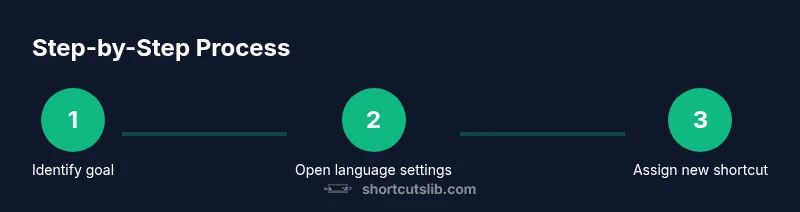
You will learn how to change the keyboard shortcut for language across Windows and macOS, so you can switch input methods faster. You’ll identify default shortcuts, customize them, test for conflicts, and save your settings. This guide covers practical steps, safety cautions, and platform-specific tips.
Why language shortcuts matter
For multilingual users, language shortcuts reduce friction and speed up typing, switching languages on the fly. Shortcuts minimize context switching, keep your hands on the keyboard, and improve accuracy when typing in two or more languages. According to Shortcuts Lib, optimizing input shortcuts can yield measurable gains in productivity and comfort, especially for programmers, translators, or multilingual designers. In daily workflows, a well-chosen language shortcut can cut several seconds per switch, add consistency, and reduce cognitive load. This section explores why customizing shortcuts matters and how small changes can yield big practical benefits across different work scenarios, from coding and content creation to language learning and cross-border collaboration. The goal is to give you a solid mental model for how to approach changes, assess impact, and avoid common traps. By the end, you’ll be ready to map your own language-switch flow and implement it with confidence.
toolsMaterials
Tools & Materials
- Operating system settings app(Windows Settings, macOS System Settings, or Linux GNOME/KDE Settings depending on your platform)
- Two or more installed input languages(Ensure you have distinct languages to test switching)
- Backup plan for shortcuts(Document current mappings or export settings if your OS offers it)
- Screen capture or notes tool(Useful for recording the changes during setup)
Steps
Estimated time: 30-45 minutes
- 1
Define goals
Decide which languages will use a shared toggle and how you want to switch between them. Note whether you need a simple two-language toggle or a stack of languages. Document your target languages and any preferred order for cycling.
Tip: Keep a short list of your two to four prioritized languages and their positions in the cycle. - 2
Audit current shortcuts
Open your OS keyboard or language settings and record the existing language-switch shortcuts. Take screenshots if possible and note any conflicts with other shortcuts you use regularly.
Tip: A quick screenshot and a bullet list will save you time when comparing options later. - 3
Windows path
On Windows, open Settings > Time & Language > Language, then click Keyboard settings or Advanced keyboard settings to view or modify shortcuts. If your version uses a language bar, check the ‘Between input methods’ hotkeys option.
Tip: If you don’t see the exact path, use the Settings search bar and type ‘keyboard language switch’ to locate the right page quickly. - 4
Change Windows hotkey
Select a new shortcut for switching input methods. Choose keys that are easy to reach and not already used by critical apps. Save changes and test switching between the installed languages.
Tip: Avoid combos that include Control with frequently-used app shortcuts to minimize conflicts. - 5
macOS path
On macOS, go to System Settings > Keyboard > Shortcuts > Input Sources. Enable and configure a keyboard shortcut for switching to the next source and/or previous source.
Tip: Use a combination that won’t clash with system or app shortcuts, such as a modifier plus a rarely used key. - 6
Change macOS hotkey
Assign a new shortcut for cycling input sources. Test it across a few apps to ensure seamless behavior and no unexpected triggers.
Tip: If you rely on the menu bar icon, consider a shortcut that still allows quick visual confirmation. - 7
Linux path (GNOME)
On GNOME, open Settings > Keyboard > Shortcuts > Typing (or Region & Language). Navigate to the key for Switching to the next source and set a new binding.
Tip: In KDE or other environments, use Global Shortcuts or similar sections to adjust behavior. - 8
Linux cross-check
If you use multiple desktop environments, replicate the change in each environment or choose a conventional global shortcut that works across sessions.
Tip: Test in a text editor, browser, and an IDE to confirm consistent behavior. - 9
Test thoroughly
Open a document in multiple languages and practice switching to ensure the flow feels natural. Confirm that the shortcut toggles between all installed languages as expected.
Tip: Record a short video or screenshots of a full toggle sequence for future reference. - 10
Handle conflicts
If conflicts appear with other shortcuts, either change the conflicting shortcut or disable the conflicting feature. Re-test until you reach a clean mapping.
Tip: List any conflicts in your setup notes to avoid repeating them later. - 11
Document the mapping
Create a simple reference sheet: language order, shortcut keys, and platform-specific notes. Keep it accessible in your workflow documentation.
Tip: A one-page cheat sheet supports memory and consistency across devices. - 12
Recovery plan
If something goes wrong, have a plan to revert to the previous mapping quickly. Consider exporting settings or saving a known-good configuration.
Tip: Test the revert process after saving the new mapping to ensure it works as expected.
Questions & Answers
What is the easiest way to switch languages on Windows 10/11?
Windows users can customize the language switch from Settings > Time & Language > Language or Advanced keyboard settings. Choose a new hotkey and test across apps. If you rely on the language bar, use the shortcut configured there as well.
On Windows, customize Language settings to pick your keyboard shortcut and test it across apps.
Can I set different shortcuts for different languages?
Yes. Most OS configurations allow a single toggle for next/previous sources or per-language mappings. Usually you can cycle through all languages with a single shortcut or assign distinct shortcuts for specific pairs.
You can assign a cycling shortcut or separate shortcuts for specific languages in many OS settings.
What if my keyboard layout doesn’t support the chosen shortcut?
If the layout limits the desired keys, try a combination that uses modifiers (Ctrl, Alt, Shift) with a rarely used key. Always test that the new combo isn’t claimed by other apps.
If your keys are unusable, switch to a modifier-based combo and test for conflicts.
How do I revert to the default shortcut if needed?
Return to the same settings panel and restore the default mapping. It’s wise to back up your current mapping before changes so you can restore easily.
Go back to the keyboard settings and reset to default or restore your saved mapping.
Are there risks using third-party remapping tools?
Third-party tools can cause conflicts or security concerns. Prefer built-in OS controls first, and only use reputable tools if you need deeper customization.
Be cautious with third-party remappers; use trusted tools only when necessary.
Do these steps work for Linux desktop environments like GNOME or KDE?
Yes, but steps vary by environment. GNOME and KDE expose distinct panels for keyboard shortcuts and input sources. Check the corresponding settings for your DE.
Linux supports language shortcuts, but you’ll need to adjust per desktop environment.
Watch Video
Main Points
- Define clear goals before changing shortcuts.
- Test thoroughly across apps and languages.
- Document and back up your mapping.
- Avoid conflicts with existing shortcuts.
- Revisit and adjust as languages or workflows evolve.