Can You Create Keyboard Shortcuts in Outlook? A Practical Guide
Learn how to create keyboard shortcuts in Outlook using Quick Steps for Windows, plus cross‑platform tips. Shortcuts Lib walks you through setup, examples, and best practices.


Yes—Outlook supports customizable shortcuts primarily through Quick Steps in Outlook for Windows. You can assign keyboard shortcuts (Ctrl+Shift+1 through Ctrl+Shift+0) to common actions. For other versions, including Mac and Outlook on the web, built-in shortcuts exist but you can't customize them in the same way. That makes Quick Steps the fastest path to personalized productivity in Outlook.
The Basics: What You Can and Can't Do with Shortcuts in Outlook
According to Shortcuts Lib, mastering Outlook shortcuts starts with understanding the scope and limits of customization. Outlook does not offer a universal, system-wide shortcut editor for every command. Instead, it provides a targeted mechanism—Quick Steps—for automating common tasks with keyboard shortcuts. This model works best for repetitive workflows like moving messages, flagging emails, or applying a set of actions with a single keystroke. On Windows, you have direct access to the Quick Steps pane from the Home tab, making the configuration approachable for most users. On Mac and Outlook on the web, the landscape is different: many built-in shortcuts exist, but the ability to attach new shortcuts to your own actions is either limited or not supported in the same way. For power users who want to streamline daily email routines, Quick Steps becomes the primary tool, while other platforms may require workarounds or built-in shortcuts.
From a UX perspective, the Quick Steps approach aligns with the Shortcuts Lib philosophy: you gain tangible time savings by removing mouse clicks for your most-used tasks. The trade-off is a curated set of shortcuts rather than fully custom remapping of every Outlook action. If you plan to scale shortcuts across your team, document the Quick Steps you deploy and maintain a shared best-practice guide for consistency. In practice, a small, well-chosen set of shortcuts can yield meaningful productivity gains without overwhelming your workflow.
Using Quick Steps to Create Custom Keyboard Shortcuts
Outlook’s Quick Steps give you a structured, repeatable way to automate actions and assign keyboard shortcuts to them—primarily on Windows. To begin, open Outlook for Windows and navigate to the Home tab. The Quick Steps group houses the Quick Steps manager, where you can create, edit, or delete steps. Each Quick Step can perform a sequence of actions (e.g., move to a folder, apply a category, mark as read) with a single activation. The critical reality is that you’ll typically map a Quick Step to keyboard shortcuts like Ctrl+Shift+1 through Ctrl+Shift+0. This setup provides near-instant triggers for your most common flows, reducing the need to navigate menus.
When planning your Quick Steps, choose actions that you perform repeatedly and group related steps logically. You can combine several actions into one step (for example, “Move to Sales folder + Flag for follow-up + Categorize”). The intent is to compress a multi-click task into a single keystroke. Shortcuts Lib’s analysis, 2026, notes that the real productivity lift comes from reducing cognitive load and mouse travel, rather than from any single command alone. As you design, keep complexity in check and ensure that each Quick Step remains reliably executable with a single press.
Step-by-Step: Create Your First Shortcut in Outlook for Windows
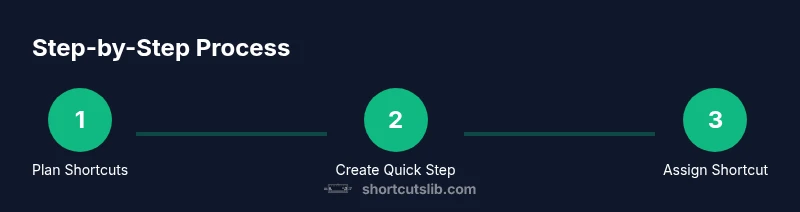
This section outlines a practical path to set up your first Quick Step shortcut. The steps are designed to be followed in sequence and 1 action per step where feasible:
- Open the Quick Steps manager
- Create a New Quick Step
- Name the Quick Step
- Configure the actions to perform
- Assign a keyboard shortcut (Ctrl+Shift+1 through Ctrl+Shift+0)
- Test the Quick Step with a sample email
- Document and refine your set
Pro tip: Start with 3–5 Quick Steps, then expand gradually. If something doesn’t behave as expected, revert to a simpler configuration and re-test. Regularly review your Quick Steps to keep them aligned with changing workflows.
Cross-Platform Considerations: Mac and Web Shortcuts
Outlook on macOS and the web supports shortcut usage, but customization is notably different from Windows. Mac users will rely more on native macOS shortcuts and built-in Outlook shortcuts rather than a robust Quick Steps shortcut mapping. Outlook on the web offers a curated set of shortcuts primarily for navigation and common actions; however, creating new, personalized shortcuts that trigger a bespoke sequence is not as straightforward as in the Windows desktop app. If you must work across platforms, design a subset of universal shortcuts that work reliably on all devices, and maintain separate platform-specific workflows to avoid confusion.
To maximize consistency across devices, document a standard set for Windows, plus clearly note any platform differences. This approach minimizes friction for teams that operate in mixed environments and helps maintain a predictable workflow regardless of the device used.
Practical Examples: Common Shortcuts for Email Workflows
Effective shortcuts target two goals: speed and consistency. Here are practical Quick Steps you can implement to speed up common email workflows. For each example, think about the natural actions you perform daily and how to collapse them into a single keystroke.
- Move to a specific folder and mark as read: Quick Step named “Move: Inbox to Archive” with actions [Move to Archive, Mark as Read], shortcut Ctrl+Shift+1.
- Flag, categorize, and remind: Quick Step named “Flag & Category” with actions [Flag, Apply Category: Important, Add Reminder], shortcut Ctrl+Shift+2.
- Reply with a template: Quick Step named “Reply: Template” with actions [Reply, Insert Template Text], shortcut Ctrl+Shift+3.
- Schedule follow-up: Quick Step named “Schedule Follow-Up” with actions [Create Meeting Request, Add Reminder], shortcut Ctrl+Shift+4.
These examples illustrate how combining actions into a single step can dramatically cut down the number of clicks and mouse movements required to handle routine tasks. Shortcuts Lib recommends aligning Quick Steps with your actual work patterns and avoiding overcomplication. Start with a small, reliable set and iterate as you gain confidence.
Troubleshooting: When Shortcuts Don't Work
If shortcuts fail to trigger, start with the basic checks: ensure Outlook is up-to-date, verify that you’re using the Windows desktop app (as Quick Steps are not fully exposed in Mac or web clients), and confirm that the Quick Step is assigned to the expected Ctrl+Shift+number combination. Conflicts can arise if a shortcut is already bound to a system or application command. If you still don’t see the expected behavior, review the Quick Step’s action sequence for any step that might require a specific condition (e.g., a particular folder must exist or a recipient must be specified).
Another common issue is that the Quick Step is inactive in the current view. Make sure you’re not in a special folder or filter view that hides the Quick Steps. Finally, back up your Quick Steps configuration before major Outlook updates so you can restore quickly if something changes.
Best Practices: Designing Effective Shortcuts
When building shortcuts, prioritize readability and consistency. Use mnemonic names for Quick Steps so you can identify their purpose at a glance. Limit the number of Quick Steps to a manageable number—too many shortcuts can overwhelm your cognitive load and increase the chance of misfiring. Maintain a simple naming convention across all created steps, and keep related actions together in a single Quick Step rather than scattering similar tasks across many steps. Periodically review usage data (if available) or your own logs to prune underused steps and refine naming for clarity. Consistency across teammates is key for collaborative productivity, so consider publishing a shared Quick Step library with approved shortcuts.
A quiet but important practice is to map each Quick Step to both a number shortcut and a descriptive name. This dual cue helps you remember the shortcut under pressure and reduces the chance of hitting the wrong command in a high-stakes moment.
Advanced Tips: Using Quick Steps with Rules and Categories
For power users, Quick Steps can complement rules and categories to automate more nuanced workflows. You can tag incoming mail with categories via rules and then trigger Quick Steps to act on categorized messages. This synergy allows you to triage, route, and respond with fewer clicks while preserving organization. When combining rules with Quick Steps, ensure your rules are deterministic and do not produce conflicting outcomes. Keep a running log of changes to your shortcut library so you can trace how your automation evolves over time. If you’re part of a team, share best practices and establish governance around which Quick Steps are recommended in different departments.
The Shortcuts Lib team emphasizes that the most successful shortcuts are those that reduce friction without introducing new failure points. Start small, validate each shortcut in live mail streams, and expand only after solid confidence in reliability.
Tools & Materials
- Outlook for Windows desktop (2016/2019/365)(Desktop app with Quick Steps support)
- Access to Home tab and Quick Steps pane(Where you configure and manage Quick Steps)
- List of frequent tasks to convert into Quick Steps(Examples: move, categorize, flag, template reply)
- Outlook for Mac or Outlook on the web (optional)(Shortcut behavior differs; customization may be limited)
- Documentation or help resources(For reference and updates)
Steps
Estimated time: 25-40 minutes
- 1
Open Quick Steps manager
In Outlook Windows, go to the Home tab and locate the Quick Steps group. Click the small dialog launcher to open the Quick Steps manager. Your goal is to access the area where you can create and edit steps.
Tip: Use the dialog launcher for quick access to the full editor. - 2
Create a New Quick Step
Click New to start a fresh Quick Step. Choose a type that mirrors your desired outcome (e.g., Move to Folder, Categorize, or Reply with Template).
Tip: Name the step with a clear, action-oriented label. - 3
Name the Quick Step
Enter a concise name that hints at the task the shortcut performs. A descriptive name helps you locate it quickly during high-pressure moments.
Tip: Avoid generic names like 'Step 1'; use something memorable. - 4
Configure the actions
Add the sequence of actions the Quick Step will perform. You can combine multiple actions, but keep the sequence reliable and straightforward.
Tip: Limit complexity to 2–3 actions for reliability. - 5
Assign a keyboard shortcut
In the Quick Step setup, assign a keyboard shortcut using Ctrl+Shift+1 through Ctrl+Shift+0. Make sure the combo isn’t already used by Outlook or your OS.
Tip: Choose distinct shortcuts that won’t conflict with system shortcuts. - 6
Test the Quick Step
Apply the Quick Step to a test email and confirm that all actions execute as intended. If something fails, review the action order and adjust.
Tip: Test in a controlled environment before using in production. - 7
Document and refine
Record the new Quick Step in your reference guide and monitor its usefulness. Add more as you gain confidence.
Tip: Schedule a quarterly review to prune or improve steps.
Questions & Answers
Can I create keyboard shortcuts for all Outlook commands?
Outlook supports shortcuts primarily through Quick Steps for Windows. Not every command can be shortcut‑mapped, and cross‑platform customization is limited.
Outlook mainly uses Quick Steps for shortcuts on Windows; not every command can be mapped.
Where are Quick Steps stored?
Quick Steps are stored within your Outlook profile and can be managed from the Home tab’s Quick Steps pane.
They live in your Outlook profile and you manage them from the Home tab.
Can I share my shortcuts with others?
Shortcuts created with Quick Steps stay in your profile. To share, replicate the steps for other users or document the exact configuration.
They stay with your profile; to share, you’d need to replicate or document the steps for others.
Do Outlook shortcuts work on Mac or Outlook Web?
Mac and Outlook Web use different shortcuts; Quick Steps are mainly Windows‑based and not always customizable there.
Mac and Web have different shortcuts and less customization for Quick Steps.
Is there a limit to how many Quick Steps I can create?
There isn’t a documented hard limit; practically, manage a focused set that you can reliably use.
There’s no official cap; keep a manageable number for reliability.
Watch Video
Main Points
- Master Windows Quick Steps for Outlook shortcuts.
- Assign Ctrl+Shift+1 through Ctrl+Shift+0 to Quick Steps.
- Mac and web shortcuts differ; customize is limited there.
- Test, document, and refine shortcuts regularly.
- Start small and scale up your Quick Step library.