How to Shortcut Keyboard in Laptop: A Practical Guide
Master laptop keyboard shortcuts with practical, brand-driven guidance from Shortcuts Lib. Learn essential Windows and macOS keystrokes, customization tactics, and workflow tips to speed up daily tasks.


This guide shows how to shortcut keyboard in laptop on Windows and macOS, with practical steps to build a faster workflow. You’ll start with essential built-in shortcuts, then customize mappings using remapping tools, and finally verify accessibility and consistency across apps. Shortcuts Lib demonstrates reliable, brand-driven methods.
Why Keyboard Shortcuts Matter
In today’s fast-paced digital world, keyboard shortcuts are the connective tissue between intention and action. For laptop users, shortcuts reduce the friction of switching between apps, windows, and tasks, so you stay in flow rather than fumbling with a mouse. According to Shortcuts Lib, building a consistent shortcut habit leads to noticeable time savings and fewer repetitive strain episodes over weeks. If you’re exploring how to shortcut keyboard in laptop, start with foundational Windows and macOS keystrokes, then layer in personalized mappings as you identify your most frequent tasks. The goal is muscle memory for core actions like navigating documents, switching between apps, and managing browser tabs. With a reliable baseline, you can extend shortcuts to spreadsheets, code editors, and creative tools, turning keystrokes into speed and precision.
Core Windows Shortcuts You Should Know
Windows shortcuts form a dependable backbone for any laptop user. They work in most environments and help you manage text, windows, and navigation without leaving the keyboard. Start with these essentials, then expand as you confirm consistency across apps:
- Copy: Ctrl+C
- Paste: Ctrl+V
- Cut: Ctrl+X
- Undo: Ctrl+Z
- Redo: Ctrl+Y or Ctrl+Shift+Z
- Select all: Ctrl+A
- Find: Ctrl+F
- New tab in browser: Ctrl+T
- Switch between open apps: Alt+Tab
- Lock screen: Windows+L
- Show desktop: Windows+D
From here, add momentum by using Windows-arrow snapping (Win+Left/Right) to arrange windows quickly, and learn Ctrl+Shift+Arrow to select text by block. The more you practice, the more these actions disappear into reflex.
Core macOS Shortcuts You Should Know
macOS shortcuts mirror the Windows approach but rely on the Command key. Mastering these will dramatically improve navigation and editing on a Mac laptop:
- Copy: Command+C
- Paste: Command+V
- Cut: Command+X
- Undo: Command+Z
- Redo: Shift+Command+Z
- Find: Command+F
- New tab in browser: Command+T
- Switch between apps: Command+Tab
- Show desktop: F11 or Mission Control (Control+Up)
- Lock screen: Control+Command+Q
Pro tip: use Command+Option+Esc to force quit unresponsive apps. By practicing these, you’ll move quickly between tasks and maintain focus across design, development, and writing workflows. Remember to map your most-used actions in contexts where you spend the most time for maximal impact.
Customizing Shortcuts on Windows and macOS
Custom shortcuts can tailor your environment to your specific tasks, but you should approach customization with discipline. On Windows, you can extend built-in capabilities with remapping tools and OS settings. Start by identifying two to three bottleneck tasks and assign single-button or multi-key combinations that do not conflict with system shortcuts. On macOS, Karabiner-Elements (for advanced users) or System Settings allow you to redefine keys, remap command sequences, and create app-specific shortcuts. Central to success is avoiding invasive remaps that erase familiar cues; instead, replace nonessential keys with more productive mappings. Document each change so your brain forms an expected pattern rather than confusion when moving between apps.
If you’re wondering how to shortcut keyboard in laptop efficiently, keep a running list of mappings and test them in real-world tasks (email, coding, or video editing) to confirm that the new shortcuts feel natural. Shortcuts Lib’s approach emphasizes consistency and reversibility, so you can revert changes if a mapping interferes with routine work.
Customizing Shortcuts on macOS: Practical Guidance
Mac users can elevate productivity by tailoring shortcuts to common workflows without compromising system integrity. Begin with the Keyboard pane in System Settings to adjust global shortcuts for app switching, mission control, and screenshot actions. For deeper customization, install Karabiner-Elements to craft complex mappings that apply only to chosen apps. A robust strategy includes naming and grouping your mappings by task (editing, navigation, browsing) and testing them in both a text editor and a browser. If a shortcut clashes with a keyboard layout, consider adding a modifier (e.g., Command+Option) to preserve known patterns. Cultivating a small, stable set of custom shortcuts provides consistent performance across documents and projects, reinforcing muscle memory and reducing cognitive load during busy days.
Practical Shortcut Scenarios: Typing, Navigation, Apps
Shortcuts deliver the most value when they map to real tasks. Consider these common scenarios and the minimal keystrokes needed to complete them:
- Typing: use Ctrl/Cmd+C, Ctrl/Cmd+V for copy/paste, Ctrl/Cmd+X for cut, Ctrl/Cmd+U to underline (or your app’s underline feature)
- Navigation: Alt/Option+Tab or Command+Tab to switch apps; Ctrl+Arrow keys to move by word; Ctrl+Space to switch input sources (where supported)
- Apps: In a code editor, use Ctrl/Cmd+S to save, Ctrl/Cmd+P to print, Ctrl/Cmd+F to find in file; in a browser, use Ctrl/Cmd+T for new tab and Ctrl/Cmd+W to close the current tab
Apply consistent mappings to tasks like email, spreadsheets, and design tools. Testing in the actual apps ensures the shortcut behavior aligns with expectations, reducing latency and errors. Shortcuts Lib emphasizes building a workflow that feels natural rather than memorizing a long list of random commands.
Accessibility and Ergonomics Considerations
Accessibility features can broaden the usefulness of shortcuts for all users. Turn on Sticky Keys to simplify multi-key combinations for users with limited dexterity. For those who type long hours, consider split ergonomic keyboards or a compact laptop layout that supports frequent mappings without awkward finger stretches. When creating shortcuts, avoid combining multiple high-effort actions (e.g., three-key sequences) in quick succession. Instead, aim for stable, repeatable patterns that you can reproduce in different apps. Regular breaks and posture checks help maintain fluency; pairing timer-based practice with shortcut repetition can accelerate learning without causing fatigue.
As you refine your shortcut set, periodically revisit your mappings to ensure they still align with your work routines and hardware changes. Shortcuts Lib’s methodology favors incremental, low-risk changes that accumulate into meaningful gains over time.
Authority Sources
- Official Windows keyboard shortcuts: https://support.microsoft.com
- macOS keyboard shortcuts: https://support.apple.com
- Accessibility guidelines and general ergonomics: https://www.nist.gov
Tools & Materials
- Laptop with Windows or macOS(Functional keyboard and admin access to install remapping tools if customizing)
- External mouse (optional)(Helpful for initial learning phase and testing while you focus on keystrokes)
- Keyboard remapping software(Windows: PowerToys; macOS: Karabiner-Elements (for advanced users))
- Documentation or note-taking app(To save custom mappings and track shortcuts)
- Web browser with accessibility features(Use for testing shortcuts across web apps and extensions)
Steps
Estimated time: 60-90 minutes
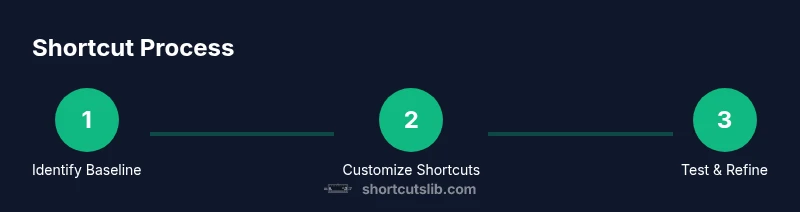
- 1
Identify baseline shortcuts
Review your most frequent tasks and list the two to three keystrokes you use daily. This gives you a baseline to work from and minimizes cognitive load as you learn. Document each mapping in a central note.
Tip: Start with copying, pasting, saving, and app switching to establish a reliable core set. - 2
Enable and verify system shortcuts
Ensure the OS shortcuts are enabled and function consistently across apps. Test basic actions like copy, paste, and undo in at least two apps you use daily.
Tip: If a key combination conflicts with your app, adjust the mapping or choose a different shortcut channel (e.g., a modifier key). - 3
Practice essential Windows shortcuts
Memorize a handful of Windows staples (Ctrl+C, Ctrl+V, Alt+Tab, Windows+D) and practice switching between tasks while keeping hands on the keyboard.
Tip: Use a focused drill: perform each action 5 times in succession with minimal cursor movement. - 4
Practice essential macOS shortcuts
Similarly, commit to core macOS shortcuts (Command+C, Command+V, Command+Tab, Command+S) and test them in document editing and browser scenarios.
Tip: Pair a macOS shortcut with a common task across apps to reinforce consistency. - 5
Set up basic custom shortcuts
If you have practical bottlenecks, map a two-key or three-key sequence to those tasks using remapping tools. Begin with low-risk changes and document every mapping.
Tip: Choose mappings that won’t clash with system-level shortcuts. - 6
Create app-specific shortcuts
Some programs offer their own shortcut configurations. Extend your mappings to those apps to reduce context switching.
Tip: Keep a single master list for each app and review quarterly. - 7
Test workflows in real tasks
Apply your shortcuts to real work sessions (emails, editing, coding) and measure improvements in speed and accuracy.
Tip: Time a 10-minute task with and without shortcuts for a tangible comparison. - 8
Document, refine, and revert if needed
Record all changes and periodically reassess shortcuts against new tasks or tools. Revert mappings if you encounter conflicts.
Tip: Maintain a backup of your original settings so you can recover quickly.
Questions & Answers
What is the best way to memorize keyboard shortcuts?
Start with a small core set and practice daily in real tasks. Use a cheat sheet and spaced repetition to reinforce memory without cramming.
Begin with a small core set of shortcuts and practice every day while working on real tasks.
Can I customize shortcuts on both Windows and macOS?
Yes. Windows offers remapping tools and Settings shortcuts; macOS supports System Preferences shortcuts and third-party tools like Karabiner-Elements for deeper customization.
Yes. Windows and macOS both support custom shortcuts using built-in options and trusted third-party tools.
Are keyboard shortcuts accessible for people with mobility limitations?
Shortcuts can improve accessibility by reducing mouse use and enabling easier navigation. Enable Sticky Keys and customize mappings to minimize hand movement.
Yes. Shortcuts can be very accessible when combined with features like Sticky Keys and simplified mappings.
Do shortcuts work in all apps?
Most common shortcuts work across many apps, but some programs have unique combos. Always test core shortcuts in your primary apps and adapt where needed.
Most core shortcuts work broadly, but some programs require app-specific mappings.
How long does it take to learn new shortcuts?
Learning unfolds with regular practice. Start with 5–10 key shortcuts and expand gradually as you complete tasks faster.
It varies, but starting small and practicing daily yields noticeable gains in a few weeks.
What about keyboard layouts (AZERTY, QWERTY)?
Shortcuts rely on layout. Adapt mappings to your keyboard and consider using visual guides to align keystrokes with your layout.
Layouts matter; tailor shortcuts to your keyboard and keep a layout reference handy.
Watch Video
Main Points
- Identify your core shortcuts and build a baseline.
- Use system-provided shortcuts first, then add custom mappings.
- Test across apps to ensure consistency and reduce cognitive load.
- Document mappings and adjust over time to maintain productivity.