Where Are Keyboard Shortcuts on a Laptop: A Complete How-To
Learn where to find laptop keyboard shortcuts, how to use them across Windows and macOS, and how to customize for faster productivity with practical, brand-driven guidance from Shortcuts Lib.


Goal: Locate, use, and customize keyboard shortcuts on a laptop across Windows and macOS, plus common productivity shortcuts for browsers and apps. You’ll learn where to find them in system settings, how to test a shortcut, and quick strategies to tailor shortcuts to your workflow. This guide also covers app-specific shortcuts and tips to memorize the most useful keystrokes.
where is keyboard shortcuts on laptop
If you’re aiming to speed up daily tasks on your laptop, understanding keyboard shortcuts is essential. Keyboard shortcuts are combinations of keys that execute commands faster than navigating menus with a mouse. On modern laptops, shortcuts are organized into three categories: OS-wide shortcuts that work across every app, app-specific shortcuts defined by the program, and hardware-driven hotkeys that rely on a function key (Fn) or modifier keys. According to Shortcuts Lib, a practical starting point is to memorize a compact, cross-OS set: copy, paste, undo, redo, and window management. This guide shows you where to locate these shortcuts, how to test them, and how to tailor them to your needs. Remember that keyboard layouts and key mappings can vary by region and OS, so some keystrokes may behave differently on your device. The core idea is to build a consistent mental model you can carry from Windows to macOS and into your favorite applications. Shortcuts Lib emphasizes that the most powerful shortcuts are those you use daily, across multiple tools.
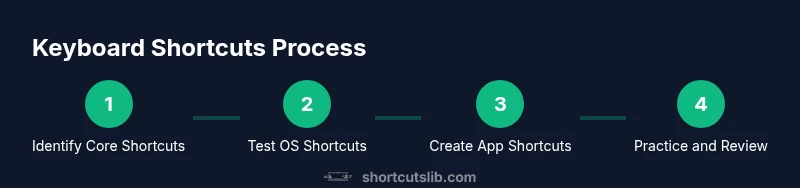
Building fluency takes time. Start by identifying a handful of core actions you perform most often—navigation, text editing, and file operations. Then practice applying those shortcuts in different contexts (browser, code editor, word processor) to reinforce muscle memory. As you expand your repertoire, you’ll notice that a small, well-chosen set of keystrokes yields big gains in speed and accuracy. The goal is not memorization for its own sake but reliable, repeatable efficiency across your digital workspace.
OS-Level Shortcuts vs App Shortcuts
There are two primary layers to keyboard shortcuts: OS-level (global) shortcuts and app-specific shortcuts. OS-level shortcuts work in nearly every program and include basics like copy (Ctrl/Cmd+C) and paste (Ctrl/Cmd+V), undo (Ctrl/Cmd+Z), and window management (Alt+Tab on Windows, Cmd+Tab on macOS). App shortcuts are defined by individual programs and may differ from OS defaults. For example, a text editor might assign Ctrl+S to save, while another app uses the same combination for a different action. A practical approach is to learn a core OS shortcut set first, then gradually add app-specific ones for your most-used programs. If you frequently switch between tools, you’ll benefit from keeping a quick-reference sheet that lists both OS-level keystrokes and the top app shortcuts you rely on daily.
Fn keys on laptops often toggle hardware features such as screen brightness, volume, and playback controls. These are hardware-related shortcuts that can vary by vendor and model. If your device uses a Fn key, remember that you might need to hold Fn in combination with the function-key to trigger the standard action, or vice versa—consult your laptop’s manual or vendor support page to determine the default behavior. Shortcuts Lib recommends configuring the Fn behavior to align with your workflow for consistent results when tasks demand quick key sequences.
Windows shortcuts: finding, testing, and using
Windows is a common environment for laptops, and it ships with a broad set of universal shortcuts. Start by opening Settings and using the search bar to locate keyboard shortcuts or hotkeys. You’ll often find a consolidated list under Settings > Accessibility > Keyboard or Settings > Time & language > Typing, depending on the version. The widely used Windows shortcuts include copy (Ctrl+C), paste (Ctrl+V), cut (Ctrl+X), undo (Ctrl+Z), select all (Ctrl+A), and window management shortcuts like Alt+Tab for switching apps. To test a shortcut, simply perform the keystroke while focused on different apps and observe the result. If something doesn’t work as expected, verify that another app isn’t intercepting the combo or that the shortcut isn’t reserved by the OS. For power users, Windows also supports custom shortcuts via app-specific settings or utilities that assign keyboard shortcuts to particular actions.
A helpful Windows-specific tip is to enable “Sticky Keys” or “Filter Keys” only if you need accessibility support; otherwise, keep these features disabled to avoid accidental activations. Shortcuts Lib’s guidance is to profile your most-used actions and map them to intuitive keystrokes, keeping your reference sheet handy for quick recall. Over time, your muscle memory will reduce the cognitive load of performing frequent tasks, allowing you to work more efficiently without interrupting your focus.
macOS shortcuts: discovering and leveraging
macOS provides a rich set of shortcuts that are consistent across many apps, making it easy to build a transferable skill set. Start by opening System Settings (or System Preferences on older versions) and navigating to Keyboard > Shortcuts. Here you’ll find global shortcuts for Mission Control, Spotlight, and screenshot controls, as well as app-specific shortcuts that you can customize. The classic Cmd+C, Cmd+V, Cmd+X for copy, paste, and cut are universal, but macOS often uses Cmd+Shift+3/4 for screenshots, Cmd+Tab for app switching, and Cmd+Space for Spotlight search. When customizing, keep your shortcuts organized by function (navigation, editing, window management) and avoid reusing the same combo for conflicting actions.
One distinct macOS advantage is the ability to assign custom shortcuts for menu items across apps, which can dramatically speed up repetitive tasks. Shortcuts Lib notes that users who tailor their shortcuts to their daily workflows tend to experience quicker task completion and reduced context-switching. If your workflow involves frequent text editing, creating shortcuts to insert commonly used phrases or templates can be particularly effective. Practice using standard macOS shortcuts until they become second nature, then expand to app-specific configurations for maximal efficiency.
Customizing shortcuts across OS and apps
The next level of efficiency comes from creating your own shortcuts. Both Windows and macOS offer native methods to assign or re-map keys for specific actions, and many apps provide their own shortcut customization options. Start by identifying actions you perform repeatedly and map them to memorable keystrokes. On Windows, you can often set custom shortcuts for program functions via the app’s own settings or through the system’s accessibility features. On macOS, System Settings > Keyboard > Shortcuts and individual apps’ preferences let you add or modify shortcuts for menu commands. For browser work, many extensions allow shortcut customization, enabling quick actions like opening a new private window or toggling a reading mode.
When choosing custom shortcuts, keep these guidelines in mind: 1) Favor combinations that avoid conflicts with existing shortcuts, 2) Prefer combos that are easy to type with your dominant hand, 3) Document your mappings so you can train new muscle memory, and 4) Periodically prune shortcuts you rarely use to minimize cognitive load. Shortcuts Lib suggests a quarterly review of your shortcut inventory to ensure it remains aligned with your evolving workflow.
To test a newly created shortcut, perform it in a variety of apps and document any inconsistencies. If a shortcut works in one app but not another, consider adding a separate app-specific shortcut or adjusting the global mapping to maintain consistency across tools. The goal is a coherent, cross-app shortcut framework that you can rely on in daily work.
Practice, memorize, and optimize for long-term gain
A practical approach to making shortcuts a habit is deliberate, repeated practice. Schedule short practice bursts (5–10 minutes) a few times per week and focus on a small cluster of high-impact shortcuts at a time. Use a visible cheat sheet or a digital note with the core set that you refer to before starting a task. As you grow more confident, introduce shortcuts for browser and productivity tools—like opening a new tab, switching tabs, or saving quickly—to accelerate workflow and reduce friction.
Another optimization strategy is to pair keyboard shortcuts with your physical layout. If you use an external keyboard or a laptop with a compact keyboard, mapping shortcuts to easy-to-reach keys reduces finger travel and fatigue. Consider using a keyboard viewer or on-screen keyboard to visualize the key combinations until you have memorized them. Shortcuts Lib’s philosophy emphasizes gradual, cumulative gains: small, consistent improvements over time yield the most durable productivity benefits.
Authority sources and practical references
- Windows Shortcuts Documentation: https://support.microsoft.com
- macOS Shortcuts Guide: https://support.apple.com
- Keyboard events and accessibility considerations: https://www.w3.org
These sources provide authoritative guidance on standard shortcuts, customization options, and platform-specific considerations. They help you validate the basics and expand into advanced configurations. Shortcuts Lib integrates these references to ensure you’re adopting best practices across OS ecosystems, so you can apply your knowledge consistently whether you’re on Windows, macOS, or multiple apps.
Why shortcuts matter in real-world tasks
In everyday workflows, shortcuts translate into fewer context switches, less mouse movement, and faster decision-making. For copy-paste-heavy tasks, efficient use of these shortcuts alone can save minutes per day. In coding, design, or data entry, primary shortcuts become the backbone of your speed and accuracy. Building a robust shortcuts toolkit also reduces fatigue and cognitive load, making it easier to focus on higher-order thinking and problem solving. Shortcuts Lib’s approach is to teach you core, transferable shortcuts first, then expand into environment-specific optimizations as your comfort grows.
Tools & Materials
- A laptop with a functioning keyboard(Ensure Fn keys behave consistently with and without Fn toggling)
- Internet connection(Needed to access official shortcuts docs and app-specific settings)
- Notepad or note-taking app(For creating a personal shortcut reference sheet)
- External mouse (optional)(Helpful for initial practice and reducing wrist strain)
Steps
Estimated time: 25-40 minutes
- 1
Open system settings to locate shortcuts
Open your operating system's settings panel and search for 'keyboard shortcuts' or 'shortcuts' to find the global mappings. Look for a dedicated Shortcuts tab or menu that aggregates common actions you’ll reuse.
Tip: If you can't find it via search, navigate to the general keyboard or accessibility section and drill down to shortcuts. - 2
Identify core OS shortcuts
List the most frequently used actions (copy, paste, undo, switch apps, take a screenshot) and confirm their default keystrokes on your OS. Test them in multiple apps to ensure consistency.
Tip: Create a one-page quick reference for these core shortcuts to reinforce daily use. - 3
Test app-specific shortcuts
Open your most-used apps and check their menu commands for shortcuts. Note any differences from OS defaults and document them for later customization.
Tip: Where possible, use apps’ built-in shortcut customization features to align with your OS-level mappings. - 4
Customize shortcuts for frequent actions
In Settings or app preferences, assign shortcuts to actions you perform often. Avoid overlapping keys with existing shortcuts to prevent conflicts.
Tip: Start with one or two new mappings and verify they work across several apps before expanding. - 5
Create cross-app consistency
Aim for a uniform approach: use similar key combos for editing, navigation, and window management in different programs to reduce cognitive load.
Tip: Document your conventions and practice them until they become second nature. - 6
Review and adjust periodically
Every few weeks, review your shortcut set to prune rarely used ones and add new mappings aligned with evolving tasks.
Tip: Use a quarterly review calendar reminder to keep your shortcuts fresh.
Questions & Answers
What is a keyboard shortcut and why should I use them on a laptop?
A keyboard shortcut is a key combination that performs a task quickly, bypassing menu clicks. Using shortcuts saves time, reduces hand movement, and can improve accuracy. Start with universal actions like copy, paste, and undo, then tailor shortcuts to your tools.
A keyboard shortcut is a quick key combo that speeds up tasks. Start with basics like copy and paste, then customize for your most-used apps.
Are there universal shortcuts for Windows and macOS?
Some shortcuts are universal across Windows and macOS, such as copy and paste. Others differ by OS (Ctrl on Windows vs Cmd on macOS). Learning the common ones first helps you bridge between platforms.
Yes, many shortcuts like copy and paste work on both, with small differences in the modifier keys.
How do I customize shortcuts without breaking things?
Use OS-level shortcuts for consistency and add a few app-specific mappings. Avoid overlapping keys with existing shortcuts. Document changes and test across multiple apps before full adoption.
Customize a few mappings at a time and test them in several apps to avoid conflicts.
Can I export or share my shortcut setup?
Some apps allow exporting shortcut configurations, and there are third-party tools that can help synchronize mappings. Always back up your settings before making large changes.
Yes, some apps let you export configurations; back up before big changes.
What if a shortcut interferes with browser shortcuts?
Prioritize browser-friendly shortcuts when working in a browser-heavy workflow. If needed, disable conflicting global mappings or assign different combos for critical actions.
If a shortcut clashes with the browser, adjust the mapping or use a browser-specific one.
Is Fn-key behavior configurable on laptops?
Many laptops let you swap Fn key behavior so that standard function actions work without holding Fn. Check your laptop’s firmware or vendor software to set a preferred mode.
Fn key behavior can usually be swapped in firmware or vendor software.
Watch Video
Main Points
- Learn OS-level shortcuts first for cross-app usefulness.
- Test app-specific shortcuts to fill practical gaps.
- Customize thoughtfully to avoid conflicts and build consistency.
- Practice regularly to build lasting muscle memory.