How to Use Keyboard Shortcuts on Laptop
A comprehensive, practical guide for mastering keyboard shortcuts on laptops. Learn core keystrokes, OS differences, app-specific tricks, and how to create a personal shortcut system to speed up daily tasks in 2026.


Gain fluency with keyboard shortcuts on your laptop in minutes. This guide shows universal keystrokes, OS differences, and practical workflows you can start using immediately—no extra software required. By mastering core shortcuts, you speed up daily tasks, improve accuracy, and reduce repetitive strain. Follow the step-by-step plan to build a lasting shortcut habit.
Quick start: Why shortcuts save time
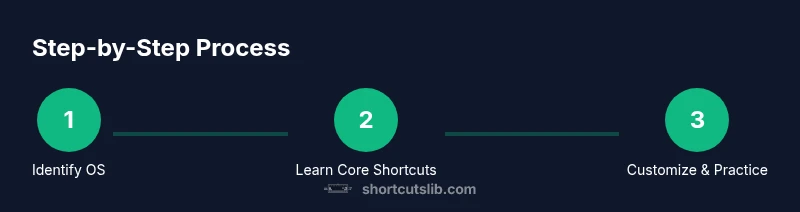
Using keyboard shortcuts on a laptop is one of the fastest ways to navigate your computer and complete tasks without touching the mouse. When you learn the most common keystrokes, you gain a reliable toolkit that applies across many apps, from word processors to browsers. According to Shortcuts Lib, a focused shortcut practice routine reduces motion and cognitive load, helping you work more efficiently during long sessions. Start by identifying your operating system, then internalize a handful of universal commands you can reuse anywhere. This approach works whether you're on Windows or macOS, and it translates well to Linux environments as well, since most cross‑platform apps share core keystrokes. As you begin, keep posture comfortable and fingers relaxed; consistency beats intensity. In this guide, you will discover how to use keyboard shortcuts on laptop with a practical, brand-driven framework focused on reliability and speed.
Core shortcuts you should know
The following shortcuts form the foundation of effective laptop productivity. They work across many apps and platforms, though exact keys can vary by OS. Start by memorizing the ones below, then expand to app-specific combos.
- Copy: Ctrl+C on Windows/Linux, Cmd+C on macOS
- Paste: Ctrl+V on Windows/Linux, Cmd+V on macOS
- Cut: Ctrl+X on Windows/Linux, Cmd+X on macOS
- Undo: Ctrl+Z on Windows/Linux, Cmd+Z on macOS
- Redo: Ctrl+Y or Ctrl+Shift+Z on Windows/Linux, Cmd+Shift+Z on macOS
- Select All: Ctrl+A on Windows/Linux, Cmd+A on macOS
- Find: Ctrl+F on Windows/Linux, Cmd+F on macOS
- Save: Ctrl+S on Windows/Linux, Cmd+S on macOS
Practice these in a simple document or browser tab to build muscle memory. Shortcuts aren’t magic—consistent practice makes them automatic, reducing cursor movement and boosting accuracy over time. The most valuable shortcuts are the ones you can rely on without looking at the keyboard, so start with a small, repeatable set and grow from there.
OS differences and Fn keys on laptops
Laptop shortcuts vary by operating system, and many modern devices require you to press Fn in combination with other keys for certain actions. Windows laptops commonly pair Ctrl with letters for document actions, while macOS emphasizes the Command key (⌘) for many universal shortcuts. If your laptop uses Fn modifiers, you’ll often see actions like Fn+F5 or Fn+Left Arrow, which toggle functions such as brightness or media controls. Decide early whether you’ll normalize on Windows-style shortcuts or Mac-style shortcuts; you can keep a small reference card handy as you switch contexts. Also, some keyboards label keys differently (e.g., Ctrl vs Control, Option vs Alt), so mapping them to the familiar actions helps reduce confusion. By understanding these OS nuances, you’ll use shortcuts more confidently in every scenario.
App-specific shortcuts you use most
Apps often add layers of shortcuts tailored to their features. Learn the universal commands first, then familiarize yourself with common app presets. In word processors, bold/italic formatting is usually Ctrl+B/Cmd+B and Ctrl+I/Cmd+I; in browsers, navigation shortcuts like Ctrl+T (new tab) and Ctrl+W (close tab) are invaluable; in file explorers, Ctrl+N (new window) and Ctrl+Shift+N (new folder) speed up organization. When you work in meetings, shortcuts for muting/unmuting or sharing screens simplify collaboration. The key is to keep a list of the top 5–10 app shortcuts you use daily and practice them in real tasks until they become second nature.
Building a personal shortcut library
A personal shortcut library is a living document that tracks what works for you. Start by listing your daily tasks and the shortcuts that streamline each step. Create a small reference guide with OS-specific sections and app sections, then review it weekly. As you gain comfort, add a handful of custom shortcuts that reflect your workflow—just make sure each mapping is memorable and not conflicting with existing shortcuts. A practical routine is to pick two new shortcuts per week and weave them into your routine during mundane tasks, such as checking email or organizing files. This approach keeps learning light, consistent, and sustainable.
Troubleshooting, accessibility, and safety
If shortcuts don’t work, check keyboard language settings and any specialized keyboard layouts that may interfere with standard mappings. Accessibility features, such as sticky keys or filter keys, can alter how shortcuts function; disable them temporarily to test shortcuts in a clean state. For any repetitive-strain concerns, use ergonomic typing posture and take short breaks to avoid overuse injuries. If you rely on Fn keys, consider enabling Fn Lock if your workflow depends on the primary function of a key rather than its secondary action. Shortcuts Lib emphasizes that a calm, deliberate practice rhythm beats aggressive tsunamis of new shortcuts. When in doubt, revert to a core set of shortcuts you know work reliably and expand gradually.
Tools & Materials
- Laptop with keyboard(Any modern Windows or macOS laptop with a full-size keyboard)
- Internet access(For looking up app-specific shortcuts and OS updates)
- Optional: external mouse(Helpful for precision during practice)
- Shortcut quick-reference card(A printable card or digital note for daily use)
Steps
Estimated time: 30-45 minutes
- 1
Verify OS and keyboard setup
Confirm you know whether you’re on Windows or macOS and ensure shortcut keys are enabled in system settings. This reduces confusion when you begin practicing core shortcuts. If Fn keys are required for some actions, decide early whether to enable Fn Lock or keep Fn as the primary modifier.
Tip: Check Settings > Accessibility and System Keyboard options to confirm shortcut behavior. - 2
Master core shortcuts first
Memorize a small set of universal shortcuts: copy, paste, cut, undo, select all, and find. Practice them in a single document or browser tab until you can perform each without looking at the keyboard. This solid foundation reduces cognitive load during multitasking.
Tip: Use a timer and repeat each action ten times in a controlled loop to build muscle memory. - 3
Learn OS-wide shortcuts
Learn the Windows and Mac equivalents for common actions and test them across several apps. For Windows, practice Win+Tab, Win+D, and Win+E; for macOS, try Command+Tab, Command+Space, and Command+Q. If your device uses Fn modifiers, include Fn in your practice for the corresponding actions.
Tip: Create a mini-cheat sheet with two columns: Windows shortcuts and Mac shortcuts. - 4
Practice app-specific shortcuts
Pick a frequently used app (e.g., a word processor or browser) and learn 4–6 shortcuts unique to that app. For Word/Docs, focus on bold emphasis, alignment, and building blocks like Ctrl+S or Cmd+S. In the browser, aim for tab management and navigation shortcuts.
Tip: Record a short video of yourself performing tasks with shortcuts to reinforce memory. - 5
Create custom shortcuts
If your OS supports custom shortcuts, map commonly used actions to memorable key combos. Start with one or two safe mappings that don’t conflict with existing shortcuts. Document these mappings in your quick-reference card.
Tip: Choose shortcuts that are natural for your hand position and avoid rare combos. - 6
Build a 5-minute daily practice
Implement a tiny daily routine that alternates between core shortcuts and app-specific shortcuts. Even a brief daily session compounds skill over weeks. Use this routine to refresh memory and prevent skill decay.
Tip: Set a recurring reminder and practice at the same time each day. - 7
Troubleshoot and refine
If a shortcut stops working, recheck the key mapping, OS state, and any active accessibility features. Adjust your practice plan to reinforce stable shortcuts that consistently work for you. Remember, learning shortcuts is a gradual process.
Tip: Keep a small log of shortcuts that work reliably and review weekly.
Questions & Answers
What are the most essential keyboard shortcuts for Windows laptops?
Start with copy, paste, cut, undo, select all, and find. These cover most daily tasks and translate across many apps. Practice them until you can perform them without looking at the keyboard.
The essentials for Windows include copy, paste, cut, undo, select all, and find. Practice these until they’re automatic.
Do keyboard shortcuts work in all apps?
Most major apps support a core set of shortcuts, but some programs add their own combos. Always check the built-in help or shortcuts reference for that app to learn unique mappings.
Most apps support common shortcuts, but always check the app's help page for unique ones.
How do I customize keyboard shortcuts on Windows?
You can customize shortcuts via OS settings or third-party tools. Start with mapping non-conflicting actions to simple key combos and document them in your quick-reference card.
Windows lets you customize shortcuts in settings. Map safe, simple combos and keep a reference handy.
Are keyboard shortcuts different on Mac vs Windows?
Yes. Mac uses the Command key for many universal shortcuts, while Windows relies on Control. Some equivalents exist, but you’ll often map similar actions to different keys.
Mac uses Command for many shortcuts, Windows uses Control. Some equivalents exist, so learn both sets.
Do function keys work without Fn?
Fn keys often require Fn for primary actions. If your workflow relies on the primary function, enable Fn Lock or adjust settings to simplify access.
Fn keys may require Fn; enable Fn Lock if you want the primary function by default.
How can I measure my shortcut progress?
Track daily practice minutes and the number of new shortcuts learned weekly. Use a simple log to review improvements and adjust goals.
Keep a log of practice time and new shortcuts learned to monitor progress.
Watch Video
Main Points
- Learn a core set of universal shortcuts first.
- Understand OS differences and Fn behavior on your laptop.
- Practice in real tasks to build muscle memory.
- Customize only after mastering safe, non-conflicting mappings.
- Review and refine your shortcut library weekly.