Refresh Computer Shortcut Key: A Practical How-To
Learn how to refresh computer shortcut keys on Windows and macOS. This practical guide covers resetting mappings, reloading caches, and safe troubleshooting to restore quick, productive workflows.


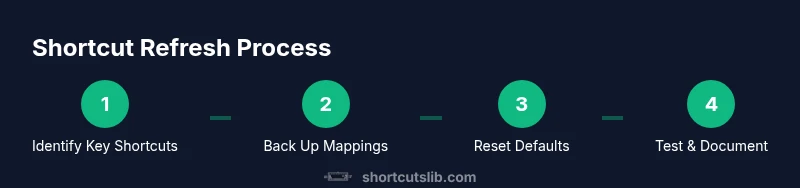
Goal: refresh computer shortcut keys by reloading shortcut mappings and resetting defaults across Windows and macOS. You’ll identify which shortcuts need refreshing, apply safe resets, and test that common actions work again. Prereqs include admin access and a recent backup. According to Shortcuts Lib, mastering these resets speeds up daily workflows and reduces confusion when shortcuts stop working.
What refreshing a computer shortcut key means
Refreshing a computer shortcut key means updating or reloading the mappings and caches that control keyboard shortcuts across your OS and frequently used apps. Shortcuts aren’t always permanent; over time, apps may reorder actions, or system updates can reset defaults. A refresh normalizes behavior, reassigns conflicts, and reduces the risk of pressing a shortcut that triggers the wrong action. This article focuses on practical, brand-driven methods to refresh shortcuts safely on Windows, macOS, and Linux environments. By the end, you should be able to recover reliable hotkeys without reinstalling software or losing personal mappings.
OS differences: Windows vs macOS vs Linux
Different operating systems manage shortcuts in distinct ways. Windows stores many mappings at the application level and within system settings, while macOS centralizes keyboard shortcuts in System Settings > Keyboard. Linux desktops vary, with GNOME and KDE handling keybindings through their respective Control Centers. Understanding these differences helps you choose the right refresh approach for each environment and reduces the risk of unintended changes.
Identify which shortcuts to refresh
Start by listing the shortcuts you rely on most (e.g., copy, paste, save, undo) and note any that behave inconsistently. Check both system-level bindings and popular apps you use daily. Look for conflicts where two actions share the same key combination. Use app menus to confirm the exact shortcut text and test the action in a controlled task before applying changes. Keeping a short inventory helps you stay organized as you refresh.
Back up your current shortcut mappings
Before making changes, export or copy your current shortcut mappings when the option exists. If export isn’t available, document mappings in a simple note or spreadsheet. This backup provides a quick rollback path if a new mapping doesn’t feel right or interferes with other workflows. Store backups on an external drive or cloud storage for safety.
Resetting default shortcuts: Windows-specific steps
Windows handles resets at two levels: system defaults and app-specific defaults. To begin, open Settings and navigate to Time & language > Typing or Keyboard shortcuts. If your goal is a clean slate, reset Windows defaults for a focused set of keys (copy, paste, undo, save) and then rebind only the essentials. Restart affected apps to ensure changes take effect. If problems persist, a system restart may be required.
Resetting default shortcuts: macOS-specific steps
Mac users should go to System Settings > Keyboard > Shortcuts. You can reset individual shortcuts here or return entire categories to their defaults. After resetting, test core actions in Finder, Safari, and a text editor to verify consistency. If you rely on third-party tools for hotkeys, reconfigure them after macOS restarts so the new mappings load cleanly.
Testing and validating refreshed shortcuts
Post-reset, run a quick test loop: copy, paste, cut, save, undo, and find. Validate that custom shortcuts don’t conflict with system actions. Open multiple apps to confirm mappings hold across environments. If a shortcut misfires, revisit your backup and adjust only the affected mapping to minimize disruption.
Common pitfalls and safety practices
Avoid deleting all mappings in a panic; instead, reset selectively and verify each change. Always back up first and enable a rollback plan. Document changes as you proceed to track what works and what doesn’t. Finally, ensure you’re using the latest OS and app updates, as bugs related to shortcuts are often addressed in updates.
Advanced strategies: organizing and exporting custom shortcuts
As you refresh shortcuts, consider adopting a naming convention and centralized repository for your mappings. Use export features where available to maintain portable mappings across devices. For power users, leverage built-in scripting or profile features to automate the reapplication of preferred shortcuts after major OS updates.
Tools & Materials
- Keyboard and computer with admin access(Needed to modify system-wide shortcuts or app-level mappings)
- Backup method (external drive or cloud storage)(Store a copy of current mappings before changes)
- Document or note-taking app(Record current mappings and changes for rollback)
- Stable internet connection(Helpful for OS updates or vendor guidance)
- Spreadsheet or plain-text template(Organize and compare mappings across apps)
Steps
Estimated time: 40-60 minutes
- 1
Open shortcut settings in your OS
Access the keyboard or shortcuts panel in your operating system or the specific app you want to refresh. This initial step helps you locate the current mappings and identify candidates for refresh. Take a screenshot if possible for precise rollback references.
Tip: If a global shortcut is unmodifiable by OS settings, check the app’s preferences first. - 2
Back up existing mappings
Create an export or manual record of current shortcuts. This backup ensures you can revert changes if a new mapping doesn’t match your workflow or causes conflicts between apps.
Tip: Store backups in a dedicated folder named Shortcuts_Backups and note the date. - 3
Reset to defaults (carefully)
Choose to reset only the offending shortcuts or the minimal set that causes issues. Avoid a full system reset unless you’re certain it’s necessary. After reset, restart affected apps to ensure mappings reload properly.
Tip: Document which shortcuts were reset to help with future troubleshooting. - 4
Test core actions
Perform quick tests for copy, paste, save, and undo in multiple apps to confirm behavior. If a mapping is still inconsistent, isolate it and re-map individually.
Tip: Test in both a text editor and a browser to cover common usage scenarios. - 5
Rebind essential shortcuts
If needed, rebind only the most used shortcuts to reduce the chance of new conflicts. Use consistent naming or labeling to stay organized.
Tip: Avoid creating more than 1-2 changes per session to limit error risk. - 6
Document changes and monitor
Update your mapping records with what you changed and why. Monitor for a few days and be ready to revert if issues appear.
Tip: Set a reminder to review shortcuts again after major OS updates.
Questions & Answers
What does refreshing a computer shortcut key involve?
It involves updating or resetting key mappings and caches to restore reliable shortcuts. You typically review current shortcuts, back them up, apply safe resets, and verify that core actions work as expected.
Refreshing a shortcut key means updating the mappings and caches to restore reliable shortcuts. You’ll back up, reset, and test core actions.
Will resetting shortcuts affect my personalized mappings?
Resetting can remove custom changes, so back up before proceeding. You can reapply critical custom mappings after testing.
Resetting can revert custom mappings, so back up first and reapply the important ones after testing.
Is it safe to refresh shortcuts on every app?
Refresh selectively. Focus on the most-used shortcuts and avoid mass changes across the system to minimize risk.
Yes, but be selective; focus on the most-used shortcuts to stay safe.
How do I back up current shortcut mappings?
Use built-in export options when available, or manually document key mappings in a file. Save backups to an external drive or cloud storage.
Export if possible, or manually record mappings, then store the backup safely.
What if a refreshed shortcut conflicts with another app?
Identify the conflicting shortcut, adjust one of the mappings, and retest. Keep a log to avoid repeating the conflict.
If there’s a conflict, adjust one mapping and test again.
Can I automate shortcut refreshes?
Some environments allow scripting or profile automation to reapply mappings after updates. Check vendor and OS tools for automation features.
Automation is possible in some environments; check your OS and apps for automation options.
Watch Video
Main Points
- Refresh shortcuts with a plan and backup.
- Test across apps to confirm consistency.
- Document changes for future troubleshooting.
- Prioritize essential mappings to minimize disruption.
- Use OS updates to address underlying shortcut bugs.