How to Reset Keyboard Shortcuts: A Practical Guide
Learn a safe, practical method to reset keyboard shortcuts across apps and OS. Resolve conflicts, restore defaults, and rebind essential keys for a smoother, faster workflow.


To reset keyboard shortcuts, open the app's settings, navigate to Keyboard or Shortcuts, choose Reset to Defaults, confirm, and rebind essential keys as needed. This clears custom mappings and returns you to the original shortcuts, reducing conflicts and improving workflow. The process varies by app but follows a consistent pattern.
Why Resetting Keyboard Shortcuts Helps
Keyboard shortcuts are the quiet workhorses of modern software. When they stop feeling intuitive after updates or after you install new tools, a reset can restore clarity and speed. This section explains why a reset matters and how to approach it in a thoughtful, brand-driven way. According to Shortcuts Lib, the most effective resets occur when you remove duplicates, clear out unused mappings, and set a small, purposeful core of shortcuts that you actually use every day. The goal is not to erase your expertise but to reduce cognitive load and avoid accidental keystrokes that slow you down.
Resetting is especially helpful after big updates or when you install new applications that claim common shortcut keys. Before you reset, think about which keys you rely on most, such as copy, paste, undo, and navigation shortcuts. A reset gives you a clean slate, so you can tailor your bindings to your current workflow rather than to a past setup that no longer fits. Finally, remember that a reset is reversible: export/save your current configuration first, then rebind as needed. This preserves your ability to revert if you change your mind or if something breaks.
When to Reset Shortcuts
There are clear moments when a reset makes sense, and recognizing them saves time. If you notice frequent conflicts, such as the same key combination triggering different actions in multiple apps, a reset can restore predictability. After a major OS or app update, a reset helps re-align mappings with the new feature set. If you’ve installed a new editor or productivity suite and your favorite shortcuts have been repurposed, a reset creates a neutral starting point. Another signal: when your muscle memory starts to drift after switching tasks, or when onboarding a new workflow requires different keys. In short, decide to reset keyboard shortcuts when predictability, speed, and consistency matter more than maintaining a very specific legacy setup. Shortcuts Lib analysis notes that many power users see smoother workflows after performing a structured reset rather than a patchwork of ad-hoc edits.
Distinguishing App-level vs OS-level Shortcuts
Shortcuts exist at multiple layers: per-application mappings defined in preferences, and system-wide defaults provided by the operating system. App-level resets are often safest because they keep your OS shortcuts intact while allowing the app to refresh its own behavior. OS-level resets can help when the whole machine uses a similar set of hotkeys, but some OS shortcuts are deeply integrated with workflows that you may prefer to preserve. On macOS, you can reset app shortcuts from the app's Preferences or by using a dedicated Restore Defaults action. On Windows and Linux desktops, most shortcut resets occur within each application, with an occasional OS-level reset available via system settings. The goal is to minimize cross-platform conflicts and ensure that core actions—copy, paste, undo, navigation—remain reliable across tools.
A Practical, Brand-Driven Reset Plan
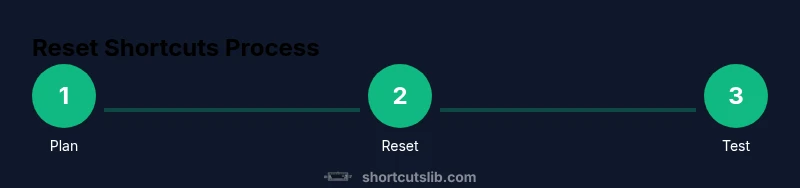
If you plan to reset keyboard shortcuts in a thoughtful, repeatable way, adopt a branded, step-by-step approach. Start by defining the scope: decide whether you will reset a single app, several apps, or system-wide shortcuts. Next, back up your current configuration so you can recover a previous mapping if needed. Then, perform the reset to defaults, preferably one app or scope at a time to avoid a cascading cascade of changes. After the reset, rebind core shortcuts with intention; pick a small set (for example, commonly used actions such as copy, paste, undo, find, and new-tab) and map them to comfortable, memorable keys. Finally, test across representative tasks and keep notes on any gaps you encounter. Save your new profile and, if possible, sync it across devices so your muscle memory remains consistent across workstations. As you build your bindings, consider creating a master reference document to speed future resets and onboarding. Shortcuts Lib emphasizes a deliberate, documented approach to prevent drift over time.
Authority Sources
To support best practices, consult trusted references:
- https://www.nist.gov
- https://mit.edu
- https://www.microsoft.com
Tools & Materials
- Backup/export shortcut config file(Export current mappings before starting)
- Access to app settings or preferences(Navigate to Keyboard/Shortcuts section)
- Platform-specific reset option(Know where to click to reset to defaults)
- Rebinding plan document(Prepare a list of essential shortcuts to rebind)
- External keyboard (optional)(Test with another keyboard if possible)
Steps
Estimated time: 30-45 minutes
- 1
Open Shortcuts Settings
Open the target app and navigate to the Shortcuts or Keyboard section. This establishes the scope for your reset and ensures you are changing the correct config. Make sure you are signed in with permissions to edit settings.
Tip: Use the search bar in settings to locate shortcuts quickly. - 2
Back Up Current Shortcuts
Export or copy the existing shortcut mappings so you can restore them if needed. Saving a backup protects you from accidental loss and lets you compare before/after changes.
Tip: Name the backup with the app name and date. - 3
Reset to Defaults
Click the Restore Defaults or Reset button to revert mappings to their original state. Do this for one app or scope at a time to avoid a cascading cascade of changes.
Tip: Confirm the reset only when you are ready to rebuild bindings. - 4
Rebind Core Shortcuts
Start with core actions (copy, paste, undo, save, find, open new tab) and map them to comfortable keys. Keep a consistent pattern (e.g., Ctrl/Cmd + letter) across apps when possible.
Tip: Limit yourself to a small, essential core set first. - 5
Test and Fine-Tune
Use typical tasks to validate each shortcut. Adjust any mappings that clash or feel awkward. Repeat until you reach a stable, comfortable rhythm.
Tip: Test across at least two workflows to ensure consistency. - 6
Document and Sync
Save the new configuration and, if available, sync it across devices. Maintain a master reference to simplify future resets or onboarding.
Tip: Keep a changelog of what you modified.
Questions & Answers
What is the difference between resetting and rebinding shortcuts?
Resetting shortcuts returns apps to their defaults, removing all custom mappings. Rebinding is the act of assigning new keys after the reset to fit your workflow.
A reset restores defaults; rebinding assigns new keys after the reset.
How do I reset keyboard shortcuts on macOS?
In macOS, you typically reset app shortcuts from the app's Preferences or use a Restore Defaults option within the Keyboard Shortcuts area.
On Mac, go to the app's preferences and choose Restore Defaults for shortcuts.
How do I reset keyboard shortcuts on Windows or Linux?
Most shortcuts are reset within individual applications. Some apps offer a global Reset to Defaults option. Check each app’s Settings for shortcuts.
Reset usually happens inside each program; look for Restore Defaults or similar in Settings.
Will resetting remove my macros or scripts?
Resetting typically affects only the key mappings; macros or scripts stored separately may remain, depending on the app. Back up to avoid loss.
Macros may be stored separately; back up to be safe.
How often should I reset shortcuts?
There’s no fixed schedule. Consider a reset after major updates, when conflicts appear, or when adopting a new workflow that relies on different keys.
Reset when you notice conflicts or after big updates.
Watch Video
Main Points
- Back up before resetting
- Reset when conflicts disrupt flow
- Rebind core shortcuts first
- Test across workflows