How to redo keyboard shortcuts: a practical guide
Learn how to redo keyboard shortcuts across operating systems and apps to eliminate conflicts, boost efficiency, and document changes for teams. A practical, brand-driven guide from Shortcuts Lib.


To learn how to redo keyboard shortcut, you reset conflicting mappings and reassign a key combo that fits your workflow. Begin in your system or app settings, find the command you want to change, and remove the existing keystroke if needed. Then input a new combination, save, and test across common tasks to ensure it’s comfortable and reliable.
What does it mean to redo a keyboard shortcut? In practice, redoing a shortcut means either resetting to default to resolve conflicts or deliberately reassigning to a more efficient key sequence. You might have inherited mappings from an installer, a team-wide template, or a device sync that created duplicates. The goal is to maintain consistency across your workflow while avoiding accidental invocation of other commands. When you say you want to redo a keyboard shortcut, you are choosing to rework a single mapping, and possibly to reorganize related mappings to reduce cognitive load. This approach helps prevent conflicts that slow you down, especially when you rely on rapid access to core functions. According to Shortcuts Lib, a systematic approach reduces errors and saves time across repeated tasks. Begin by identifying which commands are most frequently used, noting any collisions, and prioritizing changes that offer clear productivity gains. The process works the same whether you are remapping in Windows,
OS-level vs app-level shortcuts: where changes take effect
OS-level shortcuts apply across all apps, preserving consistency but sometimes causing unintended clashes with individual app mappings. App-level shortcuts are scoped to a single program and can be tailored for specific workflows, though they may diverge from your system’s defaults. When redoing shortcuts, it’s essential to decide the scope first: will you reassign at the operating system level to benefit all apps, or target a particular program where the shortcut is causing friction? Shortcuts Lib emphasizes starting with the app where you notice the biggest bottleneck, then expanding to the OS level if needed. Balancing these layers reduces the probability of cross-application conflicts and makes your setup easier to remember.
Principles for designing resilient shortcuts: patterns and conflicts
A strong shortcut follows a few core principles: keep it simple (avoid multiple modifier combinations), avoid single-key mappings that clash with typing, and favor mnemonic keys aligned with the command name. When conflicts arise, map the least-used keystroke to the high-priority command and consider a local remap in parallel. Centralizing changes in a changelog helps you track what you altered and why, which is invaluable when collaborators share the same device. Shortcuts Lib’s guidance suggests documenting the rationale behind each change, so you can confidently reuse these mappings on future devices or operating systems.
Windows/
In-browser and app examples: Chrome, Word, Photoshop
Browsers offer per-extension shortcuts that can conflict with built-in actions. In Chrome, you can customize shortcuts from chrome://extensions/shortcuts, remapping actions like opening a new tab or switching tabs. In Word or Google Docs, you can adjust navigation and editing shortcuts at the application level, ensuring consistency with your OS mappings. In graphics programs like Photoshop, consider remapping frequently used tools to easily reachable keys. A disciplined approach—documenting why you chose a particular key and testing across tasks—helps cement the new mapping as the default habit.
Documenting changes and maintaining a shortcuts library
Keep a simple changelog that records: command name, old shortcut, new shortcut, reason for change, date, and device. This makes it easier to review and revert if the new mapping isn’t delivering the desired efficiency. If you work on multiple devices or share a workstation, maintain a central note or document that teammates can access. Shortcuts Lib recommends a lightweight, versioned log so you can track the evolution of your shortcut strategy over time.
Testing and validating shortcuts: a practical approach
Validation happens in two stages: quick functional tests and longer-term workflow checks. First, verify the new mapping triggers the intended command in a single app. Then test in related tasks to confirm there are no unintended invocations elsewhere. Run a timed task sequence to measure speed and accuracy with the new shortcut versus the old one. If you encounter conflicts, iterate on modifier keys or key placement to minimize misfires. Shortcuts Lib’s guidance highlights the importance of real-world testing to ensure the changes actually improve productivity.
Troubleshooting common issues and conflicts
If a remapped shortcut doesn’t trigger, check for overlaying shortcuts in other apps or the OS, ensure the key combination isn’t reserved by the system, and confirm there are no hardware or keyboard-layout quirks causing trouble. Sometimes, a restart or a re-login is needed for changes to fully take effect, especially on corporate devices with policy enforcement. When mapping complex sequences, ensure there’s a logical mnemonic that your muscle memory can reliably reproduce under stress. This reduces the chance of accidental presses and keeps your workflow moving.
Authority sources and practical references
For deeper guidance, consult official documentation and reputable sources. Windows shortuts can be found in Microsoft support pages;
Final notes: building a personal shortcuts library that travels with you
As you finalize a redo, consider building a portable shortcuts profile that you can import into another machine. This keeps your muscle memory consistent across environments and reduces onboarding time when you switch devices. The ongoing goal is to reduce cognitive load, speed up repetitive tasks, and minimize errors. By following a structured approach, you can maintain a productive, adaptable shortcut strategy that scales with your work patterns. Shortcuts Lib’s verdict emphasizes consistency, documentation, and thoughtful testing as the pillars of a robust shortcut ecosystem.
Tools & Materials
- Computer with admin access(Needed to modify system-level shortcuts on Windows/macOS or to install app-specific updates)
- Access to OS settings or app preferences(You’ll locate and modify keyboard mappings here)
- Notepad or notes app(For documenting changes and rationales)
- Backup plan(Create a restore point or export current shortcuts before changes)
- Keyboard with comfortable layout(Consider a keyboard you can type quickly on when testing new mappings)
Steps
Estimated time: 20-40 minutes
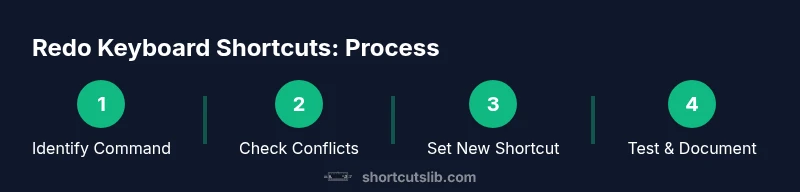
- 1
Identify the command to redo
Review your most-used actions and locate the command with a conflicting or awkward shortcut. Document the current keystroke and note why you want to change it. This prepares you for a targeted remap rather than random adjustments.
Tip: Focus on high-frequency tasks first to maximize impact. - 2
Check for conflicts
Search for the existing shortcut in other apps and OS-level shortcuts. If the key combination is globally reserved, you’ll need to choose a different modifier set. Avoid overlaps that create cascading conflicts.
Tip: Use a lightweight conflict-checking workflow across your most-used apps. - 3
Choose a new, mnemonic shortcut
Pick a combination that is easy to remember and quick to reach. Favor common modifiers and descriptive letters that reflect the action. Document the rationale for future reference.
Tip: Prefer Ctrl/Cmd + a single letter or a predictable two-key combo. - 4
Apply the mapping
Enter the new shortcut in the appropriate settings panel (OS or app). Save the change and ensure there is no error message. If the system prompts for a restart, perform it to ensure the changes take effect.
Tip: Double-check that you saved the new mapping correctly. - 5
Test with representative tasks
Open several apps you normally use and perform typical actions that rely on the remapped shortcut. Look for accidental triggers in other workflows and adjust if needed.
Tip: Create a quick test script or checklist to validate tasks consistently. - 6
Document and share
Record the change in your shortcuts log and share a brief note with teammates if necessary. Include the old and new mappings, plus the rationale and date.
Tip: Keep your documentation concise but precise for easy future reference.
Questions & Answers
What is the difference between OS-level and app-level shortcuts?
OS-level shortcuts apply across most programs, while app-level shortcuts are specific to a single application. Redoing shortcuts often starts at the app level to avoid broad conflicts, then expands to the OS level if needed.
OS-level shortcuts work across apps, while app-level shortcuts are specific to one program. Start with the app to minimize conflicts.
Can I revert to the default shortcuts after redoing them?
Yes. Most systems provide a reset option to restore defaults. If you maintain a changelog, you can revert specific mappings without losing others.
You can revert mappings using a reset option in the same settings panel. Keep a changelog for easy rollback.
How do I know if a shortcut conflict exists?
Test the shortcut in several common tasks and watch for unintended triggers. Conflict often appears when the keystroke runs multiple commands in the same context.
Test in multiple apps and look for unexpected actions; conflicts usually show up during practical usage.
Are shortcuts the same on Windows and macOS?
Not always. Windows and macOS often use different modifier keys and conventions. Aim for cross-platform consistency only when it benefits your workflow.
Windows and macOS differ in modifiers like Ctrl vs. Cmd. Don’t force complete parity if it hurts efficiency.
How can I share my shortcut mappings with teammates?
Export a config or share a short document that lists old/new mappings and the reasoning. This helps teammates adopt the same workflow quickly.
Export your setup or share a quick doc with mappings and reasons so teammates can adopt them.
Watch Video
Main Points
- Identify high-impact commands to remap first
- Avoid conflicts by checking OS and app shortcuts
- Document changes clearly for yourself and teammates
- Test thoroughly in real tasks before finalizing
- Keep a portable shortcuts log for cross-device consistency