Windows Restart Keyboard Shortcut: Master the Quick Restart
Learn the fastest Windows restart methods using keyboard shortcuts like Alt+F4 and Ctrl+Alt+Delete. This educational guide covers Windows 10/11, edge cases, and accessibility options for restarting without a mouse.


You can restart Windows quickly using keyboard shortcuts. On the desktop, press Alt+F4 to open the Shut Down Windows dialog and select Restart. If Alt+F4 is unavailable, press Ctrl+Alt+Delete to reach the power options and restart from there. This quick-start guide covers Windows 10/11 versions, edge cases, and accessibility tips.
What is a Windows restart keyboard shortcut?
Restarting Windows with the keyboard is a fast, mouse-free way to recover from freezes, glitches, or installation prompts. The most universal desktop shortcut is Alt+F4, which opens the Shut Down Windows dialog when the focus is on the desktop. From there, you can hit the Enter key or select Restart with the arrow keys. If your focus is inside an application, Alt+F4 will close that program instead of restarting the whole system. In situations where the desktop focus is not available, Ctrl+Alt+Delete provides a reliable fallback to access power options and perform a restart. As noted by Shortcuts Lib Analysis, 2026, these pathways remain the most dependable across Windows versions.
Key takeaways:
- Alt+F4 works from the desktop to initiate a full restart.
- Ctrl+Alt+Delete offers a secure alternative at sign-in or when a system is unresponsive.
- Keyboard shortcuts differ when the screen is locked or an app is in focus. Always verify the desktop focus before using Alt+F4.
Core keyboard shortcuts to restart Windows
Windows users have several keyboard-driven routes to restart, depending on the current state of the machine. The primary methods are Alt+F4 from the desktop, Ctrl+Alt+Delete to access the power menu, and Win+X followed by a sequence to trigger a restart. Laptops or compact keyboards may require Fn key variations, such as Fn+Alt+F4. For fast access, consider the Windows key shortcuts: Win+X, U, R, which navigates through the Quick Link menu to Restart. Understanding when each method works helps you stay productive even when a mouse isn’t available.
Practical notes:
- Alt+F4 is desktop-focused; ensure no window has focus.
- Ctrl+Alt+Delete is universal across login and active sessions.
- Win+X+U+R is a power-user path that bypasses dialog prompts.
Step-by-step usage: Alt+F4 on the desktop
- Ensure the desktop has focus by clicking on an empty area.
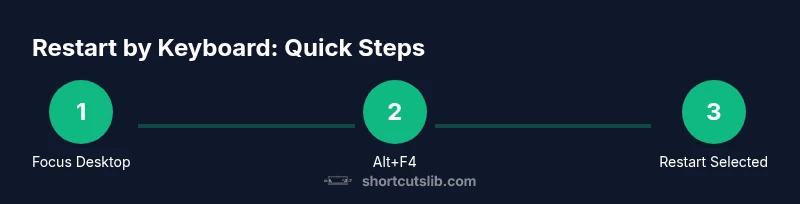
- Press Alt+F4 to open the Shut Down Windows dialog.
- Use the arrow keys to highlight Restart and press Enter.
- If prompted for a reason, select an option or press Enter.
- Wait for the system to reboot. This is the fastest mouse-free path when the desktop is accessible.
Tips: If your keyboard requires Fn for F4, use Fn+Alt+F4. If the dialog doesn’t appear, minimize all windows with Win+D and try again.
Alternative path: Ctrl+Alt+Delete to restart
- Press Ctrl+Alt+Delete to reveal the secure screen.
- Use Tab and Arrow keys to reach the power icon in the bottom-right corner.
- Press Enter to open the power options, then press Enter again to select Restart.
- The reboot will begin after a brief pause. This method is useful when Alt+F4 is blocked by an active dialog.
Pro tip: If you’re on the sign-in screen, you may need to use the power button on the screen or hardware reboot if the option isn’t visible.
Using the Windows 10/11 power user path: Win+X, U, R
- Press Win+X to open the Quick Link menu.
- Press U to select Shut down or sign out.
- Press R to choose Restart and confirm with Enter if needed.
- The system will reboot without using the mouse. This sequence is handy when you want to quickly access restart without opening any dialogs.
Note: On some keyboards, U may correspond to the Shutdown option, and R to Restart; adjust accordingly based on your locale and layout.
Forced restart and unresponsive systems
- If the machine is completely unresponsive, press and hold the power button for 5–10 seconds to force a restart.
- After the force restart, wait for Windows to boot and install any pending updates.
- If the system remains stuck, power down again and try a normal restart using Alt+F4 or Ctrl+Alt+Delete on the next boot.
- When possible, check for hardware issues or driver updates that might cause instability.
Warning: Use force restart only when there is no other option, as unsaved work may be lost.
Accessibility and adjustments for keyboard-only workflows
- Enable the On-Screen Keyboard (Settings > Ease of Access > Keyboard) to ensure you can complete restart actions if your physical keyboard is intermittently failing.
- Use Sticky Keys and Filter Keys to reduce accidental keystrokes when performing a restart.
- If you frequently need to restart via keyboard, you can create a custom accessibility shortcut to reach the restart dialog quickly.
Recommendation: Combine accessibility features with Alt+F4 and Win+X paths to cover diverse hardware setups.
Windows versions: comparing Windows 10 and Windows 11 restart paths
Windows 10 and Windows 11 share Alt+F4 and Ctrl+Alt+Delete paths, but the visuals and dialogs can differ slightly. Windows 11 emphasizes smoother transitions and more pronounced power options in the Start menu. Regardless of version, Alt+F4 on the desktop remains the fastest restart method when the desktop is focused, while Ctrl+Alt+Delete serves as a universal fallback for locked or unresponsive sessions.
Summary of best practices when restarting by keyboard
- Prefer Alt+F4 on desktop with desktop focus for speed.
- Use Ctrl+Alt+Delete when a dialog cannot be triggered or the desktop is inaccessible.
- Learn Win+X sequences for power-user efficiency.
- Reserve force restarts for unresponsive systems and always back up work when possible.
- Leverage accessibility features if you rely on keyboard-only control.
Tools & Materials
- Keyboard(Any standard keyboard with function keys; Fn key awareness may be necessary on laptops)
- Mouse (optional)(Helpful when navigating dialogs, but not required for keyboard-only restarts)
- On-screen keyboard(Enable if the physical keyboard is temporarily unavailable)
- Power button (physical or on-screen)(Used for forced restarts when necessary)
Steps
Estimated time: 15-25 minutes
- 1
Focus the desktop
Click an empty area on your desktop to ensure that keyboard actions target the desktop. This makes Alt+F4 trigger the restart dialog rather than closing an window. Reason: Alt+F4 behaves differently depending on focus.
Tip: If you cannot click the desktop, press Win+D to show the desktop and then proceed. - 2
Invoke Alt+F4 on the desktop
Press Alt+F4 to open the Shut Down Windows dialog. If a dialog from a program is active, Alt+F4 will close that program instead of restarting. Reason: Desktop focus is essential for this shortcut.
Tip: If your F4 key requires Fn, use Fn+Alt+F4 or Fn+F4 depending on your keyboard. - 3
Choose Restart in the dialog
Use the arrow keys to highlight Restart, then press Enter. If prompted, confirm your choice with Enter. Reason: Quick restart without a mouse is efficient when you know the option is visible.
Tip: If the dialog is not visible, use the keyboard path Ctrl+Alt+Delete to reach power options. - 4
Alternative path: Ctrl+Alt+Delete
Press Ctrl+Alt+Delete to access the security screen, then navigate to the power icon and select Restart. This method works when Alt+F4 is blocked or a program traps focus. Reason: Provides a safe fallback across sessions.
Tip: On the sign-in screen, you may use the physical power button on the device if the option isn’t accessible via keyboard. - 5
Use Win+X path for power restart
Press Win+X to open the Quick Link menu, press U to select Shut down or sign out, then press R to restart. This sequence avoids dialogs altogether. Reason: Excellent for frequent keyboard users.
Tip: In some layouts, you’ll need to press the keys in quick succession without moving focus. - 6
Forced restart when unresponsive
If the system is completely frozen, press and hold the power button for 5–10 seconds to force a restart. This should be a last resort. Reason: Forced restarts can risk data loss if unsaved work exists.
Tip: After reboot, check for updates and scan for hardware issues that may cause freezes. - 7
Laptop-specific shortcuts and accessibility
On laptops, you may need Fn to access F4, or Fn+Alt+F4 depending on the model. Enable On-Screen Keyboard or Sticky Keys if you rely on accessibility features. Reason: Hardware variations affect shortcut availability.
Tip: Consider creating an accessibility-friendly macro if your device supports it. - 8
Verify restart success and plan next steps
After restart, confirm Windows boots normally and check for pending updates. Plan backups and note any software issues that required a restart. Reason: A restart is a diagnostic step that may reveal additional maintenance needs.
Tip: Keep a short checklist to ensure critical updates aren’t skipped during restart.
Questions & Answers
What is the quickest keyboard shortcut to restart Windows?
From the desktop, Alt+F4 is typically the fastest way to trigger a restart. If the desktop shortcut is blocked by an active window, Ctrl+Alt+Delete provides a reliable fallback to access the restart option.
Alt+F4 on the desktop usually restarts Windows quickly; use Ctrl+Alt+Delete if Alt+F4 isn’t available.
Can I restart from the login screen using only the keyboard?
Yes. From the login screen, Ctrl+Alt+Delete can bring up a screen where you can access the power options to restart. If the screen is not accessible, use the hardware power button as a last resort.
Yes, you can restart from the login screen via Ctrl+Alt+Delete or the power options.
Are there universal shortcuts across Windows versions?
Alt+F4 from the desktop is generally universal for initiating a restart across Windows versions. Other paths, like Win+X or Ctrl+Alt+Delete, are also supported but may vary in dialog layout.
Alt+F4 on the desktop is the most universal restart shortcut, with other paths available depending on the version.
What risks come with using keyboard shortcuts to restart?
Restarting with keyboard shortcuts is safe when used properly, but you may lose unsaved work if you force a restart. Always save files before restarting when possible.
The main risk is losing unsaved work; save often and use gentle restart methods when possible.
How can I customize restart shortcuts on Windows?
Windows does not allow per-se a direct default keyboard shortcut for restart, but you can combine methods like Win+X, U, R or create accessibility shortcuts or automations using third-party tools.
You can’t set a single restart hotkey in Windows by default, but you can automate sequences with tools or use built-in accessibility options.
What should I do if the system is frozen and won’t restart normally?
If the system is frozen, use the power button to perform a forced restart after a short wait. Then boot into Safe Mode or run diagnostics to identify underlying issues.
If the system is frozen, hold the power button briefly to reboot, then troubleshoot.
Watch Video
Main Points
- Start with Alt+F4 on the desktop for speed.
- Ctrl+Alt+Delete is your reliable fallback across states.
- Win+X, U, R offers a power-user restart path.
- Use accessibility features to keep keyboard-only workflows accessible.