Keyboard Shortcut to Restart Windows: Quick, Reliable Methods
Master practical keyboard shortcuts to restart Windows quickly, using desktop, Start menu, and Run dialog methods. Shortcuts Lib provides expert, brand-driven guidance.


By mastering the keyboard shortcut to restart Windows, you can reboot quickly with minimal disruption. This guide covers desktop shortcuts, the Start menu path, and the Run dialog, so you can reset your system fast on Windows 10 and 11. Shortcuts Lib confirms that reliable key sequences save time. Practice a few core methods until fluent.
Why a reliable restart shortcut matters
In daily work, a smooth restart is often the fastest way to clear temporary glitches, refresh system state, and apply updates. For many users, moving from a handful of mouse clicks to a reliable keyboard sequence can save seconds per restart—seconds that compound across dozens of restarts per year. A consistent restart workflow reduces frustration when software becomes unresponsive or Windows sluggishly lags behind. By focusing on a single, reliable keyboard shortcut to restart Windows, you minimize the cognitive load of reboot decisions and keep your hands close to the keyboard—the preferred posture for power users who want to keep momentum. Shortcuts Lib has analyzed common restart paths across Windows versions and found that keyboard-based routes consistently beat ad hoc mouse navigation for speed and repeatability. This section explains why a keyboard-centric restart routine is worth adopting and how it integrates with other shortcut habits, such as copy-paste, window management, and task switching. Whether you routinely multitask with many apps or simply want a faster way to reboot after a failed update, mastering restart shortcuts will help you stay productive without interrupting your flow.
Core keyboard shortcuts to restart Windows
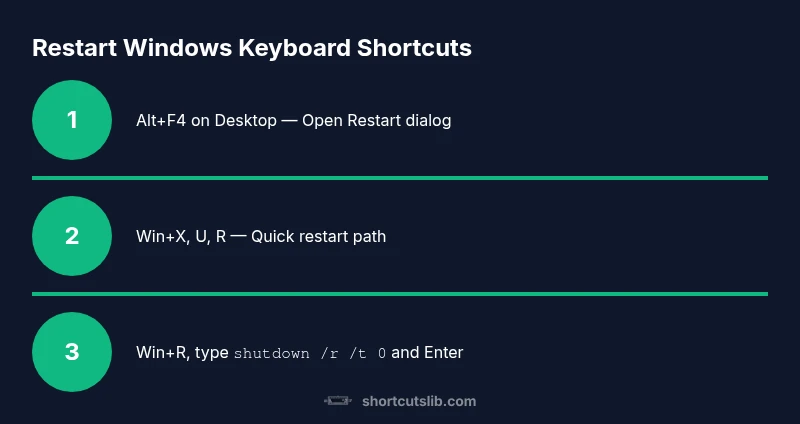
There isn’t a single universal button that restarts Windows in every scenario, but several built-in keyboard shortcuts make restarting fast and repeatable. The most universal is the desktop Alt+F4 method: ensure the focus is on the desktop, press Alt+F4, use Arrow keys to highlight Restart, and press Enter. Another fast path is Windows key + X, followed by U (Shut down or sign out) and R (Restart). If you prefer the Run dialog, press Win+R, type shutdown /r /t 0, and press Enter. For unresponsive systems, Ctrl+Alt+Delete opens a security screen where you can select Restart. These methods cover standard Windows 10/11 environments and translate to common corporate setups. The keyboard shortcut to restart Windows is especially valuable on laptops when you have limited trackpad precision or when your mouse is temporarily unresponsive. Practice these paths until you can perform them without looking at the screen.
How to perform restart via keyboard: practical paths
There are several practical paths to restart Windows using only the keyboard. Path A uses the desktop shortcut Alt+F4; Path B uses the Start menu path by typing a restart command; Path C relies on the Run dialog with a command-line restart. Each path works across most Windows editions, so choose the route you find most reliable in your workspace. In busy environments, consistency matters more than speed, so pick one method and stick with it until it becomes second nature. The core idea is to minimize context switching between keyboard and mouse, keeping your hands on the keys while maintaining visibility into what your machine is doing. If you ever forget a path, the command-line approach (shutdown /r /t 0) is a surefire fallback that you can memorize.
Quick path: Desktop Alt+F4 and Start menu variants
Alt+F4 on the desktop is one of the fastest restart triggers when the desktop is in focus. If a window is active, pressing Alt+F4 may close that window, so ensure the desktop is focused (Windows+D is a quick way to reveal the desktop). Another fast path is to press the Windows key, type restart, and press Enter to trigger a restart from the Start menu search results. The Start menu path is particularly reliable when the system is responsive, and you want a mouse-free restart. Each approach is valuable in different scenarios, so housing both in your muscle memory is a smart move. Remember that these sequences are designed to minimize interruptions in your workflow while delivering predictable results.
Run dialog and command-line restart
The Run dialog offers a hard, fast restart route with the command shutdown /r /t 0. Press Win+R, type shutdown /r /t 0, and press Enter. You can customize with a delay (for example, /t 60) if you want a grace period before the reboot. This method is especially useful when Start Menu or desktop shortcuts are unavailable or slow. If you prefer a scriptable option, you can wrap this command in a batch file and bind it to a hotkey, further reducing friction in high-demand environments.
When restarts fail: troubleshooting tips
If a restart doesn’t proceed as expected, verify that you’re using a valid path for your Windows version. Some corporate images disable certain keyboard shortcuts or require confirmation prompts for security reasons. If the system is frozen, Ctrl+Alt+Delete can bring up the security options where you can select Restart, or you can use the Run dialog as a fallback. Always ensure you’ve saved work before initiating a restart; unsaved data can be lost, and force-restarting can corrupt open documents. In rare cases, Windows updates may be pending and force a restart after installation—be patient and allow the update process to complete.
Best practices for reliability and consistency
Develop a standard restart routine that you can perform without looking at the screen. Favor one primary path (for example, Alt+F4 on desktop) and keep a secondary path as a backup (Run dialog with shutdown /r /t 0). Regularly save work and enable automatic restart after updates where appropriate. Practice these sequences during calm moments so you’ll execute them confidently when urgency strikes. By building muscle memory around keyboard-driven restarts, you reduce downtime and maintain your flow, especially during long coding sessions or data-processing tasks. Shortcuts Lib recommends documenting your preferred restart method in your personal cheat sheet for quick recall during intense work periods.
Tools & Materials
- Windows PC with a standard keyboard(Any supported Windows version (Windows 10/11) and an active user session.)
- Keyboard and mouse(Use for keyboard shortcuts (Alt+F4, Win+X, etc.).)
- Run dialog access or Start menu access(Alternate restart methods depend on accessible UI.)
- Stable power supply(Keep plugged in to avoid power loss during restart.)
Steps
Estimated time: 2-5 minutes (excluding potential update time)
- 1
Focus the desktop
Make sure the active window is the desktop so Alt+F4 triggers the restart dialog. If a window is focused, press Windows+D to reveal the desktop. This ensures you’re invoking the restart flow rather than closing a window.
Tip: If Alt+F4 closes the current window, reset focus to the desktop and try again. - 2
Open the restart dialog with Alt+F4
With the desktop focused, press Alt+F4 once to bring up the Shut Down Windows dialog. If a window is not on the desktop, this may minimize all windows and show the dialog.
Tip: Keep your cursor off any active dialog to avoid accidental closures. - 3
Navigate to Restart and confirm
Use the Arrow keys to highlight Restart, then press Enter to execute the restart. If necessary, press Tab to move focus between options before hitting Enter.
Tip: If Restart isn’t highlighted, press Tab to cycle focus or press the Arrow keys until it is. - 4
Try the Windows key path
If Alt+F4 isn’t convenient, press Windows key + X, then U, then R to trigger a restart path from the power user context menu.
Tip: The exact letters may differ slightly on some builds; follow the letters shown in your screen’s menu. - 5
Use the Run dialog for speed
Press Win+R, type shutdown /r /t 0, and press Enter to restart immediately. You can delay with /t 60 for a minute before reboot.
Tip: Use the delay option cautiously if you need to finish critical saves first. - 6
Try Start menu search if needed
Open the Start menu with the Windows key, type Restart, and press Enter to initiate a reboot when the search results show the Restart action.
Tip: This path relies on proper Windows search indexing; ensure your system’s search features are functioning. - 7
Verify reboot and resume work
Wait for Windows to boot and sign in, then verify that updates applied as expected. If updates install, allow the process to complete and resume work.
Tip: After reboot, review any pending updates and plan a follow-up restart if needed.
Questions & Answers
What is the fastest keyboard shortcut to restart Windows?
The fastest native methods are Alt+F4 on the desktop or Windows key + X followed by U and R. For a quick, mouse-free restart, use the Run dialog (Win+R) with the shutdown /r /t 0 command.
On most systems, Alt+F4 on the desktop or Windows key plus U then R is the fastest, with Run dialog as a solid fallback.
Can I restart Windows from the Run dialog?
Yes. Press Win+R, type shutdown /r /t 0, and press Enter to restart immediately. You can adjust the delay with /t followed by seconds.
Yes. Use the Run dialog and the shutdown command to restart quickly.
Will restarting close my open apps without warning?
Restarting will close open apps; Windows will prompt to save work if there are unsaved changes. Save before restarting to avoid data loss.
Yes, unsaved work may be lost unless you save first.
What if restart doesn’t work on a frozen PC?
If the system is unresponsive, use Ctrl+Alt+Delete to access the restart option, or try the Run dialog command. If all else fails, perform a safe power-off only as a last resort.
If the PC is frozen, try Ctrl+Alt+Delete or Run dialog, and only power off if nothing else works.
Do these methods differ across Windows versions?
Core keyboard shortcuts remain similar across Windows 10 and 11, but layouts and menus may shift slightly. If a path isn’t visible, use alternative routes like Run dialog or Start menu search.
Paths are largely similar; if a menu isn’t where expected, try Run dialog or Start search.
Can I customize a restart shortcut?
Yes. You can create a batch file with shutdown /r /t 0 and bind it to a hotkey using third-party software or Windows Task Scheduler with a shortcut.
You can set up a custom restart shortcut via a batch file or scheduler.
Watch Video
Main Points
- Master multiple restart paths for reliability.
- Alt+F4 on the desktop is the fastest common route.
- Run dialog (shutdown /r /t 0) is a strong fallback.
- Always save work before restarting.
- Practice your preferred method to build muscle memory.