Windows Reset Display Settings Keyboard Shortcut Guide
A practical, keyboard-first guide to reset Windows display settings—scaling, resolution, and multi-monitor basics—with a focus on quick, reliable steps and a GPU-driver refresh when needed. Learn to use keyboard shortcuts to improve accuracy and speed, as recommended by Shortcuts Lib.


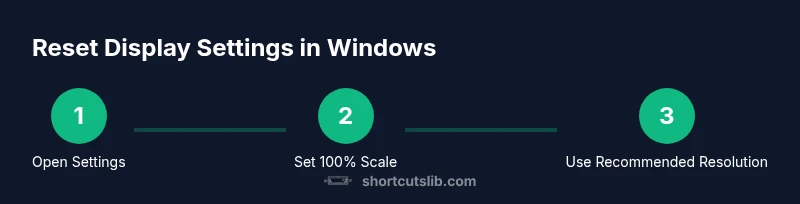
You can reset Windows display settings quickly using a keyboard-first workflow: open Settings with Windows key + I, search for Display, and then set Scale to 100% and Display resolution to Recommended. If problems persist, refresh your graphics driver with Windows key + Ctrl + Shift + B for a visual reboot.
Understanding Display Settings in Windows
According to Shortcuts Lib, display settings shape how your screen looks and feels, from text size to how many pixels you see. In Windows these controls include scaling (the size of text, icons, and UI elements), display resolution (how many pixels are used to render content), orientation, and color profiles. The Display settings hub also handles multi-monitor configurations, HDR behavior, and color calibration. When you reset display settings, you’re not altering hardware—you’re reapplying the default, optimized values that Windows recommends based on your hardware and preferences. Being fluent in these controls helps you diagnose common issues quickly: blurry text, UI elements that seem too large or too small, or misaligned monitors. The goal here is to provide a clear, keyboard-friendly path to bring things back to a sensible baseline, with practical steps you can perform without heavy tooling.
Why Reset Might Be Needed
Display settings drift for many reasons: plugging in a new external monitor, changing to tablet or laptop modes, or after system updates that affect scaling. Typical symptoms include fuzzy text, oversized icons, or unexpected black bars around a display. A reset helps restore readability and consistency across apps. A keyboard-first approach saves time when you’re moving between tasks or working with limited mouse access. Shortcuts Lib emphasizes focusing on three core areas: scale, resolution, and per-monitor identity. In this section we map common symptoms to concrete resets and explain when a simple reset suffices and when deeper troubleshooting is warranted.
Keyboard-first Path to Access Display Settings
A keyboard-driven workflow keeps you productive even when a mouse isn’t convenient. Start by opening the Start menu (Windows key), typing “Display,” and pressing Enter to open Display settings. Use Tab and the arrow keys to navigate to Scale and layout, then set the value to 100% (or your preferred size). Next, use Tab again to reach Display resolution and select the Recommended option. If a particular control won’t accept keyboard input, you can switch to the mouse for the final adjustment, then return to the keyboard for verification. After applying changes, Windows may re-render the desktop; a quick sign-out/in can help apply some values more reliably.
Step-by-step Example: Resetting Scale and Resolution (Keyboard + UI)
- Open Settings with Windows key + I. 2) Type 'Display' and press Enter to open Display settings. 3) Under Scale and layout, use Tab to reach the scale control and set it to 100% (or your preferred value) with the arrow keys; press Enter to confirm. 4) Under Display resolution, Tab to the resolution dropdown, press Enter, and choose 'Recommended'. 5) Confirm changes and test across a few apps; if needed, log out and back in. 6) For a deeper refresh, press Windows key + Ctrl + Shift + B to reinitialize the graphics driver. 7) If you use multiple displays, repeat the steps for each monitor or use the Identify feature to map them correctly.
Refreshing the Graphics Driver: a Quick Recovery
Sometimes a display reset leaves the GPU in a partially stale state. A fast reset is to press Windows key + Ctrl + Shift + B. The screen may flash, and Windows will reinitialize the graphics driver in the background. This does not close apps, but save work first in case you’re mid-edit. If you still see issues, check for driver updates via Device Manager or Windows Update, or perform a clean reinstall of graphics software if necessary.
Multi-Monitor and Color Management Considerations
Multi-monitor setups complicate resets. Use the Identify button in Display settings to map which screen corresponds to which number, then apply per-monitor scaling and resolution as needed. Windows supports per-monitor scaling, but consistency across displays improves usability. Colors can also be influenced by color profiles managed through Color Management; if colors look off, consider reverting to system defaults or calibrating per display. A careful, monitor-by-monitor approach often yields the calmest, most legible workspace.
Tools & Materials
- Windows PC or device (Windows 10/11)(Any Windows 10/11 machine; basic user privileges suffice for display changes.)
- Keyboard(Any standard keyboard with a Windows key.)
- Mouse (optional but helpful)(Some steps are easier with a mouse, especially on complex UI panels.)
- External monitor(s) (optional)(Use if you’re testing multi-monitor scaling or resolution changes.)
Steps
Estimated time: 15-25 minutes
- 1
Open Settings with keyboard
Press Windows key + I to launch the Settings app. This skips menus and takes you directly to the configuration hub where display options live.
Tip: If Settings is slow to open, wait a moment before proceeding. - 2
Open Display settings via search
Press Windows key to activate Start, type 'Display', and press Enter to jump into the Display settings page. This ensures you’re in the right section regardless of Windows version.
Tip: Use the Windows key alone to trigger search; you can type without navigating. - 3
Reset scale to 100%
In 'Scale and layout', use Tab and arrow keys to focus the scale control and set it to 100% (or your preferred value). Confirm with Enter.
Tip: If you can’t reach the control with a keyboard, adjust using the mouse and re-check with the keyboard afterward. - 4
Set resolution to Recommended
Tab to 'Display resolution', open the dropdown, and select the option labeled 'Recommended'. If that option isn’t visible, pick the highest standard resolution Windows marks as recommended.
Tip: Higher DPI values may improve clarity on high-DPI displays; test a few options if needed. - 5
Apply and verify changes
Apply the changes and observe a desktop redraw. Open a few apps to verify text and UI scale look correct across windows.
Tip: If things look odd, sign out and back in to ensure values take full effect. - 6
Refresh graphics driver if needed
Press Windows key + Ctrl + Shift + B to refresh the graphics driver. A brief screen blink indicates the driver is reinitializing.
Tip: Save work first; this operation is safe but may interrupt ongoing tasks. - 7
Test with multiple monitors
If you use more than one display, repeat the per-monitor steps or use Identify to map displays. Consistency across screens improves readability.
Tip: Document your preferred per-monitor settings in case you reconnect later.
Questions & Answers
Is there a single keyboard shortcut to reset all display settings in Windows?
No universal shortcut resets every display setting. A keyboard-first workflow uses Settings (Win + I), then Display to adjust scale and resolution. For a quick refresh, you can use the GPU driver reset (Win + Ctrl + Shift + B).
There isn't one shortcut for everything—use Settings for resets and the GPU refresh shortcut if needed.
Will resetting display settings affect color profiles?
Resetting scale and resolution typically doesn't change color profiles. If colors look off, check Color Management and calibrate per display. You can reset to system defaults if necessary.
Color settings usually stay the same, but for color accuracy, calibrate per monitor.
Why can’t I access Display settings?
Missing access can stem from Windows version differences, user permissions, or hardware limitations. Verify you’re on a supported Windows version and that you have access to Settings.
Ensure you’re on Windows 10 or 11 and have permission to modify display settings.
How do I revert changes if the reset makes things worse?
Open Display settings again and revert to a previous scale or resolution, or use the 'Recommended' option. A quick sign-out/sign-in can reapply defaults cleanly.
Reopen Display settings and reapply a safe default like 100% scale and Recommended resolution.
Do Windows 10 and Windows 11 differ in these steps?
The core approach is similar across both OS versions: use Settings to adjust scale and resolution. Some UI labels may differ, but the keyboard-first workflow remains effective.
The steps are largely the same; adapt to the slightly different UI labels.
Can I reset display settings for external monitors only?
Yes. Use Display settings and select the per-monitor options (Identify to map) to adjust each monitor individually for consistent results.
You can adjust each monitor separately in Display settings.
Watch Video
Main Points
- Open Display settings with keyboard to save time
- Set scale to 100% and use Recommended resolution
- Refresh GPU driver if visuals misbehave
- Test changes across all connected monitors