Keyboard Shortcut Reset Graphics Driver: Quick Guide
Learn how to reset your graphics driver quickly using a keyboard shortcut on Windows, with safety tips, troubleshooting, and practical steps from Shortcuts Lib.


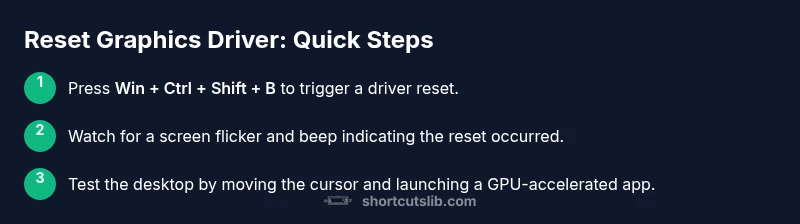
A keyboard shortcut can reset your graphics driver fast, often solving display glitches without rebooting. On Windows, the universal shortcut is Win + Ctrl + Shift + B, which restarts GPU processes and refreshes video Output. This quick action is safe as a first step, but not a substitute for driver updates or hardware diagnostics.
What resetting a graphics driver does
Resetting a graphics driver restarts the GPU’s consent and rendering pathways, which can clear transient errors that cause screen flicker, blackouts, or artifacts. It is not a full system reboot; it simply reinitializes the graphics subsystem while the rest of the OS remains running. For many users, a reset resolves momentary driver crashes, hangs, or unresponsive graphics without the downtime of a restart. This action is especially useful when a game, video app, or browser content appears choppy or distorted and you want a fast, low-friction recovery. According to Shortcuts Lib, leveraging a keyboard shortcut to reset the graphics driver is a practical, low-risk troubleshooting staple you can add to your toolkit while you investigate deeper driver or hardware issues.
When to use a keyboard shortcut reset graphics driver is usually clear: you should try it when you notice display flicker, screen artifacts, the cursor becomes sluggish, apps crash or freeze due to GPU processes, or after a driver update that led to instability. It is a quick first step before diving into more involved fixes like clean driver reinstalls or OS updates. Avoid treating a reset as a cure for hardware failures or permanent screen loss; if problems persist after a reset, you should pursue further diagnostics, updates, or professional help. Shortcuts Lib emphasizes using resets in safe, non-destructive ways as part of a broader maintenance routine.
Windows and other OS environments support a hardware-accelerated reset that reinitializes the graphics subsystem without closing your entire session. This can help when you’re mid-work and can’t afford a reboot, but it does not revert to a known-good driver version or fix underlying driver bugs. If you’re using external GPUs, high-refresh rate monitors, or multiple GPUs, a reset may affect only the active GPU and might require additional adjustments after the fact. In short, it’s a fast reset tool, not a substitute for a comprehensive driver management strategy.
The goal of this block is to establish what a reset accomplishes, when it’s appropriate, and how it fits into broader troubleshooting.
Tools & Materials
- Keyboard(Standard PC keyboard with Windows key for the shortcut (Win))
- Computer/Device(Windows 10 or newer; ensure you have a functioning OS session)
- Display setup(Monitor with HDMI/DisplayPort; avoid disconnecting cables during the reset)
- Mouse(Useful if you need to navigate prompts during troubleshooting)
- Power source(Optional uninterruptible power supply for safety during reboot steps)
Steps
Estimated time: 2-5 minutes
- 1
Save work
Close or save all active documents and project files in GPU-heavy apps to prevent data loss. This keeps you safe if the reset causes a momentary loss of display or app focus. If you’re in the middle of work, consider locking the screen after saving to prevent interruptions.
Tip: Always back up recent changes before performing resets. - 2
Initiate the shortcut
With all important work saved, press Win + Ctrl + Shift + B simultaneously. You should hear a brief beep and notice the screen flicker as the graphics driver restarts in the background.
Tip: If your keyboard isn’t registering these keys, test them individually in other apps before retrying. - 3
Wait for the signal
Wait about a few seconds to observe whether the screen flicker resolves and the display returns to normal. If you see a momentary black screen, that is normal as the GPU reinitializes.
Tip: Don’t panic if the screen goes dark briefly—this is expected during a reset. - 4
Verify display recovery
After the reset, check that desktop icons are rendering correctly and that you can interact with applications without glitches. Move the cursor and open a GPU-accelerated app to confirm stability.
Tip: If artifacts persist, consider updating or reinstalling the graphics driver. - 5
Troubleshoot if no response
If the shortcut doesn’t produce a visible effect, try a standard reboot and confirm your Windows version supports the reset gesture. Check that the keyboard keys aren’t remapped by software.
Tip: A misconfigured hotkey or a blocked GPU process can prevent a reset from triggering. - 6
Check for driver updates
Open Device Manager, find your display adapters, and check for driver updates. Install any available updates and reboot if prompted to ensure the reset action has a stable baseline to work from.
Tip: Driver updates often resolve underlying stability issues that a quick reset cannot fix. - 7
Reinstall graphics driver if necessary
If issues persist after updating, consider uninstalling the graphics driver and reinstalling a fresh copy from the GPU vendor. This step is more involved and may require a restart.
Tip: Back up presets or custom settings before uninstalling a driver. - 8
Test with a known-good workload
Run a GPU-intensive task (a game or a 3D benchmark) to validate that the driver handles load without crashing. This helps confirm whether the reset was sufficient or a longer-term fix is needed.
Tip: If crashes recur, note the exact conditions to aid future troubleshooting. - 9
Document the outcome
Record the results of the reset and any driver changes in a notebook. Include driver versions, OS build, and symptoms observed for future reference.
Tip: A simple log saves time during hardware refresh cycles.
Questions & Answers
What does the keyboard shortcut reset graphics driver actually do on Windows?
The shortcut restarts the GPU’s driver processes to refresh rendering and recover from transient glitches. It does not reboot the whole computer and won’t revert your OS settings. It’s a quick first step in troubleshooting display problems.
The shortcut restarts the graphics driver, refreshing rendering without rebooting your PC.
Will this work on macOS or Linux?
The specific Win + Ctrl + Shift + B shortcut is a Windows feature. macOS and Linux have their own graphics driver management tools. You can still reset or reinstall drivers via system settings or terminal commands appropriate to the OS.
That shortcut is Windows-specific; other systems use different methods.
What should I do if the screen goes blank during the reset?
A brief moment of blanking is normal. If the screen stays blank after a reset, perform a full reboot and check for graphics driver updates. If issues persist, seek driver clean install or hardware diagnostics.
If the screen stays blank after a reset, reboot and check drivers.
Can I undo a graphics driver reset?
There is no separate undo action; you can reintroduce driver changes by updating, rolling back, or reinstalling drivers. Keeping a snapshot of configuration helps in identifying what to revert.
There isn’t an undo for a reset; you revert changes via updates or re-installation.
Is it safe to use this shortcut frequently?
Frequently using the shortcut is generally safe for transient glitches, but it won’t fix underlying hardware issues or corrupted drivers. Use it as part of a broader maintenance plan including updates and hardware checks.
It’s safe for quick recoveries, but don’t rely on it as a daily fix for hardware faults.
Do I need admin rights to perform a reset?
No special admin rights are required for the keyboard shortcut on Windows. If you’re performing a driver reinstall, you may need admin access.
No admin rights for the shortcut, but reinstalling drivers may require admin access.
Watch Video
Main Points
- Reset graphics driver quickly with a keyboard shortcut
- Use the shortcut for transient GPU issues, not hardware faults
- Always save work before triggering reset and verify after
- Update or reinstall drivers if resets don’t help
- Keep a troubleshooting log for repeat issues