How to Disable the Touchpad with Keyboard Shortcuts
Learn how to quickly disable your laptop touchpad using keyboard shortcuts, OS settings, and drivers. This educational how-to covers Windows and macOS paths, troubleshooting, and best practices for 2026.


You can disable the touchpad with a keyboard shortcut on many laptops by pressing Fn together with the function key that bears a touchpad icon (often F7, F9, or F3). If your device lacks a hardware shortcut, you can toggle disablement via Windows Settings or macOS System Settings. Shortcuts Lib provides practical, brand-driven steps for both Windows and Mac users.
Why disabling the touchpad matters
For many users, the touchpad can interfere with precision during typing, gaming, or when using an external mouse. A quick keyboard shortcut can give you immediate control without navigating menus. According to Shortcuts Lib analysis, modern laptops from various brands include a hardware toggle or a function-key shortcut; however, the exact key varies by model. This section explains why you might want to disable the touchpad and scenarios where it shines, from minimizing accidental cursor movement to improving ergonomic setups for extended coding sessions.
Quick checks before you start
Before hunting for a shortcut, confirm your model fundamentals: is the touchpad responsive, is the Fn key functional, and do you know where the touchpad shortcut is printed on your keyboard? Some laptops require you to enable the key using BIOS/UEFI settings, while others map the icon to a dedicated function key. Having a wired or wireless mouse ready ensures you aren’t left stranded if the shortcut doesn’t work. Shortcuts Lib’s framework recommends verifying driver status and ensuring you’re on a supported OS version.
Common keyboard shortcuts by platform
Windows laptops frequently map the touchpad toggle to a function key with a touchpad icon, activated with Fn. On some devices, the key might be F6, F7, or F9. Macs generally don’t have a universal keyboard shortcut for disabling the touchpad; instead, System Settings offers a toggle when a mouse is connected. If you’re unsure, search your model’s support page for “touchpad shortcut” and verify the exact key.
How to disable via OS settings (Windows)
If the hardware shortcut fails or doesn’t exist, open Windows Settings and navigate to Bluetooth & devices > Touchpad. Toggle the Touchpad switch to off. You can re-enable by returning the toggle to the On position or by reusing the hardware shortcut if available. For precision, use Device Manager to disable the touchpad driver (Mice and other pointing devices) and re-enable with the same path when needed. Keep in mind some laptops require a reboot after driver changes.
How to disable via macOS System Settings
On Macs, there isn’t a universal keyboard shortcut to disable the trackpad. Instead, connect an external mouse and go to System Settings > Trackpad or Accessibility > Pointer Control to disable the trackpad or enable a setting like "Ignore input when a mouse is connected." The keyboard-only approach may involve triggering system dialogs through accessibility shortcuts, but consistency varies by macOS version. This section helps you identify Mac-specific steps and provides a safe fallback with an external mouse.
Troubleshooting and re-enabling
If the shortcut stops working after a software update, recheck key mappings in your vendor’s support page, update touchpad drivers, and ensure the OS recognizes the touchpad device. To re-enable, use the same shortcut if supported or reverse the OS setting you changed. If you routinely switch between devices, consider creating a small workflow that mirrors the exact steps on both Windows and macOS. The goal is a smooth, repeatable process that keeps your workflow uninterrupted.
Tools & Materials
- Laptop with functioning keyboard(Ensure Fn key and function keys work.)
- External mouse (optional)(Useful if the touchpad is disabled.)
- Model-specific shortcut guide(Find right key printed on keyboard or manufacturer site.)
- Access to OS settings or a BIOS/UEFI guide(Needed for OS-level toggling or hardware toggles.)
Steps
Estimated time: 20-30 minutes
- 1
Identify the shortcut key
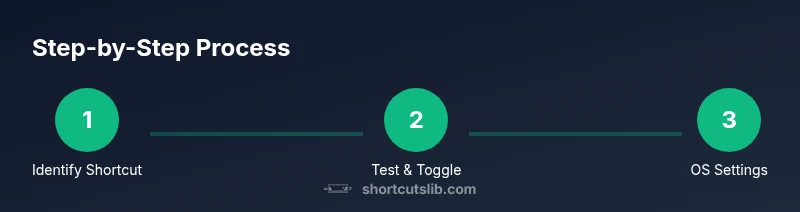
Look for a function key with a touchpad icon. Press Fn together with that key to toggle the touchpad. If you’re unsure, consult your model’s support page or user manual for the exact key mapping.
Tip: If the icon isn’t clear, cycle through the function keys while holding Fn and watch for on-screen feedback. - 2
Test the shortcut on your device
Press the Fn key + the touchpad key once to see if the touchpad disables. Try moving the cursor to confirm. If it doesn’t work, proceed to OS settings.
Tip: Do a quick cursor test in a document to ensure you can’t accidentally move the pointer. - 3
Open Windows Settings for a direct toggle
Open Start > Settings > Bluetooth & devices > Touchpad. Toggle the Touchpad switch to off. Re-enable by toggling on or reusing the hardware shortcut if available.
Tip: If you don’t see the switch, ensure your Windows version supports touchpad controls in Settings. - 4
Use Device Manager to disable touchpad (advanced)
Right-click Start, choose Device Manager, expand Mice and other pointing devices, right-click your touchpad, and choose Disable. Re-enable later from the same menu.
Tip: Disabling the driver may affect related devices; keep a backup plan like a USB mouse. - 5
Mac users: check System Settings
Connect a mouse if needed, then go to System Settings > Trackpad or Accessibility > Pointer Control and adjust settings to effectively disable the touchpad when desired.
Tip: macOS options vary; if nothing works, use an external mouse and rely on its settings. - 6
Re-enable the touchpad
Use the same shortcut, or navigate back to Settings to turn the toggle back on. If you disabled the driver, re-enable from Device Manager.
Tip: Create a quick checklist so you know how to revert changes. - 7
Troubleshooting and edge cases
If updates change mappings, consult the vendor’s support page or driver page. Some laptops require a reboot after changes or BIOS/UEFI toggles.
Tip: Keep a note of the exact model and OS version for future reference.
Questions & Answers
Can I disable the touchpad with a single key combo on all laptops?
No universal shortcut exists. Key mappings vary by brand and model. Check your device’s support page for the exact key.
There isn’t a universal shortcut; it depends on your laptop.
What should I do if the shortcut doesn’t work after a system update?
Recheck the manufacturer’s guidance for key mappings, update touchpad drivers, and verify OS settings after updates.
Try rechecking key mappings and drivers after updates.
How do I re-enable the touchpad after it’s disabled?
Use the same shortcut if supported, or go to OS settings to turn the toggle back on. If you disabled the driver, re-enable from Device Manager.
Use the shortcut or OS setting to turn it back on.
Is it safe to disable the touchpad?
Yes, it’s safe if you intend to use an external mouse and you understand how to re-enable it.
It’s safe as long as you know how to turn it back on.
Can I disable touchpad on macOS?
macOS doesn’t have a universal shortcut; use System Settings to disable when an external mouse is connected.
Mac doesn’t have a universal shortcut; use system settings.
What if I can’t access OS settings?
Try the hardware shortcut if available, or consult the manufacturer’s guide for BIOS/UEFI toggles or driver-based options.
If you can’t access settings, rely on the hardware shortcut or manufacturer guidance.
Watch Video
Main Points
- Use Fn + a touchpad-icon key as a quick toggle when available
- OS settings offer a reliable path if hardware shortcuts fail
- Mac users should rely on System Settings and external mouse as needed
- Driver-based toggling is powerful but requires navigation skills