How to Disable Touchpad with Keyboard Shortcuts: A Practical Guide
Learn practical steps to disable the touchpad using keyboard shortcuts, OS settings, and manufacturer tools. This guide covers quick methods, troubleshooting, and best practices for a distraction-free keyboard workflow.


With the right keyboard shortcut, you can disable the touchpad in seconds. The exact key varies by brand and model, but most laptops use a function key marked with a touchpad icon, usually activated by holding Fn. If your hardware lacks a toggle, you can also disable it through the operating system settings or device manager.
Why you might want to disable the touchpad
Typing quickly can lead to accidental cursor moves and mis-clicks when your palm brushes the touchpad. A keyboard shortcut disable touchpad capability can help you stay in the flow, especially for heavy keyboard users. According to Shortcuts Lib, keyboard shortcuts that toggle input devices are especially valuable because they remove friction—you don’t need to stop what you’re doing to locate a device or navigate menus. The concept is simple: keep your hands on the keyboard and turn the touchpad off only when you’re typing or focused on coding, writing, or data entry. In practice, many professionals find that a quick toggle minimizes typos and clicking errors during long sessions. If you’re often switching between methods or devices, this toggle becomes a reliable productivity ally.
Beyond speed, there are situational reasons to use a keyboard shortcut disable touchpad. You might be presenting, running a webinar, or using an external mouse on a docking station. Some people prefer a distraction-free typing environment, while others need to avoid accidental gestures that interfere with precision tasks like photo editing or spreadsheet work. The power of a toggle also extends to accessibility: for some users, keeping the touchpad off reduces cognitive load and helps maintain focus on the keyboard.
In short, adopting a keyboard shortcut disable touchpad habit can streamline workflows, reduce mistakes, and support a more keyboard-centric approach. It’s a practical skill for any tech user who values efficiency and accuracy at the keyboard.
Quick context on device variability
The exact shortcut varies by device and operating system—there isn’t a universal key across all laptops. The most common pattern is a function key with a touchpad icon, often activated by pressing Fn in combination. Different manufacturers—HP, Dell, Lenovo, Acer, ASUS, and others—may map the toggle to different F-keys or require a dedicated hardware button. If you’re unsure which key to press, consult the user manual or the manufacturer’s support site. A good practice is to test a couple of nearby function keys while watching the on-screen indicator lights or the cursor behavior to confirm which one toggles the touchpad on your model.
If you can’t locate a hardware toggle, the keyboard shortcut disable touchpad route remains viable via software controls, which we’ll cover next. While it’s tempting to rely on a single key, remember that some ultrabooks rely on Windows, macOS, or Linux configurations rather than a single function key for robust control.
A quick note on terminology and scope
When we say keyboard shortcut disable touchpad, we’re talking about any reliable, repeatable method to turn off touch input quickly from the keyboard. This includes hardware toggles (the Fn+F-key approach) and software toggles (OS-level settings, driver utilities, or BIOS/UEFI options). The goal is not to erase touchpad functionality entirely, but to provide a fast off-switch when a mouse is in use or when the touchpad becomes a distraction. For many users, a toggle that works in seconds beats navigating through menus or rebooting to alter device behavior. The guidance here emphasizes practical, widely applicable steps that you can adapt to your exact hardware configuration.
Overall approach and best practices
Use the hardware toggle first if present, as it’s the fastest and most reliable. If there’s no hardware toggle, leverage OS-level controls as a backup. Always test the toggle in real-time after applying changes to verify it behaves as expected. Keep a backup input method handy (a wired or Bluetooth mouse) in case you need to re-enable the touchpad quickly during troubleshooting. Finally, note that some devices may re-enable the touchpad after sleep or reboot unless you configure a persistent setting. Practicing these steps will help you maintain a smooth, keyboard-focused workflow.
Tools & Materials
- Laptop or device with a touchpad(Essential to practice toggling the touchpad.)
- Keyboard shortcut (Fn + function key)(Look for a key with a touchpad icon; exact key varies by manufacturer.)
- OS settings access (Windows/macOS/Linux)(Needed if hardware toggle is absent or not functioning.)
- External mouse (backup)(Helpful for swapping to a mouse while testing or troubleshooting.)
- Driver/software updates(Ensure touchpad drivers are current for reliable toggling.)
Steps
Estimated time: 30-60 minutes
- 1
Locate the hardware toggle or touchpad symbol key
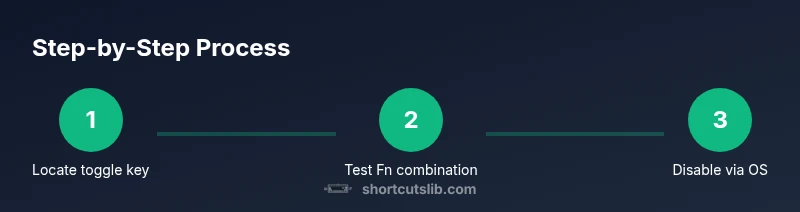
Inspect the row of function keys (F1–F12) for a key with a touchpad icon. If you see one, try pressing Fn + that key while watching for a visual toggle or cursor behavior. This is the fastest way to toggle the touchpad on many laptops.
Tip: If no icon is visible, consult the manual or manufacturer support page for the exact key mapping. - 2
Try the hardware toggle with Fn
If your device uses Fn to activate the shortcut, press Fn together with the identified function key. Release both keys and observe whether the touchpad stops responding to finger input.
Tip: Sometimes the toggle requires holding Fn briefly; keep the keys pressed for a moment and test with a mouse. - 3
Access Windows/ macOS touchpad controls
Open the operating system’s touchpad or trackpad settings to disable it via software. On Windows, navigate to the Touchpad section in Settings; on macOS, look under Trackpad in System Settings. Disable the touchpad and verify by moving the cursor.
Tip: If you don’t see an explicit disable option, turn off gestures or delay/idle settings to reduce accidental input. - 4
Test the toggle with a mouse connected
Connect a wired or Bluetooth mouse and check that the touchpad input is ignored while the mouse is active. This confirms the toggle is working as intended.
Tip: If the touchpad still moves the cursor, you may need to reapply the toggle or disable via a different method in Settings. - 5
Review BIOS/UEFI options (if available)
Some devices offer a BIOS/UEFI setting to disable the touchpad at a low level. Access BIOS/UEFI during boot and locate the “Internal Pointing Device” or similar option to disable it. Save changes and reboot.
Tip: Only use this if you’re comfortable with BIOS settings; incorrect changes can affect boot behavior. - 6
Update drivers and firmware
If the shortcut isn’t working consistently, update the touchpad driver and firmware from the manufacturer’s site. Restart the device after installation to apply changes.
Tip: Check vendor support pages for your exact model to locate the correct driver package. - 7
Create a quick re-enable workflow
Document a repeatable set of steps to re-enable the touchpad, so you can switch back rapidly when needed.
Tip: Consider assigning a separate hotkey sequence if your hardware supports it. - 8
Validate in real tasks
Perform typical tasks (typing, browsing, coding) to ensure the toggle doesn’t interfere with other actions. Adjust as needed.
Tip: Keep a browser or editor ready to quickly switch back when you rely on precise pointer control.
Questions & Answers
Is it safe to disable the touchpad?
Yes. Disabling the touchpad is safe and reversible. It can prevent accidental clicks during typing, but make sure you have an alternate input method handy for navigation.
Yes, it's safe to disable the touchpad. It’s reversible, and you’ll want a mouse handy if you need to move the cursor while disabled.
What if the shortcut changes after a driver update?
Driver updates can change key mappings. If the shortcut stops working, check the manufacturer’s support pages and re-map the shortcut or rely on OS settings.
If the shortcut stops working after an update, check the manufacturer’s site for the correct mapping or use the OS setting to disable.
Can I disable only gestures, not the entire touchpad?
Some operating systems allow disabling gestures while keeping basic cursor movement enabled. If not available, turning the touchpad off will disable all input until re-enabled.
Some systems let you turn off gestures separately, but often disabling the touchpad stops all input until you re-enable it.
Will the touchpad re-enable automatically when I connect an external mouse?
Many laptops offer a setting to ignore the touchpad when a mouse is connected. If you don’t see this option, you’ll need to re-enable manually when you switch to keyboard-only work.
Often, there’s a setting to ignore the touchpad when a mouse is connected; if not, re-enable manually when needed.
Where can I find the exact keys for my device?
Check the user manual or the manufacturer’s support page for your model. Product pages typically list the correct function-key mapping for touchpad toggling.
Look up your model’s manual or support page to confirm the exact key mapping for the touchpad toggle.
Does Linux support touchpad toggling via keyboard?
Linux often exposes input device toggles through xinput or desktop environment settings. You can rebind keys or script a toggle, depending on your distro and drivers.
Linux users can usually toggle via xinput or DE settings; mappings vary by distro and driver.
Watch Video
Main Points
- Identify your device’s toggle method first.
- Use OS settings as a reliable backup if hardware toggle fails.
- Keep an external mouse accessible for testing and quick re-enable.
- Update drivers to improve toggle reliability.
- The Shortcuts Lib team recommends practicing the shortcut to build muscle memory.