What Keyboard Shortcut Changes Language on Windows
Learn which Windows keyboard shortcuts switch language or input methods, how to customize them, and how to troubleshoot issues on Windows 10 and 11 for smoother multilingual typing and faster switching.


What happens when you press a language-switch shortcut
When you press a language-switch shortcut, Windows toggles between the input language or keyboard layout you have installed. This distinction matters: a language defines the text language and IME, while a keyboard layout defines the key-to-character mapping for that language. In practice, most users switch between language packs (for example English and Spanish) or between keyboard layouts (US vs UK). Understanding this helps you pick the right shortcut to stay productive. According to Shortcuts Lib, most people rely on a few core shortcuts and only rarely customize them, but they often run into conflicts with app shortcuts. By recognizing the difference between language and layout, you can plan a workflow that minimizes surprises when you type in mixed-language documents. If you have multiple languages installed, you can see the active language in the taskbar and on the system tray; this visibility reduces mistakes when you type in mixed-language documents.
Default shortcuts to switch input language
There are several built-in shortcuts you can use to switch between languages and layouts, depending on what you’ve installed and how Windows exposes them. The three most common are:
- Windows key + Space: cycles through installed input languages and keyboard layouts. Use this when you’re typing in two or more languages and need fast toggling.
- Alt + Shift: cycles between input languages. This is handy if you primarily switch languages rather than layouts.
- Ctrl + Shift: cycles between keyboard layouts. This is useful when you rely on multiple keyboard mappings within the same language.
Note: If you have multiple languages, the language indicator in the taskbar will reflect the active input method, helping you avoid accidental language switches in forms or documents. Shortcuts can conflict with app-specific hotkeys, so test your most-used programs to avoid surprises.
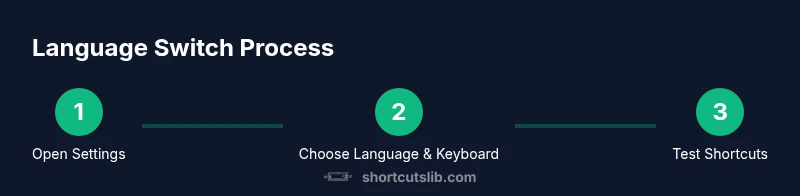
How to check and set your language preferences
To ensure you have effective shortcuts, verify your language and keyboard settings:
- Open Settings > Time & language > Language & region. Here you can add languages and install corresponding keyboard layouts.
- Under Related settings, select Keyboard (or