Shortcut Emoji Windows: Master Windows Shortcuts
Learn practical Windows emoji shortcuts for faster typing. Explore the built-in emoji panel, Alt codes, and simple custom hotkeys to speed up messaging, docs, and code comments.


Shortcut emoji windows are achievable by using the Windows emoji panel (Win + .) and optional Alt codes, along with lightweight hotkeys. This guide explains the core steps, from quick inserts in any app to creating personalized shortcuts, so you can add emojis to messages, docs, and code comments with minimal effort.
What is shortcut emoji windows
According to Shortcuts Lib, shortcut emoji windows refers to a set of practical, keyboard-driven methods to insert emoji and symbols directly in Windows apps. It combines the native emoji panel, traditionally opened with Win + ., Alt codes via the numeric keypad, and lightweight hotkeys you can customize. The goal is to reduce context switching and keep your fingers on the keyboard, whether you’re composing emails, writing documentation, or annotating code. This section sets the foundation by explaining what each method does, how they interact with fonts and app support, and when you should reach for one method over another. As you read, you’ll notice how the approach scales from casual conversations to professional workflows. Shortcuts Lib’s stance is that consistent emoji usage saves time without sacrificing clarity or readability.
Quick-access emoji panel basics
Windows 10 and 11 include an emoji panel that is quick to access and easy to remember. The panel can be opened with Win + . (period) or Win + ; (semicolon) on most keyboards. Once open, you can browse categories, search for specific emoji, and insert them with a single click or key press. The panel supports color emojis in most modern apps and ensures a consistent glyph across compatible fonts. For keyboard enthusiasts, the real value is in switching between search, recent picks, and frequently used symbols without leaving your current field. This baseline method is quick, universal, and app-agnostic, making it the default starting point for shortcut emoji windows.
Alt codes and Unicode basics
Alt codes are a time-tested method for inserting symbols using the numeric keypad. In Windows, you hold the Alt key and type a numeric sequence, then release to insert a character. This method works well for simple symbols and some emoji variants, but it relies on font support and the presence of the Unicode code page in your system. Unicode knowledge is helpful here: many emoji have decimal codes that map to specific glyphs across fonts. While Alt codes aren’t as fluid as the emoji panel, they can be valuable when you’re in apps that don’t expose an emoji picker or when you’re scripting consistent inserts in text templates. Practitioners who frequently work offline or in restricted environments often rely on Alt codes as a dependable fallback.
Custom shortcuts: hotkeys and automation
For power users, custom shortcuts let you insert a chosen emoji with a single keystroke. A popular approach is to map a short sequence to a specific emoji using lightweight scripting tools such as AutoHotkey. The idea is to choose a mnemonic trigger (e.g., :smile: mapped to a short key combo) that feels natural and is unlikely to collide with existing shortcuts. Automation isn’t limited to emoji alone; you can create templates that insert whole phrases with emojis in one go. This section clarifies when to use basic panel access versus custom hotkeys, and how to test across apps to avoid unintended text substitutions.
Cross-app consistency and font considerations
Emoji rendering varies by font and platform. Some emoji render identically across apps, while others may appear differently in Word, Slack, or VS Code due to font substitution. Shortcuts Lib emphasizes testing your favorite emoji in the most common apps you use to ensure consistency. If font coverage is weak, you’ll see missing glyphs or boxes instead of the intended symbol. A reliable workaround is to choose a small, well-supported set of emoji and rely on sketchy fonts only when necessary. This strategy improves cross-application consistency and reduces confusion for teammates who rely on emoji to convey meaning.
Common use cases and etiquette
Emoji can convey tone, clarify intent, and speed up information transfer. In a corporate setting, use emoji sparingly and choose professional symbols (e.g., thumbs up, check marks, or simple status indicators). For documentation or tutorials, emoji can highlight steps or denote stages, but avoid overuse that risks clutter or misinterpretation. Shortcuts Lib’s practical recommendation is to establish a small, consistent emoji vocabulary for your team and stick to it. When adding emoji to code comments, keep readability in mind and ensure that symbols don’t obscure the logic or hinder readability for non-native speakers.
Tools & Materials
- Windows PC with Windows 10 or 11(Ensure Win + . emoji picker is available)
- Numeric keypad (for Alt codes)(Optional; requires Num Lock on)
- AutoHotkey (optional)(For creating custom emoji hotkeys)
- Unicode cheat sheet (optional)(Helpful reference for decimal/Hex codes)
Steps
Estimated time: 15-25 minutes
- 1
Open the emoji panel
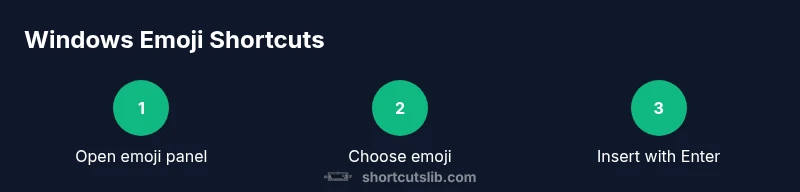
Press Win + . (period) to open the Windows emoji panel. This is your fastest route for inserting emojis in most text fields. The panel supports searching and category browsing, so you can quickly locate the symbol you want.
Tip: Tip: Start typing a keyword like 'smile' to jump to related emojis. - 2
Insert an emoji from the panel
Use arrow keys to highlight a symbol and press Enter to insert it. The panel remains accessible for additional picks, which is handy if you need to insert multiple icons in sequence.
Tip: Pro tip: Add frequently used emoji to your Favorites for even faster access. - 3
Try Alt codes for quick symbols
Hold Alt and type the numeric code on the keypad, then release. This method works in many apps that support Unicode input. It’s a reliable fallback when the emoji panel isn’t available.
Tip: Note: Only a subset of emoji have practical Alt codes; font support matters. - 4
Create a simple AutoHotkey shortcut
Install AutoHotkey and map a short keystroke to a chosen emoji string. For example, you could map ^!e to insert 🙂. This speeds up repetitive inserts across apps.
Tip: Warning: Choose non-conflicting hotkeys and test across apps to avoid accidental text changes. - 5
Test in your primary apps
Open the apps you use most (e.g., email, chat, docs, code editors) and test each method. Look for consistency in rendering and ensure the emoji appear as intended.
Tip: Pro tip: Save a short test document to verify cross-app compatibility. - 6
Document your emoji shortcuts
Create a quick reference sheet listing your emoji and corresponding shortcuts. Share it with teammates to standardize usage and reduce confusion.
Tip: Note: Keep the list concise and update it when you add new symbols.
Questions & Answers
What is the quickest way to insert emoji on Windows?
For most users, the Windows emoji panel (Win + .) is the fastest method. It works across most apps and supports quick searches. If the panel isn’t accessible, Alt codes provide a reliable fallback.
The fastest way is the Windows emoji panel, opened with Win and the period key. If you can’t use the panel, Alt codes are a solid fallback.
Do emoji panels work in all apps on Windows?
Most modern Windows apps support the emoji panel, but some legacy or specialized software may not render all glyphs identically. Font support in the app can affect how emojis look.
Most apps support the emoji panel, but some older programs may show different glyphs or missing symbols.
Can I create custom emoji shortcuts on Windows?
Yes. Tools like AutoHotkey let you map short keystrokes to emoji strings, enabling one-step inserts across programs. Test thoroughly to avoid conflicts with existing shortcuts.
You can map keystrokes to emoji with AutoHotkey, but test first to avoid clashes.
Are there accessibility considerations with emoji?
Emoji are visual symbols; ensure screen readers provide appropriate alt text or descriptions when used in documentation. Rely on text where clarity is critical.
Be mindful of screen readers; provide text descriptions where emoji add meaning.
What should I include in a team emoji guideline?
Limit the emoji to a small, consistent set, define meanings, and document shortcuts. Review guidelines periodically to adapt to changing needs.
Create a small, shared emoji glossary and keep shortcuts in a simple document.
What about cross-platform emoji rendering?
Emoji rendering varies by platform; when sharing content across Windows, macOS, and mobile, reserve critical symbols for universally supported ones and avoid nuanced glyphs.
Emoji can look different across platforms, so be careful with symbols that aren’t widely supported.
Watch Video
Main Points
- Master the Win + . emoji panel for fast inserts.
- Use Alt codes as a reliable fallback when the panel isn’t available.
- Create lightweight hotkeys to insert your favorite emoji.
- Test emoji rendering across your most-used apps to ensure consistency.
- Document your shortcuts to promote team-wide efficiency.