Maximize Shortcut Keys in Windows 7: A Practical Guide
Master Windows 7 shortcut keys with a practical, step-by-step guide. Discover essential hotkeys, customization tricks, and daily workflows to boost productivity with Shortcuts Lib.


Learn to maximize shortcut key windows 7 productivity with essential Windows 7 hotkeys, customization tips, and practical workflows. This quick guide covers navigation, window management, screen capture, and app launching so you can perform tasks faster with confidence. Shortcuts Lib shares proven techniques to boost efficiency on legacy and compatible systems.
What maximizing shortcuts on Windows 7 means
Maximizing shortcut keys on Windows 7 is about building a reliable, repeatable set of keyboard actions that speed up daily tasks. According to Shortcuts Lib, success comes from selecting a core group of actions and applying consistent modifier keys. The goal is to reduce mouse reliance and create strong muscle memory for frequent workflows. When you think in terms of small, repeatable rituals, you unlock faster file management, smoother navigation, and quicker access to apps. This section lays the groundwork for why a disciplined shortcut strategy matters, especially on aging-but-stable systems where modern shortcuts may be unavailable. By starting with a concise, high-impact set, you’ll avoid cognitive overload and see tangible time savings day after day.
Core Windows 7 shortcuts you should memorize
Below is a compact starter kit of must-know shortcuts that cover navigation, window management, and basic editing. Use them daily to feel the difference in your workflow. Remember to practice consistently so muscle memory takes over.
- Win+D: Show the desktop and minimize all windows, then press again to restore.
- Win+E: Open Computer/Explorer for quick file access.
- Alt+Tab: Switch between open applications swiftly.
- Ctrl+C / Ctrl+X / Ctrl+V: Copy, cut, and paste selected items.
- Ctrl+S: Save active document or file frequently to prevent data loss.
- Ctrl+F: Open the search/find tool within apps and browsers.
- Win+L: Lock the workstation when stepping away.
- Alt+F4: Close the active window or app.
Practice these in common tasks (opening files, moving between apps, saving work) to gain consistent speed. Shortcuts Lib notes that mastery comes from a focused set rather than trying to memorize every hotkey at once.
Customizing shortcuts for apps and programs
Windows 7 lets you assign a keyboard shortcut to a program by creating or selecting a desktop shortcut and setting a hotkey in its properties. This approach is powerful for launching your most-used apps without hunting through menus. To do it:
- Right-click the program’s desktop shortcut and choose Properties.
- In the Shortcut tab, click the Shortcut key box.
- Press the key combo you want (commonly Ctrl+Alt+G or Ctrl+Alt+N).
- Click Apply, then OK.
Tips:
- Pick a consistent modifier pattern (Ctrl or Ctrl+Alt) for all custom shortcuts to reduce cognitive load.
- Avoid overwriting existing OS or widely used shortcuts. Test new combos in a safe session before adopting them widely.
- For apps opened via Start Menu pins, you can still use Win+number shortcuts to reach them quickly after pinning.
As you grow your library, document your most-used combos in a simple reference sheet. This reduces breaking muscle memory if you switch devices.
Mastering window and taskbar navigation
Windows 7 provides powerful, discoverable shortcuts for managing windows and the taskbar. Build a quick mental model that pairs navigation with reliable UI anchors. Useful patterns include:
- Win+T to focus the taskbar and cycle through pinned apps with the arrow keys.
- Win+1 through Win+9 to launch or switch to the corresponding pinned taskbar item.
- Alt+Tab to cycle through open apps with a visual cue; Release to switch.
These shortcuts complement mouse usage rather than replace it. Practicing a few loops daily will dramatically speed up repetitive tasks like file transfers, document editing, and email triage. Shortcuts Lib emphasizes the importance of consistent patterns across apps to reduce cognitive overhead.
Screen capture and annotation shortcuts
Capturing screenshots efficiently is essential for reporting, debugging, and sharing. Windows 7 supports several reliable routes:
- Print Screen: Copy the entire screen to the clipboard; paste into an image editor or document.
- Alt+Print Screen: Copy only the active window to the clipboard.
- Snipping Tool: Open via Start menu, then choose Free-form, Rectangular, Window, or Full-screen snips. Saves or copies the image for quick annotation.
Tips for speed:
- Create a quick-access launcher for Snipping Tool if you frequently capture screens.
- Combine Print Screen with Ctrl+V in a document editor to drop images directly into reports.
- Preserve your focus by assigning a custom shortcut to Snipping Tool if supported by your setup, or add a batch file to streamline the process.
Accessibility and consistency: building a shortcut habit
A sustainable shortcut strategy respects accessibility and habits. Keyboard shortcuts should feel intuitive, not forced. Windows 7 offers accessibility options like Sticky Keys and Filter Keys to reduce the cognitive load while typing. If you have motor-impaired needs, these features can help maintain speed without sacrificing accuracy. The habit-building process involves choosing a core set, practicing daily, and using consistent modifiers (Win for navigation, Ctrl for editing, Alt for window switching).
Branding and consistency matter. Shortcuts Lib recommends starting with a small, high-impact set and expanding gradually as muscle memory strengthens. This measured approach prevents burnout and protects you from shortcut fatigue during long work sessions.
Troubleshooting common shortcut issues on Windows 7
When shortcuts stop working, the problem is usually environmental rather than a faulty keyboard. Common culprits include wrong keyboard layout, language input, or conflicting software shortcuts. Quick checks:
- Verify your keyboard layout matches your physical keyboard.
- Check program-specific settings to ensure hotkeys aren’t overridden by another feature.
- Update keyboard drivers and ensure Windows updates are current.
- If shortcuts rely on Administrator privileges, ensure the current user has the required rights.
If issues persist, test with a clean user profile or Safe Mode to isolate software conflicts. This structured approach helps you restore reliable shortcut performance without losing productivity.
Practical daily workflows to apply the shortcuts
Putting shortcuts into real-world routines makes them stick. Here are two practical daily workflows that demonstrate how to combine navigation, editing, and capture shortcuts into seamless tasks. Start with a short warm-up session of 10 minutes to reinforce the patterns:
- Workflow A: Email triage and document preparation
- Use Win+E to open Explorer, then Ctrl+C/Ctrl+V to copy content between documents.
- Use Win+R and type in the app path quickly, then Alt+Tab to switch back and forth.
- Capture citations or screenshots with Print Screen or Snipping Tool for rapid annotation.
- Workflow B: Quick report compilation
- Open template with Win+2 (if pinned), copy data via Ctrl+C, paste with Ctrl+V, and save with Ctrl+S.
- Use the Snipping Tool for screenshots, then drop them into the report using Paste.
- Lock the machine with Win+L when stepping away to preserve integrity.
As you implement these workflows, you’ll notice faster task completion and less context switching. Shortcuts Lib emphasizes practicing these sequences until they become second nature.
Final notes on maintenance and progressive improvement
A sharp shortcut habit is an ongoing process, not a one-time setup. Review your shortcuts every few weeks, prune those you never use, and add new ones for recurring tasks. Maintain a living reference list so you don’t forget the exact sequences. With steady practice, you’ll reach a point where navigating Windows 7 and your apps feels almost reflexive, freeing cognitive resources for more complex tasks. Consistency is the difference between occasional gains and lasting efficiency.
Tools & Materials
- Windows 7-capable PC(Any edition supported by mainstream support; ensure administrator rights for certain changes.)
- Full-size keyboard (USB or PS/2)(Prefer a keyboard you use daily to build muscle memory.)
- Printer/Document editor (for practice tasks)(To simulate real work: Word, Notepad, or similar.)
- Desktop shortcuts for frequently used apps(Create and test a few program shortcuts to practice customization.)
- Snipping Tool access(Ensure it is accessible from Start Menu or a quick-launch shortcut.)
- Shortcut reference sheet (print or digital)(Document of core shortcuts and any custom mappings.)
- Timer or time-tracking app(Helpful to measure learning progress during practice sessions.)
- Administrative access (if testing advanced shortcuts)(Some shortcuts require elevated privileges in certain contexts.)
Steps
Estimated time: 60-75 minutes
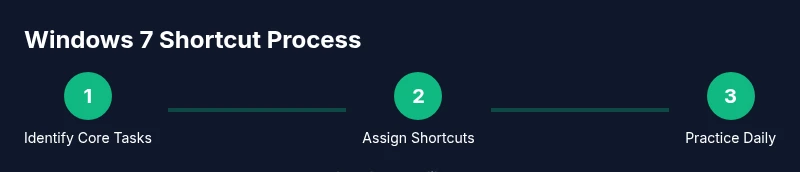
- 1
Identify core tasks
List your top daily actions (email, file access, document editing). Prioritize 5–7 actions that you perform most often. This establishes a focused shortcut target set and reduces overload.
Tip: Document each task in a single line; this makes it easier to map a shortcut later. - 2
Choose a consistent modifier scheme
Decide on a single modifier approach (e.g., Win for navigation, Ctrl for editing, Alt for window switching) and apply it across all custom shortcuts. Consistency speeds learning and reduces mistakes.
Tip: Avoid mixing modifiers for similar tasks to minimize cognitive load. - 3
Assign shortcuts to favorite apps
Create desktop shortcuts for your most-used programs and set keyboard shortcuts in their Properties. Test each combo, then adjust if it conflicts with existing OS shortcuts.
Tip: Document your mappings in a single reference sheet for quick recall. - 4
Leverage built-in navigation shortcuts
Practice Win+D, Win+E, and Alt+Tab to switch contexts quickly. Integrate them into your daily routine so they become second nature.
Tip: Repeat cycles until you can switch apps without looking at the screen. - 5
Incorporate screen capture
Add Print Screen and Snipping Tool into your workflow for fast documentation. Pair with Paste to drop images straight into reports.
Tip: Keep Snipping Tool readily accessible for faster captures. - 6
Validate and refine weekly
Review shortcut usage weekly, remove rarely used mappings, and add a couple of new ones tied to evolving tasks.
Tip: Set a 15-minute weekly review reminder to stay fresh.
Questions & Answers
What is the best approach to start maximizing shortcuts in Windows 7?
Begin with a core set of tasks and a consistent modifier pattern. Practice daily for 15–20 minutes to build muscle memory and gradually add more shortcuts as you become proficient.
Start with a core set and practice daily to build memory before expanding your shortcuts.
Can you assign a keyboard shortcut to a specific program in Windows 7?
Yes. Create or locate the program’s desktop shortcut, open Properties, and set a Shortcut key. Save changes and test the combo to ensure it launches the program.
Yes—set a keyboard shortcut in the program’s shortcut properties and test it.
How do I capture screenshots quickly in Windows 7?
Use Print Screen to copy the screen, Alt+Print Screen for the active window, or Snipping Tool for selective captures. Paste into documents or editors as needed.
Print Screen copies the whole screen; Alt+Print Screen captures the active window; Snipping Tool is best for precise captures.
Why are my shortcuts not working after a system change?
Check keyboard layout/language, confirm there are no conflicting apps, and verify permissions. Update drivers if needed and test in a clean profile to isolate issues.
Check layout, conflicts, and permissions; update drivers; test with a clean profile to diagnose.
Is there a safe way to learn shortcuts without risking system stability?
Yes. Start in a controlled environment or test account, keep modifications scoped to a small set, and avoid altering core OS shortcuts unless necessary.
Learn in a safe test environment and limit changes to a small, well-documented set.
Watch Video
Main Points
- Identify a core shortcut set first
- Apply a consistent modifier scheme
- Assign shortcuts to frequently used apps
- Combine navigation, editing, and capture for speed
- Review and refine shortcuts regularly