Lock PC Shortcut: Quick Keys to Secure Your Screen
Learn how to lock your PC quickly with native keyboard shortcuts on Windows and macOS. This guide covers default locks, auto-lock settings, and practical tips to keep unattended sessions secure.


On Windows, press Windows key + L to lock your PC instantly from any screen. On macOS, use Control + Command + Q to lock the display. You can also rely on auto-lock settings to secure idle sessions. These shortcuts work from login screens as well, and they kick in regardless of which app is active. Correct wake behavior depends on system settings and password requirements.
Why locking your PC with shortcuts matters
Locking your PC with keyboard shortcuts is a fast, reliable way to protect sensitive data when you step away. In shared or public environments, a quick keystroke makes your session invisible to bystanders and prevents casual access. Beyond mere convenience, consistent use of lock shortcuts reduces the risk of unattended-screen exposure, which is a common security concern in both homes and workplaces. According to Shortcuts Lib, regular users who adopt a few core lock shortcuts build muscle memory that translates into fewer accidental exposures and a stronger daily security posture. The practice also complements broader security habits, such as enabling a password on wake and setting reasonable idle thresholds. If you manage multiple devices, documenting these shortcuts in a central guide helps teammates stay aligned and reduces slip-ups during handoffs. In every scenario—public kiosks, shared labs, or your personal workstation—the habit of locking with a shortcut is a simple, high-impact control.
Windows shortcuts: quick lock actions
Windows provides a simple, universal way to lock the machine from any screen: Windows key + L. This keystroke works even when you’re deep in a full-screen app or game, making it ideal for fast handoffs. If you want a quick test, try locking from your login screen to ensure the system demands credentials on wake. In corporate environments, IT teams may enforce additional policies like requiring sign-in after wake, which increases the effectiveness of the basic Windows shortcut. For users who rely on external keyboards or layouts, make sure the Windows key is clearly labeled and accessible; a missing Windows key can complicate lock workflows. Practitioners who deploy multiple monitors should confirm that the lock covers all displays, preventing accidental lightbox exposure on secondary screens.
macOS lock shortcuts and behavior
macOS users commonly lock the screen with Control + Command + Q. This command closes your current session visibly and returns you to the login screen or the locked state, depending on your settings. It’s important to pair this action with a strong password policy and the macOS setting that requires a password after sleep or screen saver begins. If you often switch between apps or use Space or Mission Control, consider testing the macOS lock with the keyboard shortcut in different contexts to ensure consistent results. For users who prefer a graphical approach, the Apple menu offers Sleep and Lock options, but the keyboard shortcut bypasses menu navigation for speed and reliability.
Auto-lock and wake security: the why and how
Lock shortcuts are most effective when paired with auto-lock features. On Windows, you can configure sign-in requirements on wake and set the screen saver to prompt a login; this ensures that even if you lock with a shortcut, the system enforces re-authentication upon wake. On macOS, the system setting to require a password after sleep or screen saver begins provides a consistent security layer beyond the keyboard shortcut. The combination of a ready-made shortcut and a disciplined auto-lock policy minimizes the window of opportunity for someone to access a device in your absence. If you work with sensitive data, consider combining these settings with full-disk encryption and a robust password strategy for a multi-layer defense.
Enabling and testing auto-lock: Windows and Mac steps
To enable auto-lock on Windows, adjust Settings > Accounts > Sign-in options > Require sign-in > When PC wakes up, and set a sensible idle timer via Settings > Personalization > Lock screen > Screen saver settings. For macOS, go to System Settings > Lock Screen (or Security & Privacy) and enable 'Require password after sleep or screen saver begins.' Test by letting the device sit idle for the configured time, then wake it to verify the prompt appears and that you can log back in securely. Regular testing of these configurations helps catch policy drift and ensures your lock PC shortcut continues to function as intended.
Custom shortcuts: extending locking behavior responsibly
If the default shortcuts don’t fit your workflow, you can extend the lock behavior with safe automation. On Windows, tools like AutoHotkey allow you to map a secondary key combination to the Windows lock command. On macOS, the Shortcuts app or Automator can create a dedicated lock action, enabling you to trigger lock with a single, memorable keystroke. When creating custom locks, prioritize reliability and avoid overlapping hotkeys that could conflict with other apps. Document any custom mappings to prevent confusion across devices and teammates.
Testing, troubleshooting, and practical checks
After configuring lock shortcuts, validate across scenarios: from a cold boot and after sleep, from full-screen apps, and while using external keyboards. If a shortcut stops working, check layout differences (e.g., locale variations that shift modifier keys), ensure the Windows key or Command key isn’t remapped, and verify there are no conflicting hotkeys in background utilities. If wake refuses to require a password, re-check the corresponding policy and confirm there isn’t a competing power setting overriding authentication behavior. A step-by-step test plan helps you identify and fix issues quickly.
Best practices for shared devices and user education
For devices used in public or shared spaces, pair keyboard shortcuts with clear user guidance. Place a concise reminder near the device outlining the default lock shortcuts (Win+L on Windows, Ctrl+Cmd+Q on Mac) and the auto-lock policy. Encourage users to verify that the screen lock activates after a short idle period and that authentication prompts appear on wake. In teaching contexts or labs, provide a short hands-on exercise to ensure everyone can lock their screen efficiently and understands why it’s essential for protecting sensitive content.
Quick reference: Windows vs Mac lock shortcuts at a glance
- Windows: Windows key + L locks instantly. Ensure wake requires a password.
- macOS: Control + Command + Q locks the screen. Enable password-on-wake and test wake behavior.
- Cross-platform best practice: Always pair a lock shortcut with an idle-time auto-lock policy and a strong password or biometric protection on wake.
Verdict: practical checklist for secure workflows
A reliable lock pc shortcut routine combines a fast keystroke with disciplined wake-security settings. The simplest approach is to use the native lock shortcuts (Win+L on Windows, Ctrl+Cmd+Q on macOS), then enable auto-lock on idle and require a password on wake. For power users, optional automation with AutoHotkey or macOS Shortcuts can streamline workflows—but keep mappings clear and well-documented. Consistency is the key to turning a quick lock into a robust security habit.
Tools & Materials
- Keyboard with Windows key (Windows users)(Essential for Win+L shortcut; verify the key is clearly labeled.)
- Mac keyboard(Necessary for Control + Command + Q; ensure Command key functions correctly.)
- Access to system settings (Windows & macOS)(Needed to enable auto-lock and password-on-wake policies.)
- Test device with internet access(Optional but helpful for validating policies across accounts.)
Steps
Estimated time: 15-25 minutes
- 1
Identify lock shortcuts for your OS
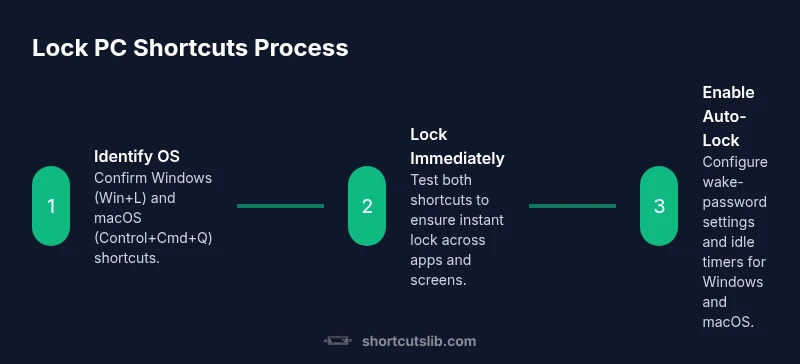
Confirm the default lock keystroke for Windows (Windows key + L) and macOS (Control + Command + Q). Test both on a few apps to ensure reliability. This establishes the baseline for quick locking.
Tip: If the Windows key is not present on a keyboard, map an alternative key combo using your OS's accessibility features. - 2
Lock using Windows shortcut
Press Windows key + L to lock immediately. Practice from the lock screen, a full-screen app, and a browser. This ensures the lock works regardless of app focus.
Tip: Use this as a trusted quick check before stepping away from a device in a public space. - 3
Lock using macOS shortcut
Press Control + Command + Q to lock the screen. Verify the login prompt appears on wake and that your password or biometric unlocks the session.
Tip: If you rely on Touch ID, ensure it remains active for rapid unlock after locking. - 4
Enable auto-lock on Windows
Open Settings > Accounts > Sign-in options and set 'Require sign-in' to 'When PC wakes up.' Configure an idle timer via Personalization and Lock Screen settings. The combination forces re-authentication after idle.
Tip: Document the idle threshold you choose to align with company policy or personal security needs. - 5
Enable auto-lock on macOS
Go to System Settings > Lock Screen and enable 'Require password after sleep or screen saver begins.' Test wake behavior from sleep mode.
Tip: Keep the password option enabled to prevent unauthorized access when the device resumes activity. - 6
Consider custom shortcuts (advanced)
If you need an alternate lock trigger, use AutoHotkey on Windows or Automator/Shortcuts on macOS to map a safe, collision-free key to the lock action.
Tip: Avoid creating global hotkeys that conflict with standard app shortcuts. - 7
Test and verify across scenarios
Test lock and wake in multiple contexts: full-screen apps, multi-monitor setups, and after screen saver transitions. Confirm the login prompt appears consistently.
Tip: Keep a short, documented checklist for regular audits of lock behavior.
Questions & Answers
What is the quickest way to lock Windows PC using a keyboard shortcut?
The quickest method is Windows key + L. It locks the screen immediately from any app or screen. Ensure wake requires a password to maintain security after the lock.
Use Windows key plus L to lock instantly, and enable password on wake for extra security.
Can I lock my Mac using a keyboard shortcut?
Yes. On macOS, press Control + Command + Q to lock the screen. Pair this with a setting that requires a password when waking the device.
Mac users can lock with Control-Command-Q and require a password after sleep.
Can I create a custom lock shortcut?
Yes, Windows users can use AutoHotkey to map a new hotkey to the lock command. macOS users can use Automator or Shortcuts to create a dedicated lock action. Always avoid conflicting shortcuts.
You can set up a custom lock shortcut with AutoHotkey or macOS Shortcuts, but avoid conflicts.
What should I do if the shortcut stops working?
Check keyboard layout, ensure the key isn’t remapped, verify OS settings, and test wake-password behavior. If using third-party tools, confirm there are no conflicts with other hotkeys.
If a lock shortcut stops working, verify the keys, layout, and wake settings; check for conflicts with other apps.
Does auto-lock impact user experience?
Auto-locking reduces risk of exposure but can interrupt workflows if set too aggressively. Choose a balanced idle time and ensure password prompts are convenient but secure.
Auto-lock helps security, but set it to a practical idle time to avoid frequent interruptions.
Is there a Linux equivalent for a lock shortcut?
Most Linux environments offer a lock command accessible via Ctrl+Alt+L or custom shortcuts depending on the desktop environment. Check your distro's keyboard settings for the exact combo.
Many Linux distributions support a screen lock shortcut, commonly Ctrl+Alt+L, with options to customize.
Watch Video
Main Points
- Lock quickly with native OS shortcuts
- Enable auto-lock for unattended sessions
- Test wake behavior after locking
- Consider safe custom hotkeys if needed
- Educate users on secure device habits