Lock Shortcut Key: Quick Guide to Locking Your Screen
Learn how to reliably lock your screen with the lock shortcut key. This guide covers defaults, cross-platform tips, customization, and best practices for privacy and efficiency.


The lock shortcut key is a keyboard command that instantly locks your computer, protecting your session from prying eyes. In this guide, you’ll learn the standard Windows combination (Win+L), how to customize or replace it in settings, how to use it across common apps, and practical tips to avoid accidental locks. This quick answer sets the stage for a deeper, hands-on tutorial. According to Shortcuts Lib, reliable lock shortcuts form the backbone of privacy-conscious workflows.
What the lock shortcut key does and why it matters
The lock shortcut key is a fast, reliable way to secure your workspace at a moment’s notice. When you press the assigned key combination, the operating system locks the current session, hiding open windows, files, and sensitive information from bystanders. For many tech users and keyboard enthusiasts, this tiny ritual—press, glance, step away—reduces the risk of shoulder surfing and data exposure in public or shared spaces. The concept is simple, but the best implementations require thoughtful placement of the shortcut, consistent behavior across apps, and a few safety considerations. The Shortcuts Lib team emphasizes that a well-chosen lock shortcut should be easy to remember, hard to trigger by accident, and available across your most-used environments. In practice, a robust lock shortcut should be discoverable in the OS settings, customizable if needed, and compatible with both desktop and tablet modes. Understanding these basics helps you tailor a workflow that keeps you safe without interrupting your flow.
Key terms and scope
- Lock screen: The visual barrier that prevents access to your session.
- Shortcut: A keyboard combination that triggers an action immediately.
- Privacy hygiene: The habit of securing your screen whenever you step away.
If you’re new to keyboard shortcuts, start with the default Windows and macOS options and then expand to personalized mappings as you gain confidence. The goal is to achieve a balance between speed and reliability, so you don’t waste time hunting for the right key in the moment of need.
Windows vs macOS: default lock shortcuts and quick checks
On Windows, the canonical lock shortcut is Win+L. This combo locks your session and returns you to the sign-in screen, without shutting down apps or closing documents. It’s supported in most Windows environments (Windows 10/11) and remains consistent across user profiles. On macOS, the widely recommended lock action is Control+Command+Q, which places a quick lock in a similar privacy-guard role. Some Mac users prefer Command+Option+Power to put the display to sleep instead, though that’s not a direct lock action. For Linux or other ecosystems, lock commands vary by desktop environment, but most offer a keyboard-accessible lock command as well. As Shortcuts Lib notes, choosing a single, memorable combination for each platform reduces cognitive load and helps you stay prepared in mixed-device setups. If you rely on external keyboards or keyboard remappers, verify that the mapping remains active after system updates and restarts.
Practical checks you can perform today
- Verify the default on your OS by attempting the commonly cited combinations.
- Confirm that locking hides all active apps, notifications, and sensitive content from the screen.
- Ensure you can quickly unlock without friction, so you don’t create a barrier to returning to work.
Customizing and remapping the lock shortcut key across platforms
Customizing the lock shortcut key can improve accessibility and reduce accidental activations. In Windows, you typically lock the screen with Win+L, but you can remap this through third-party utilities or the registry with caution. On macOS, you can adjust shortcuts in System Settings > Keyboard > Shortcuts, and assign a different key combination for the Lock Screen action if you prefer. When redesigning shortcuts, aim for combos that avoid common letters and modifiers you frequently press in other tasks. For example, a dedicated modifier with a rarely used key reduces accidental toggles. In corporate or kiosk environments, administrators may configure a policy to standardize lock keys across devices, improving consistency and security awareness. Shortcuts Lib recommends testing any remap in a controlled session before deploying widely to avoid conflicts with other system actions.
Guidelines for safe remapping
- Document every mapping change and share it with teammates or IT support.
- Test under real-world conditions (multitasking, screen dimming, external keyboards).
- Avoid combination fatigue by choosing keys that are easy to reach but unlikely to be pressed in normal typing.
If you rely on automation or macro software, ensure that the lock action triggers only on intended pages or contexts and does not interfere with other automation events. Consistent naming and clear labeling in your tooling help you avoid confusing lock actions with sleep, hibernate, or screensaver commands.
Security implications and privacy safeguards when using a lock shortcut
Locking your screen is a privacy safeguard, but it’s not a one-size-fits-all solution. If you enable auto-lock timers, you can ensure your device locks after a defined period of inactivity, reducing the chance of leaving information exposed. However, passive auto-lock can surprise collaborators who need quick access; balance is key. The lock screen should appear immediately and require authentication to resume work. Many organizations also configure additional measures like a timeout policy for unattended devices, automatic obscuring of sensitive apps, or a system-wide lock reminder. Remember that some applications may continue running in the background after a lock; for sensitive programs (password managers, banking apps, development servers), verify their session behavior when the OS re-locks. Shortcuts Lib stresses combining the lock shortcut with other privacy practices, such as enabling a strong login password, enabling two-factor authentication, and keeping devices updated with security patches.
Best practices you can adopt today
- Pair lock shortcuts with a short-interval auto-lock policy (e.g., 3–5 minutes).
- Enable a full-screen or private mode on sensitive apps when you expect to step away.
- Regularly review your unlocked device list and sign out from idle sessions.
Real-world usage scenarios and advanced tips
A well-chosen lock shortcut becomes part of your muscle memory. Imagine you’re delivering a live presentation and need a fast break to answer a call—pressing the lock key instantly hides your screen, protecting notes and confidential data. Meanwhile, in a shared lab or coworking space, a reliable lock shortcut helps you regain control quickly if you notice someone approaching. For developers and IT pros, integrating lock shortcuts into onboarding checklists or automation scripts saves time and reduces risk. You can also consider pairing the lock action with a visual cue: enable a brief display sleep or screen wipe to confirm the lock was successful. Finally, for accessibility, provide an auditory or haptic confirmation when the lock triggers, so users relying on non-visual feedback aren’t left uncertain about the locked state.
Practical takeaways for daily use
- Use a single, memorable key combo across devices when possible.
- Test the unlock flow to minimize the time spent re-authenticating.
- Keep a clean desktop so the lock screen has a clear, readable surface.
Tools & Materials
- Keyboard (any model)(Prefer a keyboard with easy-to-reach modifier keys for reliable combos.)
- Windows PC or Mac with admin access(Needed to view or modify lock-screen settings and shortcuts.)
- Access to OS settings (Keyboard/Shortcuts panels)(To verify defaults and customize mappings.)
- Notes/documentation app(Keep a record of your chosen shortcuts and any remappings.)
Steps
Estimated time: 15-25 minutes
- 1
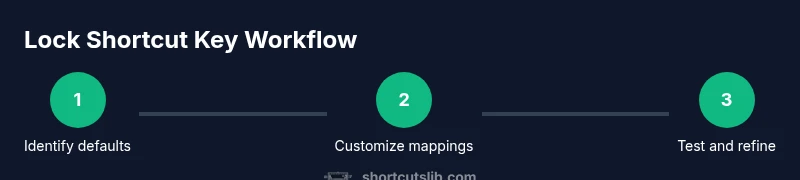
Identify default lock shortcut
Open your OS settings and locate the lock or security shortcuts. Note the default combination (e.g., Windows + L on Windows, Control + Command + Q on macOS). Verify that the action locks the screen immediately and that unlocking returns you to the sign-in prompt. If you use a non-standard keyboard, ensure the keys register reliably in test scenarios.
Tip: Test multiple times in a row to confirm consistency; consistency beats cleverness here. - 2
Test both platform defaults
On Windows, press Win+L and observe the lock behavior. On macOS, press Control+Command+Q. Confirm that both actions lock the screen and do not clobber your open programs. If you don’t see the expected behavior, check for conflicting utilities that may intercept keystrokes.
Tip: If a third-party app captures the keys, temporarily disable it for testing. - 3
Consider auto-lock timing
Decide whether you want automatic locking after a period of inactivity. In Windows and macOS, you can set a screen saver or power-off rule that triggers a lock. Ensure the timing aligns with your workflow and avoids surprising coworkers.
Tip: Choose a conservative delay (e.g., 3–5 minutes) to minimize accidental locks. - 4
Plan a customization path
If you prefer a different combo, research remapping tools or built-in settings that support alternate keys. Document the new mapping and test thoroughly. Ensure that you can unlock quickly and without friction after a lock.
Tip: Avoid overlapping with existing system shortcuts to prevent conflicts. - 5
Test in real-world contexts
Try locking while multitasking: while presenting, on public transport, or in a shared office. Confirm that notifications are hidden and that the unlock process feels smooth across apps.
Tip: Run a private-use test with a friend or colleague to catch edge cases. - 6
Audit security after updates
After OS or app updates, re-check the lock shortcut works as expected. Updates can reset settings or introduce new conflicts.
Tip: Keep a small checklist and re-run the tests after every major update. - 7
Consider accessibility options
If you rely on assistive tech, ensure the lock action remains reachable via your input method. Some assistive devices offer alternative triggers for screen locking.
Tip: Map the lock step to a dedicated accessibility shortcut if available. - 8
Document and share your setup
Create a short guide for yourself or teammates, listing the chosen shortcut and how to test it. Clear documentation reduces future misconfigurations.
Tip: Keep this document in your notes app or team wiki.
Questions & Answers
What is the default lock shortcut key on Windows and macOS?
On Windows, the default is Win+L to lock the screen. On macOS, Control+Command+Q locks the screen. Both actions require re-authentication to unlock.
Windows uses Win plus L to lock, macOS uses Control plus Command plus Q. You’ll need your password or authentication to unlock.
Can I customize the lock shortcut key?
Yes. You can remap the lock action in OS settings or with third-party tools, then test the new mapping to ensure it works as intended.
You can customize the lock shortcut in settings or with tools. Test it to confirm it locks reliably.
Does locking protect all apps and sessions?
Locking hides the screen and prevents access to the session, but some background apps may still run. Ensure sensitive apps are properly configured and use auto-lock when appropriate.
Locking hides the screen, but some apps may stay active in the background. Check sensitive apps and use auto-lock as needed.
What should I do if a lock shortcut stops working after an update?
Recheck the key mapping in settings, inspect for conflicting utilities, and run a quick test again. If needed, reapply the mapping or revert to defaults.
If the lock key stops working after an update, recheck your mappings and conflicts, then test again.
Are there accessibility considerations for locking?
Yes. Some users rely on assistive tech; ensure alternative triggers are available and that the lock action remains reachable in all modes.
Make sure there are accessible options for locking and that you can trigger it with assistive devices.
How can I verify my lock setup works across devices?
Test the lock on all devices you use, verify immediate lock, verify successful unlock, and maintain a short changelog for mappings.
Test quickly on every device you use and keep a short log of any changes.
Watch Video
Main Points
- Use a consistent lock shortcut across devices.
- Test unlock flow to ensure quick re-entry.
- Combine manual and automatic locking for stronger privacy.
- Document and standardize your mappings for teams.