Lenovo Laptop Shutdown Shortcut Key Windows 10: A Practical Guide
Learn practical Lenovo shutdown keyboard shortcuts for Windows 10 on Lenovo laptops. This guide covers Alt+F4, Win+X, Ctrl+Alt+Del paths, Lenovo quirks, safety tips, and troubleshooting.


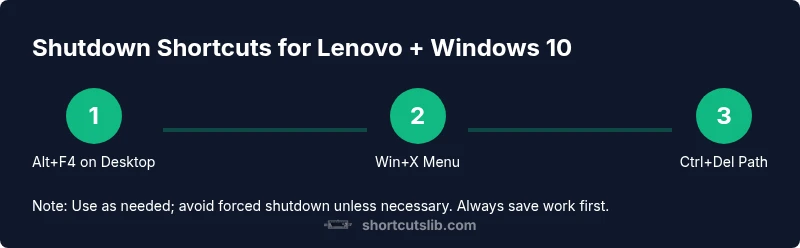
With these keyboard shortcuts, you can quickly shut down a Lenovo laptop running Windows 10. Key methods include Alt+F4 on the desktop, Win+X followed by U and U, and Ctrl+Alt+Del to access shutdown options. Choose a method based on whether apps are open and your preference for keyboard-only control. This guide also covers Lenovo-specific notes and safety tips.
Overview of Lenovo shutdown shortcuts on Windows 10
Understanding the lenovo laptop shutdown shortcut key windows 10 is essential for anyone who wants to power down quickly without a mouse. This guide explains reliable keyboard sequences, when to use them, and how to tailor them to your Lenovo model. According to Shortcuts Lib, mastering these keystrokes saves time and preserves work when devices are acting up. You will learn practical, repeatable methods that work whether you have a desktop-like workflow or prefer entirely keyboard-driven control. We’ll also note common Lenovo quirks and how to adapt to different ThinkPad or Ideapad configurations.
Throughout this article we reference safe, graceful shutdowns over forced power-offs and show you how to avoid data loss during power transitions. By the end you’ll know several robust options, plus quick checks to ensure your files are saved before you power down.
Alt+F4 on a clean desktop
Alt+F4 is a classic, built-in Windows shortcut that can shut down your machine when you’re looking at a clear desktop. The steps are simple: 1) Minimize or close all apps so you’re effectively on the desktop. 2) Press Alt+F4 to open the shutdown dialog. 3) Press Enter or use the arrow keys to select Shut down and confirm. Lenovo laptops behave the same as other Windows devices here, but if you’re in tablet mode or have a lot of windows open, Alt+F4 may present different focus options.
Why this matters for lenovo laptop shutdown shortcut key windows 10: it provides a fast, keyboard-only method to power down without navigating menus. Be mindful that if a background app prompts for saving data, Windows will surface a save prompt before shutting down.
Win+X power user menu: quick shutdown path
The Windows power user menu is a compact route for users who prefer keyboard navigation. Open it with Win+X, then press U to access power options, and press Enter to select Shut down. Alternatively, you can press U twice in quick succession to trigger Shut down in many setups. This method is particularly handy when you’re working in a cluttered task bar or running a Lenovo with several open programs. It avoids the mouse and keeps your workflow flowing.
Practical tip: if your keyboard mapping uses a nonstandard layout, verify that the Windows key remains functional. If not, rely on Alt+F4 or Ctrl+Alt+Del paths as fallbacks.
Ctrl+Alt+Del path for shutdown options
Ctrl+Alt+Del is a power-access gateway that works across Windows 10. From the lock/safety screen, you can click the Power icon and choose Shut down. If you’re already logged in, you can press Ctrl+Alt+Del to bring up a security screen, then use Tab/Arrow keys to reach the Power button, and press Enter to shut down. This route is useful when other shortcuts fail due to a frozen app or a full-screen game blocking other input methods.
Note that Ctrl+Alt+Del is a universal fallback and is reliable on most Lenovo laptops running Windows 10. It keeps a keyboard-first approach even when the UI is busy or unresponsive.
Lenovo-specific considerations: Novo button and Sleep vs Shutdown
Some Lenovo models, especially ThinkPad and certain Ideapad variants, include a Novo button or a dedicated power menu that appears at startup. If you see a Novo button on the side or a small pinhole, pressing it can bring up a menu with options such as Normal startup, BIOS setup, or Shut down. This is a hardware-assisted route that complements keyboard shortcuts and can be faster when the system is sluggish. Also be aware that many Lenovo laptops default to Sleep when certain function keys are pressed (for example, Fn+F4 on some models may scroll to Sleep instead of Shutdown). If Sleep isn’t what you want, verify the keyboard mappings in Lenovo Vantage or BIOS options and adjust accordingly.
Why this matters: Lenovo-specific hardware features can speed up power actions when software shortcuts fail or when you need to power down from a non-responsive state.
Safe shutdown vs forced shutdown: avoid data loss
Graceful shutdown protects open files and ensures your applications exit cleanly. Prefer the Alt+F4, Win+X, or Ctrl+Del pathways whenever possible. If the system is completely unresponsive, you may resort to a forced shutdown by holding the power button for 5–7 seconds. This should be a last resort because it interrupts processes and can corrode unsaved data. Always try to close running programs and save work first. If you must force a shutdown, wait a moment after power returns to ensure the OS reinitializes correctly.
Best practice: use a graceful method first, and reserve forced shutdown only for hang conditions or hardware freezes.
Troubleshooting common issues with Lenovo shutdown shortcuts
If a shortcut isn’t working, check a few quick things: ensure the keyboard is functioning, verify you’re on the desktop for Alt+F4, and confirm you have the latest Windows updates installed. For Lenovo models, ensure the Lenovo keyboard driver is up to date and that regional keyboard layout settings match your physical keyboard. If a background service or app captures keyboard input, try using Ctrl+Alt+Del as a safer alternative. Finally, if the issue persists, boot into Safe Mode to test whether the shortcut behaviour is affected by third-party software.
This section helps you isolate whether the problem is hardware-based, software-based, or a combination of both.
Accessibility and quick-access tips for power actions
For users with limited mobility or those who rely on keyboard navigation, these shortcuts provide reliable power actions without mouse dependence. You can remap certain keys in Windows or use built-in accessibility features to emphasize keyboard focus. Consider creating a simple desktop shortcut that runs a shutdown command (e.g., via a batch file) and assign a custom hotkey through its properties. Regularly practice these sequences to reduce hesitation during critical moments, such as power cycling a Lenovo laptop during a meeting or data-loss scare.
Tools & Materials
- Lenovo laptop with Windows 10(Ensure it is a Lenovo model with a functioning keyboard.)
- Working keyboard (Alt, Ctrl, Del, Windows keys)(Test keys for responsiveness before testing shortcuts.)
- Reliable power source(Keep the laptop plugged in during testing to avoid data loss.)
- Optional external keyboard(Useful if the built-in keyboard is unreliable.)
Steps
Estimated time: 2-3 minutes
- 1
Prepare desktop and save work
Close or minimize open applications and save any pending work. If you’re in a stressful situation, prioritize saving critical documents before invoking any shutdown shortcut.
Tip: Close documents and confirm autosave settings to prevent data loss. - 2
On the desktop, press Alt+F4
Ensure all windows are minimized so you’re effectively on the desktop. Press Alt+F4 to summon the shutdown dialog. If the dialog appears, use the arrow keys to highlight Shut down and press Enter.
Tip: If Alt+F4 opens a different option, try the Win+X path as a fallback. - 3
Use Win+X then U to shut down
Open the Power User menu with Win+X, then press U to select Shut down. If your keyboard sends extra characters, simply press them in sequence without holding modifiers.
Tip: If you miss the sequence, reopen the menu and try again. - 4
Ctrl+Alt+Del path when desktop shortcuts fail
If the screen is busy or the keyboard path doesn’t respond, press Ctrl+Alt+Del to reach the security screen, then select the Power icon and Shut down.
Tip: This path works even when apps ignore shortcuts. - 5
Lenovo-specific hardware check: Novo button
If your model has a Novo button, press it to bring up a power menu containing Shut down. This is a hardware-assisted option that bypasses software shortcuts.
Tip: Check your model’s manual to locate the Novo button and its exact function. - 6
Graceful shutdown vs forced shutdown
Prefer graceful shutdown to avoid data loss. Only force shutdown if the system is completely unresponsive and there is no time to wait.
Tip: After forcing shutdown, wait briefly before powering back on to ensure proper reinitialization. - 7
Troubleshooting and validation
If shortcuts fail, verify keyboard drivers, Windows updates, and regional keyboard settings. Test alternate routes to confirm which method consistently works on your Lenovo laptop.
Tip: Create a repeatable test sequence to confirm each method works reliably over time. - 8
Accessibility-friendly power actions
For keyboard-first users, remap shortcuts or use a desktop shortcut with a custom hotkey for quick shutdown. Practice to build muscle memory.
Tip: Document your preferred shortcut so it’s easy to recall under pressure.
Questions & Answers
Does Alt+F4 always shut down Windows 10 on a Lenovo laptop?
Typically yes when you’re on the desktop with no active apps; if windows are open, Alt+F4 closes them or shows a shutdown option. Always verify you’re on the desktop before using this shortcut.
Yes, on the desktop Alt+F4 opens the shutdown dialog. If apps are open, it may close them first, so save before using it.
How can I shut down quickly without a mouse?
Use keyboard shortcuts such as Alt+F4, Win+X followed by U, and Ctrl+Alt+Del path to reach shutdown options without a mouse. Each method has its own prerequisites regarding desktop focus and active apps.
You can shut down quickly with keyboard shortcuts like Alt+F4, Win+X plus U, or Ctrl+Alt+Del.
What about the Lenovo Novo button?
Some Lenovo models include a Novo button that opens a power menu with Shut down. It is a hardware-assisted option that can speed up the process, especially when the OS is unresponsive.
On certain Lenovo laptops, the Novo button brings up a shutdown option on startup for a quick power-off.
What if the screen is frozen?
If the screen is unresponsive, hold the power button for 5-7 seconds to force a shutdown. Use this only as a last resort, then allow the system to restart cleanly.
If the screen is frozen, press and hold the power button to force a shutdown after trying keyboard methods.
Can I create a single-key shutdown shortcut?
Yes. You can create a desktop shortcut with a shutdown command and assign a hotkey through the shortcut properties. This gives you a one-key or one-click shutdown option.
You can create a custom shutdown shortcut and assign a hotkey for one-key shutdown.
Do these shortcuts work on Windows 11 as well?
Most shutdown shortcuts described work on Windows 10 and are generally compatible with Windows 11. If Windows updates change behavior, check the Windows shortcut references for the latest guidance.
These are general Windows shortcuts that usually work on 10 and newer versions including Windows 11.
Watch Video
Main Points
- Use Alt+F4 on desktop to shut down quickly
- Win+X, U, U provides a keyboard-only path
- Ctrl+Alt+Del offers a reliable fallback
- Lenovo Novo button adds hardware-based shutdown option
- Prioritize graceful shutdown to avoid data loss