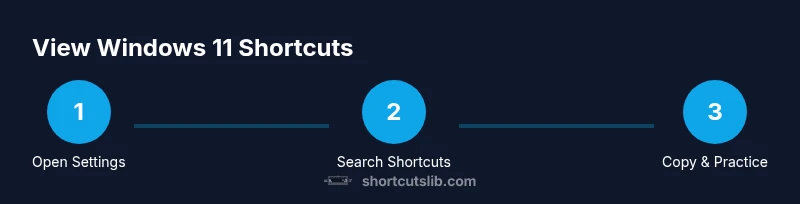
How to See Keyboard Shortcuts in Windows 11
Learn how to view and use Windows 11 keyboard shortcuts with built-in cheat sheets, Settings, and the Tips app. Quick steps, practical tips, and a personalized reference plan from Shortcuts Lib.


You can see Windows 11 keyboard shortcuts by using the Settings app’s built-in shortcuts page, or the Tips app which provides an interactive cheatsheet. Start by opening Settings with Win + I, then search for “keyboard shortcuts” to locate the official list. For ongoing use, create a personal reference sheet from the list and practice the most-used combos.
Why Seeing Keyboard Shortcuts Matters in Windows 11
In today’s fast-paced workflows, knowing how to see keyboard shortcuts Windows 11 offers can dramatically speed up common tasks. The reader will learn where to locate these shortcuts, how to compare built-in lists with Office or browser shortcuts, and how to build a dependable personal reference. According to Shortcuts Lib, a systematic approach to shortcuts reduces cognitive load and accelerates task completion, especially for tech users and keyboard enthusiasts who rely on rapid keystrokes. The goal here is to empower you to access and memorize the most-used combos, so you can navigate Windows 11 with confidence and precision. This guide stays practical with clear paths to view, save, and practice shortcuts across apps and settings.
Where Windows 11 Surfaces Shortcuts: Built-in Methods
Windows 11 exposes shortcuts through several user-facing channels. The Settings app hosts a dedicated area with commonly used keystrokes; the Tips app periodically showcases shortcuts in bite-sized lessons; and the Start/Search experience surfaces quick-access shortcuts when you type related queries. For a quick look, press Win + S and type 'keyboard shortcuts' to see results that point to the official list. Shortcuts can be language- and locale-aware, so ensure your keyboard layout matches your daily usage. This multi-channel approach makes it easier to discover and internalize the most valuable keystrokes without extra software.
Common Shortcuts You Probably Use (and Why They Matter)
Some Windows 11 shortcuts repeatedly prove their worth in everyday tasks. For example, Win keys for launching apps, Ctrl keys for editing, and Alt keys for system menus cover a broad range of activities without leaving the keyboard. In this section we outline a compact set of universal shortcuts and explain when to use them. By focusing on high-impact combos, you can create a practical baseline that you’ll actually memorize and rely on. Build your own heartbeat of shortcuts to streamline routine operations like navigation, text editing, and window management.
How to Use the Built-in Cheat Sheet: Settings and Tips App
The Settings app contains a section that lists Windows shortcuts, while the Tips app provides an interactive, learning-friendly presentation. Open Settings (Win + I) and search for 'keyboard shortcuts' to jump straight to the official list. The Tips app offers progressive lessons you can work through at your own pace, which is especially helpful for new users or when you want to expand beyond the basics. If you frequently switch between apps, this dual-source approach helps you retain keystrokes through context and repetition.
Creating a Personal Shortcut Reference Sheet
A practical next step is to assemble a one-page cheat sheet tailored to your daily tasks. Copy the most-used shortcuts from the official list into a document or note app, group them by task (navigation, text editing, window management), and add your own frequently used combos. Consider printing a small reference card or saving a pinned note on your desktop. Regular quick reviews—5–10 minutes per week—will help you retain the shortcuts and apply them more naturally during work.
Accessibility and Localization Considerations
Keyboard shortcuts can vary with keyboard layouts and language settings. If you use a non-English layout or a specialized keyboard, verify that the shortcuts align with your hardware and OS language. In Shortcuts Lib’s experience, validating shortcuts against your active locale prevents confusion and misfires, especially for symbols and punctuation-heavy combos. If you travel between devices, check that the keyboard layout and regional settings stay consistent to avoid slipping into incorrect keystrokes.
Tools & Materials
- Windows 11 PC or device(Ensure OS is installed and up to date)
- Keyboard and mouse(Any standard USB/Bluetooth keyboard works)
- Settings app access(Use Win + I to open Settings quickly)
- Notes editor (optional)(For building a personal reference sheet)
- Internet connection (optional)(Needed to reference official lists or tutorials)
Steps
Estimated time: 15-25 minutes
- 1
Open Settings
Press Win + I to open the Windows Settings app. This is the central hub for discovering built-in shortcuts and related guidance. If you prefer the mouse, click the Start button and select Settings from the pinned menu.
Tip: Why: Quick access reduces the friction of locating shortcut information. - 2
Search for keyboard shortcuts
In the Settings window, use the search box and type 'keyboard shortcuts' to surface the official Windows 11 shortcuts list. This direct search helps you bypass menu drilling and ensures you’re viewing the current capability set.
Tip: Tip: Use the search box to validate shortcut availability on your specific build. - 3
Open the built-in shortcuts page
Click the result that points to the official shortcuts documentation within Settings. Review the list to identify high-value combos such as window management and text editing shortcuts.
Tip: Pro-tip: Scroll through sections to find shortcuts that address your most frequent tasks. - 4
Explore the Tips app for interactive learning
Open the Tips app (type Tips in Start or Win + S) and search for keyboard shortcuts. The Tips app presents focused modules that reinforce memorization through guided practice.
Tip: Pro-tip: Complete one short Tips module per day to reinforce memory without overload. - 5
Create a personal reference sheet
Copy the most-used shortcuts into a document or note app. Group them by task, add a brief example of when you’d use each, and keep the sheet accessible on your desktop.
Tip: Pro-tip: Include a small visual cue (e.g., symbols) to aid recall during practice. - 6
Practice and review
Spend 10–15 minutes practicing with a sample document or browser. Revisit the official list weekly to refresh your memory and expand with new shortcuts.
Tip: Pro-tip: Integrate shortcuts into real tasks rather than isolated drills for better retention.
Questions & Answers
Where can I see the official Windows 11 keyboard shortcuts list?
Open Settings (Win + I) and search for keyboard shortcuts to view the official Windows 11 list. You can also explore the Tips app for interactive guidance.
Open Settings with Windows I and search for keyboard shortcuts to see the official list. The Tips app also offers interactive guidance.
Do shortcuts vary by language or keyboard layout?
Yes. Keyboard layouts and language settings can affect shortcuts, especially for symbols or regional-specific keys. Always verify against your current layout.
Shortcuts can vary with your keyboard layout and language settings, so check your current setup to confirm.
Can I export shortcuts to a document for quick reference?
You can copy the commonly used shortcuts from the official list into a document or note app and organize them by task for easy reference.
Yes, copy the shortcuts you use most into a document to reference anytime.
Is there a practice routine I can follow?
Yes. Start with 5 core shortcuts, practice 10–15 minutes daily, and gradually add more as you gain confidence.
Start with a few core shortcuts and practice daily for 10 to 15 minutes to build mastery.
What if shortcuts don’t work in a specific app?
Some apps override system shortcuts. Try the shortcut in a different app or use the Settings-tied list as a reference when the app blocks it.
If an app blocks a shortcut, try it in another app or rely on the Settings list for that task.
Are Windows tips and shortcuts updated with updates?
Yes. Shortcuts can be updated with major Windows updates. Revisit the official list after updates to catch any changes.
Windows updates can change shortcuts, so re-check the official list after updates.
Watch Video
Main Points
- Identify where Windows 11 lists shortcuts in Settings and Tips.
- Build a compact, task-based reference sheet for daily use.
- Practice a focused subset of high-impact shortcuts weekly.
- Verify shortcuts across keyboard layouts and locales.
- Use built-in resources first before seeking external guides.