Shortcut Key to Maximize Window: Quick OS Shortcuts
Learn the shortcut key to maximize window on Windows, macOS, and Linux. This guide explains OS-specific keystrokes, common pitfalls, and practical tips to customize shortcuts for faster multitasking and smoother window management.


Master the primary window-management shortcut by learning the universal keyboard shortcut to maximize the active window. In this guide, you’ll discover the exact keystrokes for Windows, macOS, and Linux, plus practical tips to customize or adapt them to your setup. By the end, you’ll reliably expand the active application to fill your screen with a single key combo.
What the shortcut key to maximize window means across OSes
The idea behind the shortcut key to maximize window is simple: push a single key combination that tells your operating system to resize the current application so it fills the available screen space. Across platforms, the behavior may differ slightly: maximizing expands to the full workspace on the active monitor, while fullscreen hides chrome like menus and borders. According to Shortcuts Lib, mastering these shortcuts helps power users maintain focus and speed up multitasking. This section lays out the core concepts so you can recognize when you’re using a window-maximizing action versus a fullscreen toggle, and how keyboard layouts or regional settings can affect the exact keys you press. Expect small but important differences between Windows, macOS, and Linux environments, and use this knowledge to build a consistent habit.
Windows: maximizing a window with a single keystroke
On Windows, the most reliable way to maximize the current window is the Win + Up Arrow shortcut. This action expands the window to fill the screen without entering fullscreen mode, so you can still access the taskbar and window borders. If the window is already maximized, pressing the same keys may minimize or restore the previous size depending on the app. Some games and full-screen apps intercept this combo, so you might need to use an app-specific shortcut or a system setting to disable such interception. The key takeaway is to choose a default maximize shortcut that you can apply consistently across most apps.
macOS: maximizing vs fullscreen and the green dot
macOS treats window behavior a bit differently. Many apps use the green traffic-light button to maximize or restore, while others offer a fullscreen option rather than a true maximize. Keyboard alternatives include Ctrl + Cmd + F to enter fullscreen in apps that support it. Some apps honor a dedicated maximize shortcut, but that isn’t universal. If you need a keyboard-driven maximize experience, plan to rely on the app’s own rules and combine with Mission Control or window management utilities when available.
Linux and other desktops: common patterns
Linux desktop environments vary, but several common patterns emerge. Many environments use the Super (Windows) key combined with Up to maximize, while others use Alt + F7 followed by movement to resize and snap. The exact shortcut can depend on your distribution, desktop environment (GNOME, KDE, Xfce), and any custom key mappings you’ve set. If you’re unsure, open your system settings and search for keyboard shortcuts related to window management to locate or rebind the maximize action. This variability is why planning for a primary shortcut and a fallback is a best practice.
How to customize maximize shortcuts
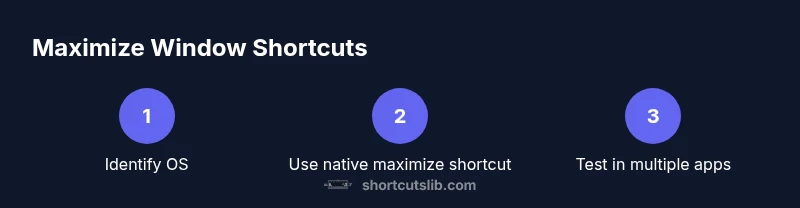
Customizing a maximize shortcut is a three-step process: locate the window-management shortcuts in your OS settings, choose a memorable keystroke that avoids conflicts, and test across several apps. On Windows, you can map a global shortcut through the Settings app or a third-party utility. On macOS, System Settings > Keyboard > Shortcuts lets you remap or add new shortcuts for apps or system actions. Linux users should explore their desktop environment’s keyboard settings, since GNOME, KDE, and others expose different paths to remapping. The goal is a single, reliable combo you remember during busy tasks.
When maximize vs fullscreen matters
Distinguish between maximize (fills the screen with a resizable window) and fullscreen (hides the window frame entirely). Choose maximize when you want to see other applications and the desktop while staying within one program. Choose fullscreen for immersive tasks like video playback or reading long documents. Knowing when to use each mode reduces cognitive load and prevents accidental switching to an undesired view during work.
Troubleshooting common issues
If your maximize shortcut doesn’t work, consider several common culprits: another app intercepting the combo, conflicting global shortcuts, and keyboard layout mismatches (for example, regional layouts may swap modifier keys). Check the app’s own shortcuts first, then confirm OS-level mappings. Temporarily disable conflicting utilities and test with a simple window (like a text editor) to isolate the problem. If you’re on a multi-monitor setup, ensure you’re maximizing the intended monitor and not the primary display.
Accessibility and ergonomics of window management
Efficient window management benefits accessibility by reducing mouse dependence and repetitive motion. A consistent keyboard shortcut lowers fatigue and helps users with motor challenges work more effectively. If you rely on one-hand operation, practice the sequence on the same hand and consider a longer, easily reachable key combination. Pair such shortcuts with larger screen layouts and high-contrast themes to make focus-free navigation easier for everyone.
Real-world workflows: multitasking with maximize
In daily workflows, maximizing a window can help you monitor multiple streams of information without losing context. Use the maximize shortcut when you need an undistracted view of a document or code file while keeping reference material visible on a second screen. For rapid compare-and-contrast tasks, consider snapping or tiling alongside maximize, so you can keep neighboring apps in view. This approach reduces switching time and keeps your focus intact.
Integrating maximize shortcut with other shortcuts
Window management often works best when combined with other shortcuts like minimizing, snapping, or switching between apps. Create a mental map: when you press your maximize combo, follow with an immediate Alt+Tab (or equivalent) to toggle between tasks, or use a separate shortcut to snap windows into a side-by-side arrangement. Document these sequences in a quick-reference to maintain consistency across devices.
Practical examples by app type
Browsers often behave differently when maximizing; some allow a true maximize while others fill the content area. Text editors and IDEs typically maximize without affecting panels like sidebars. Media players may ignore maximize to avoid obstructing controls. If you rely on specific apps, test the shortcut in each to determine its behavior and adapt your workflow accordingly.
Best practices for memory and consistency
Choose a single maximize shortcut and stick with it across devices to build muscle memory. Keep mapping simple and avoid overloading with multiple similar shortcuts. Create a quick-reference cheat sheet and store it where you work (cloud notes, a desk dock, or a pinned window) so you can reinforce the habit. Periodically review and update your mappings as software evolves in 2026.
Tools & Materials
- Computer with working OS (Windows/macOS/Linux)(Ensure your OS supports window management shortcuts and that you can access system settings.)
- Official OS shortcuts reference(Useful for quick lookup; link to OS docs if available.)
- Personal shortcut map or cheat sheet(A one-page reference helps with consistency across devices.)
- High-resolution display(A larger screen can make window management more efficient and reduce eye strain.)
- Optional external keyboard(Can improve speed and ergonomics when using keyboard shortcuts.)
Steps
Estimated time: 15-25 minutes
- 1
Identify your OS and environment
Confirm whether you are on Windows, macOS, or Linux, and note any desktop environment specifics. This establishes which maximize shortcut to use and helps avoid conflicts with app-specific shortcuts.
Tip: Write down the default maximize shortcut for fast reference. - 2
Find the native maximize shortcut for Windows
For Windows, the typical maximize action uses Win + Up Arrow. Test it on a few apps to ensure consistent behavior and note any exceptions.
Tip: If a game or full-screen app blocks the combo, check the app’s own shortcuts or disable the overlay. - 3
Check macOS maximize and fullscreen options
In macOS, maximize behavior varies by app; use the green button or try Ctrl + Cmd + F for fullscreen in apps that support it. Consider enabling a global shortcut if your environment supports it.
Tip: Remember that fullscreen hides the menu bar; use maximize when you still need access to menus. - 4
Explore Linux/other desktops patterns
Linux environments often use Super (Windows) + Up; some distros use different keys. Check Settings > Keyboard Shortcuts and bind a universal maximize action if available.
Tip: Test across multiple apps because behavior can vary widely. - 5
Customize or remap shortcuts
If your current layout clashes with other tasks, remap the maximize shortcut in Settings or with a lightweight utility to create a global binding.
Tip: Choose a key combo that’s easy to reach and hard to press by accident. - 6
Practice the new shortcut across apps
Spend 5–10 minutes daily using the maximize shortcut in several programs to build muscle memory and reduce reliance on the mouse.
Tip: Keep a short checklist of apps and confirm consistent behavior. - 7
Document and sync across devices
Record your chosen shortcut in a document and sync it to other machines. Update when OS or app changes alter behavior.
Tip: Review after major software updates to confirm no conflicts have appeared.
Questions & Answers
What is the shortcut key to maximize a window on Windows?
On Windows, press Win + Up Arrow to maximize the current window. If the window is already maximized, the shortcut may restore the previous size depending on the app. Some apps intercept this combo, so check app settings if needed.
On Windows, use Win plus Up Arrow to maximize the current window.
Is there a universal maximize shortcut across OSes?
There isn’t a single universal maximize shortcut for all OSes. Windows commonly uses Win + Up Arrow, macOS often relies on the green button or Ctrl + Cmd + F for fullscreen, and Linux environments vary by desktop environment.
There isn’t a universal shortcut; it varies by OS and environment.
How do I customize maximize shortcuts?
You can remap the maximize shortcut in OS settings. Windows users can use Settings or third-party tools, macOS users can map in System Settings, and Linux users should explore their desktop environment’s keyboard settings.
You can remap it via your OS keyboard settings.
What’s the difference between maximize and fullscreen?
Maximize expands a window to fill the screen while keeping window borders and controls visible. Fullscreen hides window chrome entirely, often removing access to menus and the desktop. The choice affects navigation and multitasking.
Maximize keeps borders; fullscreen hides chrome.
What if an app ignores the shortcut?
Some apps override global shortcuts for their own controls. If this happens, check the app’s shortcuts panel or use the OS-specific workaround to ensure consistent behavior.
If an app blocks the shortcut, check app shortcuts or try an OS workaround.
Can I maximize to a specific monitor on multi-monitor setups?
Behavior varies by OS and window manager. Use the active monitor for maximize, or combine with move/snap shortcuts to place the window precisely.
It depends on your OS; try maximizing on the active monitor.
Watch Video
Main Points
- Use OS-specific maximize shortcuts for speed.
- Differentiate maximize from fullscreen in each app.
- Customize and document your shortcut mappings.
- Test across apps to ensure consistent behavior.
- In multi-monitor setups, maximize on the active display.