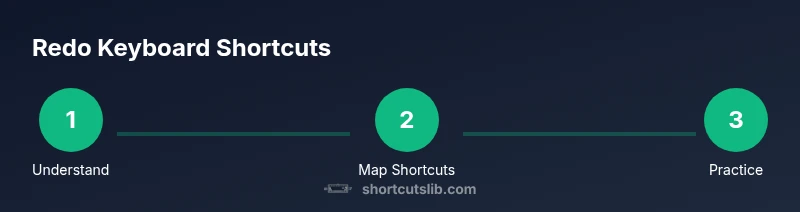
Redo in Keyboard: A Practical Guide to Undo/Redo Shortcuts
Master redo with keyboard shortcuts across Windows, macOS, and Linux. This guide covers core keys, OS differences, and practical tips to speed up edits with Shortcuts Lib.


You will master the redo in keyboard shortcuts across Windows, macOS, and Linux, and know how to apply them in common apps. The quick answer covers core keystrokes, OS-specific differences, and how to customize mappings for a faster workflow. By the end, you’ll retrigger edits with minimal keystrokes and recover previous states confidently.
What redo in keyboard means across apps
Redo in keyboard is about reapplying an action you previously undid, across a range of applications and workflows. According to Shortcuts Lib, the fastest redo work occurs when you have consistent muscle memory across platforms and toolsets. In practice, redo in keyboard is typically triggered after an undo, allowing you to reinsert a recently removed edit, formatting change, or data entry without breaking your flow. The keys themselves vary by OS and by app, but the principle remains constant: execute the last undone action with as few taps as possible. Build a small set of reliable keystrokes you can rely on in text editors, spreadsheets, design tools, and browsers, and you’ll stay focused on the task rather than hunting for a menu option. As you work, you’ll notice that reliable redo behavior reduces cognitive load and speeds up iteration during editing sessions.
Core shortcuts by platform
Across Windows and Linux, redo is commonly invoked with Ctrl+Y or Ctrl+Shift+Z. On macOS, the standard command is Command+Shift+Z. These conventions matter when you switch between apps or collaborate with others who favor different ecosystems. In practice, most high-use editors support at least one of these combinations, but it’s worth checking the Edit menu if you’re unsure. The aim is to retrieve the last action you undid with minimal finger travel, keeping your hands on the keyboard and your eyes on the screen. If you frequently switch between apps, consider adopting a single, consistent redo mapping to reduce errors and increase speed.
Context-specific redo: text editors, spreadsheets, browsers
In a text editor, redo re-applies the most recent undo, enabling you to reinsert accidentally deleted text, reapply a formatting change, or re-run a macro. In spreadsheets, redo can re-activate edits to cells, formulas, or formatting choices. In browser work, redo often applies to form entries, recently closed tabs, or a sequence of edits in a web-based editor. Be mindful that some apps tie redo to clipboard history or other context-sensitive states, which can influence what gets reinserted. Understanding these nuances helps you predict the outcome of a redo and prevents surprises when you rework your edits.
Customizing redo shortcuts: steps to remap
Most apps let you customize redo keys, either globally in system preferences or within the app’s own shortcuts panel. Start by selecting a pair of keys that feel natural and are unlikely to collide with undo or other commands. After remapping, test across 2–3 applications to ensure consistency. If you rely on an external keyboard or accessibility device, aim for a single, memorable sequence that works across your most-used tools. Document your chosen mapping so teammates can align with your workflow and reduce misfires during collaboration.
Common pitfalls and how to avoid them
Don’t assume every app exposes a redo command; some legacy software uses nonstandard keys. Conflicts with other actions can occur after remapping, so verify the new shortcuts in your most-used programs and check for conflicts in the Edit menu. Avoid relying on redo as a substitute for proper undo planning; take a moment to review the action history before reapplying changes. Finally, remember that some actions cannot be redone once a new edit is made, so maintain a disciplined approach to edits and saves.
Workflow patterns: chaining undo/redo for efficient editing
A productive pattern is to undo a batch of changes, then redo exactly the edits you want to keep. Use redo after undo to reapply a specific action when you realize you need it. For longer sessions, pair redo with quick checks that ensure you’re reapplying the intended change rather than traversing a long history. This approach minimizes unnecessary keystrokes and keeps your editing loop tight, especially when refining documents, code, or data sets.
Accessibility and recovery: undo history and clipboard
Consider accessibility when choosing redo mappings; ensure your keys remain comfortable and accessible with one hand if needed. Some environments provide extended undo histories that go beyond the immediately visible last action; explore these options if available and appropriate. Clipboard behavior matters: if you cut or copy content, the redo stack may interact with clipboard contents in unexpected ways, so be mindful of the current clipboard state while editing. By understanding these details, you’ll reduce mistakes and maintain robust recovery options during complex edits.
Practical exercises to cement the habit
Practice a ready-made drill: perform a sequence of edits, then undo and redo repeatedly to build muscle memory. Do this in three apps—text editor, spreadsheet, and browser form—to ensure your chosen mappings are reliable across contexts. Track which key sequences you prefer and adjust mappings to minimize finger movement and cognitive load. With consistent practice, your redo reflex becomes second nature, speeding up your entire editing workflow.
Tools & Materials
- Standard keyboard (US layout or your preferred layout)(Essential for practicing common redo shortcuts (Ctrl/Command + Y or Z combos).)
- Access to system settings or app shortcuts panel(Needed to customize or review current redo mappings.)
- Text editor or IDE (e.g., Notepad++, VS Code)(Use for hands-on redo practice with real editing scenarios.)
- Spreadsheet app (e.g., Excel, Google Sheets)(Verify redo behavior on cell edits and formatting.)
- Browser or form editor(Test redo behavior while typing and correcting form entries.)
- Optional: macro keypad or external keyboard(Helpful for establishing a dedicated redo key if you prefer hardware remapping.)
Steps
Estimated time: 15-25 minutes
- 1
Identify OS and app redo keys
Open a text editor and your OS settings to identify the default redo keystrokes (e.g., Ctrl+Y, Ctrl+Shift+Z on Windows; Command+Shift+Z on macOS). Note any variations across frequently used apps. This step establishes the baseline for your redo workflow.
Tip: Document the most common sequence you’ll rely on in practice. - 2
Test core redo actions
In a single document, perform a series of edits, then undo them and redo each time to observe results. Confirm that the redo re-applies the last undone action as expected in your primary apps.
Tip: If a particular app doesn’t redo, check its Edit menu or preferences for alternative mappings. - 3
Map a consistent redo across apps
Choose a single key sequence that works across your most-used tools and map it where possible (system-wide or per-app). Validate the mapping in a text editor, a spreadsheet, and a browser-based editor.
Tip: Keep the mapping simple and avoid key combinations that conflict with undo or other frequent commands. - 4
Practice with real tasks
Perform a realistic editing task (e.g., drafting, data entry, or form filling) and deliberately use redo to correct mistakes after undo. Observe how quickly you recover the desired state.
Tip: Time your practice to build speed without sacrificing accuracy. - 5
Validate across devices
If you use multiple devices or keyboards, test your redo mappings there as well. Ensure consistency so you’re not surprised by different shortcuts.
Tip: Create a quick cheat sheet for reference during switching contexts.
Questions & Answers
What is redo in keyboard and why is it important?
Redo re-applies an action that was undone, helping you quickly recover edits. Learning redo shortcuts speeds up editing across apps and reduces reliance on the mouse. Mastery supports smoother workflows in text, data, and design tasks.
Redo re-applies the last undone action, speeding up edits across apps. Master these shortcuts to maintain a smooth workflow.
Is redo the same as repeat?
No. Redo re-applies an action you just undid. Repeat duplicates the last action regardless of whether history exists. Understanding the distinction helps you avoid accidental redoes.
Redo re-applies what you just undid; repeat just repeats the last action, which isn’t always what you want.
How can I customize redo shortcuts on Windows, macOS, and Linux?
Most systems and apps let you remap redo keys in system preferences or per-app settings. Start with a simple change, test in multiple apps, and avoid conflicts with undo. Document the final mapping for consistency.
You can remap redo keys in either system preferences or per-app settings. Test across apps and keep a simple, consistent mapping.
Why do some apps have different redo shortcuts?
Different apps implement redo in ways that fit their command scheme or historical keyboard design. This is common in legacy software or specialized tools. When possible, adopt a universal mapping for your most-used apps.
Apps vary because of design history and command schemes. Try to unify the most-used ones for consistency.
Is redo usable in command-line environments?
Command-line environments often rely on history and line editing features rather than a universal redo. Use shell-specific shortcuts (e.g., Ctrl+R for reverse search) and familiar editor shortcuts within your chosen editor.
In the command line, redo isn’t universal; use the shell’s history features and editor shortcuts instead.
What should I do if redo doesn’t seem to work after an undo?
First, check if the app has a separate redo command or a different key sequence. Confirm there’s an actual undo state to redo, and look for conflicts with other shortcuts. If necessary, restart the app to reset any temporary shortcut hijacking.
If redo doesn’t work, check the app’s shortcut map, confirm an undo exists, and try the menu option as a fallback.
Watch Video
Main Points
- Choose platform-consistent redo keys.
- Remap for a single-handed workflow when possible.
- Combine undo and redo for precise edits.
- Test across apps to ensure uniform behavior.
- Practice regularly to build lasting muscle memory.