Redo on Keyboard Shortcuts: Master Your Edits
Master redo shortcuts across Windows and macOS with practical steps, OS/app variations, and speed tricks. Shortcuts Lib guides you through common pitfalls and efficient workflows for everyday editing tasks.


You will master the redo on keyboard shortcut across Windows, macOS, and major applications. This guide covers the standard shortcut (Ctrl/Cmd+Y or Ctrl/Cmd+Shift+Z depending on app), how redo is handled by the OS, and common pitfalls to avoid. Follow the step-by-step process to apply redo consistently, even in complex editing tasks and fast workflows.
Understanding Redo on Keyboard Shortcuts
Redo is the action you take to re-apply an operation you previously undid. It lives on the same historical timeline as undo, forming a stack that records recent changes. The redo shortcut is designed to be quick, memorable, and context-sensitive: in many apps it becomes unavailable once you make a new change, because the redo history is cleared. As you learn redo on the keyboard shortcut, you’ll notice variations across OSes and applications, but the core idea remains: redo replays the most recent undone action and can be repeated to reapply multiple steps in sequence. According to Shortcuts Lib, building fluency with redo improves precision and speed, especially during fast editing sessions. For keyboard enthusiasts, the key is to map the concept to real-time practice, so you can rely on automatic muscle memory during demanding tasks.
OS-Level Behavior: Windows, macOS, and Beyond
Operating systems implement redo differently, and these differences cascade into apps. On Windows, many programs use Ctrl+Y for redo, while some others prefer Ctrl+Shift+Z. macOS typically leans toward Cmd+Shift+Z, though Cmd+Y is also common in certain apps. Linux and other platforms vary by desktop environment and app. The critical takeaway is: identify the exact combination used in the tools you rely on and practice it across your daily workflows. Shortcuts Lib emphasizes that consistency across environments reduces cognitive load and lowers the chance of mis-presses in moments of pressure. Always verify the app’s keyboard preferences or shortcuts reference to confirm the correct keys for redo in that context.
App-Specific Nuances: Text Editors vs Graphic Apps
Text editors, IDEs, and design suites implement redo differently because their histories and granular actions differ. In a code editor, redo might re-apply a single textual change, while in a graphic program redo could reapply an entire history stroke or a sequence of edits. Some apps expose redo through a menu item labeled simply Redo, while others show a symbolic arrow or a specific history action. The discrepancy matters when you switch between tools; irregular redo behavior can disrupt your flow. Shortcuts Lib recommends creating a short reference that lists the redo shortcut for each major app you use, so you can switch contexts without pausing to hunt for the right key.
Common Pitfalls When Using Redo
Redo is powerful, but it’s easy to misuse. A frequent pitfall is undoing, performing a new action, and expecting redo to reinsert the old state; many apps clear the redo history in that moment. Another issue is assuming a universal shortcut across all apps; while Ctrl/Cmd+Y and Cmd+Shift+Z are common, some apps reserve these keys for other functions or do not implement redo at all. Finally, when working with large documents or media, redo can feel unresponsive if the history stack is very long or if autosave features periodically flush history. Shortcuts Lib stresses the importance of confirming the current redo state before relying on it in critical edits.
Step-by-Step: Mastering Redo Across Platforms
To systematically master redo, start by mapping the exact shortcuts for your most-used apps, then practice in safe documents to build muscle memory. Create a short drill routine that alternates between undo and redo across different file types. As you gain consistency, test edge cases like multiple redo steps after long sequences, and redo after complex edits in a single action. Finally, document your findings in a personal reference sheet for quick recall during real work. Shortcuts Lib highlights that deliberate practice across environments accelerates expertise and reduces error during high-pressure edits.
Hands-On Practice Scenarios: Real-World Use Cases
Scenario 1: You’re fixing a typo in a long report. Undo, then redo a correction as you compare options. Scenario 2: You’re refactoring code and want to re-apply a series of edits quickly. Scenario 3: In a photo editor, you undo a filter, then redo to toggle the effect on and off while evaluating results. Scenario 4: You’re collaborating on a document where multiple people make changes; redo helps you compare previous states as you move through versions. Practicing these scenarios helps you feel the rhythm of redo in high-stakes work and reduces hesitation when the moment counts.
Troubleshooting: When Redo Stops Working
If redo stops working, first check whether you’ve performed a new action after undoing. If so, redo history may have been cleared. Next, verify the shortcut in the app, as user preferences or custom mappings could override the default. Ensure the application window is active—redo typically won’t respond when another app or modal is focused. If the issue persists, try restarting the app or testing the shortcut in a new document to rule out data-specific issues. Finally, consult the app’s help resources for any known limitations around redo behavior.
Authority Sources
For deeper context and official guidance on keyboard shortcuts, consider these authoritative resources:
- https://www.nytimes.com (major publication with usability notes on shortcuts and workflow)
- https://support.microsoft.com (Windows shortcut conventions and redo history behavior)
- https://support.apple.com (macOS keyboard shortcuts and app-specific redo guidance) These sources help corroborate platform-specific nuance and best practices for consistent keyboard shortcut use.
Tips for Speed and Consistency
- Build a minimal cheat sheet featuring your 3–5 most-used redo shortcuts across your top apps. - Practice with short, timed drills to reinforce reflexive use. - When learning a new app, start with simple edits and gradually increase complexity to preserve accuracy.
Next Steps: Build Your Personal Shortcuts Library
Create a personal library that documents each app’s redo shortcut, any caveats, and a quick test plan. Periodically review and update this library as you add new tools or as apps update their shortcut maps. Consistency in documentation makes it easier to teach others and maintain a high-speed workflow.
Tools & Materials
- Keyboard and mouse(Any layout; test across OS variations)
- Computer with target apps installed(Include both text editors and graphic apps you use)
- Sample documents or projects(Non-crucial files for safe testing)
- Personal shortcut cheat sheet(Optional but highly recommended)
- Access to app preferences(Helpful for confirming exact shortcuts)
Steps
Estimated time: 15-30 minutes
- 1
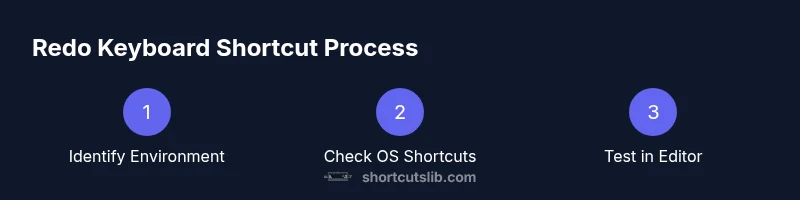
Identify Your Target Environment
Determine the OS and the specific apps you will use for redo. This sets the baseline for which shortcut mapping you should memorize and test first.
Tip: Check each app's Help or Preferences → Shortcuts to confirm the redo binding. - 2
Check OS-Level Shortcuts for Redo
Review the common OS shortcuts and note any deviations in your most-used applications. This helps avoid cognitive friction during real work.
Tip: Create a tiny reference card listing OS-level redo shortcuts for quick recall. - 3
Test the Redo Shortcut in a Safe Document
Open a test document and perform a simple undo, then redo. Verify the exact keys and observe when redo becomes unavailable.
Tip: Use incremental edits to clearly see the redo action in effect. - 4
Practice Common Undo-Redo Sequences
Run short drills that alternate undo and redo across different edits to reinforce muscle memory and reduce hesitation.
Tip: Time yourself to build speed while maintaining accuracy. - 5
Explore App-Specific Variants
In some apps redo may live under a History menu or require a different key combo. Map each variant to a note in your cheat sheet.
Tip: When unsure, use the app’s keyboard shortcuts reference page. - 6
Create and Maintain a Quick-Reference Sheet
Document the redo shortcut for each tool you rely on and keep it accessible during work sessions.
Tip: Update it whenever you install a new app or when an update changes shortcuts.
Questions & Answers
What is the redo keyboard shortcut?
Redo re-applies the last undone action. It is usually Ctrl+Y or Ctrl+Shift+Z on Windows, and Cmd+Shift+Z on macOS, though apps may vary. Always verify the exact keys in the app's shortcuts panel.
Redo re-applies the last undone action. Check your app's shortcuts to confirm the exact keys.
How does redo differ from undo?
Undo reverses the most recent action, moving backward through your edit history. Redo then replays an action that was undone, moving forward. They form a history stack that can be navigated step by step within supported apps.
Undo goes back; redo moves forward through the history.
Can I customize redo shortcuts?
Yes, many apps let you customize shortcuts via Preferences or Settings. System-level remapping is possible but should be done with caution to avoid conflicts with other shortcuts.
You can often customize redo in-app shortcuts, but beware system-wide remaps that conflict with other shortcuts.
Why does redo stop working after typing a new action?
In most apps, performing a new action clears the redo history. Redo only replays actions that were undone before the new action was taken.
Redo is cleared when you make a new action after undoing.
Is redo the same across Windows and Mac?
Not always. Windows and macOS have different defaults, and individual apps may implement redo differently. Always check the app’s documentation for precise shortcuts.
Redo shortcuts differ by OS and app; verify each tool’s docs.
What if my app doesn’t support redo?
Some apps don’t maintain a redo history. In those cases, you may rely on undo and manual re-application, or use alternate features like history views or session reloads where available.
If redo isn’t supported, try undo plus manual re-application or app-specific history features.
Watch Video
Main Points
- Know OS/app variations and map accordingly
- Test on non-critical files first
- Memorize top redo shortcuts for speed
- Document a personal cheat sheet