What is the keyboard shortcut for align center? A practical guide
Discover the fastest way to center-align text across popular apps, with baseline shortcuts (Ctrl/Cmd+E), Google Docs variants, and practical tips to speed up formatting for keyboard-driven workflows.


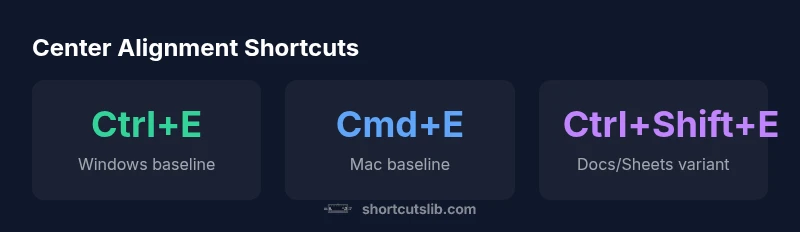
The standard center-alignment shortcut is Ctrl+E on Windows and Command+E on macOS. In Google Docs, use Ctrl+Shift+E on Windows or Command+Shift+E on Mac. Because shortcuts vary by app, always verify in the program’s shortcuts reference or help menu to confirm the exact sequence. This baseline covers the majority of daily needs, with app-specific variants for paragraph vs. character alignment.
Why center-align matters in keyboard-driven workflows
According to Shortcuts Lib, center alignment is not merely cosmetic — it is a core formatting decision that speeds up editing for writers, designers, and developers who rely on keyboards. A balanced center layout reduces cognitive load, helps readers scan content more efficiently, and communicates hierarchy clearly in documents, slides, and emails. For power users who spend hours at the keyboard, the habit of quickly centering text can shave seconds off every edit and improve overall workflow. This section explains why center alignment matters, how it interacts with typography, and how to practice it until it becomes second nature in daily tasks.
The universal baseline: Ctrl+E / Command+E
The universal center-alignment shortcut across many word processors is Ctrl+E on Windows and Command+E on macOS. This baseline remains stable in Word and PowerPoint, and in cloud-based editors, you’ll often find the same function mapped with different modifiers. In Google Docs, aligning the current paragraph to the center is usually Ctrl+Shift+E on Windows and Command+Shift+E on Mac, reflecting a distinct modifier pattern. While these baselines cover a large portion of daily needs, app-specific shortcuts may exist for paragraph-level alignment versus character-level alignment, and some apps let you customize keys. When in doubt, consult the app’s shortcuts reference or help menu to confirm the exact sequence.
App-specific variations you should know
Center alignment shortcuts are broadly consistent, but notable deviations exist across popular apps. In Microsoft Word for Windows, Ctrl+E centers the selected paragraph; on Mac, Command+E does the same. PowerPoint follows the same rule, making it easy to format slides quickly. Google Docs emphasizes the Shift modifier for a distinct flow: Ctrl+Shift+E (Windows) or Command+Shift+E (Mac). Google Sheets often uses the Docs shortcut for cell alignment, but some actions route through the formatting menu. Not all desktop publishing tools follow the same pattern, so always verify in the app’s Help or Shortcuts section to avoid surprises.
Practical tips for fast formatting with shortcuts
To build fluency, practice the baseline shortcuts on a regular cadence. Create a personal cheat sheet that lists the Windows and Mac equivalents for center, left, right, and justify alignment. Use the keyboard to navigate to Paragraph settings when a quick shortcut is unavailable, and pair alignment shortcuts with other productivity keystrokes like bold or bullets to maintain a cohesive workflow. When working across apps, note the exact key sequence in a quick reference so you can recall it later without interrupting your flow. Consider enabling a weekly reminder to review new or updated shortcuts introduced by your apps.
How to learn and remember center alignment shortcuts
Memory improves when you tie keys to concrete actions. A practical approach is to associate Ctrl+E with “center the block,” then memorize the Mac equivalent Command+E. Use spaced repetition: practice daily for a week, then weekly for a month. Build a simple flashcard deck or a one-page cheat sheet. When you switch apps, rely on the Windows vs. Mac pattern with Ctrl/Command plus E, and supplement with the Shift modifier in Google Docs where needed. Customize a few mappings for your most-used apps to make the mappings feel native rather than forced.
Common pitfalls and quick fixes
Center alignment is simple, but subtle mistakes can creep in. If you only select text and not the entire paragraph, some apps center only the selection, causing inconsistent lines. Ensure you’re targeting the full paragraph for reliable results. Sometimes shortcuts activate in the wrong context (e.g., within a heading or list item). If a shortcut doesn’t work, try the app’s menu path to center or reset your key mappings in Preferences. A quick fallback is to use the Format menu if a shortcut conflicts with another command.
Extending beyond center: related alignment shortcuts
Center alignment sits among a family of text alignment shortcuts. Left alignment is usually Ctrl+L or Command+L, right alignment is Ctrl+R or Command+R, and justify is Ctrl+J or Command+J in many apps. In Google Docs, these mappings are often consistent, though some tools reserve certain keys for navigation. Understanding the relationships lets you adjust formatting quickly across documents, slides, or spreadsheets, enabling faster edits without hunting through menus.
Center alignment shortcuts across popular apps
| App | Center Shortcut (Windows) | Center Shortcut (Mac) |
|---|---|---|
| Word (Windows) | Ctrl+E | Command+E |
| Word (Mac) | Command+E | Command+E |
| Google Docs (Windows) | Ctrl+Shift+E | Command+Shift+E |
| Google Docs (Mac) | Command+Shift+E | Command+Shift+E |
| PowerPoint (Windows) | Ctrl+E | Command+E |
| PowerPoint (Mac) | Command+E | Command+E |
Questions & Answers
What is the easiest way to center text with the keyboard across apps?
The baseline is Ctrl+E on Windows and Command+E on Mac. In Google Docs, also consider Ctrl+Shift+E or Command+Shift+E depending on your platform. Always verify app-specific shortcuts in Help or Settings.
Use Ctrl+E or Command+E to center, and check Docs for the Shift variant if you’re in Google Docs.
Do center-alignment shortcuts vary by app?
Yes. While the baseline is common, some apps swap modifiers or introduce different paths (e.g., Docs uses Shift-based variants). Always confirm in the app’s shortcuts reference.
Yes, shortcuts vary; check the app’s help menu.
What’s the Excel/Sheets approach to center alignment?
In Word/PowerPoint, Ctrl+E or Command+E centers. Excel typically uses different ribbon shortcuts (such as Alt+H, A, C to center), depending on version and locale. Always verify for your setup.
Excel uses other key sequences; check the specific app help.
Can I customize center shortcuts?
Most apps let you customize shortcuts in Settings/Preferences. This is useful when you work across multiple machines or need to avoid conflicts with other commands.
Yes, you can customize shortcuts in the app’s settings.
Why is center alignment important for accessibility?
Center alignment can aid readability and visual balance, but you should ensure it doesn’t disrupt logical structure for screen readers. Use semantic headings and avoid overusing centered text in long passages.
Centering helps readability if used sensibly and with good structure.
What if a shortcut isn’t working on my machine?
Try the menu option, reset your keyboard shortcuts in preferences, or check for conflicts with system-wide shortcuts. If needed, reassign the key mapping to a comfortable sequence.
If it’s not working, use the menu path or reset the shortcut in settings.
“Center alignment is a foundational formatting habit that speeds up editing and improves readability across documents, slides, and emails.”
Main Points
- Memorize the baseline: Ctrl+E / Command+E for center
- Check app-specific docs for variants like Google Docs
- Use a cheat sheet to build fluency across apps
- Customize shortcuts where available to fit your workflow