What Keyboard Shortcut Center Align Text: A Practical How-To
Learn the fastest way to center align text with keyboard shortcuts. Windows and Mac, across apps like Word and Docs, plus tips to customize shortcuts and boost editing speed.


Center aligning text is usually achieved with a single keyboard shortcut. On Windows, press Ctrl+E; on macOS, press Command+E. If your app uses a different shortcut, check the Format or Paragraph menus or use the toolbar alignment button. This quick guide will show how to apply center alignment quickly across common apps and workflows.
What the phrase 'what keyboard shortcut center align text' means in practice
Center alignment is a basic text-formatting operation that places a paragraph's lines symmetrically around the horizontal midpoint. If you ask yourself what keyboard shortcut center align text, the answer is that most apps share a simple convention: a single-letter shortcut that centers the selection. According to Shortcuts Lib, learning this shortcut saves seconds with every edit and reduces the cognitive load during drafting. In practice, you select the text you want centered, press the shortcut, and double-check the result. This technique is valuable for headlines, captions, and any content where symmetry improves readability. Beyond speed, keyboard-based alignment supports accessibility by keeping your hands on the keyboard and avoiding mouse-based operations. When you master this action, you empower fast formatting across documents, emails, slides, and code comments alike.
The anatomy of the center-align command
Center alignment is a formatting instruction applied to a selection or a paragraph. Technically, the command adjusts the text anchor so the line block is balanced around the center axis. In most editors, the keyboard shortcut is a quick toggle that switches the current alignment to center. The practical effect is visual balance, which helps draw attention to headings and important sections. If you tweak multiple blocks, you’ll notice that consistent center alignment can make a document feel more cohesive and professional. Remember that the command operates per selection and does not affect margins or indentation unless those properties are tied to the center alignment behavior in a specific app.
Windows vs macOS: where the shortcut lives
Across most desktop editors, the common center-align shortcut is a single-letter key combo. On Windows, pressing Ctrl+E centers the selected text; on macOS, Command+E performs the same action. These shortcuts are designed to be discoverable from the keyboard and consistent across many word processors and editors. Some apps allow remapping, and a few non-traditional editors may place the center alignment in the Format or Paragraph menus with identical outcomes. If you’re using a web-based editor, the browser may override shortcuts, so always test in the target environment.
Center alignment in popular apps: Word, Docs, Sheets, Slides
In Word for Windows and macOS, Ctrl+E or Command+E centers the current selection. Google Docs typically follows the same keyboard convention, but always verify in the app’s shortcuts settings if you’re using a custom workspace. Microsoft 365 web apps generally respect the standard shortcuts, while Pages for Mac uses Command+E as its default center command. When collaborating, consistent shortcuts help teammates format content quickly without switching tools. If you encounter a non-responsive selection, ensure you’re editing text (not an image caption or a text box with distinct alignment rules).
Keyboard-only workflows: chaining with other formatting shortcuts
A fast editor uses a sequence of keyboard shortcuts to stay in flow. First, select the text with a keyboard-only approach (Shift+Arrow keys or Ctrl+A to select all). Then apply center alignment with Ctrl+E or Command+E. You can immediately apply bold or italics without leaving the keyboard by following with additional shortcuts like Ctrl+B (bold) or Ctrl+I (italic). This chain reduces context-switching and helps maintain a steady editing rhythm through long documents.
Accessibility and speed: why keyboard shortcuts matter
Keyboard shortcuts reduce reliance on the mouse, which benefits users with motor impairments or those who prefer tactile feedback. Center alignment shortcuts keep focus on content, aiding screen reader users by preserving logical reading order when the alignment changes are applied to selected blocks. Regular use also speeds up proofreading and formatting tasks, especially on multi-page documents or slide decks where consistent alignment elevates readability and perceived quality.
How to customize shortcuts for center alignment
Many apps let you tailor shortcuts to fit your workflow. In Windows apps like Word, you can rebind the center-align command within the Customize Keyboard dialog, typically found under Options or Customize Ribbon. On macOS, look for System Preferences > Keyboard > Shortcuts or the app’s Preferences to remap the center command. When configuring, choose a combination that’s easy to reach and unlikely to collide with existing shortcuts. Keep a short note of changes so teammates aren’t surprised when collaborating.
Troubleshooting when center alignment won't apply
If center alignment doesn’t take effect, verify that you have an active text selection and you’re in a text-editing mode. Some fields or apps disallow alignment changes for certain content blocks (e.g., inside a table cell with fixed alignment). Check if a style or paragraph property overrides alignment. If the shortcut still doesn’t work, try the toolbar button or menu path (Format > Align > Center) as a fallback. Finally, restart the app to rule out a temporary shortcut cache issue.
Tools & Materials
- Computer or device (Windows/macOS/Linux, or mobile)(Any OS; ensure you can run a text editor or word processor)
- Text editor or word processor(Examples: Word, Google Docs, LibreOffice, Pages)
- Keyboard(Reliable keys; ensure Ctrl/Command keys register in shortcuts)
- Internet access(Helpful for looking up app-specific shortcuts or updates)
Steps
Estimated time: 25-35 minutes
- 1
Select the text to center
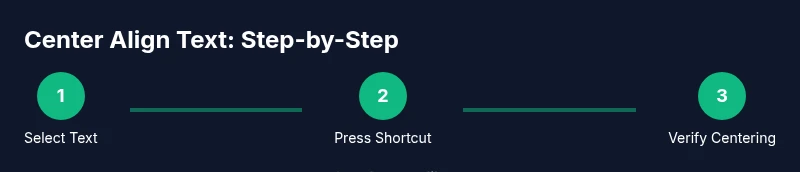
Click and drag to highlight the text you want to center. Use Shift+Arrow keys to extend the selection precisely, or Ctrl+A to select the whole paragraph. Why: ensures only the intended content is centered.
Tip: If you’ll center a paragraph, make sure the entire paragraph is selected before applying the shortcut. - 2
Identify the correct shortcut for your OS
Know that Windows commonly uses Ctrl+E and macOS uses Command+E to center text. If you’re on a web app or a specialized editor, verify via the app’s Help/Shortcuts.
Tip: When in doubt, check the app’s menu path (Format > Align > Center) to confirm the shortcut. - 3
Apply the center alignment
Press the OS-specific shortcut to apply center alignment to the selected content. The text should visibly shift to the center.
Tip: If nothing happens, ensure the selection is active and you’re not in a text field with restricted formatting. - 4
Verify alignment across the block
Review the formatted section to confirm consistent centering. If the document uses multiple columns or text boxes, re-check each region.
Tip: Select all relevant blocks and apply the shortcut again for uniformity. - 5
Use the toolbar as a fallback
If the shortcut fails, click the center alignment button in the toolbar. This is reliable when shortcuts are overridden by app-specific settings.
Tip: Shortcuts sometimes conflict with other active modes; the toolbar is a safe alternative. - 6
Chain with other formatting shortcuts
After centering, apply bold or italic styles as needed using Ctrl+B / Ctrl+I (Windows) or Command+B / Command+I (Mac) without leaving the keyboard.
Tip: Planning a formatting flow helps maintain momentum during editing sessions. - 7
Test across apps to ensure consistency
Center-aligned text should look balanced in Word, Docs, Slides, and Pages. If your workflow crosses apps, test the shortcut in each environment.
Tip: Create a small test document to verify behavior before large edits. - 8
Customize shortcuts for speed
If you frequently center text, customize the shortcut to a comfortable key combination. Keep it distinct from other common shortcuts.
Tip: Write down your custom mapping to avoid forgetting it after updates. - 9
Document your workflow
Note which shortcuts you rely on most and where you applied them. This helps teammates adopt your approach and reduces onboarding time.
Tip: Share your findings in a team guide or cheat sheet.
Questions & Answers
What is the shortcut to center align text in Microsoft Word?
In Word, the common center-align shortcut is Ctrl+E on Windows and Command+E on macOS. If a page style overrides it, use the Format > Align Center menu as a fallback.
In Word, press Ctrl plus E on Windows or Command plus E on Mac to center the selected text.
Do all apps support a keyboard shortcut for center alignment?
Most editors support a center alignment shortcut, but some apps may require using the toolbar or different key combos. Always verify in the app’s shortcuts panel.
Most apps support a shortcut, but some require using the toolbar. Check the app's shortcuts in Settings.
How do I center align multiple paragraphs quickly?
Select the group of paragraphs and apply the center-alignment shortcut once. For large blocks, you can use a 'Select All' then center, or repeat for each region as needed.
Select all the paragraphs, then press the center shortcut once or repeat as needed.
What should I do if the shortcut doesn’t work?
First confirm you’re in a text-editing context and that the selection is active. If needed, use the app’s Center Align button or menu path to apply formatting.
Make sure you're editing text and have a selection; use the center button if the shortcut won’t work.
Can I customize center alignment shortcuts?
Yes. Many apps let you remap the center-align command to a more convenient key combo via Preferences or Keyboard Shortcuts settings.
Yes, you can remap the center-align shortcut in the app's preferences.
Is center alignment accessible with screen readers?
Center alignment is a visual change; it doesn’t affect reading order. Ensure headings and content maintain a logical structure for accessibility tools.
It’s a visual change; keep structure logical so screen readers can follow.
Watch Video
Main Points
- Learn the core shortcut: Windows Ctrl+E; Mac Command+E.
- Ensure a valid text selection before applying center alignment.
- Use the toolbar button if shortcuts fail in a given app.
- Test and document your shortcut workflow for consistency.