Underline Keyboard Shortcuts: Master Text Formatting
Learn how underline keyboard shortcuts work across Windows, macOS, and web editors. This expert guide covers practical steps, accessibility considerations, and how to avoid common formatting pitfalls to boost your productivity.


Underline keyboard shortcuts help you toggle underlined text across common apps. Platform differences matter: Windows and Linux typically use Ctrl+U, macOS uses Cmd+U, and some apps override or disable the shortcut. This quick guide shows practical steps, tells you where underlining applies, and explains when to avoid it for clarity and accessibility.
What underline keyboard shortcuts accomplish across platforms
Underline keyboard shortcuts are a fast way to switch text formatting on or off without taking your hands off the keyboard. They are especially useful when you’re drafting documents, emails, or notes that require emphasis without changing the surrounding layout. According to Shortcuts Lib, mastering underline shortcuts reduces the cognitive load of switching between tools and improves consistency across apps. The term underline keyboard shortcuts refers to a family of commands that toggle the underline style for selected text or the current insertion point. While the basic idea is simple, the actual implementation varies by platform, program, and even document type. Understanding these nuances helps you maintain a professional, readable style across environments while preserving accessibility and semantic meaning.
Platform differences: Windows, macOS, and web editors
Across Windows and Linux desktops, Ctrl+U is the most common toggle for underline in word processing apps and many editors. On macOS, the same action is usually Cmd+U. However, many web-based editors (like Google Docs) rely on the platform shortcut but may offer an alternative via menus or context options. Some apps override the shortcut for security reasons or to reserve the key combo for other features. When in doubt, check the app’s Help or Keyboard Shortcuts reference to confirm. If you work across platforms, practice the two primary patterns until you’re comfortable switching with minimal cursor movement. Shortcuts Lib emphasizes building muscle memory with consistent testing across your most-used apps.
Word processors and rich text editors: Word, Google Docs, Pages
Word processors typically support Ctrl/Cmd+U to underline selected text. In Google Docs, Ctrl+U or Cmd+U toggles underline as well, and can be found under the Format > Text menu. Apple’s Pages follows macOS conventions and uses Cmd+U for underlining. When you switch between these tools, the underline button may appear in the toolbar, and some apps offer a toggle to remove all underlines when you change formatting. For long-form writing, keyboard shortcuts speed up styling decisions and help you keep your document structure intact without resorting to manual styling.
Web content and CSS: text-decoration and accessibility
On the web, underlining is commonly achieved via the CSS property text-decoration: underline. Historically, the <u> tag was used for underline in HTML, but modern practice favors CSS for presentation. This approach separates content from presentation and improves accessibility when paired with semantic HTML. Keyboard users rely on focus outlines and screen readers to navigate links; underlining non-links can create confusion. If you’re styling text that isn’t a link, consider using a different emphasis method (bold, color change, or background highlight) to avoid implying interactivity.
Code editors: when underline isn't a formatting command
Most code editors prioritize syntax highlighting and font styling over text decoration. Underlining code is unusual and can be misleading, as it may resemble a hyperlink or error marker. In code previews, rely on comments and documentation rather than underlining. If you must emphasize a snippet for documentation, consider using bold or color highlighting in the surrounding UI rather than applying underline in code blocks. Shortcuts Lib notes that many developers rely on IDE-specific shortcuts for bold or italics in supported editors, but underline is rarely a default action in code contexts.
Accessibility considerations: visibility, contrast, and semantics
Underline styling should enhance readability, not confuse readers. For screen reader users, the semantic meaning of text is critical; underlined text is often interpreted as a hyperlink unless context makes it clear otherwise. Use underline sparingly for emphasis in body text, and reserve underlines for links. When underline is necessary for accessibility, ensure sufficient color contrast and consider providing an alternative cue (such as bold formatting) for users who may rely on non-visual cues. Shortcuts Lib recommends testing with assistive technology to verify consistent behavior.
Practical rules for using underline in documents
A practical rule of thumb is: use underline for emphasis only when it clearly conveys meaning comparable to bold or italics, or when it’s a formal requirement (e.g., some academic styles). In digital interfaces, prefer underlining for hyperlinks and avoid it on navigation menus that already rely on color and structure. Always pair underlines with other accessible cues, such as established contrast ratios and consistent styling, to prevent misinterpretation by readers and software alike.
Common pitfalls and why underlining links is different
A common mistake is underlining non-link text, which can be mistaken for a clickable element. Conversely, some links in complex documents might also be indicated by color or icons rather than underlines, reducing ambiguity. When presenting samples or templates, explicitly label which items are links and which are decorative emphasis. Shortcuts Lib highlights that inconsistent use of underline across documents leads to cognitive friction for readers and slows reading flow.
How to customize shortcuts in popular apps
Many apps let you view or redefine keyboard shortcuts in the Preferences or Settings section. Look for a Keyboard Shortcuts or Shortcuts tab, then locate the underline command and rebind it to a preferred combination if available. Keep global consistency: choose a single pattern for Windows/Linux and macOS so you can switch between apps smoothly. If a particular app doesn’t expose a direct underline toggle, use the Format menu or CSS for web content to achieve the same effect.
Quick app-by-app reference: Google Docs, Word, Pages
Google Docs uses Ctrl+U (Cmd+U on Mac) to underline; Word follows the same pattern while Pages adheres to macOS conventions. In some apps, you may need to select text first or use a dedicated toolbar button. When collaborating, ensure that your underline usage remains consistent with your organization’s style guide. Shortcuts Lib’s guidance is to test your shortcuts in your primary work environments to build reliable habits.
When to choose underline vs other formatting or alternatives
Underline should be reserved for emphasis that aligns with its traditional meaning (as a link or a highlighted section), or when a specific formatting standard requires it. If your goal is to differentiate text, consider bold, italics, color, or background highlighting. In CSS-driven content, you can implement text-decoration: underline for links and use font-weight: bold for emphasis, maintaining semantic clarity and accessibility.
Tools & Materials
- Keyboard(Essential for all shortcut work.)
- Computer with Windows/macOS/Linux(Platform coverage needed to test differences.)
- Text editor or word processor with underline support(Word, Google Docs, Pages, etc.)
- Web browser and basic text editor for CSS samples(Useful for web-related examples.)
- Access to app Help/Shortcuts reference(Helpful for verifying app-specific behavior.)
Steps
Estimated time: 15-20 minutes
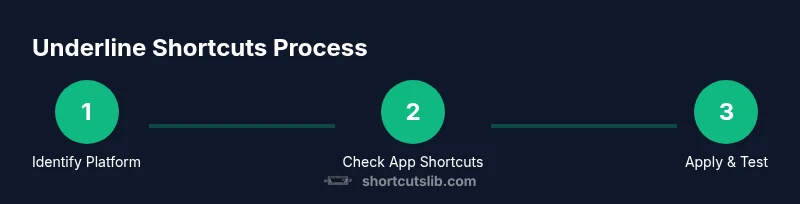
- 1
Identify the target platform and app
Determine whether you’re working in Windows, macOS, or a web-based editor. This choice dictates the default shortcut (Ctrl+U vs Cmd+U) and whether the app provides an alternate method (menu or toolbar).
Tip: If you switch between apps often, keep a small mental map: Ctrl+U on Windows/Linux, Cmd+U on macOS. - 2
Select the text to format
Highlight the portion of text you want to underline. Ensure you select a meaningful length that won’t confuse readers if the underline is used in print-like formats.
Tip: Use Shift+Arrow keys to extend selection without moving your hands away from the keyboard. - 3
Apply the underline shortcut
Press the platform shortcut (Ctrl+U or Cmd+U). If the underline toggles off, reselect the text and try again, confirming the current formatting state.
Tip: If the shortcut doesn’t work, check the app’s shortcuts list or use the Format menu. - 4
Verify the result and readability
Check that the underlined text is legible against the background and that it matches the document’s style guide. If not, adjust color or font weight as needed.
Tip: Preview the document in print layout or a browser to ensure consistent appearance. - 5
Avoid underlining non-links on the web
Do not underline ordinary text in web content; reserve underlines for hyperlinks or accessible emphasis with CSS.
Tip: Consider a bold alternative when underlining non-links to preserve semantic meaning. - 6
Use CSS for web content
If you’re styling a page, apply text-decoration: underline in CSS rather than HTML markup. This keeps content semantic and presentation separate.
Tip: Utilize a consistent className like .underline for easy maintenance. - 7
Test across devices
Open the document on different devices to verify that the underline appears consistently and that accessibility cues aren’t lost.
Tip: Test on at least one mobile device if you expect a mobile audience. - 8
Document your shortcut choices
Record the chosen shortcuts and any app-specific caveats for teammates or future you. Consistency lowers cognitive load.
Tip: Create a small cheat sheet for your most-used apps.
Questions & Answers
What are the most common underline shortcuts across platforms?
The most common shortcuts toggle underline with Ctrl+U on Windows and Linux, and Cmd+U on macOS. Some apps may override these, so always verify in the app’s shortcuts settings.
The typical underline shortcut is Ctrl+U on Windows, Cmd+U on Mac, but check your app because some programs override it.
Is underlining always a good idea for emphasis?
Underscore emphasis should be used sparingly. On the web, reserve underlines for links to avoid confusion. In documents, consider bold or color for emphasis when appropriate.
Underline should be used sparingly, mainly for links on the web; for emphasis, bold or color often works better.
How do I test whether a shortcut works in a new app?
Open a new document, select text, and try the platform shortcut. If it doesn’t work, consult the app’s Help or Shortcuts panel, or use the menu option under Format.
Create a test document, select text, and press the shortcut. If it fails, check the app's help guide.
What’s the best practice for underline in web content?
Use CSS text-decoration: underline primarily for hyperlinks and avoid underlining non-link text to prevent user confusion. Pair with accessible color contrasts.
Use underline for links only in web content and ensure good color contrast for accessibility.
Can I customize keyboard shortcuts in every app?
Many apps support shortcut customization in Preferences or Settings. If not, rely on the app’s built-in underline command or a toolbar button.
Most apps let you customize shortcuts in settings; if not, use the provided underline command.
Watch Video
Main Points
- Master platform defaults: Ctrl+U on Windows/Linux, Cmd+U on macOS.
- Use underline primarily for links in web content; reserve for emphasis sparingly.
- Prefer CSS-based styling over HTML underlining for web projects.
- Test underline across apps to ensure consistent behavior.
- Document your shortcut choices for long-term consistency.