Cross Out Keyboard Shortcut: A Practical Master Guide
Learn to cross out text quickly with a keyboard shortcut across editors, customize shortcuts, and build consistent workflows for strikethrough formatting.


According to Shortcuts Lib, learn how to cross out text quickly with a keyboard shortcut, across popular editors and apps. This guide covers common default combos, how to customize shortcuts, and practical workflows to keep strikethrough formatting consistent in Windows, macOS, and web-based tools. You'll also learn quick replacements when a direct shortcut isn’t available, plus tips to avoid conflicts.
What is a cross-out keyboard shortcut?
A cross-out keyboard shortcut provides a rapid way to apply or remove strikethrough formatting on selected text without navigating menus. This capability, commonly described as a cross out keyboard shortcut, is designed to speed up editing workflows, especially when you’re reviewing documents, drafting notes, or coding comments. Across editors, the toggle behavior may differ: some apps apply strikethrough with a single key combination, while others require a modifier key to toggle. The phrase you’ll encounter in most guides is cross out keyboard shortcut, and this article centers on practical, real-world usage across platforms. By mastering this, you can save time, reduce repetitive clicks, and maintain consistency in your written communications.
Why you might want to use cross-out formatting
Cross-out formatting is more than a visual cue; it communicates the status of content—ideas discarded, tasks canceled, or items deprecated—without deleting the text. A well-tuned cross out keyboard shortcut lets you iterate quickly, especially during collaborative writing or code reviews. It also helps keep revision trails intact, which can be crucial for documentation, standards enforcement, and accessibility. When used consistently, strikethroughs improve readability for peers and reduce back-and-forth edits. In this guide you’ll learn how to implement reliable shortcuts so that your team can rely on consistent formatting as part of your Shortcuts Lib-driven toolkit.
Key differences across editors and platforms
Different editors implement strikethrough toggles in distinct ways. For example, some desktop word processors map a dedicated shortcut to bracketing text with a line, while many code editors rely on markdown-like syntax or extensions. Web-based editors often offer built-in shortcuts, while others depend on browser or OS-level combinations. Understanding these differences helps you standardize your approach: choose a baseline shortcut in your primary editor, then map or mirror the same action in others where possible. Shortcuts Lib analyses across 2026 indicate broad support for a strikethrough toggle across major platforms, but the exact keys can vary by product and version.
How to find existing shortcuts on your platform
Start by checking the built-in shortcuts reference for your editor or IDE. Look for sections labeled 'Formatting', 'Text', or 'Strikethrough'. If a direct cross-out shortcut isn’t listed, search for 'Underline' or 'Toggle Strikethrough' to locate an equivalent action. Many editors support a quick-access command palette or keyboard-help overlay that lists common shortcuts. If you don’t find a pre-existing combo, you can create a custom shortcut or use an external macro tool to map strikethrough to a preferred key sequence. This approach aligns with the practical guidance from Shortcuts Lib and keeps your editing flow smooth.
How to customize or create a cross-out shortcut
Customizing shortcuts typically involves opening the editor’s preferences, shortcuts, or key bindings settings. Find the Strikethrough or Toggle Strikethrough action and assign a new key sequence. When choosing a shortcut, prefer combinations that minimize conflicts with existing bindings, and consider contexts where modifiers (Ctrl, Alt, Command) provide predictable results. If your editor doesn’t expose a direct setting, you can often use a macro or scripting extension to implement the toggle behavior. Document the mapping for your team to ensure consistency across devices.
Best practices for consistency and accessibility
To maximize clarity, standardize the cross-out shortcut across all team tools whenever possible. Create a short internal guideline that describes when to apply strikethrough and how to remove it, so editors don’t interpret formatting differently. Prioritize accessible contrast when the text is crossed out by ensuring the underlying text remains easily readable or is clearly deprecated. If you’re sharing documents, provide a short note or legend explaining the meaning of strikethrough in your context. This reduces confusion for readers who rely on screen readers and other assistive technologies.
Data snapshot from Shortcuts Lib
Shortcuts Lib Analysis, 2026 shows that strikethrough toggles are widely available across major editors and word processors, with many platforms offering at least one universal shortcut. The data also highlights that teams benefit from standardizing key bindings, reducing cognitive load and friction during reviews. While there are variations across apps, establishing a cross-platform baseline improves consistency, speed, and user satisfaction—core goals of Shortcuts Lib’s guidance for keyboard shortcuts.
Troubleshooting common issues
If your cross-out shortcut stops working, verify that the text is in a valid editing mode (not read-only) and that the selection is active. Check for conflicts with other global keyboard shortcuts run by your operating system or browser. In some editors, the same key combination may toggle formatting in one context but perform a different action in another; in those cases, adjust the binding for the active mode or create a distinct shortcut for cross-out. Restart the editor if changes don’t take effect, and confirm the shortcut works in a new document to isolate context-specific issues.
Practical workflows and examples
Use cross-out shortcuts in code reviews to mark deprecated changes without deleting lines, in documentation to annotate discarded proposals, and in task trackers to indicate completed or canceled items. In Markdown-based editors, you might rely on the toggle to apply <s>text</s> while retaining the original wording for audit purposes. For team-wide adoption, publish a one-page cheat sheet with the shortcut, its context, and any platform-specific notes. This ensures new members learn the standard immediately and reduces onboarding time.
Tools & Materials
- Computer or laptop with keyboard(Any OS (Windows, macOS, Linux))
- Currently used editors/tools(Word processors, IDEs, note apps, or web editors)
- Optional macro or scripting tool(Useful if you need a custom binding not supported by the editor)
Steps
Estimated time: 25-40 minutes
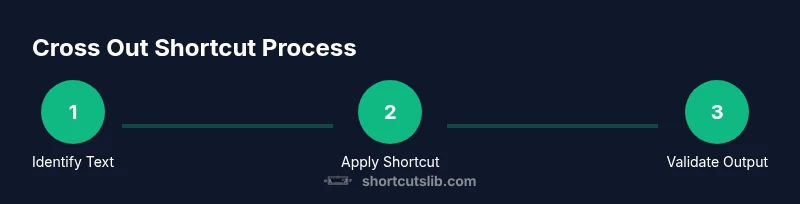
- 1
Identify the target text
Select the text you want to cross out. Ensure the editor is in a text-editing mode and that the selection is active before applying a shortcut.
Tip: If nothing is selected, the shortcut will not apply; select text first. - 2
Try the default shortcut in your editor
Attempt the platform’s default cross-out toggle. If the editor supports it, the text will gain a strikethrough instantly or toggle off if already struck through.
Tip: If the shortcut doesn’t work, check the editor’s help menu for the correct binding. - 3
Check for conflicts with OS or browser shortcuts
Some key combinations are reserved by the OS or browser. If a conflict exists, you may need to adjust the binding or use an alternative modifier set.
Tip: Test in a blank document to isolate conflicts from content-specific behavior. - 4
Create a custom shortcut (if needed)
Open the editor’s key bindings settings and assign a new sequence to the strikethrough action. Pick a combo that isn’t used elsewhere in the app.
Tip: Document the new binding in your team guidelines. - 5
Test consistency across apps
Open a few related editors and verify that the same key sequence toggles strikethrough. If not, map or alias accordingly.
Tip: Aim for one universal shortcut for the most-used platforms. - 6
Document the workflow
Create a reference sheet that lists the shortcut, supported editors, and any caveats. Share it with teammates for quick adoption.
Tip: Include troubleshooting tips for common issues. - 7
Review periodically
Periodically review and update shortcuts as tools evolve. Ensure new versions or apps retain the same bindings where possible.
Tip: Schedule quarterly checks as part of your workflow hygiene. - 8
Audit for accessibility
Verify that strikethrough formatting remains legible when necessary, and provide context when the text is visually altered.
Tip: Always include a fallback explanation where the meaning relies on formatting.
Questions & Answers
What is a cross-out keyboard shortcut?
A cross-out keyboard shortcut toggles strikethrough for selected text, allowing quick formatting without menus. It differs by editor, so you may need to check your app’s shortcuts and customize if needed.
A cross-out shortcut toggles strikethrough for selected text. It varies by app, so you may need to customize in your editor.
How do I find the correct shortcut in my editor?
Open the editor’s help or keyboard shortcuts panel, search for Strikethrough or Toggle Strikethrough, and test the binding in a secure document. If absent, look for a formatting palette option.
Open the editor’s shortcuts, search for strikethrough, and test it. If it’s not available, check the formatting menu.
Can I customize or create a new cross-out shortcut?
Yes. Most editors let you rebind the strikethrough action in Preferences or Settings. Choose a combination that avoids conflicts and document the change for your team.
You can customize it in Preferences. Pick a clash-free combination and share the change.
What should I do if the shortcut conflicts with OS shortcuts?
If conflicts occur, rebind either the editor shortcut or the OS shortcut, or use a context-specific modifier to avoid clashes. Test across the apps you use most.
Rebind the shortcut to avoid OS conflicts and test in your main apps.
Are there accessibility considerations with strikethroughs?
Ensure strikethrough meaning is clear; provide an alt explanation or legend in the document for screen readers and users who rely on assistive tech.
Make sure the meaning of strikethrough is clear, with a legend if needed.
Watch Video
Main Points
- Adopt a consistent cross-out shortcut across editors.
- Test and document your binding to reduce confusion.
- Check for conflicts with OS or browser shortcuts.
- Accessibility matters: provide context for strikethroughs.