Keyboard Shortcut for Squared: Master Superscripts
Learn how to type the squared symbol quickly using keyboard shortcuts across Windows, macOS, and Linux. A practical, brand-driven guide by Shortcuts Lib to help you insert superscripts with confidence.


You can type the squared symbol (²) quickly with platform-specific shortcuts across Windows, macOS, and Linux. This guide covers Unicode entry, Alt codes, and direct superscript methods, plus practical tips for common apps. By the end, you’ll know the most reliable keystrokes to insert ² in documents, code, and web content.
What the squared symbol is and why it matters
The squared symbol, written as ², is the superscript for the number two. It is widely used in mathematics, physics, chemistry, and engineering to denote exponentiation or to indicate units squared (e.g., m²). In digital writing, inserting ² cleanly avoids plain-text substitutions like 2^, which can be ambiguous or unreadable in equations and formulas. According to Shortcuts Lib, mastering keyboard shortcuts for common symbols like squared boosts productivity across apps and reduces friction when drafting technical notes, formulas, or educational content. Whether you’re coding, typing a report, or annotating a slide deck, having a reliable way to insert ² keeps your workflow smooth and accurate.
In addition to mathematical notation, squared signs appear in UI labels, data dashboards, and scientific documents. Keeping a consistent method for entering ² helps ensure your documents render correctly across platforms and fonts. This article is designed for tech users and keyboard enthusiasts who want practical, repeatable keystrokes, not guesswork. We’ll cover Windows, macOS, Linux, and common software, so you can pick your preferred route and stick with it.
Core methods to type squared: Unicode, Alt codes, and direct superscripts
There are three broadly reliable pathways to enter the squared symbol: Unicode input, platform-specific shortcuts (such as Alt codes on Windows or Unicode Hex Input on macOS), and direct use of superscript formatting in editors. The most universal entry is the Unicode code point U+00B2, which represents the squared character in Unicode. Many applications recognize U+00B2 when you use a Unicode input method or an editor’s built-in symbol picker. The HTML entity for squared is ², useful when you’re writing web content. For quick in-place insertion, you can also rely on a dedicated character map or emoji/character picker provided by your operating system. Shortcuts Lib emphasizes choosing a method that aligns with your primary tools—word processors, code editors, or content management systems—to minimize context switching.
In workflows that require frequent insertion of special characters, having a single go-to method reduces cognitive load and the chance of errors. If you’re editing in a rich-text editor or a word processor, the ² symbol often renders as a standard character rather than a stylized superscript, depending on font and formatting settings. When the goal is strictly mathematical presentation, using the actual ² character is more precise than typing a caret or a separate exponent. In contrast, if your document relies on HTML or CSS, using the ² entity or <sup>2</sup> can be more semantically appropriate. If you’re unsure which route to adopt, start with Unicode input or the built-in symbol picker and test across your most-used apps.
Windows: practical shortcuts for squared
Windows users have several straightforward routes to insert ². One common approach is to use an Alt code: hold the Alt key and type 0178 on the numeric keypad, then release to insert ². This method works in many Windows applications, including Word and Notepad, but may vary in some apps that intercept keystrokes differently. Another reliable path is to type the Unicode code point 00B2 and use the Office-specific shortcut Alt+X (in Word and some Office apps) to convert the code into the squared character. In Word, you can also rely on the built-in symbol dialog: Insert > Symbol > More Symbols, then locate and insert ². If you need to insert ² frequently, you can save it as a quick text replacement or create a macro for your editor. Shortcuts Lib recommends pairing this with a consistent app-specific method to avoid confusion across tools.
macOS: quick ways to insert squared
macOS provides a couple of dependable options. First, enable Unicode Hex Input in System Preferences > Keyboard > Input Sources, then switch to that input source and type the hex code 00B2 using the Option key (or a dedicated key combo in some layouts) to produce ². Another practical method is using the macOS Character Viewer: Control-Command-Space opens the viewer; you can search for “squared” or “superscript two” and insert the symbol directly into your text. For developers and writers who frequently insert characters, the Character Viewer can be a faster route than memorizing codes. If you work across many apps, consider adding a keyboard shortcut to open the Character Viewer for even quicker access. Shortcuts Lib notes that consistency across your most-used apps improves typing speed over time.
Linux and other platforms: Unicode entry, Compose key, and editor-specific shortcuts
Linux users often rely on Unicode input or the Compose key. A common approach is Ctrl+Shift+U, followed by the hex code B2, and then Enter to insert ². The exact keystroke can vary by distribution and desktop environment, but the Unicode entry pattern is widely supported across GNOME, KDE, and others. Another option is to map a custom shortcut using your desktop environment’s keyboard settings, or to use a dedicated character map tool like gucharmap. If you’re coding or writing in a terminal, you can often paste the symbol or use an editor’s built-in insertion commands. Regardless of platform, testing your chosen method in your most-used applications ensures reliable results and reduces surprises when sharing documents with teammates.
In-app workflows: Word, Google Docs, code editors, and emails
Different apps handle special characters with varying degrees of reliability. In Microsoft Word, the Unicode-to-X shortcut (00B2 + Alt+X) is a fast path after you memorize the hex code. Google Docs tends to retain the ² character when pasted from a character map or the Windows Unicode-entry method, but some fonts may alter how it renders. In code editors and IDEs, prefer inserting ² as a literal character rather than using textual representations like ^2, which can be misinterpreted by parsers. If you frequently compose emails, check your email client’s encoding to ensure the character isn’t replaced by a question mark or a separate symbol. A small investment in a consistent method across your primary apps pays off when you’re documenting equations, formulas, or technical specs. Shortcuts Lib highlights establishing a default route for squared to maintain reliability across platforms.
Tips, safety checks, and troubleshooting
- Always verify font support: some fonts don’t render superscript digits cleanly. If ² looks odd, switch to a font stack that includes a clean superscript glyph.
- Prefer the actual ² character when possible, rather than 2 with a superscript tag, to ensure accessibility and searchability.
- If an app steals the keystroke, use the app’s built-in insert-symbol tool or a dedicated character map as a fallback.
- For web content, you can rely on the HTML entity ² to ensure consistency across browsers and font fallbacks.
- Create a small cheat sheet with your chosen methods for Windows, macOS, and Linux, and keep it handy near your workspace. Shortcuts Lib emphasizes repeatable workflows to minimize cognitive load and errors.
Authority sources and further reading
- Shortcuts Lib Analysis, 2026: Practical insights on symbol insertion across platforms. https://www.example.org/shortcuts-lib-analysis
- Unicode Consortium: Unicode code points and character data. https://unicode.org/
- Microsoft Support: Keyboard shortcuts overview for Windows apps. https://support.microsoft.com
- Apple Support: Inserting special characters on macOS. https://support.apple.com
How to choose your method and test it quickly
Pick a primary method based on your most-used apps and OS. For daily document work in Word or Docs, the 00B2 Unicode with Alt+X (Windows) or Unicode Hex Input (macOS) often proves fastest. For coding, paste- or editor-based insertions tend to be less error-prone than reenacting a key sequence in every file. After selecting a method, test it across your top three applications to confirm consistency. Regular practice with your chosen route will reduce hesitation and speed up your workflow.
Tools & Materials
- Computer or device with keyboard(Any OS (Windows, macOS, Linux) and internet access for reference materials.)
- Online access to symbol resources(Fonts and character maps may require internet access for updates or fonts.)
- Character map/emoji picker or font with superscripts(Useful for quick entries when keyboard shortcuts fail.)
- Text editor or word processor(Test square symbol insertion in your preferred apps.)
Steps
Estimated time: 15-25 minutes
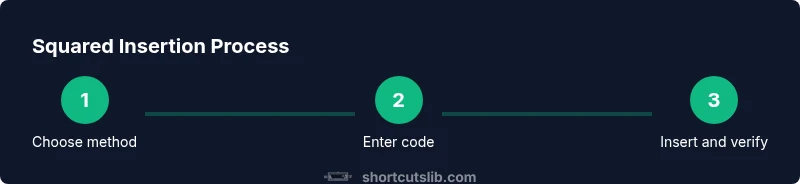
- 1
Prepare your workspace
Open the document or editor where you’ll insert the squared symbol. Ensure your fonts support superscripts and that the target font displays ² clearly. Having the target app ready helps avoid context switching during the rest of the steps.
Tip: Check a sample line to verify the glyph renders correctly. - 2
Choose your insertion method
Decide whether you’ll use Unicode entry, an Alt code, or a dedicated key combination. Pick a method that works across your most-used apps to minimize switching costs.
Tip: If you’re new to Unicode, start with a method that your editor supports natively. - 3
Enter the Unicode point or code
If using Unicode, input U+00B2 in your editor’s Unicode method or switch input sources to Unicode Hex Input (macOS) and type 00B2.
Tip: In Word, you can type 00B2 then press Alt+X to convert to ². - 4
Insert via Alt codes (Windows)
On Windows, hold Alt and type 0178 on the numeric keypad to insert ² in many apps. This method is quick but may not work in all software.
Tip: If Alt codes don’t work, try the Unicode method or a character map. - 5
Use the Character Viewer (macOS)
Open the Character Viewer (Control-Command-Space), search for “squared” or “superscript two,” and double-click the symbol to insert it.
Tip: Using the viewer prevents confusion if you don’t remember codes. - 6
Try Ctrl+Shift+U on Linux
In many Linux environments, Ctrl+Shift+U followed by B2 and Enter inserts ². This works across terminals and most editors.
Tip: If your distribution uses a different shortcut, check your keyboard settings. - 7
Test in your target apps
Paste or insert ² in your most-used apps (Word, Docs, IDEs, browsers) and verify rendering and encoding—especially when exporting to PDFs or HTML.
Tip: If ² becomes a placeholder, re-check font support and encoding. - 8
Create a quick-access option
Save your chosen method as a snippet or shortcut in your editor or OS to speed future insertions.
Tip: Consider a micro-template like “²” mapped to a double-tap on a hotkey. - 9
Verify accessibility and consistency
Ensure screen readers announce the symbol correctly and test across platforms and devices you use regularly.
Tip: Consistency improves readability and reduces confusion for collaborators.
Questions & Answers
What is the squared symbol and where is it used?
The squared symbol is the superscript 2 (²) used to denote exponentiation or area units like m². It appears in math, science, and technical writing. Knowing how to insert it ensures precise notation across documents and dashboards.
The squared symbol, or superscript two, is used to show exponentiation like x squared. You insert it using Unicode, Alt codes, or a quick symbol picker in your editor.
Can I type ² without changing my keyboard layout?
Yes. You can insert ² using method-specific shortcuts (Unicode entry, Alt codes, or character viewers) without changing your keyboard layout. This keeps your workflow smooth even if you switch between Windows, macOS, and Linux.
You don’t need a new keyboard—use Unicode entry or a built-in symbol picker to add squared.
What should I do if ² doesn’t render in my font?
If ² doesn’t render correctly, switch to a font that supports superscripts or adjust the font stack in your document. Some fonts lack proper glyphs for certain symbols, which can cause spacing or alignment issues.
If the symbol looks odd, try a different font with proper superscript glyphs.
Is it better to use HTML entities or actual characters in code?
For web content, using the actual character ² is fine if the encoding is correct. In HTML, you can also use the entity ² to ensure consistent rendering across browsers.
You can use the actual symbol or the HTML entity ² depending on your project’s encoding.
How can I quickly insert squared in Google Docs?
In Google Docs, the fastest route is to copy the ² symbol from a symbol picker or use a keyboard shortcut if your browser supports it. If not, insert via a character map and paste into Docs.
Use the built-in symbol picker or copy-paste the symbol into Docs.
Watch Video
Main Points
- Master one reliable squared insertion method.
- Prefer actual ² over typed 2 with formatting.
- Test across your primary apps for consistency.
- Use Unicode entry for cross-platform reliability.
- Keep a quick-reference sheet for daily use.