Keyboard Shortcut for Paragraph Symbol: A Practical Guide
Master fast insertion of the paragraph symbol (¶) across Windows, macOS, and Linux with Unicode input, Alt codes, and app-specific tips. A practical, brand-driven guide by Shortcuts Lib.


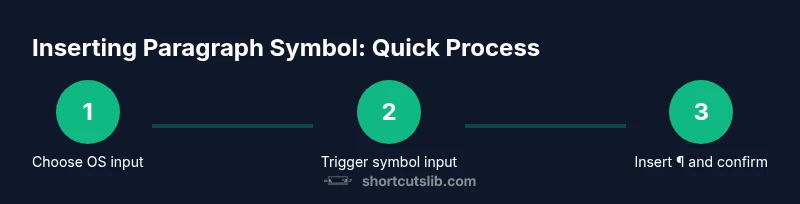
Goal: learn reliable shortcuts to insert the paragraph symbol (¶) across Windows, macOS, and Linux. Rely on OS input methods or app features rather than manual copy-paste. A well-chosen keyboard shortcut for paragraph symbol speeds formatting, proofreading, and consistency across documents. Exact keystrokes vary by keyboard layout, but the method remains consistent: invoke an input method, locate the paragraph symbol, and insert it with one action.
What is the paragraph symbol and why it matters
The paragraph symbol, often called the pilcrow (¶), marks where one paragraph ends and another begins. For writers and keyboard enthusiasts, knowing the keyboard shortcut for paragraph symbol can dramatically shorten editing workflows. The pilcrow isn’t just decorative; in word processing, typesetting, and markup, it can signal structure to editors, stylesheets, and automation. Mastering a reliable keyboard shortcut for paragraph symbol reduces context switching, letting you stay in flow while adjusting formatting, tracking changes, or annotating drafts. Because OS and application ecosystems differ, the exact keystroke for the keyboard shortcut for paragraph symbol varies. The underlying principle remains consistent: invoke a symbol input, search for “paragraph” or “pilcrow,” and insert with a single action. This approach supports multilingual documents, where pilcrow usage follows universal typographic norms and ensures consistency across platforms.
For Shortcuts Lib readers, the value is clear: a well-documented keyboard shortcut for paragraph symbol accelerates everyday editing tasks, from emails to long manuscripts. As you practice, you’ll notice fewer interruptions when formatting, enabling you to focus on content quality and clarity. Remember that the pilcrow symbol is a real typographic mark used in many contexts, including proofreading, legal documents, and academic manuscripts. Adopting a dependable keyboard shortcut for paragraph symbol helps you stay precise and efficient, regardless of the app in use.
Keyboard shortcuts across platforms
Across operating systems, the same goal applies: reduce the friction of inserting the paragraph symbol. On Windows, you typically rely on OS-provided input methods such as Alt codes or a character picker. Mac users usually access the paragraph symbol through the built-in Character Viewer or a layout-specific shortcut. Linux and other Unix-like systems commonly support Unicode input, enabling you to insert ¶ by typing its code point via a dedicated method, then confirming the character.
The key takeaway for the keyboard shortcut for paragraph symbol is to identify a reliable input method provided by your OS and reuse it across apps. Font support and keyboard layout differences can affect how the symbol appears, so verify rendering in your most-used programs (word processors, email clients, editors, and browsers). With practice, the same pathway becomes second nature, reducing the mental load when you format paragraphs in drafts, notes, or code comments. Shortcuts Lib’s guidance emphasizes consistency: pick one cross-platform method, internalize it, and apply it across tools for a smoother editing experience.
Inserting ¶ in word processors: Microsoft Word and Google Docs
Word processors often have their own ways to bring in the paragraph symbol quickly. In Windows, many editors rely on either the Alt code method or the built-in insert tools to access special characters. In Word, you can insert punctuation like ¶ via the Symbol dialog or via Unicode input where supported. Google Docs also supports inserting special characters through the Insert menu or a dedicated search for “paragraph” within the special characters picker. When you use the keyboard shortcut for paragraph symbol, ensure the focus is within the document and your font supports the character to avoid fallback glyphs. Consistency across Word and Docs helps you maintain uniform paragraph markers when collaborating with others who may prefer different platforms.
For developers and note-takers, this section highlights practical workflows. In Word, you might bind a custom macro to insert ¶, while in Google Docs you can apply a bookmark or add-on that inserts the symbol with a single click. Although the exact steps vary by app version, the same logic applies: locate the insertion method, choose the paragraph symbol, and confirm. Over time, your muscle memory will grow, and inserting ¶ will become as routine as typing a space.
Paragraph symbol in coding and note-taking apps
In text editors and IDEs, the paragraph symbol sometimes appears as a literal character within strings or comments, or as a formatting marker in documentation. If your editor supports Unicode input or advanced snippets, you can insert ¶ using a dedicated keystroke that triggers a snippet or a live template. In note-taking apps, the paragraph symbol can help organize ideas and delineate sections in a portable way. The keyboard shortcut for paragraph symbol is valuable in markdown editors or plain text environments where readability depends on clear paragraph breaks. Always verify the symbol renders correctly in your chosen environment and font family, as some coding fonts may render pilcrow differently or not at all.
When working across multiple apps, test the symbol in each to ensure consistency. If you rely on a cross-application shortcut, you’ll find it easier to maintain formatting rules, especially when taking quick notes or drafting content on the go. Shortcuts Lib encourages building a small repertoire of reliable methods that work across your most-used editors.
Unicode input methods explained
Unicode input is a universal pathway to insert the paragraph symbol (¶) regardless of the application. Linux and some Unix-like systems support direct Unicode entry, which typically involves a key combination to enter a code point, followed by the character. Windows users often use Alt codes or a character map for the same result, while macOS users can access a symbol catalog or the Character Viewer for quick lookup. The central concept is straightforward: invoke the Unicode input mode, provide the code point for the paragraph symbol, and confirm to insert. The exact keys may vary with keyboard layout, but the principle remains stable across platforms. This section provides a framework you can adapt to each environment, enabling fast and accurate insertion of ¶ in documents, emails, and code comments.
If you want a more robust approach, you can incorporate Unicode input into your productivity toolkit by binding it to a macro or keyboard shortcut in your favorite editor. That way, your keyboard shortcut for paragraph symbol becomes a single-action workflow that you can repeat reliably.
Practical workflows: editing documents and emails
Think about how you work with paragraphs in daily tasks. When drafting emails, it’s useful to insert ¶ to mark sections or to denote paragraph boundaries for readability. In long Word documents, a consistent keyboard shortcut for paragraph symbol can speed formatting during revisions. In markdown or plain text, Paragraph symbols can organize thoughts without relying on headings alone. The practical workflow is simple: place the cursor, invoke the OS or app input method, search for “paragraph” or “pilcrow,” and insert. Repetition across apps reinforces accuracy and reduces confusion during collaboration. By integrating a dependable keyboard shortcut for paragraph symbol into your routine, you can maintain uniform formatting across docs, emails, and notes. This consistency supports faster proofreading and more predictable document structure across your work stack.
Troubleshooting common issues with the paragraph symbol shortcut
If the keyboard shortcut for paragraph symbol doesn’t work, first verify font support. Some fonts render ¶ poorly or substitute a dingbat glyph. If the selection dialog or Unicode entry isn’t responding, check your keyboard layout and ensure the exact method matches your OS version. In web apps, browser extensions and input blockers can interfere with character entry, so disable conflicting add-ons briefly to test. If you still can’t insert ¶, fall back to copying and pasting from a reliable source, then create a local reference for future use. Regularly testing across your most-used apps helps identify where the shortcut works best and where alternatives are needed. This proactive approach minimizes friction so you can maintain productivity when formatting paragraphs.
Accessibility and customization tips
Make your paragraph symbol workflow accessible to all teammates by using keyboard shortcuts that align with accessibility goals. If you rely on screen readers or voice input, ensure the chosen method remains actionable and discoverable. Many apps let you customize keyboard bindings or create templates that include ¶, which can be especially helpful for long-form writing. Consider documenting your favorite keyboard shortcut for paragraph symbol in a shared team wiki so others can adopt it. When possible, use the system’s built-in symbol input rather than third-party tools to reduce compatibility issues. Customization should prioritize consistency, reliability, and ease of use across your daily tasks.
Quick tips for reliability and future-proofing
To maximize reliability of the keyboard shortcut for paragraph symbol, standardize on a single cross-platform method and keep a short cheat sheet handy. Regularly review your most-used apps to ensure the method remains compatible with updates, as some editors change their insert-character workflows. Consider saving a template or macro that inserts ¶ in the most common contexts (drafts, emails, and notes). Finally, keep fonts consistent across devices to ensure ¶ renders identifiably across platforms. With a deliberate setup and routine practice, your keyboard shortcut for paragraph symbol becomes a dependable part of your editing toolkit.
Tools & Materials
- Keyboard with numeric keypad(For Windows Alt codes, a numeric keypad is recommended to ensure reliable input.)
- OS-level symbol input accessibility(Access Windows Character Map, macOS Character Viewer, or Linux Unicode input as your primary method.)
- Updated web browser or editor(Ensure your apps support Unicode input and symbol insertion without extension conflicts.)
- Cheat sheet or quick-reference(Helpful to memorize and share the best cross-platform approach for the keyboard shortcut for paragraph symbol.)
Steps
Estimated time: 20-35 minutes
- 1
Identify your primary OS input method
Decide which path you will use to insert ¶: Windows Alt codes, macOS Character Viewer, or Linux Unicode input. This choice shapes the rest of your workflow and ensures consistency across apps.
Tip: Choose the method you personally find fastest after a quick test in your most-used apps. - 2
Open the target document and place the cursor
Click to place the cursor where ¶ should appear. Ensure the document is in a mode that accepts special characters (e.g., editing mode in Word, Docs, or a code editor).
Tip: If inserting multiple marks, keep the cursor in the same location to avoid disrupting your flow. - 3
Activate the OS symbol input method
Trigger your chosen input method (e.g., open the Character Viewer, toggle Unicode input on Linux, or prepare Alt codes on Windows).
Tip: If you’re using a workflow across apps, consider a hotkey to launch the symbol picker quickly. - 4
Search for paragraph or pilcrow
In the picker or input window, search for “paragraph” or “pilcrow” or navigate to the symbol via categories.
Tip: Use keyboard search to minimize mouse use and speed up the process. - 5
Insert the symbol
Select ¶ and insert it at the cursor position. Verify rendering in the current font to avoid missing glyphs.
Tip: If not displayed correctly, switch to a font with full Unicode support. - 6
Test across apps
Paste ¶ into another app (email, note, or code editor) to confirm the symbol carries correctly.
Tip: If the symbol appears as a placeholder box, adjust the font or use a different input method. - 7
Create a reusable shortcut or macro
Bind a single keystroke to insert ¶ via your editor or OS utilities for repeated use.
Tip: Document the binding so teammates can replicate it. - 8
Review and refine
Audit recent documents to ensure ¶ usage is consistent with style guides and project requirements.
Tip: Add ¶ to a shared style guide if appropriate.
Questions & Answers
What is the paragraph symbol used for?
The paragraph symbol marks paragraph boundaries and is widely used in proofreading, typesetting, and markup. It helps editors and writers identify structure, especially when documents are reformatted or converted between apps.
The paragraph symbol marks paragraph breaks and helps editors see structure in text.
Is there a universal shortcut for ¶ across all apps?
No single universal shortcut exists. Shortcuts vary by OS and application. Use OS symbol input or app-specific features to insert ¶ consistently.
There isn’t one universal shortcut; use your OS method or app feature to insert ¶.
Can I customize a keyboard shortcut for ¶?
Yes. Many editors and OS environments let you bind a key sequence or macro to insert the paragraph symbol. This improves speed and consistency across workflows.
Yes, you can customize a shortcut to insert ¶.
How do I insert ¶ in Google Docs?
In Google Docs, use Insert > Special characters, search for 'paragraph' or 'pilcrow', and insert. You can also copy-paste ¶ from another source if needed.
Use the Special characters option or copy-paste ¶ if troubleshooting.
Why isn’t ¶ appearing in my document?
This usually happens when the font doesn’t support the character or the input method isn’t activated. Verify font support and try an alternative method.
Check font support and try a different input method.
Is the paragraph symbol relevant to Markdown?
Markdown doesn’t treat ¶ as a control character; it’s simply a character that can appear in text. Its relevance comes from readability and typography rather than syntax.
¶ is just a character in Markdown; it doesn’t affect syntax.
What if I work across multiple languages?
Pilcrow usage is generally language-agnostic. The same keyboard shortcut for paragraph symbol works in many languages; verify spelling and font support for each language context.
The same ¶ shortcut typically works across languages, with font support checked.
Can I automate ¶ insertion in templates?
Yes. Use templates or macros to insert ¶ in standard sections (headers, footers, disclaimers) to maintain consistency.
Macros or templates can automate inserting ¶.
Watch Video
Main Points
- Learn a cross-platform method to insert ¶ quickly.
- Verify font support to ensure correct rendering of the symbol.
- Create a reusable shortcut or macro for reliability.
- Test symbol insertion across your most-used apps.
- Document your workflow for team consistency.