Screenshot Windows Keyboard: Master Shortcuts for Quick Captures
Learn the essential Windows screenshot keyboard shortcuts to capture, edit, and share images quickly. Master PrtScn, Win+PrtScn, Win+Shift+S, and practical workflows for faster documentation.


Master the quickest screenshot windows keyboard shortcuts to capture, edit, and share content on Windows. You’ll learn core keystrokes like PrtScn, Alt+PrtScn, Windows+Shift+S, and Windows+PrtScn, plus practical workflows for saving, annotating, and distributing images across apps. This guide is designed for speed and accuracy, helping you stay productive without leaving the keyboard. This quick answer is intended for tech users who want fast, repeatable results.
Why a streamlined screenshot workflow matters
A well-tuned screenshot workflow on Windows saves minutes per task and reduces friction when documenting issues, creating guides, or sharing visual context. For keyboard enthusiasts, the fastest path to capture is almost as important as the capture itself. According to Shortcuts Lib, focusing on a small, stable set of shortcuts yields consistent results across apps and devices. This section explains why a predictable approach matters, how to identify the right mix of shortcuts for your setup, and how to keep your captures organized for teams and personal projects. We’ll cover built‑in keyboard tricks, how to use Snip & Sketch, and best practices for naming and storing images so you can locate them in seconds. The aim is to turn a repetitive task into a fast, repeatable ritual that doesn't interrupt your flow.
Core Windows keyboard shortcuts you should memorize
To speed up screenshot workflows, start with a core set of keystrokes you can trust across apps:
- PrtScn: captures the entire screen and copies it to the clipboard for quick pasting into documents. Use when you don’t need the image file yet.
- Alt+PrtScn: captures only the active window, which helps isolate the context without extra clutter.
- Windows+PrtScn: saves a full-screen PNG directly to the Pictures/Screenshots folder for instant file-based sharing.
- Windows+Shift+S: opens Snip & Sketch for a region, window, or freeform capture; the result returns to the clipboard for immediate pasting.
- Fn+PrtScn: on many laptops, you’ll press Fn with PrtScn; check your device's keyboard layout to confirm.
- Windows+G: (Game Bar) can capture screens and video in certain apps, but use it primarily for gaming contexts where screen recording is also needed.
Practice these in sequence to build a repeatable workflow. Shortcuts Lib recommends using the clipboard path for quick edits and the file path when you need a shareable asset with one-click saving.
Using Windows + Shift + S: Snip & Sketch flow
Win+Shift+S launches Snip & Sketch within Windows. The screen dims and a small toolbar appears, offering four capture modes: rectangular, freeform, window, and fullscreen. The captured region lands on your clipboard, letting you paste into a document right away or open Snip & Sketch for annotation before saving. After capturing, click the notification to edit in Snip & Sketch or click the open app button in the clipboard toast to edit later. This flow is ideal for precise selections and quick annotations.
Full-screen and window-specific captures: PrtScn family
PrtScn captures the entire screen and copies it to the clipboard; Alt+PrtScn captures the active window only, which reduces clutter and focuses attention on one app. Windows+PrtScn saves a PNG file directly to the default Pictures/Screenshots folder, providing a ready-to-share asset without intermediate steps. For screen-heavy tasks (such as bug reports), combine these methods with a quick paste into a document or email to convey the exact state.
Saving locations and file formats: where to find your images
By default, Windows stores screenshots taken with Windows+PrtScn in the Pictures > Screenshots folder as PNG files. PrtScn-to-clipboard shots require you to paste into an editor or document, after which you can save as PNG or other formats. If you need a specific format or naming convention, use a lightweight editor such as Paint, Snip & Sketch, or a third-party tool to save with a standardized filename. Organize your images by project or client and maintain a consistent folder structure for easy retrieval.
Editing and annotating screenshots efficiently
After capturing, you can edit in Snip & Sketch, Paint, or a similar editor to annotate, highlight, or add arrows and text. Snip & Sketch offers basic annotation tools right after capture; Paint provides more advanced drawing options if you need heavier editing. For professional results, keep your edits non-destructive by saving editable copies first, then export finalized versions for sharing. Consistent annotation styles (colors, line thickness, font) help teammates recognize your visuals quickly.
Practical workflows for documentation and sharing
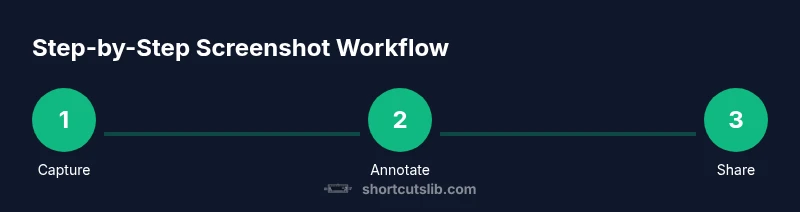
A typical workflow is: capture with Win+Shift+S, paste into Snip & Sketch for quick annotation, save with a clear filename, and share the file or paste into a report. For ongoing documentation, create a naming convention like PROJECT_DATE_SCREENSHOT_DESCRIPTION.png and store in a well-organized folder. If you need to paste into emails or chat, use the clipboard path to avoid clutter; if you’re assembling a gallery or report, prefer saved PNG files for crispness. This approach speeds up feedback cycles and reduces back-and-forth.
Troubleshooting common problems
If shortcuts don’t respond, verify your keyboard layout and ensure no other app intercepts the key presses. Clipboard issues may occur if the destination app isn’t ready to receive data; try pasting into a simple editor first. If Windows+Shift+S opens but doesn’t return to clipboard, check that Windows notifications are enabled; a disabled notification center can prevent the capture from being returned to the clipboard. On laptops, confirm Fn behavior if PrtScn requires Fn. Finally, ensure you’re on a supported Windows version with the latest updates.
Advanced options: PowerToys Screen Snip and additional tools
PowerToys adds Screen Snip as a robust alternative to the built‑in Snip & Sketch. It provides flexible hotkeys, easier region capture, and additional accessibility options. If you frequently capture complex layouts, consider enabling Screen Snip as your primary tool and mapping a single key to launch it. This reduces multi-step workflows and keeps your hands on the keyboard. Other third-party tools also offer extended markup options, batch export, or automated naming schemes for larger teams.
Customizing keyboard shortcuts for speed
Windows doesn’t natively remap the built-in screenshot keys, but you can tailor your workflow using third‑party remappers or macro tools such as PowerToys and AutoHotkey. A practical approach is to map a single, memorable key to launch Snip & Sketch or PowerToys Screen Snip, then use your existing shortcuts for actual captures. Document your remappings so your team can replicate your workflow. Remember to test changes in a safe environment to avoid conflicts with legitimate system shortcuts.
Accessibility and safety considerations
Screenshots can reveal sensitive information. When sharing, blur or redact confidential content and consider storing images behind access controls or within private documentation spaces. Use high-contrast visuals and clear annotations to improve readability for all users, including those with visual impairments. Ensure that your capture workflow remains accessible by keeping shortcut choices simple and well-documented for teammates who rely on keyboard navigation.
Best practices recap for consistent results
Develop a standardized screenshot workflow that fits your role, whether you’re a developer, designer, or manager. Keep the core shortcuts small and repeatable, choose a reliable saving path, annotate consistently, and organize files logically. Practicing with a quick, daily routine helps lock in muscle memory. As Shortcuts Lib emphasizes, consistency is the secret to turning a repetitive task into a seamless habit.
Tools & Materials
- Windows PC or laptop(Any modern Windows version (Windows 10/11) supporting PrtScn, Win+PrtScn, and Win+Shift+S)
- Keyboard and mouse or touchpad(Fn key on some laptops may be needed for PrtScn)
- Snip & Sketch and/or Snipping Tool(Built-in apps for in-app editing and annotation)
- Paint or a lightweight image editor(Optional for advanced editing and formatting)
- PowerToys (optional)(Adds Screen Snip and other utilities for enhanced captures)
Steps
Estimated time: 15-25 minutes
- 1
Identify your capture goal
Define exactly what you need to capture (full screen, a single window, or a region). This clarity ensures you choose the right shortcut and avoid extra steps later.
Tip: Write a one-line goal before you capture to guide your selection. - 2
Choose the capture method
Decide whether you need a quick clipboard paste (PrtScn/Alt+PrtScn) or a saved image (Win+PrtScn or Win+Shift+S path).
Tip: Start with Win+Shift+S for flexible region capture when you’re unsure. - 3
Capture the screenshot
Use the chosen shortcut and confirm the capture succeeds (you should see a brief visual cue or a notification).
Tip: If using Win+Shift+S, your screen dims and you select the area with the mouse. - 4
Open editor if needed
Paste from clipboard into Snip & Sketch or Paint to annotate or crop before saving.
Tip: Use Snip & Sketch’s annotation tools for quick arrows and labels. - 5
Save or copy the result
If you saved a file (Win+PrtScn), organize it with a clear filename. If you copied to clipboard, paste into your document or editor.
Tip: Adopt a naming convention like PROJECT_DATE_DESCRIPTION.png. - 6
Annotate for clarity
Add highlights, text, or arrows to emphasize specifics. Keep colors consistent for quick scanning.
Tip: Reuse a standard color palette to improve readability. - 7
Share or export
Distribute the image via email, chat, or a knowledge base. Consider including context in the file name or caption.
Tip: When sharing, provide a brief caption to frame the screenshot's purpose. - 8
Review and refine your workflow
Periodically review a sample set of screenshots to ensure consistency and identify bottlenecks.
Tip: Solicit team feedback to iterate on your process. - 9
Optional: customize shortcuts
If you rely heavily on screenshots, use PowerToys or AutoHotkey to map a single key to launch your preferred tool.
Tip: Document any remappings to avoid confusion for teammates.
Questions & Answers
What is the fastest way to capture the entire screen on Windows?
Windows+PrtScn saves a PNG file directly to the Pictures/Screenshots folder. It’s the quickest way if you don’t need to annotate immediately.
Windows+PrtScn saves to your Pictures/Screenshots folder for fast sharing.
Can I customize the built-in screenshot shortcuts on Windows 10/11?
Windows doesn’t offer native remapping for built-in screenshot keys. You can use third-party remappers, or adopt Snip & Sketch with Win+Shift+S as your primary capture method.
Native remapping isn’t straightforward; consider third-party tools or using Snip & Sketch as your default.
Where do I find my screenshots by default?
PrtScn captures go to clipboard; Windows+PrtScn saves as PNG in Pictures/Screenshots. Alt+PrtScn copies to the clipboard for pasting into another app.
Windows+PrtScn saves to Pictures/Screenshots; others copy to clipboard.
How do I annotate a screenshot quickly?
Open the captured image in Snip & Sketch or Paint and use arrows, text, and highlights to mark important details.
Open in Snip & Sketch or Paint to annotate quickly.
What if the clipboard doesn’t capture correctly?
Try an alternate shortcut, ensure the destination app is ready to receive paste, and verify the capture mode. If using Win+Shift+S, you may need to paste after capturing.
If clipboard fails, try another method and ensure the paste target is ready.
Are there free tools beyond the built-in options?
Yes. Snip & Sketch, the classic Snipping Tool, and optional PowerToys Screen Snip offer enhanced features without cost.
Free options include Snip & Sketch and PowerToys.
Watch Video
Main Points
- Master core shortcuts to speed captures
- Choose the right tool for each task
- Annotate before sharing for clarity
- Organize screenshots with consistent naming
- Practice daily to build muscle memory