Print Screen Shortcuts: How to Capture Screens Efficiently
Learn print screen using keyboard shortcuts across Windows, macOS, and Linux. This educational guide covers essential keys, workflows, and tips to capture, edit, and share screenshots quickly.


You will learn print screen shortcuts that let you capture, copy, save, and edit screenshots on Windows, macOS, and Linux. This guide covers core keys, region and window captures, clipboard use, and practical workflows to accelerate your visual communication.
What print screen shortcuts empower you to do with speed
Print screen shortcuts are small, repeatable keystrokes that let you capture exactly what you need from your screen and move it into your workflow without hunting through menus. For keyboard lovers and power users, these shortcuts remove friction and keep your attention focused on the task. At its core, the practice is about choosing the right combination for the situation: full-screen capture, the active window, a selected region, or even a timed capture. In this guide, we’ll explore how to leverage print screen shortcuts across Windows, macOS, and Linux, and how to build consistent habits that save minutes every day. According to Shortcuts Lib, mastering these keystrokes can significantly streamline workflow for heavy screenshot users, especially when combined with quick editing and sharing steps.
OS-specific shortcuts: Windows, macOS, Linux
Different operating systems offer distinct default shortcuts. On Windows, the classic PrtScn copies a full-screen image to the clipboard, Alt+PrtScn captures the active window, and Win+PrtScn saves a file to the Pictures/Screenshots folder. Windows 10 and 11 also support Win+Shift+S to invoke a built-in region picker. macOS users commonly rely on Command+Shift+3 for a full-screen capture, Command+Shift+4 to select a region, and Command+Shift+5 for a screen capture toolbar with options to record. Linux environments vary by desktop, but many distributions provide PrtScn for full screen, Shift+PrtScn for a region, and Ctrl+PrtScn to copy to clipboard; some flavors offer region capture via a GNOME/KDE tool or a screenshot utility. Understanding these core shortcuts helps you choose the fastest workflow for each situation.
Practical workflows: save, copy, or annotate
A practical approach is to decide early whether you want to save a file, copy to the clipboard, or annotate before saving. Saving to a file is fast on Windows with Win+PrtScn, while macOS users may prefer region captures via Command+Shift+4 and then paste into a document or image editor. If you need to paste directly into a document, region captures via Win+Shift+S (Windows) or Command+Control+Shift+4 (macOS) can copy to the clipboard. For rapid sharing, choose a short, consistent file-naming convention and a default save location. Annotation can be added after capture using built-in tools (Paint, Preview) or lightweight editors. Build a simple checklist to decide the next action for each capture.
Best practices for saving, editing, and sharing
Consistency is the backbone of efficient capture workflows. Create a naming scheme like [project]-[date]-[shot type]. Choose a default folder and a preferred file format (PNG for lossless quality, JPEG for smaller size) and set up a quick export shortcut in your editor. After capture, consider a minimal edit: crop out unnecessary UI, highlight important areas, and add a short caption. When sharing, select a reputable platform and use a consistent compression level to balance quality with transfer speed. Finally, keep your clipboard clean by clearing it after pasting where appropriate and using a clipboard manager if you capture multiple screens in a row.
Using clipboard managers and annotation tools to speed up your workflow
Clipboard managers store multiple screenshots so you can paste later, switch between images, and keep a history of recent clips. Pair a clipboard manager with basic annotation tools to add arrows, boxes, or text before saving or sharing. Many editors offer quick-access pens, shapes, and color palettes that help you emphasize key details. If you work across platforms, ensure your tools support cross-clipboard compatibility so you can move images between Windows, macOS, and Linux without re-saving. These small additions can dramatically reduce back-and-forth time when documenting bugs, tutorials, or design reviews.
Troubleshooting: when shortcuts don’t work
If a shortcut fails, verify that you are using the correct modifier keys for your OS and keyboard layout. International layouts often remap PrtScn or require a Function (Fn) key to access the numerical row. Some laptops require pressing Fn+PrtScn to trigger a capture. Disable conflicting shortcuts in your editor or system preferences and test with a minimal setup (one app, default keyboard). If a particular shortcut works but the file isn’t saved to your desired location, check the default save path and permissions. Finally, ensure your clipboard isn’t blocked by another app that intercepts paste commands. A clean restart of the capture app or system can clear lingering conflicts.
Advanced workflows: automation and scripting basics
For power users, small scripts or automation tools can trigger screenshots on a schedule or in response to events. On Windows, PowerShell can automate captures to a directory with consistent naming. macOS users can leverage AppleScript or Automator to run region captures and apply quick edits. Linux users can script with xdotool or a shell script to call scrot or import for region captures. While this level of automation requires setup, it pays off when you need repeated captures as part of a testing workflow or documentation process. Start with a simple script that captures to a specific folder, names files consistently, and logs each capture.
Accessibility and ergonomics: inclusive capture practices
Accessibility should be considered when designing capture workflows. Use high-contrast UI in capture editors and keep your keyboard input straightforward to minimize fatigue. If you rely on on-screen displays, ensure your chosen shortcuts don’t interfere with assistive technology. Consider enabling audio cues for successful captures so you have confirmation without looking away from the screen. For long sessions, alternate between different shortcut combinations to reduce strain and create a sustainable habit that works for diverse tasks and environments.
Tools & Materials
- Standard keyboard(Any layout; ensure you can access PrtScn or equivalent key. Some laptops require Fn+PrtScn.)
- Clipboard manager (optional)(Helpful for bookmarking multiple screenshots in sequence.)
- Annotation/editing tool(Examples: built-in editors (Preview, Paint) or lightweight apps.)
- Screenshot utility (OS built-in or third-party)(Windows Snipping Tool, macOS Screenshot, or Linux GNOME/KDE tools.)
Steps
Estimated time: 15-25 minutes
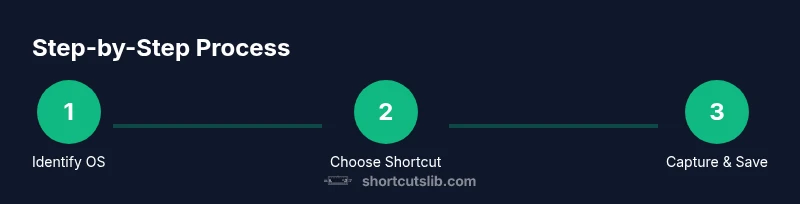
- 1
Identify your operating system and preferred workflow
Determine whether you will primarily save screenshots as files, copy to clipboard for pasting, or annotate after capture. This decision guides which shortcuts you’ll use first, reducing trial and error.
Tip: Choosing a primary workflow at the start prevents unnecessary keystrokes later. - 2
Capture full screen on Windows with PrtScn
Press the PrtScn key to copy a full-screen image to the clipboard. If your goal is a saved file, use Win+PrtScn to automatically save to the Pictures/Screenshots folder.
Tip: If your keyboard lacks PrtScn, try Fn+PrtScn or use a Windows shortcut helper. - 3
Capture a window on Windows with Alt+PrtScn
Press Alt+PrtScn to copy only the active window. This is ideal for focused reports where only one app should be visible.
Tip: Paste into your editor immediately to minimize edits. - 4
Capture a region on Windows with Win+Shift+S
Use Win+Shift+S to invoke the built-in region picker. Drag to select the area you want, then paste or edit as needed.
Tip: If you don’t see the region tool, enable it in the Quick Settings or Snip & Sketch tool. - 5
Capture full screen on macOS with Command+Shift+3
Press Command+Shift+3 to save a full-screen image to the desktop, or add Control to copy to the clipboard for immediate pasting.
Tip: Remember the file appears on the desktop by default—move it to a project folder if needed. - 6
Capture a region on macOS with Command+Shift+4
Press Command+Shift+4 to select a region. You can press Space to switch to window mode or use Command+Shift+5 for more options.
Tip: Drag to select and release; the capture appears on the desktop or clipboard depending on the keys pressed. - 7
Linux region and full-screen captures
Most desktops support PrtScn for full screen and Shift+PrtScn for region capture. If not, use a lightweight tool like Flameshot or Spectacle for consistent results.
Tip: Check your distro’s keyboard shortcuts manager to avoid conflicts with global shortcuts.
Questions & Answers
What is the quickest way to take a full-screen screenshot on Windows?
Press PrtScn to copy the screen to the clipboard. For a saved file, use Win+PrtScn which saves directly to the Pictures/Screenshots folder.
On Windows, press PrtScn to copy, or Win+PrtScn to save as a file.
How do I capture a selected region on macOS?
Use Command+Shift+4 to enter region selection mode, then drag to select the area. You can press Space for window mode or Command+Shift+5 for more options.
Mac region capture is Command-Shift-4, then select.
Can I copy a screenshot directly to the clipboard on macOS?
Yes. Add Control to the region command: Command+Ctrl+Shift+4 to copy the region to the clipboard instead of saving a file.
Mac can copy to clipboard with Command-Control-Shift-4.
What Linux tools help with region captures?
Most desktops support region capture with PrtScn or Shift+PrtScn. If needed, install a dedicated tool like Flameshot or Shutter for consistent behavior.
Linux region capture can be PrtScn or a dedicated tool.
Are there accessibility tips for taking screenshots?
Use high-contrast editors, keyboard-only navigation where possible, and audible confirmations to reduce eye strain during long captures.
Accessibility tips involve high-contrast edits and keyboard-only workflows.
Watch Video
Main Points
- Master Windows, macOS, and Linux shortcuts for screenshots
- Use region capture for precise results
- Save-to-file vs. clipboard workflows are distinct—choose one