Redo Mac Keyboard Shortcut: A Practical Guide
Learn the redo mac keyboard shortcut across macOS apps, understand common variations like Cmd+Shift+Z, and master app-specific quirks with practical, step-by-step guidance.


You will master the redo mac keyboard shortcut across macOS apps, understand when redo is available, and learn variations like Cmd+Shift+Z and app-specific flavors. You’ll discover where redo history lives in common apps (TextEdit, Chrome, Microsoft Office, and IDEs) and how to recover from mistakes quickly without undoing your entire workflow.
Why redo matters on Mac
Redo is a fundamental part of any efficient editing workflow on macOS. It lets you recover a step you just undid, saving time and reducing frustration. According to Shortcuts Lib, the redo mac keyboard shortcut is not universal across every app; instead, it often follows a common pattern but can vary by context. This means you should be comfortable with the standard Cmd+Shift+Z in most apps, but be prepared to encounter Cmd+Y or other variants in specialized software. In practice, developing a mental map of where redo lives—whether in the Edit menu, the toolbar, or via a keyboard shortcut—will speed up your editing, coding, writing, and design work. The goal is to keep your hands on the keyboard and minimize context switching. This section sets the stage for understanding how redo works in real-world tasks, from drafting emails to debugging code.
Core concept: the redo shortcut on Mac is context-dependent
Mac users typically rely on a few standard patterns, but the exact key combination can shift with the app. The most common approach is Cmd+Shift+Z, which mirrors the Undo action (Cmd+Z) with a redo capability. In some apps, Cmd+Y is configured as redo, especially in Windows-leaning software or web apps accessed through a browser. The discrepancy matters because a single mental model won’t cover all situations. Practically, you should verify the Edit menu to confirm the current redo command. Over time, you’ll recognize which apps adhere to the Cmd+Shift+Z convention and which ones diverge as you work across documents, spreadsheets, and code.
How redo interacts with your history stack
Redo relies on the action history stack maintained by each application. When you Undo, you step backward through that stack; Redo steps forward again, but only if you haven’t performed a new action since undoing. This means if you type a new sentence or insert an image after undoing, the redo history can reset. Understanding this rule helps you plan edits more predictably. Some apps support multiple redo steps, letting you move forward through several undone actions in a row; others show a single redo step. The practical takeaway: don’t rely on redo as a legacy “undo everything” tool—treat it as a controlled step-back that preserves recent work when used in sequence.
Redo behavior in web browsers and online editors
Web apps and browser-based editors often adopt their own redo semantics, though many align with Cmd+Shift+Z. In Chrome and Firefox, you’ll frequently encounter Cmd+Shift+Z as the redo command in text fields and form editors. Google Docs, for example, prizes Cmd+Shift+Z as a primary redo shortcut, but you should still check the Edit menu for any browser-specific overrides. When working across multiple tabs, consistency matters; keeping the core command consistent reduces cognitive load and speeds up editing across documents, emails, and project plans.
Redo in Office suites and IDEs: variations you should expect
Microsoft Word, Excel, and PowerPoint often follow Cmd+Y as an alternative redo shortcut, in addition to Cmd+Shift+Z in many locales. In IDEs like Xcode or VS Code, the redo shortcut can map to Cmd+Shift+Z or Cmd+Y depending on the keymap or extensions installed. This means that professional workflows—especially those involving mixed document types and code—benefit from a quick familiarity with the dominant pattern in each app. When in doubt, use the menu path Edit > Redo to confirm the active shortcut, or customize it if your workflow demands a uniform approach across tools.
Step-by-step: mapping redo stacks across apps
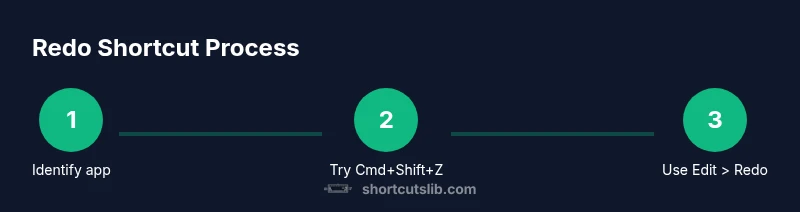
If you frequently switch between apps, create a simple mental or physical checklist: (1) try Cmd+Shift+Z first, (2) glance at the Edit menu if it doesn’t respond, (3) observe how many redo steps are available, (4) consider enabling app shortcuts to standardize the command, and (5) practice with a small sample document to build muscle memory. This approach reduces friction and makes redo a reliable safety net rather than a scattershot fallback. Shortcuts Lib emphasizes consistent practice across the tools you use most for durable, broad-based proficiency.
Testing redo in different contexts: a practical exercise
A practical exercise helps you see how redo behaves in real scenarios. Open a text document, make several edits, Undo twice, and then perform Redo twice. Switch to a browser-based editor and repeat with Cmd+Shift+Z; in a spreadsheet, observe whether Cmd+Y or Cmd+Shift+Z is active. Finally, in an IDE, experiment with multiple undos and redos to discover the exact limits of the redo stack. Document your findings in a small reference sheet that you can consult during the day. Regular testing keeps expectations aligned with behavior across apps.
Customizing redo shortcuts on macOS: a solid option when defaults don’t fit
MacOS’s built-in keyboard shortcuts system lets you map app-level shortcuts, including redo, to fit your preferred layout. You can create an App Shortcut for specific apps via System Settings (or System Preferences on older macOS versions), selecting the Edit menu title exactly as it appears (e.g., Redo or Redo Action). For broader consistency, third-party tools like external configurators or macro utilities provide more extensive remapping. When you customize, pick a consistent mapping to avoid conflicts with global shortcuts or other frequent actions. Testing the changes in a few representative apps confirms that your muscle memory remains coherent across tasks.
Practical tips and cautionary notes for redo mastery
- Pro tip: a short, repeated practice session across apps will build durable recall of redo shortcuts.
- Warning: some apps override system shortcuts; always verify in the Edit menu to avoid surprises.
- Note: redo stacks reset after new edits, so plan edits to preserve the desired redo steps.
- Pro tip: consider documenting your most-used mappings for quick reference.
- Note: accessibility users can remap keys for comfort, but keep consistency across tools to minimize confusion.
Final takeaway: building a redo muscle memory routine
Consistency beats intensity when it comes to shortcuts. Regular, short practice sessions across the apps you use most will consolidate the redo command into your reflexive toolkit. Establish a minimal, repeatable sequence: Cmd+Shift+Z first, Edit menu check next, and a quick glance at the redo counter if present. Over weeks, this becomes second nature, speeding up edits and reducing the cognitive load of switching contexts.
Tools & Materials
- Mac computer with current macOS(Ensure access to System Settings for shortcuts customization.)
- Keyboard (built-in or external)(A physical keyboard helps practice muscle memory.)
- Mouse or trackpad(Helpful for menu navigation when shortcuts fail.)
- Text editor or document app (TextEdit, Pages, Word, etc.)(Use at least two apps to compare redo behavior.)
- Browser with web-based editors (Chrome or Safari)(Check web app redo patterns and menu cues.)
- Notes app or reference sheet(Jot down your app-specific redo variants for quick recall.)
Steps
Estimated time: 25-30 minutes
- 1
Identify the target apps for redo practice
Open two to three apps you use most (e.g., TextEdit, Chrome, and Word). Confirm the currently active redo shortcut in each app by checking the Edit menu. This establishes a baseline across your common workflows.
Tip: Note any discrepancies you find between apps so you can memorize them efficiently. - 2
Test the standard Cmd+Shift+Z
In a new document, make several edits, then undo twice and try Cmd+Shift+Z to redo. Observe whether the command works and how many redo steps are available.
Tip: If Cmd+Shift+Z doesn’t work, check the Edit menu for the current redo mapping. - 3
Check alternative redo mappings
If the app uses Cmd+Y or another shortcut for redo, perform the same test to confirm the active mapping. Update your quick reference if needed.
Tip: Keep a small cheat sheet accessible during work. - 4
Experiment with a browser-based editor
Open a web editor, type text, and use redo to move forward through edits. Compare how it behaves versus a desktop editor.
Tip: Web apps may differ in how they handle multiple redo steps. - 5
Explore app-specific shortcuts via System Settings
Navigate to System Settings > Keyboard > Shortcuts and explore App Shortcuts. Add or view redo mappings for your primary apps.
Tip: Be mindful of conflicts with existing shortcuts. - 6
Create a uniform mapping (optional)
If you want consistency, attempt to map redo to a single shortcut across two or three apps using app-specific shortcuts.
Tip: Verify each app’s mapping after changes. - 7
Practice daily for a week
Set aside 5–10 minutes to practice redo in different contexts. Progressively test more complex edits to reinforce memory.
Tip: Consistency builds long-term recall faster than long, infrequent sessions. - 8
Document your findings and adjust
Maintain a brief log of which apps use Cmd+Shift+Z, Cmd+Y, or other mappings. Periodically review and adjust as apps update.
Tip: Update your reference sheet when you discover new variants.
Questions & Answers
What is the redo shortcut on Mac and does it differ by app?
In most Mac apps, redo is Cmd+Shift+Z; some apps use Cmd+Y. Always check the Edit menu to confirm the active command.
Most Mac apps use Command-Shift-Z for redo, but some apps use Command-Y. Check the Edit menu to confirm.
Why isn't redo working after an action?
Redo is available only after you undo. If you perform a new action, the redo history is typically cleared by the app.
Redo only works after undoing. If you do a new action, redo history is cleared.
Can I customize the redo shortcut on Mac?
Yes. You can map app-specific shortcuts via System Settings > Keyboard > Shortcuts, or use third-party tools for broader remapping.
Yes, you can customize redo shortcuts with built-in shortcuts settings or third-party tools for more options.
How many redo steps can I go back?
The number of redo steps depends on the app. Some support multiple redos, others show a single redo option.
The number of redo steps varies by app; some support many redos, others only one.
Is redo the same across macOS apps and browsers?
Many apps share Cmd+Shift+Z, but browser-based editors may differ. Always verify with the app’s menu.
Redo patterns are similar in many apps, but web apps can vary, so check menus.
Watch Video
Main Points
- Master Cmd+Shift+Z as the default redo across many apps.
- Always verify the active shortcut in the app's Edit menu.
- Use App Shortcuts or third-party tools to standardize mappings.
- Practice regularly to build durable muscle memory.