Lock Mac Screen with Keyboard Shortcut: A Practical Guide
Learn how to quickly lock your Mac screen using keyboard shortcuts. This guide covers built-in options, customizing shortcuts with Shortcuts, and best practices for privacy and security on macOS.


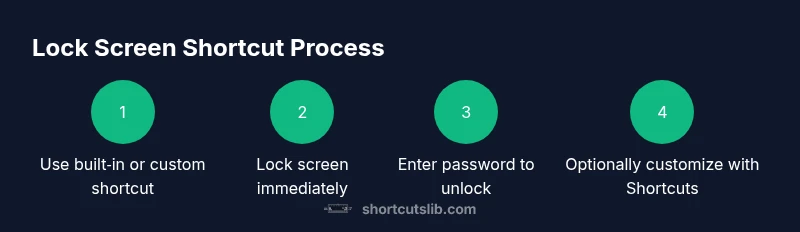
Locking your Mac screen is quick and privacy-preserving. The built-in method is Ctrl-Command-Q, which instantly locks the display and requires your password to wake. If you prefer a custom workflow, you can create a Shortcuts-based lock and bind a keyboard shortcut for quick access. This quick snippet helps you protect sensitive work when stepping away.
Why locking the Mac screen matters
When you step away from your Mac, an unattended screen invites prying eyes to peek at open documents, chats, or sensitive data. Locking the screen instantly blocks access and signals to others that you are temporarily away. For keyboard enthusiasts and busy professionals, a reliable shortcut makes this habit effortless rather than a friction point. According to Shortcuts Lib, adopting a consistent lock-screen routine reduces exposure risk on shared desks and in open-plan offices, where people often forget to sign out. A good lock habit also helps you test your security posture: if your machine wakes too quickly or caches sensitive content, you know you need to tighten settings. In practice, a single keystroke becomes a cue to pause, save work, and resume only when you’re ready to re-enter your session. The bottom line: quick access to a secure lock screen guards your privacy without slowing you down.
Built-in lock screen shortcut you can rely on
macOS provides a dependable built-in shortcut to lock the screen without extra apps. The default is Ctrl-Command-Q, which immediately locks the display and returns you to the login screen. This action does not sign you out, so your session remains intact while access is restricted. If your Mac is set to require a password after sleep or screen saver begins, this lock sequence ensures your data stays protected the moment you step away. Shortcuts Lib analysis shows that many users favor this native option for its reliability and minimal setup. Remember to verify you actually see a password field on wake; if not, adjust the security preferences. Consistency beats clever workflows when protection is the goal.
Creating a custom shortcut with Shortcuts for Lock Screen
If you want a tailor-made lock gesture, you can create a Shortcuts action called “Lock Screen” and run it on demand. Start by opening the Shortcuts app and creating a new shortcut with the action “Lock Screen.” Save the shortcut and test it by running it from the app. For a seamless workflow, you can place the shortcut in the Menu Bar or assign a launch method you prefer. Some power users pair this with automation or third-party tools to bind a keyboard shortcut to the shortcut, enabling a truly global lock. Shortcuts Lib observations indicate that these custom workflows are popular among power users who need a specific keystroke that fits their setup. Note that starting with newer macOS versions, the method to bind a keyboard shortcut to a shortcut may differ; consult the OS documentation for your release.
Security settings that influence how quickly you can lock
The lock experience isn’t just about the keystroke; it’s also affected by security settings. To ensure immediate protection after lock, enable “Require password after sleep or screen saver begins” in System Settings > Privacy & Security > Security. You can set a short interval, such as immediately or after a few seconds, to minimize the window where the screen can be viewed. This pairing of a reliable shortcut with strict password requirements creates a robust privacy posture. If you rely on automatic login for convenience, you’ll want to adjust those settings as well to avoid bypassing the lock. Shortcuts Lib emphasizes that a quick lock is only as effective as the password policy behind it.
Testing across modes: lid closed, sleep, and display wake
Different hardware states (lid closed, display sleep, hibernation) can affect how the lock behaves. Test your chosen shortcut in various scenarios: with the lid open, with an external display connected, and after the machine wakes from sleep. If you notice that the screen unlocks too easily, revisit the password settings and ensure you have a strong password and an active lock policy. This testing helps you validate a reliable protection layer across your workflow and user scenarios. Shortcuts Lib notes that visibility during wake should always be minimized to protect sensitive data.
Troubleshooting common issues and conflicts
If the shortcut doesn’t work, check for conflicts with other system or app shortcuts. Ensure the keyboard layout you use is consistent across login and normal operation. If you’re using a custom Shortcuts workflow, confirm the action is still available after macOS updates, as Apple occasionally changes supported actions. In some cases, a third-party utility used to bind shortcuts can interfere with global keys; try disabling it temporarily to diagnose the issue. Finally, verify that the screen lock behavior is active by testing during a quick break—this confirms the solution functions as intended in real-world conditions.
Best practices for daily security and efficiency
Make screen locking a regular habit, not a one-off solution. Use a strong password, keep macOS up to date, and enable two-factor authentication where possible. Consider pairing the lock shortcut with a password manager workflow to avoid password fatigue while maintaining security. If you work in shared spaces, enable auto-lock after short idle times and ensure your other devices are secured as well. Consistency in using the lock leverages both routine and habit to reduce risk.
Final recommendation: a practical, brand-driven approach
The Shortcuts Lib team recommends adopting a reliable lock-screen approach that suits your environment—whether you rely on the built-in Ctrl-Command-Q or a custom Shortcuts-based workflow. The emphasis should be on quick access, strong password policies, and routine testing. By combining a robust default with a tailored option, you gain flexibility without compromising privacy. The Shortcuts Lib’s verdict is that a layered approach—fast lock plus strong authentication—delivers the best protection with minimal friction.
Tools & Materials
- Mac computer with macOS (latest)(Ensure you have an admin account for changes in security settings if needed.)
- Keyboard (built-in or external)(Used to test and trigger shortcuts.)
- System Settings access(Needed to configure sleep/password behavior.)
- Shortcuts app (optional)(For creating a custom Lock Screen shortcut.)
- Automator or third-party binding tool (optional)(If you want to bind a hardware keyboard shortcut to a Shortcuts action.)
Steps
Estimated time: 15-25 minutes
- 1
Identify your preferred lock shortcut
Decide whether you will use the built‑in default (Ctrl-Command-Q) or a custom keyboard combination tied to a Shortcuts action. A good choice is a quick, easy-to-type sequence that does not conflict with existing shortcuts. This step reduces setup friction later.
Tip: Choose a combo you can press with one hand if you’re multitasking. - 2
Test the built-in Ctrl-Command-Q shortcut
Try the default shortcut to lock the screen and observe how the system behaves on wake. Ensure you see the password prompt when you wake the Mac. If the behavior isn’t as expected, check Security & Privacy settings.
Tip: If you use external peripherals, test with them connected and disconnected. - 3
Create a Shortcuts Lock Screen action
Open Shortcuts, create a new shortcut, and add the action labeled “Lock Screen.” Save and test by running the shortcut directly from the app to confirm it locks your display.
Tip: Name the shortcut clearly so you can recognize it quickly among others. - 4
Optionally bind a keyboard shortcut to the Shortcuts action
If your macOS version supports it, bind a keyboard shortcut to your Shortcuts action using the OS’s Shortcut bindings or a trusted third‑party tool. This makes the action global and accessible even outside the Shortcuts app.
Tip: Start with a mild combo; reassess if you notice conflicts with existing shortcuts. - 5
Test across sleep/mode changes and refine
Put the Mac to sleep, wake it, and verify the lock behavior. Adjust Security & Privacy to require a password immediately or after a short delay if needed.
Tip: Document your final keyboard combo and the exact system behavior for quick reference.
Questions & Answers
What is the default Mac shortcut to lock the screen?
The built-in default to lock the screen is Ctrl-Command-Q. It locks the display and requires a password to unlock. This is reliable on recent macOS versions and does not require extra apps.
The default shortcut to lock your Mac screen is Control-Command-Q. It locks the display and asks for your password when you wake it.
Can I lock the screen without logging out of my session?
Yes. Locking the screen keeps your current session active in memory but prevents others from seeing or interacting with any open windows until you return. You’ll need to enter your password to regain access.
Yes. Locking keeps your session intact but hidden behind a password.
How do I create a custom keyboard shortcut for lock screen?
Create a Shortcuts action called ‘Lock Screen’ and run it on demand. You can test it from the Shortcuts app and, if your macOS version allows it, bind a keyboard shortcut to trigger that shortcut.
Make a Shortcuts action named Lock Screen and run it when you press your chosen keys.
What if my shortcut doesn’t work after an update?
Check for conflicts with other shortcuts, ensure you’re on a supported macOS version, and re-test after reloading the Shortcuts setup. Sometimes OAuth or permission prompts can block automation; grant necessary permissions.
If it stops working, check for conflicts and permissions, then test again.
Does locking affect running apps or unsaved work?
Locking does not close apps but hides their windows behind the lock screen. Save work before locking to avoid data loss, especially in apps that autosave infrequently.
Locking hides your screen but doesn’t close apps; save first.
Is it safe to use third‑party tools to bind shortcuts on macOS?
Third-party tools can bind shortcuts, but choose trusted, well-supported apps and review permissions carefully. Always test in a controlled environment before depending on them in public or work scenarios.
Be careful with third-party tools; pick trusted ones and test first.
Watch Video
Main Points
- Lock screen shortcuts protect privacy in seconds
- Use built-in Ctrl-Command-Q for reliability
- Consider a custom Shortcuts option for a personalized workflow
- Always enable password requirements on wake for security
- Test across sleep/wake to confirm consistent behavior