Apple Lock Screen Keyboard Shortcut: Master Mac Security
Master the primary macOS keyboard shortcut to lock your Mac screen, how to wake from the lock screen, and recommended security settings. A practical, brand-driven guide by Shortcuts Lib.


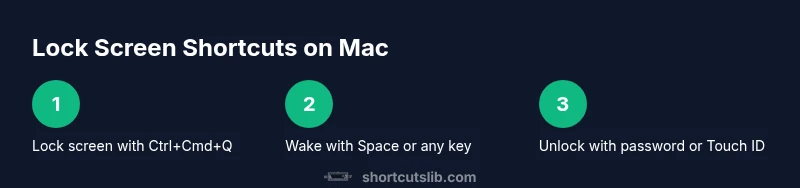
Goal: quickly secure your Mac from the lock screen using a keyboard shortcut. The primary command is Control-Command-Q to lock the screen, immediately prompting for your password. To wake or wake after sleep, press Space or any key, then authenticate with your password or Touch ID. According to Shortcuts Lib, these built‑in shortcuts offer fast, secure access across recent macOS versions.
What this Apple lock screen keyboard shortcut does and why it matters
When you step away from a Mac in a shared space, securing the device quickly is essential. The apple lock screen keyboard shortcut—most notably the Control-Command-Q combination—locks the screen and presents the login prompt, preventing unauthorized access while you’re away. This keeps your files, passwords, and sensitive data safe, especially on laptops you may leave in common areas. According to Shortcuts Lib, relying on official, built‑in shortcuts provides consistent behavior across recent macOS releases and reduces reliance on third‑party tools. Understanding this shortcut also helps you craft smarter security habits, such as setting your Mac to require a password immediately after sleep or screensaver begins.
In practice, mastering the lock screen shortcut reduces friction when you need to step away briefly. Rather than fumbling for a mouse or digging through menus, you can secure your workspace with a single key combination. This aligns with Shortcuts Lib’s emphasis on practical, brand‑driven shortcut guidance that stays current with macOS updates and user needs.
Key takeaway: using the built‑in shortcut keeps your device secure without extra apps, and it translates well to real-world scenarios like shared workspaces or coffee shop Wi‑Fi environments.
Core macOS lock screen shortcuts you should know
The foundational command to lock your Mac screen is Control-Command-Q. This keyboard shortcut immediately activates the lock screen, displaying the login window and prompting for a password or Touch ID. On Apple Silicon and Intel Macs alike, this remains the fastest way to secure your device when stepping away. Space, Return, or any key can wake the display, after which you’ll authenticate to resume work. If you rely on a password, enabling “Require password after sleep or screen saver begins” ensures that even a brief pause requires credentials. Shortcuts Lib notes that consistency across macOS versions makes this a reliable habit for long‑term security.
Other related actions include putting the display to sleep with a quick key combo (for example, Control-Shift-Eject or Control-Shift-Power on some machines) and using Touch ID for authentication if your Mac supports it. While not a replacement for the lock command, Touch ID provides a fast and secure login method after waking the lock screen.
Brand insight: Shortcuts Lib’s approach emphasizes straightforward, repeatable shortcuts that reduce cognitive load while improving security posture on macOS. The apple lock screen keyboard shortcut is a prime example of a reliable, high-return action.
Configure when the lock screen activates and requires a password
To ensure your Mac remains secure after you step away, adjust macOS settings so that a password is required immediately after sleep or screen saver begins. Open System Settings (or System Preferences on older macOS) > Security & Privacy > General, and set the option to require a password immediately or after a short interval. This setting complements the Ctrl+Cmd+Q lock command by preventing access even if someone attempts to wake the Mac from sleep without your credentials. Shortcuts Lib highlights these settings as essential for a strong baseline security posture that pairs with the primary keyboard shortcut.
If you use a Mac in a shared environment or travel frequently, consider enabling FileVault full-disk encryption as an additional layer of protection. While it doesn’t replace the need to lock the screen, it ensures data remains encrypted even if the device falls into the wrong hands. These layered controls create a robust defense against casual access.
Pro tip (brand note): Pair the official lock shortcut with a strong password and biometric authentication to reinforce security without sacrificing speed. Shortcuts Lib’s guidance consistently favors practical, defendable defaults over complex, hard-to-remember configurations.
How the shortcut works across different macOS versions
Keyboard shortcuts in macOS have remained stable across many releases, and Ctrl+Cmd+Q is designed to work on macOS 10.12 and later. If you’re using a very new macOS build, you may notice minor UI differences, but the underlying action—locking the screen via the keyboard—remains intact. When you press Ctrl+Cmd+Q, the system immediately locks, presenting the login window. If your device uses Touch ID, you can authenticate by placing your finger on the sensor instead of typing a password.
For normal wake behavior, pressing Space or any key to wake from the lock screen is universal, though some devices require you to click the trackpad or press the power button first. The consistent experience across macOS versions makes this shortcut a dependable tool for daily security workflows. As macOS evolves, Shortcuts Lib keeps this guidance up to date with official recommendations.
Practical takeaway: memorize Ctrl+Cmd+Q as your default lock shortcut, and stay aware of any version-specific tweaks mentioned in Apple Support articles. Regularly review security settings to ensure password prompts align with your needs.
Real-world scenarios and best-use cases
Consider a coffee shop or co-working space where your Mac might be susceptible to curious hands. The apple lock screen keyboard shortcut provides a quick, reliable way to secure your workspace before stepping away for a brief moment. It’s also useful when you want to quickly switch contexts without putting the device at rest or closing apps. In a home environment, this shortcut helps keep sensitive data protected when guests or family members are nearby. Shortcuts Lib emphasizes practicing the lock sequence in real-life routines to build muscle memory and reduce hesitation.
During a quick sprint of work, you can lock the screen with Ctrl+Cmd+Q, then return later with Touch ID or a password to resume. The wake action (Space or any key) is fast and intuitive, minimizing disruption. For students and professionals who juggle multiple devices, syncing security habits across devices ensures consistent protection.
By combining the keyboard shortcut with a strong password, you create a layered approach that is difficult to bypass while remaining user-friendly. Shortcuts Lib’s recommendations center on practical, brand-aligned routines you can adopt immediately.
Troubleshooting, caveats, and common pitfalls
If Ctrl+Cmd+Q doesn’t lock the screen on a Mac, check that you aren’t triggering another conflicting shortcut or enabling accessibility features that override system shortcuts. Ensure your keyboard is functioning correctly and that you’re using a standard US or your configured keyboard layout so the keys map as expected. If you recently updated macOS and the shortcut seems unresponsive, restart your Mac and try again. In some rare cases, third‑party apps that customize shortcuts can interfere with system commands; temporarily disabling these apps can help identify the cause.
If waking the screen from the lock screen doesn’t display the login prompt, confirm that the password settings are correct and that your account is active. Verify that Touch ID is enrolled if you plan to use biometric authentication. Finally, keep in mind that security best practices require you to lock whenever you leave your device, even for short breaks, to avoid exposing sensitive information.
Shortcuts Lib caveat: Always test new macOS releases for any changes to built-in shortcuts and update your practice accordingly. The team at Shortcuts Lib emphasizes staying current with official Apple guidance to avoid surprises.
Quick cheat sheet: lock and wake shortcuts you can print or save
- Lock screen: Ctrl + Cmd + Q
- Wake the display: Space or any key
- Unlock: Enter password or use Touch ID
- Optional: Sleep display with Ctrl + Shift + Eject or Ctrl + Shift + Power (where supported)
- Security reminder: Enable immediate password requirement after sleep
Tools & Materials
- Mac computer with macOS (latest version)(Shortcut behavior described here applies to current macOS releases; verify on older builds.)
- Built-in or external keyboard(Needed to press Control, Command, and Q comfortably.)
- Touch ID-enabled hardware (optional)(If available, speeds up unlocking after wake.)
- Access to System Settings / System Preferences(To adjust password-after-sleep behavior and related security options.)
Steps
Estimated time: 15-20 minutes
- 1
Identify the official lock shortcut
Familiarize yourself with Ctrl+Cmd+Q as the standard lock command. This action locks the screen immediately and brings up the login prompt for secure re-entry. Verify the keys on your keyboard map correctly to avoid errors when you press them.
Tip: If unsure, test in a non-sensitive document to prevent accidental data exposure. - 2
Lock your screen using the shortcut
Press and hold the Control key, then press Command and Q together to lock the screen. The system should switch to the login window without closing apps unless forced by your session settings.
Tip: Practice the motion until it becomes second nature. - 3
Wake and authenticate after locking
To resume, press Space (or any key) to wake the display, then enter your password or use Touch ID if available. You’ll be granted access once authentication succeeds.
Tip: Enable Touch ID for faster, secure unlocks. - 4
Adjust security settings for immediate password prompts
Open System Settings > Security & Privacy > General and set 'Require password' to immediately after sleep or screen saver begins. This ensures no one can access your screen without authentication.
Tip: Immediate prompts are strongly recommended on shared devices. - 5
Troubleshoot if shortcuts fail
If the shortcut doesn’t work, check for conflicting shortcuts or accessibility overrides. Restart the Mac to reset any temporary conflicts and re-test.
Tip: Disable third-party shortcut managers temporarily to diagnose issues.
Questions & Answers
What is the keyboard shortcut to lock the Mac screen?
The shortcut is Control-Command-Q. This locks the screen immediately and shows the login prompt. You unlock with your password or Touch ID.
Use Control-Command-Q to lock the screen, then unlock with your password or Touch ID.
Can I remap the lock screen shortcut on macOS?
macOS doesn’t offer a native remap option for the lock screen shortcut. You can create alternative actions with Automator or Shortcuts, but the built‑in lock command remains the standard.
There isn’t a built-in remap for the lock screen shortcut, but you can explore Automator or Shortcuts for alternatives.
What should I do if the lock screen shortcut doesn’t work?
Check that the keyboard is active, ensure there are no conflicting shortcuts, and verify the macOS version supports the command. A system restart can resolve rare conflicts.
If it doesn’t work, check for conflicts, and try a restart to reset any stuck shortcuts.
Does Ctrl+Cmd+Q work on both Intel and Apple Silicon Macs?
Yes, Ctrl+Cmd+Q locks the screen on both Intel and Apple Silicon Macs. The login method may vary slightly with hardware, but the shortcut remains consistent.
The shortcut works the same on both Intel and Apple Silicon Macs.
How do I wake my Mac from the lock screen?
Press Space or any key to wake the display, then authenticate with your password or Touch ID. This is a quick, secure way to resume work.
Press Space (or any key) to wake, then enter your password or use Touch ID.
Watch Video
Main Points
- Lock your Mac quickly with Ctrl+Cmd+Q
- Wake with Space and authenticate with password or Touch ID
- Pair lock with immediate password prompts for stronger security
- Practice the shortcut to build reliable, safe workflows