How to See Keyboard Shortcuts on iPad
Master how to see keyboard shortcuts on iPad and speed up your workflow with practical, step-by-step guidance for iPadOS shortcuts, including app shortcuts and system hints.


Mastering how to see keyboard shortcuts on iPad helps you speed up everyday tasks across apps and systems. You’ll learn to reveal app shortcuts with a quick Command-key prompt, explore system-wide hints in Settings, and use an external keyboard to access shortcuts more efficiently. This guide covers iPadOS variations and practical tips for discovering shortcuts in popular apps and workflows.
What you gain by viewing keyboard shortcuts on iPad
Mastering how to see keyboard shortcuts on iPad can dramatically speed up your daily tasks, reduce time spent navigating menus, and improve accuracy when performing repetitive actions. When you know which actions have quick keystrokes, you can keep your focus on your work instead of your hands flipping between the screen and the keyboard. According to Shortcuts Lib, visibility of shortcuts is a cornerstone of efficient workflow on iPadOS, especially when you rely on an external keyboard. The broader benefit is consistency: many apps share familiar patterns, so learning a few core shortcuts helps you predict behavior in new apps as you explore. This section outlines the core ideas behind viewing shortcuts: app-specific shortcuts, system hints, and how iPad presents these cues across different apps. You’ll also see how to distinguish universal shortcuts from app-specific hacks and why a small, sustainable practice routine pays off in the long run.
Quick methods to view shortcuts in real time
There are several reliable ways to uncover keyboard shortcuts on iPad without leaving your current task. The most common approach in apps that support external keyboards is to press and hold the Command key to reveal a popover or a help overlay listing the shortcuts available in that app. Some apps also display an on-screen hint area or a dedicated keyboard shortcuts sheet when you invoke a menu or help option. If you regularly use an external keyboard, you’ll notice patterns: many apps reuse similar modifiers (Cmd, Option, and Control) and common actions (opening, navigating, editing). System-wide hints can appear through a Settings path that varies slightly by iPadOS version, but generally involves Hardware Keyboard or Keyboard settings where you can review or customize shortcuts, modifiers, and accessibility options.
Practicing with a simple workflow—open a document in a single app, reveal shortcuts, and perform a few common actions—solidifies what you’ve learned. If your iPad supports Full Keyboard Access or similar features, you can also enable a broader set of navigation shortcuts that work across app contexts. The net result is a quick mental map: you know where to look for shortcuts, how to trigger them, and when to expect app-specific versus system-wide cues.
App-by-app shortcut reveal methods
Apps vary in how they present shortcuts, but there are shared patterns you can rely on:
- Safari: When using a keyboard, you’ll often find quick actions such as focusing the address bar or opening a new tab via keyboard commands. A practical approach is to press and hold Command in Safari to see app-specific shortcuts that apply to the current page. If the app supports a keyboard shortcuts sheet, it will typically appear as a popup or in the Help menu.
- Mail and Notes: In mail and notes apps, Command-based shortcuts often cover composing, replying, and formatting. Look for a popover when you press and hold Command, and scan the list for actions you perform regularly. If you don’t see a visible sheet, consult the app’s Help or Settings to learn about supported shortcuts.
- Pages and other editors: Document editors tend to expose formatting, navigation, and insertion shortcuts. Holding Command can reveal a concise cheatsheet related to the document you’re editing. As you become more comfortable, you’ll recognize patterns like Cmd+S for save, Cmd+B for bold, or Cmd+K for linking in some apps, though exact mappings can differ by app.
- General practice: If you frequently switch between apps, leverage the Cmd-Tab style behavior to move between apps, and use the app-specific shortcut list to learn the quickest path to your most common tasks. Remember, not every app supports every shortcut, and some shortcuts may be version-specific.
System-wide shortcuts and settings
Beyond app-level shortcuts, iPadOS exposes system-wide keyboard features that you can enable or view via Settings. The exact path can vary by iPadOS version, but you’ll typically find relevant options under Settings > General > Keyboard or Settings > Accessibility > Keyboards, with a focus on hardware keyboard behavior and modifiers. Enabling these options can unlock additional navigation shortcuts and accessibility features, such as full keyboard access or cursor control. If your goal is to memorize a core set, start with system-wide items that tend to work across apps, then cascade into app-specific lists revealed by Command-holding or Help menus. Keeping your iPadOS up to date increases the likelihood that shortcut lists are accurate and comprehensive across apps you use daily.
Even when a shortcut isn’t globally supported, you can still build muscle memory by using consistent patterns. For example, if Cmd+L opens the address bar in a browser-like app, you can expect similar behavior in other apps for navigation or tag creation. The combination of app-specific popovers and system-wide hints provides a powerful, two-layer approach to mastering shortcuts. With practice, you’ll start to recognize which keystrokes produce which outcomes and begin integrating them into your daily rhythm.
Practical workflow examples
To illustrate how shortcuts speed up real tasks, consider three practical scenarios that many iPad users encounter. Each scenario relies on a blend of app shortcuts, system hints, and keyboard navigation to complete the task with fewer taps.
- Scenario A: Quick web research. Open Safari, press Cmd+L to focus the address bar, type a query, and press Enter. Use Cmd+T to open a new tab when needed. If you switch pages often, Cmd+Tab can help you switch between apps and continue your research without touching the screen.
- Scenario B: Drafting a document. In Pages or Notes, use Cmd+B for bold and Cmd+I for italics, then apply Cmd+S to save. If you need to insert a link, remember Cmd+K in many editors. When you’re finished, Cmd+W or Cmd+Q may close or quit the document depending on the app’s design.
- Scenario C: Email efficiency. In Mail, a common pattern is to compose with a shortcut to add a new message, then use Cmd+R to reply and Cmd+Shift+F to forward, depending on the app. The goal is to map your most frequent actions to a compact set of keystrokes and practice until you can execute them without pausing.
In each scenario, you’ll gradually replace on-screen taps with keystrokes, which saves time and reduces cognitive load. The key is to build a short list of three to five core shortcuts you rely on every day, then expand as you become comfortable. As you practice, periodically re-check app-specific shortcuts to see if new commands have been added in updates. This approach ensures your shortcut knowledge stays fresh and practical.
Troubleshooting and tips
Even experienced users encounter hiccups when learning shortcuts. If a shortcut doesn’t work, start by confirming the app supports the command in your current version. If you’re relying on a system-wide shortcut, double-check Settings to ensure the feature is enabled. Some apps dynamically update their shortcuts with updates or new features, so make it a habit to skim the app’s Help or About sections after updates. If you rely heavily on external keyboards, consider keeping a small, printable cheat sheet as a quick reference. Finally, remember that keyboard shortcuts are a convenience tool—not a requirement. Use them to reduce friction, but don’t force a shortcut for every task if it slows you down in a given moment.
Practice plan and next steps
A structured practice plan helps you internalize iPad shortcuts efficiently. Start with a 10-minute daily routine focusing on two or three core shortcuts (e.g., a navigation command, a formatting command, and a tab-management command). Once comfortable, expand to two more shortcuts per week, and record your progress in a simple notebook or note. Periodically audit which shortcuts you actually use in your daily work; prune or replace any that aren’t beneficial. To maximize retention, schedule brief review sessions and gradually incorporate shortcuts into real tasks rather than isolated drills. By following this cadence, you’ll build durable proficiency while maintaining a satisfying workflow on iPad.
Tools & Materials
- iPad with supported iPadOS version(Ensure you have an external keyboard for best results, though many shortcuts work with the on-screen keyboard as well.)
- External keyboard (optional but recommended)(Arown standard keyboard can reveal Cmd, Option, and Control shortcuts more readily.)
- Settings app access(Use Settings to check for system-wide keyboard hints and hardware keyboard options.)
- A short, printable shortcut cheat sheet (optional)(Helpful for quick reference while learning.)
Steps
Estimated time: 15-25 minutes
- 1
Prepare your iPad and keyboard
Connect your external keyboard if you have one, or ensure your on-screen keyboard is visible and responsive. Confirm your iPad is running a recent iPadOS version so the shortcut hints and any related settings are available. This setup ensures you can access and test shortcuts without obstructions.
Tip: If you’re using a portable keyboard, position it for easy reach to hands, minimizing finger travel. - 2
Open an app and trigger the shortcut view
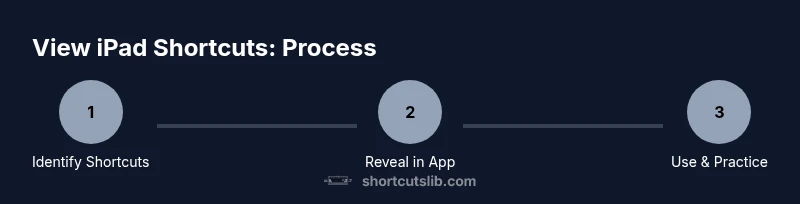
Launch a target app where you want to learn shortcuts. Press and hold the Command key (or the primary modifier on your keyboard) to reveal a popup or overlay listing the available shortcuts for that app. If no overlay appears, look for a Help or Shortcuts section within the app’s menu.
Tip: Try a simple action first, like bolding text or opening a new tab, to confirm the shortcut view is working. - 3
Explore system-wide keyboard hints in Settings
Navigate to Settings and locate Keyboard-related options. Depending on your iPadOS version, you may find these under General > Keyboard, Hardware Keyboard, or Accessibility sections. Review any listed shortcuts and modifier configurations to understand how they apply across apps.
Tip: Note which shortcuts are labeled as system-wide vs. app-specific; system-wide hints tend to work in most apps. - 4
Test common app shortcuts in three examples
In Safari, Notes, and Mail, try a few universal actions and observe the results. Use Command-based shortcuts for navigation or formatting if available. This hands-on testing builds recall and helps you differentiate between universal and app-specific commands.
Tip: Keep a few favorites in mind and annotate changes you notice with each app update. - 5
Create a personal shortcut reference
Document a short list of your most-used shortcuts, including their app context. This reference acts as a quick reminder while you work and can be adapted as you discover new commands in other apps.
Tip: Revisit and revise your reference after every major app update or iPadOS release. - 6
Practice consistently and review regularly
Set aside a regular time to practice a few minutes each day. Revisit Settings to confirm available shortcuts and update your personal list as apps evolve. Regular practice compounds knowledge and speed.
Tip: Turn on a weekly reminder to review new shortcuts introduced in app updates.
Questions & Answers
Can I view shortcuts without an external keyboard?
Yes. Many apps show shortcuts through on-screen overlays or Help menus. Some shortcuts require an external keyboard to be fully visible, but you can still learn app-specific commands by exploring the app’s menus and help resources.
Yes. You can learn a lot by using on-screen overlays and app help sections, even without an external keyboard.
Where can I find system-wide keyboard shortcuts on iPadOS?
System-wide shortcuts are typically found in Settings under Keyboard or Hardware Keyboard. Paths can vary by iPadOS version, so look for sections labeled keyboard settings, modifiers, or accessibility features related to keyboards.
Look in Settings under Keyboard or Hardware Keyboard to locate system-wide shortcuts, though exact paths may vary by version.
Do all apps support keyboard shortcuts on iPad?
Not all apps support keyboard shortcuts. Support varies by app developer and version. When in doubt, check the app’s Help or Settings for a keyboard shortcuts list.
Not every app supports shortcuts, but many major apps do. Check the app’s Help or Settings to confirm.
Can I customize keyboard shortcuts on iPad?
Some apps offer customization or remapping within their own settings. iPadOS provides limited global customization, so adjust within each app where possible and use the Shortcuts app for automation where relevant.
You can customize some shortcuts within specific apps, and use automation for broader flows in iPadOS.
What’s a quick way to learn shortcuts for a new app?
Open the app, trigger the shortcut overlay (often by holding Command), and skim the list for actions you’ll use frequently. Practice those actions first to build familiarity fast.
Open the app and peek at the shortcut list; practice the top actions to get comfortable quickly.
Watch Video
Main Points
- Identify where shortcuts come from before relying on them
- Reveal app shortcuts with Command or app help overlays
- Check Settings for system-wide keyboard hints and modifiers
- Practice regularly to build durable shortcut fluency
- Create a personal shortcut reference for quick recall