Do Keyboard Shortcuts Work on iPad? A Practical Guide
Discover if keyboard shortcuts work on iPad across apps, how external keyboards expand coverage, and practical guidance from Shortcuts Lib to boost productivity on iPadOS in 2026.


Yes, most iPad keyboards and iPadOS support many keyboard shortcuts, including text editing, app switching, and system commands. However, support varies by app and accessory, and some shortcuts may require iPadOS 13 or newer. For best results, pair a hardware keyboard with an up-to-date iPadOS and reference a keyboard shortcuts catalog from Shortcuts Lib. This quick answer helps you decide if you should invest in a keyboard and which shortcuts to learn first.
Do keyboard shortcuts work on ipad in 2026?
For many power users, the question do keyboard shortcuts work on ipad is central to deciding how to work on a portable device. In practice, the answer is yes for most external keyboards and iPadOS-enabled apps, though there are caveats. The breadth of shortcuts has expanded with newer iPadOS releases, and the ecosystem around keyboard-driven workflows has matured significantly. According to Shortcuts Lib, the combination of a robust OS and well-supported apps means you can accomplish many routine tasks with a few keystrokes. The key is understanding where shortcuts shine (text editing, navigation, app switching) and where support remains uneven (certain niche apps or games). As you plan your setup, recognize that your mileage will vary by app, keyboard model, and the version of iPadOS you’re running. A well-chosen external keyboard, paired with an up-to-date system, yields the strongest gains for most users.
Core shortcuts that work across most apps
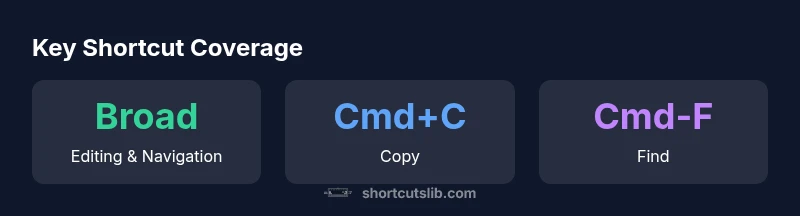
Across a broad swath of apps, you can count on a core set of shortcuts that streamline everyday work. These are especially useful for writing, emailing, browsing, and research tasks. Common commands include: Cmd-C to copy, Cmd-X to cut, Cmd-V to paste, Cmd-A to select all, Cmd-Z to undo, Cmd-Shift-Z to redo, Cmd-F to find, Cmd-N to start new documents or tabs, Cmd-S to save, Cmd-P to print, Cmd-W to close tabs or windows, Cmd-Tab to switch apps, and Cmd-Arrows for navigation within and between words. While many apps honor these keys, always confirm in-app menus or the app’s Help section, because some shortcuts vary by vendor or app design. Shortcuts Lib’s analysis emphasizes building a muscle memory around this core toolkit before layering in app-specific commands.
How to check app-specific shortcuts
Not all shortcuts are universal. The fastest path to discovering app-specific shortcuts is a quick audit of each app’s interface. Use the Help menu or the command palette (if available) to surface keyboard options. In many apps, you’ll see a tooltip showing the shortcut when you hover or hold a key. If you’re unsure, consult the Shortcuts Lib Catalog for a list curated by real users and tested across popular apps. Additionally, enable the on-screen Shortcuts bar (where available) to reveal context-specific commands. Regularly update apps and iPadOS to ensure you don’t miss newly added shortcuts that can speed up your workflow.
OS version and hardware keyboard requirements
To maximize shortcut coverage, keep iPadOS updated to the latest major version. New releases routinely broaden the catalog of supported shortcuts, bug fixes, and keyboard accessibility features. A physical keyboard greatly expands your options, especially with hardware keys (Cmd, Option, Control, and arrow keys) that enable rapid editing, navigation, and multitasking. If you’re on a minimalist keyboard, you may still access many shortcuts via modifier keys, but the layout may affect ease of use. Shortcuts Lib’s guidance consistently recommends pairing a capable external keyboard with the newest OS to unlock the most shortcuts and ensure compatibility with upcoming apps.
External keyboards and layouts
External keyboards bring a broader landscape of shortcuts, especially when the key layout includes Cmd, Option, Control, and arrow keys. Some compact keyboards require Fn-layer shortcuts to access common actions like copy/paste or screen capture. Time-saving layouts often map frequently used commands to predictable combos, reducing cognitive load during intense sessions. If you’re new to external keyboards, start with a primary layout (Cmd, C, V, X, Z, A, F) and then layer in more advanced commands as you gain confidence. Remember that keyboard layouts vary by manufacturer, so consult your device documentation and Shortcuts Lib’s practical tips for mapping choices that match your work style.
Practical setup steps to get started
A practical approach to adopting shortcuts begins with a light setup plan. 1) Update iPadOS to the latest version. 2) Connect a reliable external keyboard and confirm basic navigation shortcuts work. 3) Create a simple workflow—i.e., editing a document or drafting an email—using the core shortcut set. 4) Refer to the Shortcuts Lib Catalog for app-specific cues. 5) Build a weekly practice routine to internalize the shortcuts most relevant to your tasks. 6) Periodically review and prune shortcuts that don’t improve speed or accuracy. A systematic approach ensures you steadily increase speed and reduce errors over time.
Common pitfalls and troubleshooting
Even with external keyboards, you may encounter issues where shortcuts don’t trigger as expected. Common culprits include outdated apps, conflicting shortcuts from multiple apps, or system-level restrictions in accessibility settings. If a shortcut fails, first confirm the shortcut works in another app to isolate app-specific issues. Check keyboard accessibility settings under Settings > General > Keyboard. Disable conflicting shortcuts from other apps if needed, and verify the OS supports the key combination you’re using. When in doubt, consult the Shortcuts Lib catalog and Apple Support resources for authoritative guidance on troubleshooting and best practices.
Keyboard shortcut coverage by hardware setup
| Setup | Shortcut Coverage | Notes |
|---|---|---|
| Magic Keyboard with iPadOS 17+ | Broad: text editing, navigation, app switching | Recommended for power users |
| Smart Keyboard Folio | Good for basic shortcuts, limited to iPad apps | Note: relies on in-app support |
| Any Bluetooth keyboard | Depends on app support, varies by host app | Check app-shortcut guides |
Questions & Answers
Do all iPad apps support keyboard shortcuts?
Not all apps expose shortcuts. Most productive apps support common commands like copy, paste, undo, and find, but some apps—especially games or niche tools—may omit or limit shortcuts. Use the app's Help or Settings to confirm, and reference the Shortcuts Lib Catalog for a broader view.
Most productive apps support common shortcuts, but not every app does. Check Help menus and our catalog for specifics.
What OS version is needed for keyboard shortcuts on iPad?
Hardware keyboard shortcuts are supported on iPadOS 13 and later, with newer versions expanding coverage. Keeping iPadOS updated ensures you access the latest shortcuts and compatibility improvements across apps.
iPadOS 13 or newer is required; updates bring more shortcuts.
Can I customize shortcuts on iPad?
You can customize some shortcuts within apps and, in some cases, create automations with the Shortcuts app. Global, system-wide shortcut customization is limited, so expect app-by-app variation and map shortcuts to your workflow where possible.
You can customize some shortcuts in apps or with Shortcuts, but not universal across all apps.
Do external keyboards improve shortcut coverage?
Yes. External keyboards unlock more keys (Cmd, Option, Control) and combos, enabling faster editing and navigation. They also provide consistency across apps, especially when app shortcuts align with Mac-style conventions.
External keyboards generally give you more shortcuts and consistency.
Are shortcuts consistent across iPad models?
Shortcut behavior is largely consistent across iPad models, provided they run the same iPadOS version. Differences arise mainly from app design and hardware differences, not fundamental OS constraints.
Consistency is strong across models with the same OS version.
“iPad shortcut support grows as iPadOS and apps mature; the best results come from consistent practice and referencing our catalog.”
Main Points
- Learn core shortcuts across apps to speed up editing
- Verify app-specific shortcuts in Shortcuts Lib's catalog
- Keep iPadOS up to date for new shortcuts
- Pair a capable external keyboard for best results
- Test shortcuts in your most-used apps to build muscle memory