External Keyboard Shortcuts Not Working on Mac: Fast Troubleshooting Guide
Urgent guide to diagnose and fix external keyboard shortcuts not working on Mac. Step-by-step checks, diagnostic flow, practical fixes, and prevention tips from Shortcuts Lib.


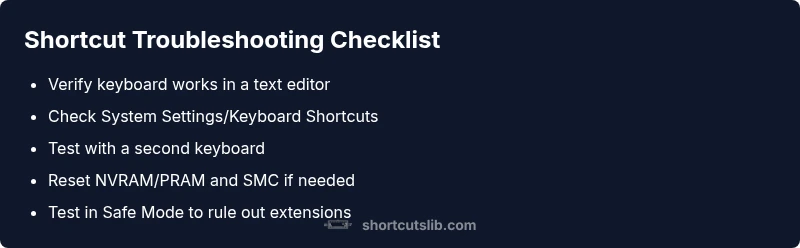
External keyboard shortcuts not working on Mac usually stem from a few quick causes: disabled global shortcuts, key remapping, or a conflicting app. The fastest fix is to test the keyboard in a new app, check System Preferences > Keyboard > Shortcuts, and ensure the relevant shortcuts are enabled. If issues persist, try safe mode or reset NVRAM.
Common Causes of External Keyboard Shortcuts Not Working on Mac
When the problem appears, it's rarely the keyboard itself. According to Shortcuts Lib, the most frequent culprits are software conflicts, misconfigured shortcuts, or hardware issues. Start by determining whether the problem is global (affecting all shortcuts) or app-specific (only in a single app). If the issue is global, focus on macOS settings and any third‑party remapping software. If it’s app-specific, inspect the app’s own shortcut definitions, menus, and any recent updates that might have changed keybindings.
Beyond software, some keyboards introduce hardware quirks. For wireless keyboards, Bluetooth interference, battery level, and signal strength can cause intermittent keystrokes. For wired keyboards, a loose connector or a damaged cable can mimic a shortcut failure. If you’ve installed third‑party tools to customize keys (like remappers or macro programs), they can silently override macOS shortcuts and block standard Cmd, Option, or Control combos. Finally, macOS updates can reset or alter shortcut behavior; after an update, a few global shortcuts may stop working until you re-enable them. By mapping the issue to these categories, you’ll know where to look first and avoid chasing symptoms.
System Preferences and Shortcuts: A Layered Check
The next step is to audit macOS shortcut settings. In macOS Ventura and newer, open System Settings (or System Preferences on older versions) and navigate to Keyboard > Shortcuts. Make sure the global shortcuts you rely on (or those for specific apps) are enabled, and that you haven’t inadvertently turned off the key combinations you use most. If you use function keys, confirm whether the option to use F1, F2, etc. as standard function keys is set as desired. Resetting shortcuts to defaults can fix subtle misconfigurations. After adjusting, test the same shortcuts in a few different apps to see if the change sticks. If multiple shortcuts still fail, capture a quick before/after screenshot and note the macOS version and keyboard model for support discussions.
Hardware and Connectivity: USB vs Bluetooth
Test both wireless Bluetooth and wired USB keyboards to see if the issue is tied to a connection. For Bluetooth, make sure the keyboard is paired correctly, with batteries fresh and no conflicting devices nearby. Turn Bluetooth off and back on, then re-pair. For USB keyboards, try a different port or cable, and avoid USB hubs that may degrade signal quality. If the keyboard works in macOS’ text fields but not in shortcuts, the problem is more likely a software/keyboard-mapping issue than a pure hardware fault. Finally, test with a second keyboard if possible; if the second keyboard behaves normally, the primary device may be failing.
App Conflicts and Keyboard Mapping: Global vs App-specific
Some apps override global shortcuts or implement their own keymaps. Check any utility apps that remap keys (such as macro tools) and disable them temporarily. Create a new user profile and log in to test shortcuts there; if they work, the issue is tied to your user-specific settings. Another possibility is a custom keyboard layout or input source that alters modifier keys. Switching back to a standard US/UK layout can resolve subtle issues with Cmd/Option behavior.
Advanced Fixes: NVRAM/PRAM, SMC, Safe Mode
When basic checks don’t resolve the problem, try a few advanced steps. Resetting NVRAM/PRAM can restore hardware and macOS settings that affect shortcuts. To do this, shut down, then turn on and immediately hold Option-Command-P-R for about 20 seconds. If you’re on Apple Silicon, the NVRAM reset happens automatically at times, but you can still perform safe-mode tests. Boot into Safe Mode to clear caches and test shortcuts in a clean environment. If Safe Mode fixes the issue, a startup cache or extension was likely at fault. Finally, consider an SMC reset if you’re on Intel hardware and the shortcuts rely on power-management features.
Testing Scenarios: How to Reproduce and Confirm
Create a simple test file with known shortcuts (Copy, Paste, Undo, Spotlight, etc.) and record whether they work. Try the same shortcuts in a new user account and in Safe Mode. If shortcuts work in Safe Mode but not in your normal session, suspect a third-party extension or login item. If the problem persists across users and Safe Mode, the issue may be deeper in macOS or a hardware fault. Document the exact macOS version, keyboard model, and any recent updates to aid support.
Preventive Best Practices: Keep Shortcuts Reliable
Regular maintenance reduces future failures. Keep macOS up to date and review keyboard settings after major upgrades. Avoid installing multiple remappers that could conflict, and periodically reset to default shortcuts to avoid drift. When you add new hardware, test crucial shortcuts immediately. If you rely on special keys (like brightness or media controls), ensure these bindings won’t interfere with your essential Cmd/Ctrl shortcuts.
When to Seek Apple Support: Safety and Professional Help
If shortcuts remain unreliable after all basic and intermediate steps, contact Apple Support or visit an Apple Store for hands-on diagnostics. Persistent shortcut failures can indicate deeper hardware issues (keyboard controller, Bluetooth radio, or logic board) that require professional tools. Gather your macOS version, keyboard model, and a list of affected shortcuts before your appointment to speed up the process.
Quick Validation: After Fixes, Confirm Shortcuts Are Back
Once you’ve completed the recommended steps, verify across several apps and with different file types. Reboot the Mac to ensure changes stick. Keep a small checklist to confirm baseline shortcuts (Copy, Paste, Undo, Open Spotlight) respond as expected. If any gap remains, return to the diagnostic flow and re-run tests with a fresh perspective. Regular checks can prevent regression after updates.
Steps
Estimated time: 60-90 minutes
- 1
Test keyboard basics
Connect the external keyboard and test basic typing in a neutral app (notes, text editor) to confirm the keys respond reliably. This establishes a baseline before diving into shortcuts.
Tip: If no response, try a different USB port or switch to a wired connection. - 2
Audit shortcut settings
Open System Settings/Preferences and inspect Keyboard Shortcuts. Ensure the global shortcuts you rely on are enabled and not overridden by app-specific settings.
Tip: If using function keys, verify whether you need to enable standard function keys. - 3
Isolate app conflicts
Test the shortcuts in a different app and in a new user profile to see if the issue is per-app or per-user. Disable any remapping tools temporarily.
Tip: A clean environment helps confirm whether software conflicts exist. - 4
Check hardware and connectivity
If Bluetooth, re-pair the keyboard and replace batteries. For USB, try a new cable/port and avoid hubs that can degrade signals.
Tip: Eliminate stale connections as a potential cause before deeper fixes. - 5
Reset NVRAM/PRAM
Shut down, power on, and immediately hold Option-Command-P-R for about 20 seconds. Release and allow macOS to boot normally.
Tip: Note if you hear the startup chime twice, indicating the reset completed. - 6
Consider Safe Mode and SMC
Boot into Safe Mode to clear caches; if shortcuts return, a login item or extension was likely at fault. If on Intel, perform an SMC reset as needed.
Tip: Safe Mode helps isolate third-party interference. - 7
Test with a second keyboard
If another keyboard behaves normally, the issue is likely with the original device. Compare behavior to confirm.
Tip: Document model and firmware versions for support. - 8
Decide on next steps
If all else fails, plan a macOS reinstallation as a last resort, or seek Apple Support with your gathered data.
Tip: Back up important data before major fixes.
Diagnosis: External keyboard shortcuts not working on Mac
Possible Causes
- highDisabled global shortcuts
- mediumApp-specific overrides or remapping
- lowHardware/connectivity issue
Fixes
- easyCheck and re-enable shortcuts in System Settings/Keyboard Shortcuts
- easyTest keyboard in another app and another Mac to isolate
- easyReset NVRAM/PRAM
- mediumReset SMC (Intel Macs)
- easyBoot into Safe Mode to test and isolate
Questions & Answers
Why are external keyboard shortcuts not working on my Mac?
Issues are usually due to disabled shortcuts, mapping conflicts, or hardware problems. Running through the diagnostic steps helps identify the cause.
Shortcuts fail because of conflicts or hardware issues. Here’s how to diagnose quickly.
How do I reset NVRAM/PRAM on a Mac?
To reset NVRAM/PRAM, shut down, power on, and immediately hold Option-Command-P-R for about 20 seconds. Release and let macOS complete startup.
Resetting NVRAM can fix shortcut problems caused by hardware settings.
Can third-party apps cause keyboard shortcuts to stop working?
Yes. Remappers or macro tools can override shortcuts. Disable or uninstall them to test shortcut behavior.
Third-party remappers can override your shortcuts; disable them to test.
What if shortcuts work in Safe Mode but not normally?
Safe Mode suggests a login item or extension is at fault. Remove startup items and test again.
If Safe Mode fixes it, the issue is likely a login item or extension.
Should I reinstall macOS to fix shortcuts?
Reinstall macOS is a last resort after all other steps fail. Back up your data before proceeding.
A macOS reinstall should be a last resort if nothing else fixes it.
Why do shortcuts work in some apps but not others?
Some apps have their own shortcuts or override global ones. Check app settings and default bindings.
Many apps define their own shortcuts, so verify app settings.
Watch Video
Main Points
- Test keyboard in multiple apps to confirm scope
- Reset NVRAM/PRAM when shortcuts fail globally
- Verify and re-enable global shortcuts in Settings
- Isolate with Safe Mode or a second keyboard
- Seek Apple Support if issues persist after targeted fixes