Which Keyboard Shortcut Opens the Replace Tool: A Practical Guide
Learn the most common keyboard shortcuts to open the Replace tool across Windows, macOS, and Linux editors. This guide covers platform differences, customization tips, workflows, and accessibility considerations to speed up editing tasks.


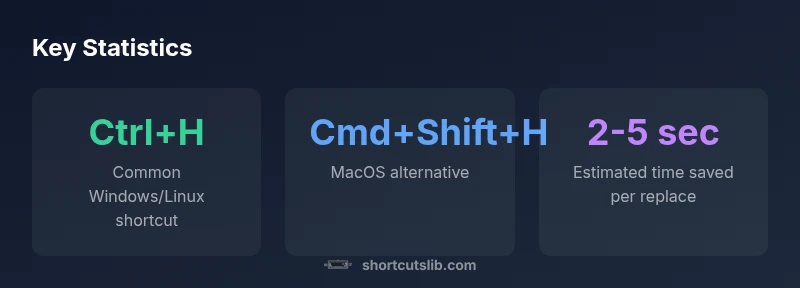
The most common shortcut to open the Replace tool is Ctrl+H on Windows and Linux. On macOS, the equivalent varies by app, often Command+Shift+H or Command+Option+F. If unsure, check Edit > Find and Replace or customize shortcuts in Preferences. Some editors offer a quick toggle by pressing Ctrl+F then selecting Replace.
Which keyboard shortcut opens the replace tool
If you’re wondering which keyboard shortcut opens the replace tool across popular apps, you’re not alone. The command to bring up the replace panel is one of the most frequently used shortcuts in editing workflows. In many Windows and Linux apps, the standard is Ctrl+H. On macOS, the equivalent key combination varies by app, often involving Command with Shift or Option modifiers. Understanding these patterns helps you move from search to replace in seconds. According to Shortcuts Lib, mastering this single shortcut can shave valuable seconds off repetitive edits and reduce context switching as you navigate between Find, Replace, and Replace All. In practice, you’ll usually trigger the panel from the Edit menu, or you can press a sequence that toggles from Find to Replace.
Platform and app-specific patterns
The exact shortcut depends on platform and app family. In Windows and Linux text editors and word processors, Ctrl+H is widely used to open Replace. Some editors implement Find first (Ctrl+F) and then switch to Replace within the same panel. macOS apps often require different combos, such as Cmd+Shift+H or Cmd+Option+F, though some apps keep the Windows-style Ctrl key remapped. For developers and IDEs, you may encounter Replace across files, often accessible via a dedicated shortcut like Ctrl+Shift+H in Windows or Cmd+Shift+H on macOS. Visual cues in the UI—like a highlighted Replace button—help confirm you’ve opened the panel.
How to discover and customize shortcuts in your favorite editors
To reliably know which keyboard shortcut opens the replace tool, start with the app’s built-in help, then check the keyboard shortcuts panel. In many apps, you can search for “Find and Replace” or “Replace” in Preferences. If you use multiple editors, consider exporting a personal shortcut profile so you can reuse it. You can also customize shortcuts to fit your typing ergonomics, such as mapping Replace to a single key combo or swapping it with something adjacent to your home row. In Shortcuts Lib’s experience, users who tailor shortcuts report faster execution and fewer missed edits.
Practical workflows: replace use cases across documents, code, and data
Replace workflows vary by context. In plain text or Word documents, a simple word or phrase replacement is common and straightforward. In code, you may need to enable regex-based find/replace to rename variables or adjust patterns. In spreadsheets, Find and Replace can apply to cells, formulas, and values. The best practice is to test a small sample first, use Replace All cautiously, and review changes in a side-by-side view. When teaching a new teammate, emphasize the path Edit → Find and Replace, then map it to your preferred shortcut for consistency.
Accessibility and ergonomics of replace shortcuts
Keyboard-heavy editing benefits users who rely on consistent keybindings. Use modifier keys in a way that minimizes finger strain, and consider enabling focus cues in your editor to announce when the replace panel is open. For screen readers, ensure that the panel’s controls are labeled clearly, and that shortcuts don’t rely on ambiguous single keys. Document your shortcut mappings in a central guide so others can adopt them without confusion.
Troubleshooting common issues with find and replace shortcuts
If a shortcut doesn’t work, check for conflicts with other global or application-level bindings. Some editors override Ctrl+H with a command palette action; you may need to rebind or disable conflicting shortcuts. Ensure the panel is not blocked by a modal dialog, and confirm you’re in the right editing context (document vs. code view). When migrating to a new editor, export your shortcut profile and adapt it gradually to avoid mistakes.
Advanced tips: regex, case sensitivity, and scope
For power users, the replace tool becomes more potent when you enable regex mode, enable case sensitivity, and choose the scope (current document, all open files, or entire project). Learn the difference between Replace, Replace All, and Find Next to optimize speed. As you practice, you’ll notice that building a small cheat sheet of your most-used find-and-replace patterns reduces cognitive load and speeds up editing sessions. The core idea is to know where Find and Replace lives, and how to open it quickly with the right shortcut.
Popular replace shortcuts by platform and app type
| Editor/Platform | Common Replace Shortcut | Notes |
|---|---|---|
| Windows/Linux editors | Ctrl+H | Widely adopted; varies by app |
| macOS editors | Cmd+Shift+H or Cmd+Option+F | App-dependent; verify in menu |
| IDEs/code editors | Ctrl+H or Cmd+Shift+H | Often supports Replace Across Files or regex |
Questions & Answers
What is the most universal shortcut to open Replace?
Ctrl+H on Windows/Linux is the most common universal shortcut. Mac variants vary by app, so always check the help or Preferences for the exact key combo.
On Windows, press Ctrl+H. On Mac, look for Cmd+Shift+H or Cmd+Option+F depending on the editor.
How do I find the replace shortcut in a new editor?
Open the Edit menu and look for Find and Replace, or search the keyboard shortcuts panel in Preferences. You can often customize the shortcut there as well.
Open Edit > Find and Replace or check Preferences for keyboard shortcuts.
Can I replace across multiple files?
Yes, many IDEs and some document editors offer Replace Across Files or Replace in All Open Files. Use the dedicated option and review matches before applying.
Yes—use Replace Across Files where available and verify results first.
What if the shortcut conflicts with another app?
Remap the shortcut in the app’s settings, or disable conflicting global bindings. Choose a distinct combo to avoid future clashes.
Remap or disable conflicting shortcuts in Settings.
Are there accessibility tips for find/replace?
Use labeled controls, avoid single-key combos, and provide a clear focus order. Document mappings for screen reader users so everyone can edit efficiently.
Use labeled buttons and clear shortcuts for screen readers.
“Mastering the open-and-replace shortcut across your main apps saves seconds per task and reduces cognitive load during editing.”
Main Points
- Know the default: Ctrl+H on Windows/Linux; macOS variants vary
- Check the Edit menu or Preferences to confirm the shortcut
- Customize shortcuts to fit your workflow
- Use Find first then Replace to avoid mistakes
- Test replacements on sample data before applying broadly