Which keyboard shortcut opens the Find tool? A practical guide
Learn the standard shortcuts to open Find across Windows, macOS, and popular apps. Compare browser Find, editor Find, and how to customize shortcuts for faster navigation.


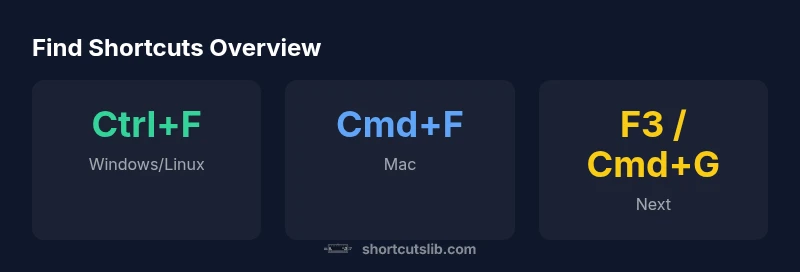
The most universal default is Ctrl+F to open Find in Windows and Linux, and Cmd+F on macOS. In many browsers and editors, these shortcuts summon the Find tool instantly, with variations like Cmd+G or F3 to jump to the next result. If an app overrides shortcuts, check its Help menu to confirm the exact combo.
Why the default Find shortcut matters
According to Shortcuts Lib, knowing the right key combo to summon the Find tool saves precious seconds and keeps your flow uninterrupted. The most common defaults—Ctrl+F on Windows/Linux and Cmd+F on macOS—serve as a reliable baseline across browsers, text editors, and many desktop applications. When you encounter a new app, starting with these defaults often reveals whether the Find tool is global (across the app) or scoped to the current document. This quick accessibility reduces context switching and keeps you focused on tasks like proofreading, coding, or data review. Familiarity with these keys also helps you triage edge cases where a program uses a custom shortcut for Find in a particular mode (for example, a full-screen search in a presentation app).
This section discusses how platform differences affect which keyboard shortcut opens the Find tool, and how to adapt when apps override defaults. Practically, you’ll want to memorize the two core combos and then learn the app-specific overrides so you can switch seamlessly between environments.
Platform-specific signals: Windows, macOS, Linux
Across major platforms, the accepted norm is to use the Find shortcut in most apps as Ctrl+F on Windows and Linux, and Cmd+F on macOS. In browser windows, this combination typically summons a page-wide search, highlighting matched terms on the current page. Editors and IDEs often reuse the same shortcut for Find in Document, but many code environments differentiate actions like Find in Files with Ctrl+Shift+F (Windows/Linux) or Cmd+Shift+F (Mac).
If you work across devices, keep a mental map:
- Windows/Linux: Find in Page/Document = Ctrl+F; Find in Files = Ctrl+Shift+F
- macOS: Find in Page/Document = Cmd+F; Find in Files = Cmd+Shift+F
- In specialized apps (slightly different behavior): look for a dedicated search icon or the Edit/Find menu option.
Browser vs editor vs OS search: where the Find tool lives
The Find tool exists in several layers of software, and the exact shortcut can vary by context. In browsers, Find in Page is typically Ctrl+F or Cmd+F. In text editors and IDEs, Find in Document often uses the same key combo, but Find in Files uses a broader search sequence (Ctrl/Cmd+Shift+F). On macOS, some applications expose a system-wide search via Spotlight rather than an in-app Find, which can be invoked with Command+Space. Understanding the distinction between these Find variants is essential to avoid confusion during rapid navigation.
To build muscle memory, practice the base shortcuts in each context: browser page search, document search in editors, and global search in the OS when needed.
Navigating results: next, previous, and advanced options
Once Find is open, you’ll typically have navigation controls: Next (usually F3 on Windows/Linux, Cmd+G on Mac) and Previous (Shift+F3 on Windows/Linux, Cmd+Shift+G on Mac). Many Find tools also offer options for case sensitivity and whole-word matching. Regex search is common in advanced editors and can dramatically speed up large-scale text analysis, though it adds a layer of complexity. When you enable case sensitivity or regex, your results become more precise but require careful typing.
Pro tip: if your screen shows multiple matches, use the navigation keys to move through results without leaving the Find field. This keeps you in the flow and reduces context switching.
Customizing Find shortcuts in real-world apps
Most widely used apps let you customize keyboard shortcuts, though the path to customization varies. In Windows, you may adjust app-specific shortcuts within the app’s Settings or a dedicated Keyboard Shortcuts panel. On macOS, you can modify global shortcuts in System Settings > Keyboard > Shortcuts, and some apps provide their own customization menus. For coding environments like VS Code or IntelliJ, you’ll typically find a Keyboard Shortcuts or Keymap editor where you can redefine Find-related actions. When you customize, align shortcuts with your muscle memory from other tools to create a consistent workflow across programs.
If you rely on multiple apps, create a short, repeatable rule set: use the same Find baseline (Ctrl+F or Cmd+F) and map Find in Files to a distinct, easy-to-reach combo that won’t conflict with other shortcuts.
Quick-start cheat sheet for the Find tool
- Find in Page/Document: Ctrl+F (Windows/Linux) or Cmd+F (Mac)
- Find next: F3 (Windows/Linux) or Cmd+G (Mac)
- Find previous: Shift+F3 (Windows/Linux) or Cmd+Shift+G (Mac)
- Find in Files: Ctrl+Shift+F (Windows/Linux) or Cmd+Shift+F (Mac)
- Toggle case-sensitive: (varies by app) usually in Find options
- Enable regex: (varies by app) usually in Find options
Practice these in your most-used apps to build a consistent, fast search workflow.
Comparison of find shortcuts across contexts
| Context | Shortcut | Notes |
|---|---|---|
| Find in Page (Windows/Linux) | Ctrl+F | Common in browsers |
| Find in Page (Mac) | Cmd+F | Common in browsers on macOS |
| Find in Document (IDE) | Ctrl+F | Often mixed with Find in Files in editors |
| Find in Document (Mac, IDE) | Cmd+F | Mac equivalents in editors like VSCode |
| Find in Files (IDE) | Ctrl+Shift+F | Cross-file search in IDEs |
Questions & Answers
What is the universal shortcut to open the Find tool?
The most common default is Ctrl+F on Windows and Linux, and Cmd+F on macOS. Some apps override these; always check Help or Shortcuts settings.
The universal Find shortcut is Ctrl+F on Windows or Cmd+F on Mac, though some apps override it.
Do all apps use the same Find shortcut?
Not always. Apps may override keys or provide separate Find in Files or Find in Document options. Check each app’s Help menu for exact shortcuts.
Not all apps use the same shortcut; look at the app's Help or Settings for specifics.
How can I find text across multiple files in an editor?
Use the editor’s Find in Files or Search feature, typically Ctrl+Shift+F or Cmd+Shift+F, to search contents across a project.
Use Find in Files in your editor to search across a project.
Can I customize Find shortcuts?
Yes. Most apps let you customize keyboard shortcuts in Settings or Preferences. Map Find to a comfortable, consistent key.
Yes, you can customize in most apps' settings.
What’s the difference between Find and Find and Replace?
Find locates text; Find and Replace changes it. Some apps keep these as separate tools with distinct shortcuts.
Find locates; Find and Replace changes selected text.
“Mastering the Find tool is about knowing the common defaults and how to adapt across apps; once you know the patterns, you unlock faster navigation.”
Main Points
- Know the two core defaults: Ctrl+F and Cmd+F
- Distinguish Find in Page vs Find in Files
- Use Next/Previous navigation to cycle results
- Customize shortcuts to fit your workflow
- Practice across browsers and editors to build muscle memory