Restart Your Computer with Keyboard Shortcuts
Learn how to restart a computer quickly using keyboard shortcuts across Windows, macOS, and Linux. This guide covers safe, desktop-friendly methods, common pitfalls, and troubleshooting tips for fast, reliable reboots.


Learn to restart your computer quickly using keyboard shortcuts across Windows, macOS, and Linux. This guide covers desktop-friendly restart methods, safe keyboard sequences, and quick troubleshooting tips for when the mouse or menus aren’t responsive.
Why restart with the keyboard matters
According to Shortcuts Lib, mastering keyboard-driven restart methods can save valuable seconds during troubleshooting, especially when the mouse is slow or unresponsive. Being able to reboot with a few keystrokes helps you regain control quickly without hunting for the power button. This approach reduces routine navigation fatigue and keeps you focused on problem-solving. For power users who rely on consistent, fast workflows, keyboard-driven restarts are a foundational skill. Shortcuts Lib Team emphasizes that knowing OS-specific shortcuts minimizes context-switching and speeds up recovery when systems lag or freeze.
OS-specific restart shortcuts at a glance
Across Windows, macOS, and Linux, there are reliable keyboard routes to reboot. In Windows environments, you can invoke the shutdown dialog from the desktop or use a terminal shortcut; macOS relies on a small set of global shortcuts to trigger a restart; Linux often provides SysRq-safe reboot options for quick keyboard control. Each path preserves work when possible and avoids unnecessary mouse usage. Remember to save work whenever feasible, and use keyboard methods primarily when the system is responsive enough to accept keystrokes.
Windows restart shortcuts (desktop-first path)
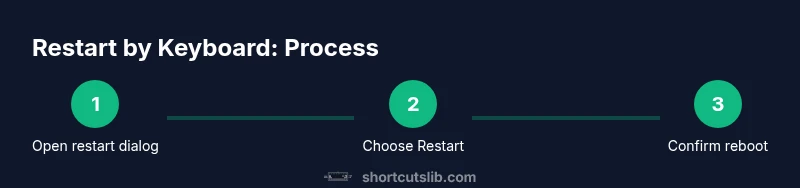
On Windows, you can start a restart flow using only the keyboard from the desktop. Press Alt+F4 to open the Shutdown Windows dialog. Use the arrow keys to navigate to Restart, then press Enter. If you’re at the login screen, you can press Ctrl+Alt+Delete to reach the sign-in screen, then use the power button icon with the keyboard to select Restart. These steps reduce dependence on the mouse and are especially helpful when the Start menu is unresponsive.
macOS restart shortcuts
macOS offers a compact, keyboard-first restart method. Press Control+Option+Command+Power (or Control+Option+Command+Media Eject on older keyboards) to initiate an immediate restart. If your Mac uses a touch bar or lacks a physical Power button, you can navigate via the Apple menu with keyboard shortcuts: press Control+F2 or Fn+Control+F2 to focus the menu bar, then Arrow-right to the Apple icon, down to Restart, and Enter. This approach minimizes reliance on mouse interaction and preserves workflow during freezes.
Linux restart shortcuts
Many Linux distributions support a keyboard-initiated reboot. If SysRq is enabled, you can perform a safe reboot by pressing Alt+SysRq and typing the sequence REISUB (in quick succession). If SysRq isn’t available, you can still restart via a terminal: open a text console (e.g., Ctrl+Alt+F3), log in, and run sudo reboot. While this requires a few extra keystrokes, it provides a reliable, keyboard-driven restart path when other interfaces fail.
Safe restart etiquette and unsaved work
Restarting via keyboard is fastest when you’ve saved data first. If you suspect unsaved work, attempt to save with Ctrl+S in active applications, and press Alt+F4 or the OS-specific restart shortcut only after prompts appear. When systems are completely frozen, you may need to perform a forced restart by holding the power button for several seconds; this should be a last resort as it can cause data loss. Always back up work regularly to minimize risk during abrupt restarts.
Accessibility and keyboard layouts
Users with alternative keyboards or non-US layouts can still restart quickly by mapping or learning equivalent keys (e.g., using the Windows key or Command key for platform-specific triggers). If your layout differs, consult the OS keyboard settings to verify which keys perform the Restart command. Screen readers and voice commands can assist in navigating to the restart option when the UI is inaccessible, preserving productivity and reducing frustration during checks.
Troubleshooting keyboard-restart issues
If a restart keyboard shortcut doesn’t work, verify the system is responding to keystrokes (test by opening a text editor). Check that the shortcut is enabled in OS settings, and confirm no conflicting hotkeys exist. For Windows, ensure the desktop is active (not an application window); for macOS, ensure you’re focusing the appropriate keyboard input area; for Linux, verify SysRq is enabled in the kernel and that you have sufficient privileges.
Advanced: automation and scripting for restarts
For power users, you can automate restarts via scripts to streamline testing or maintenance. Windows users can schedule restarts with Task Scheduler and batch files, macOS users can leverage launchd or AppleScript to trigger a reboot, and Linux users can use cron jobs or systemd timers to initiate a reboot at a defined time. When automating, always include safeguards that delay restarts if important work is in progress and alert users before rebooting to reduce data loss risk.
Tools & Materials
- Keyboard(A working keyboard with standard keys (Ctrl, Alt, Del, Windows/Command keys); include a separate USB keyboard if testing on a locked system.)
- Power source access(Ensure the machine has stable power or a charged battery to avoid mid-restart shutdown.)
- Documentation or quick-reference(A small cheat sheet of OS-specific restart shortcuts can help during the learning phase.)
Steps
Estimated time: 1-4 minutes
- 1
On Windows: open the Shutdown dialog from the desktop
From the desktop, press Alt+F4 to bring up the Shutdown Windows dialog. This action does not require a mouse and directly targets the restart option when the dialog appears.
Tip: If the desktop isn’t focused, press Win+D to show the desktop, then use Alt+F4. - 2
Windows: select Restart with keyboard
Use the Up/Down Arrow keys to highlight Restart in the dialog, then press Enter to initiate the restart sequence. This keeps you in full keyboard control without clicking.
Tip: If you’ve customized the dialog, you may need to press Tab to reach the Restart option first. - 3
Mac: trigger restart with keyboard shortcut
On macOS, press Control+Option+Command+Power (or Control+Option+Command+Media Eject) to start a reboot immediately. This bypasses the mouse and is useful when menus are unresponsive.
Tip: If your Mac has no Eject key, use the Power button combination and confirm if prompted. - 4
Linux: reboot via SysRq (safe reboot)
If SysRq is enabled, use Alt+SysRq+REISUB to perform a safe reboot. This sequence minimizes data loss by syncing and terminating processes before reboot.
Tip: Only use SysRq if you know it’s enabled on your system; otherwise, use a terminal reboot like sudo reboot. - 5
Linux: reboot via terminal (basic method)
Open a text console and run sudo reboot to restart. This path is accessible when the graphical interface is unavailable but you have shell access.
Tip: Enter your password carefully to avoid lockouts; ensure you saved critical work first.
Questions & Answers
What should I do if my keyboard restart shortcut doesn't work?
First, verify the desktop is focused and the OS supports the shortcut. Check for conflicts with other hotkeys and ensure SysRq is enabled on Linux if you plan to use it. If none of these apply, try a safe shutdown via power button as a last resort.
If the shortcut isn’t responding, focus the desktop, check for hotkey conflicts, and confirm SysRq is enabled on Linux. If all else fails, use the power button as a last resort.
Can I restart from the login screen using keyboard shortcuts?
Yes. On Windows, use Ctrl+Alt+Delete to reach the sign-in screen and then access the power options with the keyboard. On Mac, restart from the login screen by using the power key combo or by using keyboard shortcuts at the login window.
From the login screen you can use the power options with your keyboard; on Windows, Ctrl+Alt+Delete helps you access the power menu.
Is restarting with the keyboard safe for my data?
Restarting via keyboard is generally safe, but unsaved work can be lost. Always save quickly before rebooting and prefer a graceful restart over a forced power-off whenever possible.
It’s usually safe, but you may lose unsaved work. Save first and opt for a proper restart rather than a hard power-off.
What if SysRq is disabled on Linux?
If SysRq is disabled, rely on a standard reboot through the terminal or graphical session, or enable SysRq with proper permissions before attempting a reboot. Always test in a non-production environment first.
If SysRq isn’t available, use a terminal reboot or enable SysRq yourself, but test beforehand.
Can I customize keyboard shortcuts for restart?
Yes. On Windows, macOS, and Linux you can usually rebind or create alternative shortcuts in system preferences or via third-party tools. Ensure new shortcuts don’t conflict with other essential shortcuts.
You can customize restart shortcuts in your OS settings, but avoid conflicts with existing hotkeys.
Watch Video
Main Points
- Master desktop restart shortcuts across Windows, Mac, and Linux
- Use the keyboard first when the UI is unresponsive to preserve efficiency
- Always save work if possible before rebooting
- Know OS-specific paths (dialog, keyboard shortcut, terminal) for fastest restarts