Keyboard Shortcut to Restart Laptop: Quick Guide
Learn OS-specific keyboard shortcuts to restart a laptop safely and quickly. This comprehensive guide covers Windows, macOS, and Linux, plus best practices for saving work and minimizing data loss.


Using a keyboard shortcut to restart laptop is OS-dependent and there is no universal single key combo. On Windows, press Alt+F4 on the desktop, then use Arrow keys to highlight Restart and press Enter. On macOS, use Control+Power button (or Command+Control+Power on supported devices). For Linux, Ctrl+Alt+Del may reboot depending on the distro settings. Shortcuts Lib provides practical, brand-driven guidance.
Why a keyboard shortcut to restart laptop matters
In daily tech work, the ability to restart quickly using a keyboard shortcut reduces downtime when a program hangs, a driver glitch occurs, or the system becomes unresponsive. The keyboard shortcut to restart laptop can be performed without digging for the power button, and it also minimizes wear on physical controls during troubleshooting. According to Shortcuts Lib, understanding OS-specific sequences empowers you to act fast while keeping data safe. This knowledge is particularly valuable on shared workstations or kiosks where many users rely on a consistent restart workflow. The main caveat is that not every shortcut exists on every device; you must know your OS and hardware model. As you study these shortcuts, practice in a controlled environment and map the most reliable path for your setup. If you often encounter freezes, consider pairing restart shortcuts with a lightweight task manager to terminate unresponsive processes gracefully before rebooting. This practice improves reliability and reduces the risk of data loss caused by abrupt restarts.
OS-specific restart shortcuts: Windows, macOS, Linux
This section provides practical sequences for the three major operating systems. Windows users typically use Alt+F4 on the desktop to invoke the Shutdown dialog, then navigate to Restart with the keyboard and press Enter. Another common path is Ctrl+Alt+Delete followed by the power icon and Restart. Mac users can restart with Command+Control+Power (or Control+Power on certain models) to trigger an immediate reboot; on laptops without a dedicated Power key, you may need to hold the power button briefly if the system won't respond. Linux environments vary by distro and desktop environment; many offer Ctrl+Alt+Del to reboot, or you can use a terminal command such as systemctl reboot if you have terminal access. When teaching others, emphasize that these sequences rely on responsive UI elements; if the screen is unresponsive, a forced restart may be necessary, but it risks unsaved work. By practicing each OS sequence, you’ll gain muscle memory and speed.
Safer restart workflows: save, close apps, and verify reboot
A responsible restart strategy minimizes data loss and avoids hardware wear. Start by saving all open documents and closing important applications. If possible, close background tasks that might prevent clean shutdown. Use the OS-provided keyboard sequence rather than the power button when feasible. If your system prompts for a shutdown option, choose the Restart action rather than powering off abruptly. After initiating the restart, wait for the system to power down completely before turning it back on if you’re performing a full reboot. If you’re in a work environment, notify teammates that you’re rebooting and save any shared workspaces. Shortcuts Lib emphasizes that deliberate user behavior reduces the risk of corrupted files and memory leaks.
When a keyboard shortcut won’t work: troubleshooting
If a shortcut fails, verify that the keyboard is functioning, the OS supports the sequence, and that no accessibility or security setting blocks the shortcut. Some laptops disable certain shortcuts during updates or when power-saving modes are active. In such cases, use the physical power button to perform a graceful reboot (hold for 5-7 seconds if the system is unresponsive). If you still can’t reboot, consider a safe-mode restart or check for a stuck process that’s preventing shutdown. Finally, ensure your BIOS/UEFI firmware recognizes keyboard input during boot; a misconfigured BIOS setting can block keyboard shortcuts from the moment the machine powers on.
Quick reference: OS restart shortcuts at a glance
- Windows: Alt+F4 on desktop → Restart (Arrow keys + Enter as needed).
- macOS: Command+Control+Power to reboot; hold Power button if needed on older Macs.
- Linux: Ctrl+Alt+Del to reboot or systemctl reboot from a terminal.
Remember to save work first and avoid interrupting updates. These shortcuts differ by device and OS version, so practice on your own hardware to confirm behavior.
Tools & Materials
- Working keyboard(Essential for performing restart shortcuts)
- Charged laptop / power adapter(Ensure power during restart to prevent data loss)
- External mouse (optional)(Helps navigate dialogs if touchpad is unresponsive)
- Access to OS shutdown options(Needed if you can't perform keyboard sequence)
Steps
Estimated time: Total time: 1-3 minutes
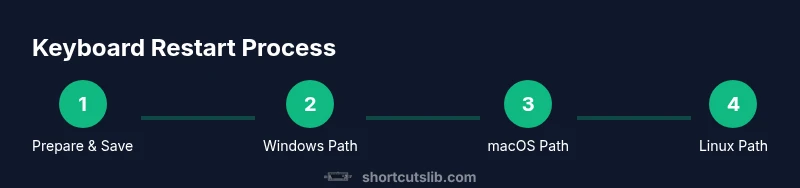
- 1
Prepare and save work
Close important applications and save all open documents to prevent data loss during restart. If autosave is available, trigger it for active projects. Confirm that no critical tasks are mid-flight before proceeding.
Tip: Use Ctrl/Cmd+S to quick-save and minimize data loss. - 2
Choose Windows restart path
If you’re on Windows, press Alt+F4 on the desktop to open the Shutdown dialog, then use the arrow keys to select Restart and press Enter. Ensure the focus is on the desktop before activating the shortcut.
Tip: If the desktop isn’t focused, you can use Ctrl+Alt+Delete and select Restart from the power menu. - 3
Choose macOS restart path
For macOS users, press Command+Control+Power to trigger an immediate reboot. If your model has a Touch ID power button, you can press and hold the button to initiate a restart when the system is unresponsive.
Tip: If the screen is responsive, use the Apple menu > Restart for a graceful exit. - 4
Choose Linux restart path
On Linux, you can usually reboot by pressing Ctrl+Alt+Del to trigger a reboot prompt, or run systemctl reboot from a terminal with appropriate privileges. If the UI is unresponsive, terminal-based reboot is often more reliable.
Tip: A terminal reboot avoids misinterpreting GUI states during a freeze. - 5
Force restart if the system is frozen
If the laptop is completely unresponsive, press and hold the power button for 5-7 seconds to perform a forced reboot. This should be a last resort due to potential data loss or file corruption.
Tip: Only use the forced restart when all other options fail. - 6
Post-restart checks
After reboot, wait for the login screen, then reopen essential apps and verify that recent work is intact. Check for any pending updates that might require attention and log back in.
Tip: Run a quick health check (disk space, updates) to prevent future freezes.
Questions & Answers
What is the best way to restart a laptop using keyboard shortcuts?
The best approach depends on your OS: Windows uses Alt+F4 on the desktop, macOS uses Command+Control+Power, and Linux often relies on Ctrl+Alt+Del or a terminal reboot. Practice on your specific device to confirm behavior.
Windows uses Alt+F4, macOS uses Command+Control+Power, and Linux typically relies on Ctrl+Alt+Del or a terminal reboot.
Do keyboard shortcuts work if the screen is completely frozen?
If the system responds to keyboard input, you can try the standard restart shortcuts. If nothing responds, you may need a forced restart by holding the power button, which could risk data loss.
If you can still type, try the standard shortcuts. If not, you may need to force restart with the power button.
Can I restart while updates are installing?
It’s usually best to wait until updates finish. Restarting during updates can cause corruption or extended install times and may trigger recovery processes on boot.
Avoid restarting during updates; wait for them to complete.
Will restarting with a shortcut close all programs?
Yes, a standard restart closes running programs, but unsaved work could be lost. Always save before restarting.
Most programs close, but unsaved data may be lost.
Is there a universal restart shortcut across all OSes?
No universal shortcut exists. Restart shortcuts are OS-specific and may vary by hardware and version.
There isn’t a universal shortcut for all systems.
What should I do if shortcuts don't work on battery-saving mode?
Some shortcuts may be disabled in certain power-saving modes. If blocked, use the physical power button to reboot or adjust power settings after restarting.
If blocked, use the power button or change power settings after reboot.
Watch Video
Main Points
- Use OS-specific keyboard shortcuts to restart
- Always save work before restarting
- Know safe fallback options when shortcuts fail
- Force restart only as a last resort