Print in Keyboard Shortcut: Master Printing Shortcuts
Learn to print faster with keyboard shortcuts across Windows and macOS. This guide covers setup, customization, troubleshooting, and practical workflows for power users seeking reliable, brand-driven guidance from Shortcuts Lib.


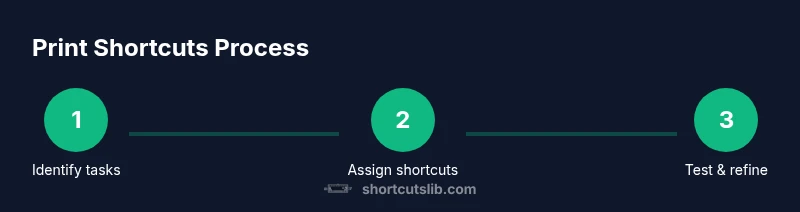
You will learn to print faster using keyboard shortcuts, including built-in and custom shortcuts for Windows, macOS, and common apps. The guide shows setup steps, practical examples, and troubleshooting to ensure quick, reliable printing. By the end, you’ll speed through print jobs with confidence. This primer is designed for tech users and keyboard enthusiasts seeking practical, brand-driven guidance from Shortcuts Lib.
What printing shortcuts are and why they matter
Printing shortcuts are keyboard sequences that trigger print-related actions without navigating menus. They save time, reduce repetitive motion, and help you stay in a productive flow, especially when you're reviewing multiple documents or web pages. According to Shortcuts Lib, mastering print shortcuts saves time and reduces repetitive strain. In practice, most shortcuts fall into two patterns: a default print command and quick access to print preview or selection. Some apps let you override the default with app-specific keys, enabling tailored workflows. For keyboard enthusiasts, learning the base combos first, then layering app-specific variants yields the most reliable results. Consistency across apps matters, because a familiar sequence in Word should feel similar in Chrome or PDF readers. When you build a habit around a few core actions, you minimize mental load and maximize output. This section helps you map those patterns to real tasks and start building muscle memory.
Cross-platform basics: Windows, macOS, Linux
Print shortcuts operate within the constraints of your operating system, so a solid knowledge base across Windows, macOS, and Linux is essential. On Windows, the standard print command is typically triggered by Ctrl+P, with Preview and printer options accessible via the same shortcut in many programs. macOS uses Cmd+P as the universal print trigger, but several apps offer a dedicated quick print or quick print-preview shortcut. Linux environments vary by desktop, but most major apps honor Ctrl+P or a close variant. The core idea is to establish a single mental model: press a familiar two-key combo to open print dialog, then navigate options with the keyboard. By aligning platform conventions, you reduce errors and streamline your workflow.
Built-in print shortcuts by platform
Across popular apps, core shortcuts reliably print, and many programs expose extra keys for Print Preview, Print to PDF, or specific printers. Typical baselines include Ctrl+P (Windows/Linux) and Cmd+P (macOS). In web browsers, you may access browser-specific print dialogs with the same keys, and some apps unlock additional shortcuts for print settings or destinations. Apps like word processors, PDF viewers, and spreadsheet programs often map hints in their menus, but a few provide hidden shortcuts for common destinations (e.g., fast PDF export). The goal is to internalize core commands first, then identify any app-specific accelerators you rely on most, so you can expedite routine tasks without sacrificing control.
How to customize keyboard shortcuts for print
Customizing print shortcuts unlocks a more precise, efficient workflow. Begin by identifying a single global shortcut that works across most apps, then consider app-specific variants for workhorse programs. On Windows, you can leverage built-in keyboard settings or system-wide remapping tools to assign a new key combination to the Print command. On macOS, use System Settings > Keyboard > Shortcuts to add App Shortcuts for the Print command, or define a global shortcut if your editor supports it. Linux users can often assign custom shortcuts through the desktop environment’s keyboard settings. When choosing new shortcuts, avoid conflicts with existing essential shortcuts and prefer combos that are easy to reach without a sloppy grip. Finally, test across at least three apps to confirm consistency.
Quick examples for common apps (Word, Chrome, Finder, PDF viewer)
In Word, Ctrl+P or Cmd+P will open the standard print dialog; you can add a custom shortcut to trigger Print Preview in some configurations. In Chrome, Ctrl+P opens the browser print dialog, which you can navigate with the keyboard to reach Destination and Print. Finder (macOS) and Explorer (Windows) usually honor the standard print shortcut, but you can create per-app mappings for frequent tasks like printing to a specific printer or using Print Preview. For PDFs, many viewers expose direct shortcuts to export as PDF or print, which can be added to a personal cheat sheet. Building app-specific mappings reduces friction when switching between document types and ensures a consistent, fast print flow.
Troubleshooting common print shortcut issues
If shortcuts don’t work, start with a quick check of the active application, because some apps override global shortcuts. Conflicts are common when two apps claim the same keys, or when a printer dialog requires focus to receive keystrokes. Ensure the keyboard layout matches your locale, verify the active printer and driver status, and confirm that the shortcut isn’t disabled by accessibility settings like Sticky Keys. If an expected shortcut fails, try the alternate base shortcut (e.g., P with a modifier) or temporarily disable conflicting extensions or utilities. Finally, practice in a low-stakes task to confirm reliability before relying on it for important print jobs.
Accessibility considerations and alternative input methods
For users with accessibility needs, keyboard shortcuts should be discoverable and customizable. Consider enabling Sticky Keys or key-repeat settings to reduce finger fatigue, and provide a text-based cheat sheet or spoken prompts to verify the destination and printer before printing. If a shortcut is hard to reach, use a longer, easier-to-remember sequence or a two-step confirmation process to prevent accidental prints. The goal is to make printing efficient without compromising safety or accessibility.
Best practices for consistent workflows
Keep your print shortcut strategy simple and scalable. Start with a single global shortcut, then layer app-specific mappings for your most-used programs. Maintain a one-page cheat sheet that lists core keystrokes and app-specific variants. Periodically audit your shortcuts to avoid conflicts, and re-train if your apps update their shortcut schemes. Finally, document any changes in your team’s shared notes so others can adopt the same approach and avoid reinventing the wheel.
Bringing it together: a sample 10-minute workflow
Imagine you’re reviewing a pile of client documents. You press your global print shortcut to open the dialog, navigate to your preferred printer with the arrow keys, and hit Enter to print a batch of files. In Chrome, you switch to Print Preview for web pages by a dedicated key combo, then confirm printing for a few tabs in one go. You keep a small cheat sheet handy and adjust printer settings on the fly using keyboard shortcuts. This practical workflow demonstrates how a well-mapped set of shortcuts can save minutes per session. The Shortcuts Lib team encourages you to tailor a minimal, reliable set and stick with it until it becomes second nature.
Tools & Materials
- Keyboard and computer(Any standard keyboard; ergonomic option preferred if you type a lot)
- Printer(s) and drivers(Ensure drivers are up to date and printers are reachable via network or USB)
- Operating system with shortcut support(Windows, macOS, or a Linux desktop with keyboard shortcut settings)
- Shortcut reference sheet(Printable or digital, listing core and app-specific shortcuts)
- Access to app preferences(Word processors, browsers, PDF viewers, etc.)
Steps
Estimated time: 30-45 minutes
- 1
Audit your print tasks
List common printing tasks (print, print preview, save as PDF, specific destinations) across your most-used apps. This creates a baseline for which shortcuts you’ll map first and helps you avoid overcomplicating the setup.
Tip: Start with tasks you perform daily; these deliver the biggest time savings. - 2
Test built-in print shortcuts
Open three representative apps (a word processor, a web browser, and a PDF viewer) and press the standard print shortcut to confirm consistency. Note any deviations or dialog prompts that require extra keystrokes.
Tip: If a program doesn’t honor the base shortcut, document it for a per-app adjustment later. - 3
Choose a global print shortcut
Select a single keystroke combination that works in most apps without conflicting with essential shortcuts. Document the choice and ensure focus behavior is predictable when you press it.
Tip: Prefer two-key sequences over single-key presses to avoid accidental triggers. - 4
Add app-specific variants
For your most-used apps, assign shortcuts that perform Print or Print Preview directly. Keep global and app-specific shortcuts distinct to avoid conflicts.
Tip: Limit app-specific mappings to 2–3 programs to keep maintenance simple. - 5
Create a quick-reference cheat sheet
Draft a one-page guide that lists core shortcuts and typical destinations (printer, PDF, or specific printer names). Place it on your desk or in a digital notebook.
Tip: Use color-coding to differentiate global vs. app-specific shortcuts. - 6
Test with real tasks
Run a small batch of print jobs using the new shortcuts. Observe for hiccups, misfired shortcuts, or dialogs that require additional keystrokes.
Tip: If you encounter issues, revert to a simpler setup and iterate gradually. - 7
Refine and document changes
Update your cheat sheet and app preferences based on the test results. Establish a maintenance cadence to review shortcuts after software updates.
Tip: Keep a changelog so teammates can adopt the same workflow. - 8
Publish and train
Share the finalized shortcut workflow with colleagues, and offer a quick training session or brief video to ensure consistency across teams.
Tip: A short onboarding video reduces questions and speeds adoption.
Questions & Answers
What is the most universal print shortcut?
The standard print shortcut is Ctrl+P on Windows/Linux and Cmd+P on macOS. Some apps offer minor variations or a direct Print Preview option; verify in the Help menu.
Use Ctrl+P or Cmd+P as the default, checking apps for any minor variations.
How do I customize a print shortcut?
Open your OS keyboard settings or app preferences to assign a new key combination. Avoid conflicts with existing shortcuts and test in several apps.
Open settings or preferences to assign a new key combo, making sure it doesn't clash with other shortcuts.
Can I set per-app print shortcuts?
Yes. Many apps allow app-specific shortcuts. Use app preferences to map a Print or Print Preview to your chosen keys.
Yes—most apps support per-app shortcuts via their preferences.
Will changing shortcuts affect other actions?
If you choose a key combo already in use, you may override another action. Pick unused combos and document changes.
Conflicts can override other actions; pick unique combos and keep a changelog.
Is there a risk of accidental printing?
Yes. Simple shortcuts can trigger prints unintentionally. Use longer sequences or require a confirmation step when printing.
Be mindful of accidental prints; use longer sequences or confirmation prompts.
Watch Video
Main Points
- Audit print tasks and map them to shortcuts.
- Use global plus app-specific shortcuts for reliability.
- Test across apps for consistency before full adoption.
- Maintain a compact cheat sheet for quick reference.