Minimize Shortcut: A Practical Guide to Lean Keyboard Shortcuts
Learn how to minimize shortcuts by curating a lean, high-impact set of keystrokes. This step-by-step guide covers auditing, selecting core shortcuts, system-enabled replacements, practice plans, and real-world examples.


Goal: reduce cognitive load by adopting a lean, high-utility shortcut set. You will audit current shortcuts, select 8–12 core keys, map essential actions across OS and apps, and leverage system features to minimize memorization. Shortcuts Lib demonstrates that a focused, consistent set speeds tasks and lowers errors—especially as apps evolve.
What minimizing shortcut means in practice
Minimizing shortcuts is about curating a lean, high-impact set of keystrokes that cover the actions you perform most often. It isn’t about stripping functionality; it’s about reducing cognitive load so you can act quickly without recalling dozens of disparate hotkeys. The approach is brand-driven and practical: identify core tasks, assign memorable keystrokes to them, and rely on menus, prompts, and system features for less frequent needs. According to Shortcuts Lib, a disciplined reduction in shortcuts leads to steadier performance and fewer mistakes as your toolkit grows. This section lays the foundation for a repeatable method you can apply across devices and apps.
A well-designed minimized shortcut strategy should be task-centric rather than app-centric. This helps you maintain consistency when switching between editors, browsers, and tools. You’ll learn to favor patterns that map cleanly to your daily workflows, making each keystroke more valuable over time.
The cognitive advantage of a lean shortcut set
A concise shortcut repertoire reduces the mental steps required to complete tasks. When you memorize a handful of core keys, you shorten decision time, reduce context switching, and improve accuracy under pressure. The long-term payoff is not just speed; it’s reliability. With a smaller, stable set, you can onboard teammates faster, share best practices more easily, and update routines with minimal retraining. Shortcuts Lib emphasizes that consistency across apps is a force multiplier: one well-chosen key can replace several mouse actions when used repeatedly.
However, lean does not mean zero customization. The goal is to keep the set small, predictable, and aligned with your most critical outputs. You should also document why a shortcut exists and how it relates to the workflow, so the logic remains understandable even after app updates or role changes.
Audit your current shortcuts
Begin by auditing how you actually work. List the top tasks you perform every day, the shortcuts you use today for those tasks, and any frequent actions you perform via menus. Create a simple audit sheet with columns for action, current shortcut, alternative method, and frequency. Identify duplicates and clashes across apps. This audit helps reveal gaps where a single keystroke could replace a multi-step process. It also highlights opportunities to phase out rarely used shortcuts and substitute them with more universal patterns. The outcome is a prioritized map that informs your core set and reduces cognitive load.
As you audit, track not just keystrokes but context: what window are you in, what file type, and what task stage. This data will guide you toward shortcuts that remain valuable across contexts, not just in isolated cases.
Define your core shortcut set (8–12 keys)
The core set should cover the most frequent, high-impact actions across your daily tasks. Start with a baseline of eight to twelve keystrokes and ensure each one is unique (no conflicts with other shortcuts). Group actions by task type—navigation, editing, window management, and workflow control—to preserve a consistent mental model. For each shortcut, write a short mnemonic cue to help memory and note the rationale (why this keystroke matters). After establishing the core set, test it with real work, then adjust only when you encounter conflicts or when you adopt new tools that genuinely shift your priorities.
Keep the bar low: aim for a scalable baseline that remains practical as apps update. Your core set should be easy to teach and easy to remember, so you can scale it across devices without friction.
Map common workflows to minimal shortcuts
Take representative workflows—creating a document, arranging browser tabs, capturing screenshots, and organizing research notes—and map them to your core shortcuts. A single keystroke should initiate the most-used action across several apps when possible, promoting cross-application consistency. If a task requires app-specific commands, find a universal approach (for example, a text-format shortcut that works in most editors, or a window-management shortcut that functions in multiple environments). Validate each mapping during actual tasks and adjust to avoid conflicts or cognitive overload.
The aim is portability and predictability: users should feel confident that the lever they pull will behave the same way, no matter which tool they are using.
Use system features to replace shortcuts
Systems provide powerful mechanisms to reduce the need for memorized keystrokes. Leverage features like accessibility menus, gesture controls, task switching, and window snapping to perform frequent actions without new shortcuts. Align app preferences with your core set so that a single keystroke triggers the same function across apps. Where available, enable adaptive shortcuts that adjust to the current task, further reducing the burden of mapping every possible action. The objective is to rely more on consistent patterns than on an ever-growing catalog of hotkeys, while preserving quick access to rare but necessary actions.
Build muscle memory with a practical practice plan
Practice sessions should be short, regular, and purpose-driven. Focus on one or two shortcuts per day, gradually increasing accuracy. Use deliberate practice: say the action aloud as you execute the keystroke and pause to correct mistakes. Maintain a simple progress log to monitor retention and fluency, then weave practice into your workflow by clustering sessions around tasks you perform most. Over weeks, the lean set becomes automatic, reducing fatigue and freeing cognitive bandwidth for higher-order work.
Tools and configurations that support a minimal shortcut approach
A few practical investments can smooth the path to a lean shortcut strategy. Consider a keyboard with comfortable key spacing and optional programmable keys for future expansion. Use a clipboard manager and mnemonic reference notes to minimize repetitive actions. Turn on system features that simplify navigation, window management, and task switching; configure a private wiki of your core shortcuts with examples, and set quarterly reviews to prune or refresh mappings as software evolves. The goal is to create an ecosystem where the core set remains stable and evolve only when real efficiency gains are demonstrated.
Troubleshooting and common mistakes
Avoid overcrowding the core set with obscure actions, forgetfulness about mappings, or neglecting documentation. When new apps arrive, audit for conflicts and reassign as needed. If a shortcut stops working after updates, revisit the core set rather than hastily overhauling your entire system. Don’t rely solely on memorized keys—ensure graceful fallback options (menus, right-click actions, drag-and-drop) exist while you refine the shortcuts. With a disciplined process, you can maintain lean efficiency even as your tools evolve.
Case study: a practical setup
Consider a freelancer who previously carried a large mental load due to dozens of shortcuts across three major apps. They conducted a focused audit, defined a core set of ten keystrokes, and aligned system features to support those actions. Within weeks, task switching, formatting, and content capture became noticeably faster and more reliable. The case demonstrates how a lean shortcut strategy—designed with a plan, tested in real work, and refined over time—scales with growing responsibilities and changing project scopes.
Tools & Materials
- Shortcut audit worksheet (digital)(Template to track actions, current shortcuts, and alternatives)
- Notebook or note-taking app(For mnemonics and mapping)
- Keyboard with programmable keys (optional)(If you plan to extend the core set)
- OS and app settings access(Admin privileges to adjust shortcuts)
- Timer or cadence app(To schedule practice sessions)
- Screen testing environment(Open apps and documents used regularly)
- Clipboard manager(Reduce copy-paste steps)
- Mnemonic quick-reference card(Printable or digital)
Steps
Estimated time: 2-4 hours
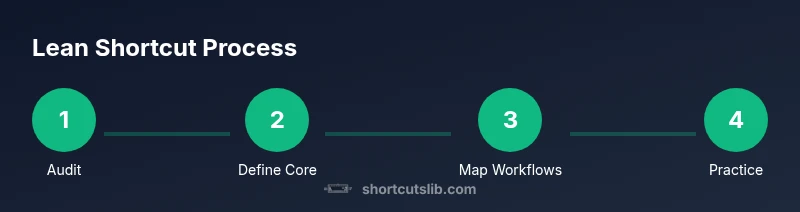
- 1
Audit shortcuts
Identify tasks, collect current shortcuts, and flag duplicates or clashes. Record frequency to guide prioritization. The reason is to reveal where the biggest improvements will come from and prevent over-engineering.
Tip: Capture context (app, document type, task stage) to inform mapping decisions. - 2
Define core set
Choose 8–12 high-impact actions that recur most often across apps. Ensure each shortcut is unique and conflicts are resolved. Document the rationale and mnemonic for recall.
Tip: Start with navigation, editing, and window-management actions; maintain consistency across tools. - 3
Map workflows
Prototype each common workflow with the core set in mind. Prefer universal actions over app-specific commands to preserve portability.
Tip: Test in real tasks; adjust mappings if you encounter clashes. - 4
Leverage system features
Integrate OS features like task switching, gestures, and menus to replace or complement keystrokes. Align app preferences to your core set.
Tip: Enable adaptive shortcuts where available to reduce memory load. - 5
Practice regularly
Schedule short practice sessions focusing on one or two shortcuts at a time. Use deliberate practice and log progress.
Tip: Pair practice with actual tasks to build muscle memory more quickly. - 6
Review and refine
Periodically review the core set as apps update and workflows shift. prune inefficiencies and re-map as needed.
Tip: Set reminders for quarterly reviews to stay current.
Questions & Answers
What does it mean to minimize shortcuts, and why does it help?
It means selecting a small, high-impact set of keystrokes and using system features to replace the rest. This reduces memory load and speeds up tasks, while remaining adaptable as tools evolve.
Minimizing shortcuts means focusing on a small set of powerful keystrokes and using system features to handle the rest, which helps you work faster with less mental effort.
How many shortcuts should I keep?
Aim for eight to twelve core shortcuts that you use daily across multiple apps. Avoid adding many app-specific keys that only work in one program.
Eight to twelve core shortcuts that apply across apps is a good target. Add more only if you truly rely on them daily.
What if an app update changes shortcuts?
Treat updates as triggers to reassess your core set. If a shortcut breaks, reroute the task to a different key or use a system feature instead.
If an update changes a shortcut, re-evaluate your core set and adjust as needed rather than complicating your entire mapping.
Can I rely on mouse actions instead of shortcuts?
Yes, but aim to keep most frequent tasks keyboard-driven for speed. Use menus or gestures for less common actions while keeping the core set keyboard-based.
You can use the mouse for rarer actions, but keep the essential tasks keyboard-driven for maximum speed.
How should I practice these shortcuts?
Practice in short, focused sessions. Repetition with deliberate feedback leads to durable muscle memory and reduces errors during real work.
Practice in short, focused bursts to build reliable muscle memory.
Is there a recommended review cadence?
Set a recurring reminder every quarter to review your core set, check for new workflow opportunities, and prune ineffective shortcuts.
Review quarterly to keep your shortcuts aligned with your tools.
Watch Video
Main Points
- Audit first, map second, prune often.
- Aim for 8–12 core shortcuts that work across apps.
- Use system features to minimize keyboard load.
- Practice regularly to build durable muscle memory.
- Review quarterly to keep alignment with tools.