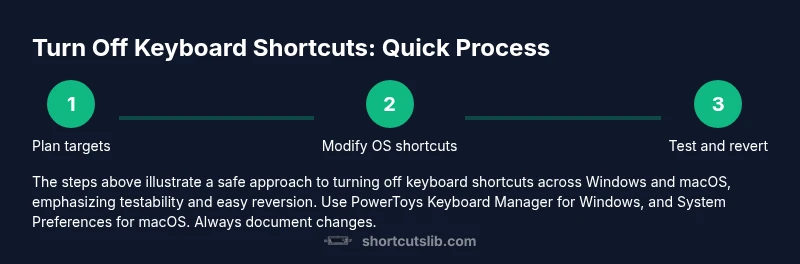
Turn Off Keyboard Shortcuts: A Practical How-To
Discover practical methods to turn off keyboard shortcuts on Windows and macOS, plus app-level disables and safe remapping. Learn safe, testable methods with Shortcuts Lib.


You can turn off or limit most keyboard shortcuts by adjusting OS settings and app preferences. This guide shows Windows and macOS methods, plus safe remapping options. You'll learn how to disable the Windows key, adjust system shortcuts, and remap keys with built-in tools or reputable utilities. By following these steps, you’ll reduce accidental input and tailor shortcuts to your workflow.
Why turning off keyboard shortcuts matters
For many professionals and power users, keyboard shortcuts speed up work but can also cause errors when focus shifts or when devices are shared. Turning off keyboard shortcuts can reduce accidental actions, free up cognitive load, and prevent conflicts between apps. This is especially true on devices used by multiple people or in high-stakes workflows (think data entry or live coding). In this guide, we explore practical, safe ways to turn off keyboard shortcuts across Windows and macOS, as well as within popular apps. According to Shortcuts Lib, the most effective approach is to combine OS-level controls with selective in-app adjustments rather than a blanket disable of every shortcut. This keeps essential shortcuts available while eliminating the ones that disrupt your workflow. By designing a targeted plan, you preserve the ability to use shortcuts when you need them and remove accidental triggers that waste time. The phrase keyboard shortcuts turn off should be treated as a goal rather than a blanket rule; you want to reduce interference while maintaining power-user capabilities. The rest of the article walks you through concrete steps, safety considerations, and tested strategies you can apply today.
Windows: turning off keyboard shortcuts
Windows users rely on a broad set of global shortcuts, including the Windows key and numerous Ctrl-backed combos. Built-in options to disable every shortcut are limited, but you can selectively disable the Windows key or remap it using trusted tools. A common, safe path is to install Microsoft PowerToys, open the Keyboard Manager, and remap the Windows key to “No Action.” This stops the key press from triggering Start menu or other Windows shortcuts. After enabling, test common triggers like Windows, Windows+R, and Windows+S to confirm the effect. If you must modify other shortcuts, use Settings > Accessibility or Settings > Personalization to disable specific categories. Always proceed incrementally and document each change so you can revert easily. Remember that accessibility features can rely on shortcuts, so disable only what you truly need. In practice, this approach keeps essential shortcuts intact while removing the most disruptive ones.
macOS: turning off keyboard shortcuts
macOS provides granular control via System Settings > Keyboard > Shortcuts. You can uncheck entire shortcut categories (Mission Control, Spotlight, Accessibility, etc.) or customize per-app shortcuts by adding app-specific mappings. For broader control, you can disable some global combos by changing modifier keys or using the Modifier Keys pane to remap keys. Advanced users may opt for per-app overrides to ensure critical functions remain unaffected. When you implement macOS shortcuts changes, test across the most-used apps (code editors, browsers, productivity suites) to confirm behavior aligns with your workflow. As with Windows, document changes and keep a plan to revert if an update resets preferences. The goal is precise control, not blanket suppression.
In-app and browser-level shortcuts
Many applications expose their own shortcut settings, allowing you to disable or remap commands within a specific context. Popular browsers offer extensions or built-in preferences to adjust shortcuts for navigation, tab management, and developer tools. Keyboard customization utilities can augment in-app settings by providing a unified remapping surface across apps. When adjusting in-app shortcuts, prioritize those that interfere most with your daily tasks and preserve shortcuts you rely on for efficiency. Always check help or preferences sections for explicit disable options. If an app lacks direct controls, consider a targeted extension or consult the vendor’s support resources for recommended practices. The key idea is to keep app-level changes focused rather than applying broad OS-wide disablement.
Remapping and disabling with third-party tools
Third-party tools provide powerful ways to turn off or remap shortcuts safely. On Windows, PowerToys Keyboard Manager can disable the Windows key or remap it to a no-op. On macOS, tools like Karabiner-Elements enable fine-grained remapping for keyboards, including temporary disablement of specific keys. When choosing a tool, prefer reputable sources and keep tools updated to avoid conflicts with system updates. After installation, create a conservative profile: first disable a single problematic key, then test, before expanding. Document which keys are remapped and why, so you can revert if performance or ergonomics change. If you’re in a managed environment, consult IT policies before deploying third-party utilities.
Safety, trade-offs, and limitations
Disabling shortcuts can improve focus, but it can also hinder quick navigation and accessibility. Some shortcuts are deeply integrated into the operating system or assistive technologies; turning them off may affect monthly workflows or screen reader use. Start with a minimal set you’re confident about removing, and always leave a clear recovery path. Consider creating a labeled backup profile or a restore point before making changes. If you rely on shared devices, communicate changes to teammates and consider a reversible approach using temp profiles. The goal is to reduce disruption without sacrificing essential navigation and productivity features. Shortcuts Lib emphasizes incremental changes and robust rollback plans to avoid long-term disruption.
Testing and validating changes
After applying changes, validate shortcuts across several scenarios: a fresh login, app launches, and long-form tasks. Create a short test plan that includes common actions (open, save, navigate tabs, switch windows) and verify each behaves as intended. If a key stops working where you need it, revert that specific remapping and re-test. Maintain a changelog documenting the exact keys disabled and the tools used. A practical test also includes a quick accessibility check—ensure that a keyboard user can still operate essential functions. Regular re-testing after system updates is crucial to confirm settings persist.
Reverting changes and maintenance
If a change doesn’t fit your workflow, revert it quickly: disable the remapping, remove the app-wide override, or restore the OS shortcut categories to default. Keeping a simple “before/after” log helps you track what was changed, when, and why. Periodically review your shortcuts to ensure they still align with your current projects and tools. If you adopt a new app or update an OS version, repeat the validation steps to confirm nothing regressed. A well-documented, reversible approach reduces risk and keeps you in control of your keyboard workflow.
Authority Sources
Authority Sources
Tools & Materials
- Windows PC (Windows 10/11)(Access Settings and install optional utilities if needed)
- Mac computer (macOS 12+)(Access System Settings > Keyboard for shortcuts control)
- Administrative privileges(Needed for installing tools or editing system-wide settings)
- PowerToys Keyboard Manager (Windows)(Remaps or disables keys safely on Windows)
- Karabiner-Elements (macOS)(Advanced key remapping on MacOS for power users)
- Test environment (document or browser)(Verify shortcuts after changes)
Steps
Estimated time: 45-90 minutes
- 1
Plan targets and scope
Identify which shortcuts are most disruptive in your daily tasks. Decide whether to disable OS-level shortcuts, app-specific shortcuts, or both. Write down a short list of keys you want to modify and a rollback plan.
Tip: Document your intended changes before you start. - 2
Install and prepare tools
If you’re using Windows, install PowerToys and open Keyboard Manager. On macOS, ensure Karabiner-Elements or the built-in Keyboard settings are ready for use. Create a backup of your current shortcut profile.
Tip: Back up before making any edits to avoid losing defaults. - 3
Implement OS-level changes (Windows)
Launch PowerToys, navigate to Keyboard Manager, and add a remapping: Windows key -> Disable or No-Op. Apply changes and restart any open sessions if required.
Tip: Test Windows-specific shortcuts like Win, Win+R, and Win+S after applying. - 4
Implement OS-level changes (macOS)
Open System Settings > Keyboard > Shortcuts and deselect or modify categories you don’t need. Consider temporary per-app overrides for critical workflows.
Tip: Check accessibility shortcuts first to avoid blocking essential features. - 5
Apply app-specific adjustments
For apps that insist on certain shortcuts, use per-app settings or extensions to disable or remap those commands. Verify that critical workflows still work in your primary apps.
Tip: Prioritize changes that reduce most interference with daily tasks. - 6
Test thoroughly and document
Perform a structured test across your typical tasks. Record what changed, why, and the observed outcomes. Keep a rollback plan ready.
Tip: Create a quick checklist to ensure nothing was missed.
Questions & Answers
Is it safe to turn off shortcuts?
Turning off shortcuts is generally safe when done carefully. Disable only the ones you truly need to modify, and test each change to ensure essential functions still work. Keep a rollback plan in case something breaks.
Yes, it's generally safe if you disable carefully and test as you go.
Can I disable shortcuts in specific apps only?
Yes. Many apps allow per-app shortcut customization. Use the app’s preferences to disable or remap conflicting shortcuts, leaving OS-level shortcuts intact for other tasks.
Absolutely—per-app adjustments are often the safest path.
Will turning off shortcuts affect accessibility features?
Some shortcuts are tied to accessibility features. Disable only those unrelated to accessibility needs and verify that you can still navigate with assistive tools if you use them.
Be mindful of accessibility and test those features after changes.
How do I revert changes quickly?
Keep a changelog and create a restore point or backup profile. Reversing is typically as simple as restoring the previous shortcut mappings or resetting OS settings.
Keep a safe backup so you can revert when needed.
What if a key stops working after changes?
Revert the specific remapping for that key or reset the affected category to default. Re-test to confirm all other shortcuts remain intact.
If a key misbehaves, undo that particular change first.
Do I need admin rights to turn off shortcuts?
Some changes require admin rights (especially OS-wide remaps or registry edits). In many cases, you can achieve safe results with user-level settings or standard tools.
Admin rights may be needed for deeper system changes, but many options don’t require them.
Watch Video
Main Points
- Plan targeted changes before touching OS settings
- Use reputable tools for safety and easy rollback
- Test changes across frequently used apps
- Document and maintain an easy revert path