Troubleshooting keyboard shortcuts not working in Premiere Pro
A practical, step-by-step guide to diagnose and fix keyboard shortcuts not working in Premiere Pro. Learn focus, OS conflicts, and preference resets with clear, tested methods from Shortcuts Lib.


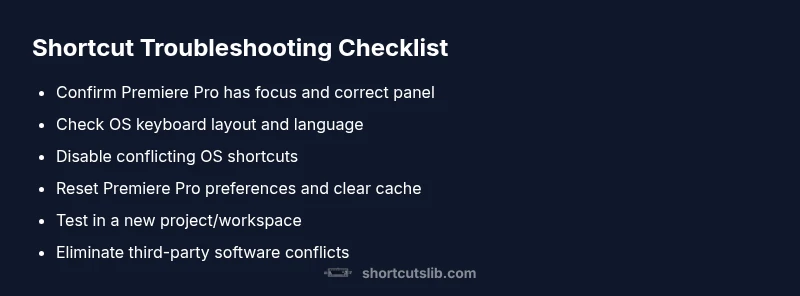
Steps to fix keyboard shortcuts not working in Premiere Pro: first, ensure the app has focus and you’re in the correct panel. Then check for OS-level shortcut conflicts and an incorrect keyboard layout. If needed, reset Premiere Pro preferences and test in a new project. This quick flow solves most common issues.
Why keyboard shortcuts not working in premiere pro: common reasons
When keyboard shortcuts fail in Premiere Pro, the cause is almost never just one key. The most frequent culprits are the application not having focus or the wrong panel active, conflicting OS shortcuts, and mismatched keyboard layouts or languages. The Shortcuts Lib team notes that users often overlook the simplest fixes first: confirm focus, verify the active workspace, and ensure the keyboard layout matches the intended language. In addition, system-wide hotkeys or third-party macro tools can intercept keystrokes before Premiere Pro sees them. By methodically ruling out each factor, you can often restore swift editing with your preferred shortcuts. This is especially true for editors who juggle multiple apps during a session.
Check focus and active panel before blaming the shortcuts
Often the issue is as simple as losing focus when switching windows or panels. If Premiere Pro is not in the foreground or the Timeline panel isn’t active, shortcut commands won’t execute. Click the application to bring it to the front, then click into the relevant panel (e.g., Timeline or Program Monitor) and try the shortcut again. If it works in a different panel, remember which panel requires focus for each command and adjust your workflow accordingly. The Shortcuts Lib guidelines emphasize replicable focus checks as a first-line diagnostic step to avoid conflating focus with functionality.
OS-level conflicts: when system shortcuts steal the show
Operating systems ship with many global shortcuts that share common keys with Premiere Pro. For example, Command/Ctrl+S is ubiquitous for saving across apps but can conflict with OS shortcuts in some contexts. To diagnose, temporarily disable or rebind overlapping OS shortcuts and test Premiere Pro again. On Windows, check Settings > Gaming > Game Bar shortcuts, on macOS, review System Preferences > Keyboard > Shortcuts. If the shortcut works after disabling a system shortcut, you’ve identified the conflict and can adjust permanently. Shortcuts Lib analysis, 2026, shows that resolving OS conflicts resolves most “not working” shortcut reports.
Keyboard layout and language: a subtle but critical detail
A mismatch between the keyboard you’re using and the configured layout in your operating system can render some shortcuts useless. Verify the input source matches your physical keyboard (e.g., US vs UK layouts) and ensure the language matches your intended shortcuts. If you recently changed keyboards or updated the OS language, re-check Premiere Pro’s own keyboard mapping (Edit > Keyboard Shortcuts) to confirm the correct commands are bound to the keys you press. As with many issues, a layout mismatch is a small change with a big impact.
Preference corruption and cache: when settings get noisy
Preferences files can become corrupted after software updates or unexpected crashes, leading to erratic shortcut behavior. Clearing or resetting the preferences forces Premiere Pro to rebuild a clean baseline. Start by backing up your work, then close Premiere Pro and relocate the preferences folder (the path varies by OS). Reopen the app, feature-tested shortcuts should respond again. If only a subset of shortcuts fails, consider whether specific presets or workspace configurations are contributing to the problem.
External software and hardware: not all keyboards are equal
Third-party apps (macro utilities, AutoHotkey, or custom keyboard managers) can intercept keystrokes destined for Premiere Pro. Temporarily disable these tools and retest shortcuts. Similarly, test with a different keyboard (or USB hub) to rule out hardware faults. This step isolates whether the problem is central to Premiere Pro or rooted in an external device or program. Shortcuts Lib’s practical stance: gradually eliminate each external variable to locate the root cause.
Testing with a fresh project and a clean workspace
To rule out project-specific issues, create a new project with default settings and an unmodified workspace, then test the common shortcuts. If they work in the new project, the issue likely stems from project-specific key mappings, custom presets, or a corrupted timeline. If they still fail, the problem is likely systemic (preferences, OS, or hardware). This method is one of the most effective separates between “project problem” and “system problem.”
Steps
Estimated time: 40-60 minutes
- 1
Confirm Premiere Pro has focus
Click the Premiere Pro window to ensure it’s the active application, then click the panel you need (Timeline, Source Monitor) before testing a shortcut. If it works in a different panel, note which one requires focus for each command and adjust your workflow accordingly.
Tip: Tip: Use Alt+Tab (Win) or Cmd+Tab (Mac) to switch applications quickly before testing. - 2
Check keyboard layout and language
Verify the input source matches your physical keyboard. Open your OS language settings and switch back to the intended layout if necessary. Then re-map the shortcuts in Premiere Pro if needed.
Tip: Tip: Test a simple keystroke (e.g., Ctrl/Cmd + N) to confirm the base mapping is correct across apps. - 3
Test with a different keyboard
Plug in a different keyboard to exclude hardware faults or USB port issues. If shortcuts work with the alternate keyboard, the original device may be faulty or poorly connected.
Tip: Tip: Try both wired and wireless keyboards to rule out interference. - 4
Inspect OS shortcuts and rebind
Review OS-level shortcuts that share keys with Premiere Pro. Disable conflicting shortcuts temporarily and test again. Rebind in a way that preserves important editor commands.
Tip: Tip: Use a neutral key combo (e.g., Ctrl/Cmd + Shift + K) for critical actions if conflicts exist. - 5
Reset Premiere Pro preferences and clear cache
Close the program, locate the preferences folder, and move or rename it to force a clean rebuild. Reopen Premiere Pro and test the standard shortcuts again.
Tip: Tip: Back up presets and custom keyboard layouts before resetting so you can restore them later. - 6
Try a clean project and workspace
Create a new project with default settings and use a default workspace. If shortcuts work here, the issue likely stems from a project-specific mapping or a corrupted project file.
Tip: Tip: Avoid importing problematic sequences during this test to keep variables minimal. - 7
Check for third-party software conflicts
Quit any macro utilities, game-enhancement software, or key-remapping tools that could intercept shortcuts. Re-test after closing those apps.
Tip: Tip: Disable startup items temporarily to see if a background program is causing the issue. - 8
Consider reinstall or update
If nothing else works, update to the latest Premiere Pro version or reinstall the application while preserving user presets. This step resolves deep-seated issues when all other fixes fail.
Tip: Tip: Always back up your crucial presets and project settings before reinstalling.
Diagnosis: Keyboard shortcuts don't trigger in Premiere Pro
Possible Causes
- highPremiere Pro not in focus or wrong active panel
- highOS-level shortcut conflicts or global hotkeys
- mediumIncorrect keyboard layout or language setting
- mediumCorrupted preferences or cache
- mediumThird-party software intercepting keystrokes
Fixes
- easyClick Premiere Pro to ensure focus and try shortcut in the active panel
- easyDisable or rebind conflicting OS shortcuts and test again
- easyReset Premiere Pro preferences and clear cache, then restart
- easyTest shortcuts in a new project with default workspace
- easyQuit or rebind any third-party macro tools
Questions & Answers
Why are my keyboard shortcuts not working in Premiere Pro?
Most issues come from focus problems, OS shortcut conflicts, or a bad keyboard layout. Start by ensuring Premiere Pro has focus, review the active panel, and verify the input language matches your keyboard. If needed, reset preferences and test in a new project.
Most shortcut issues come from focus, OS conflicts, or keyboard layout problems. Start by focusing Premiere Pro, then check the panel and language settings.
Do shortcuts differ between Windows and macOS?
Yes. Some shortcuts use different modifiers on Windows and macOS (Ctrl vs Cmd). OS-level shortcuts can also clash with Premiere Pro commands. Check both the app’s keyboard map and your OS shortcuts when diagnosing.
Windows uses Ctrl, macOS uses Cmd for many shortcuts, and OS shortcuts can conflict with Premiere Pro.
Why do shortcuts stop after an update?
Updates can reset or change keyboard mappings. After updating, re-check the Keyboard Shortcuts in Premiere Pro and rebind if necessary. Also confirm that the OS language and keyboard layout remain correct.
An update can reset mappings; recheck and rebind if needed.
Can a corrupted preferences file cause shortcuts to fail?
Yes. Preferences can become corrupted after crashes or improper shutdowns. Resetting preferences or clearing the cache often resolves this issue and restores normal shortcut behavior.
Corrupted preferences can break shortcuts; reset to fix.
Should I reinstall Premiere Pro to fix shortcuts?
If all other troubleshooting fails, a clean reinstall can fix deep-seated issues. Back up presets and workspaces before reinstalling to preserve your configurations.
Reinstall only after trying resets and OS checks.
How can I test if the keyboard itself is functioning?
Try the keyboard in other apps and in a text editor to confirm basic keystrokes. If keys fail there too, the hardware may be faulty.
Test the keyboard in other apps to rule out hardware issues.
Watch Video
Main Points
- Check focus first and ensure the right panel is active
- Rule out OS conflicts and layout mismatches
- Reset preferences and test in a clean project
- Isolate hardware or third-party software as root causes
- Document steps to prevent recurrence