Keyboard Shortcut for Cent: Type the Cent Symbol Across OS
Learn practical keyboard shortcuts to type the cent symbol (¢) on Windows, macOS, and Linux, with step-by-step methods, tips, and troubleshooting.


Master cent symbol input across Windows, macOS, and Linux by learning OS‑specific shortcuts and reliable fallbacks. This guide shows Alt codes on Windows, Option+4 on Mac, Unicode input on Linux, plus copy‑paste methods for quick insertion. You’ll be able to type ¢ quickly in docs, emails, or code. This approach also covers how to adjust your keyboard layouts and typography to ensure consistent rendering across apps. Shortcuts Lib provides practical steps.
Why the cent symbol matters and shortcut value
In everyday writing, the cent symbol (¢) is a small character with big utility in finance, pricing, and programming. For many users, typing it feels like a tiny detour rather than a smooth part of typing flow. The ability to insert ¢ quickly can reduce context switching and keep your focus on content. According to Shortcuts Lib, learning a few reliable shortcuts for inserting symbols like the cent sign saves time in daily tasks and helps you maintain accuracy across documents, emails, and scripts. When you choose a method you like, you’ll develop muscle memory that pays off over long writing sessions. The trick is to pick one reliable method per OS and keep a single fallback ready for edge cases.
This article is structured to help you pick the best path for Windows, macOS, or Linux, plus practical tips for consistency across apps and devices. You’ll also see why some environments render the cent symbol differently and how to avoid common pitfalls like missing glyphs or font mismatches. Shortcuts Lib’s research underlines that symbol shortcuts are often undervalued, yet they are among the most effective micro‑optimizations for daily digital work.
Windows shortcuts for cent (¢) and alternatives
Windows users typically reach for Alt codes to insert special symbols. The cent symbol is commonly entered via Alt+0162 on the numeric keypad, with Num Lock enabled. This method is reliable in many editors, word processors, and browsers. If you’re on a laptop without a dedicated numeric keypad, you can enable the on‑screen keyboard and use the numeric area there, or use the Unicode input method as a fallback. Remember to release Alt after typing the digits to insert the character. In practice, you’ll want to keep Alt+0162 handy for quick invoices, price lists, and financial notes. Shortcuts Lib emphasizes that keeping a small cheat sheet nearby speeds up workflows during intense typing sessions.
If Alt codes don’t work in a particular app, try copy‑paste from a character map (Windows’ Character Map) or a text expansion tool. Consistency matters more than the exact method, so pick one approach and stick with it for most tasks.
macOS cent symbol shortcut and fallback options
Mac users commonly insert the cent symbol using Option+4 on US keyboards. This is a rapid, built‑in method that works in most apps, including word processors, email clients, and editors. If Option+4 doesn’t render correctly due to font issues, you can use the macOS Character Viewer (Control+Cmd+Space) to locate and insert ¢. Once you’ve found a preferred method, try to memorize it for regular use in documents, spreadsheets, and code files. Shortcuts Lib notes that macOS users often overlook the built‑in character input tools, which can be faster than hunting for a symbol in every app.
For accessibility or consistency, you can also set up a text replacement (e.g., replacing “centsign” with ¢) to accelerate long‑form typing in macOS applications.
Linux: Unicode input and common alternatives
Linux systems provide flexible input methods for special characters via Unicode input. A widely compatible approach is Ctrl+Shift+U, release, then type 00A2 and press Enter to insert ¢. This method works in many editors and terminals, making it a solid fallback when platform‑specific shortcuts aren’t available. If you often write in terminals or code editors, this Unicode sequence is a dependable option. Additionally, you can configure a Compose key sequence for quick symbol entry across multiple applications. Shortcuts Lib highlights that Linux users often leverage Unicode input because it scales well across desktop environments and fonts.
If Unicode input isn’t convenient, you can also copy the symbol from a list or use a text expansion script to insert ¢ in repetitive tasks such as price annotations in code comments or documentation.
Copy-paste and clipboard workflows (fast fallback)
When speed matters, copy and paste remains the simplest universal method. Keep ¢ in a clipboard snippet manager or a trusted document, and paste it where needed. This approach avoids OS quirks or font compatibility issues and is particularly useful in long documents, spreadsheets, and CAD notes. To optimize this workflow, you can bookmark a dedicated page containing the symbol, or create a small snippet in your favorite editor that inserts ¢ with a single keystroke. Shortcuts Lib observes that clipboard workflows are invaluable for cross‑platform work where OS shortcuts vary or break in certain apps.
Remember that clipboard history can help you store multiple symbols or text fragments for quick reuse. If you frequently insert currency symbols, a dedicated clipboard tool can speed up your overall editing tempo.
Accessibility considerations and font rendering
Not all fonts render the cent symbol clearly, especially in lightweight or monospaced fonts. When choosing fonts for your documents, ensure that the ¢ glyph is legible at typical typing sizes. If you’re sharing files across teams or open documents in different editors, test how the symbol renders in your preferred fonts. Some apps use fallback fonts that may change the symbol’s appearance. Shortcuts Lib recommends validating how ¢ looks in your most used tools and adjusting font choices or embedding fonts for consistent rendering.
If you work with assistive technologies, verify that screen readers announce the cent symbol correctly and that keyboard shortcuts don’t conflict with other accessibility features. A clear, consistent rendering helps everyone interpret prices and currency values accurately.
Troubleshooting common issues across apps
Even with well‑documented shortcuts, you’ll encounter hiccups. Some apps may intercept certain Alt codes or keyboard shortcuts; others may override key mappings when you’re in full‑screen mode. If a shortcut doesn’t insert ¢, try switching to a different input method (Unicode, on‑screen keyboard, or copy‑paste) and test in a neutral text editor first. Checking the app’s language and region settings can also reveal why a symbol isn’t appearing as expected.
If the symbol renders as a placeholder or a box, verify that the font includes the cent glyph and that you’re using a Unicode‑supporting font. You can switch fonts temporarily to confirm whether the glyph exists in the current font family. Shortcuts Lib notes that a quick font swap often resolves stubborn rendering issues without changing the underlying typing habit.
Real‑world examples: cent symbol in documents, emails, and code
In invoices and price tables, the cent symbol is often paired with numbers to indicate currency. In emails and reports, a clean, legible symbol helps readers skim figures quickly. In code, the cent symbol is less common, but it may appear in comments or documentation for localization examples. Practically, you’ll want a reliable method that you can remember in the moment—whether Alt+0162 on Windows, Option+4 on Mac, or Ctrl+Shift+U 00A2 on Linux. Consistency across projects reduces mistakes and improves readability. Shortcuts Lib’s guidance emphasizes building a personal toolkit that you can apply to many symbols, not just ¢, to streamline your daily workflows.
Practical workflow: choosing a method and creating a personal shortcut kit
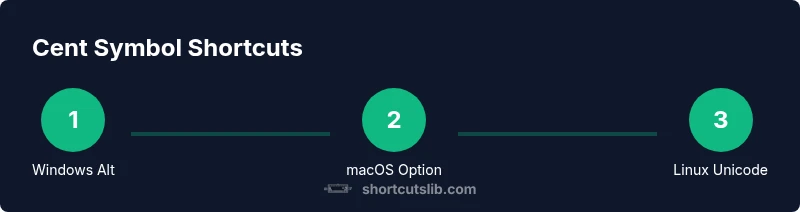
Start by picking one primary method per OS: Windows Alt+0162, Mac Option+4, Linux Unicode. Add a fallback option (copy‑paste) for edge cases. Then create a compact reference sheet or a small text expansion snippet that you can trigger with a short keystroke. For example, you can configure a snippet that expands “¢” when you type “centsign” in most editors. This approach gives you speed and consistency across documents, emails, spreadsheets, and code. The goal is to minimize cognitive load during writing and maintain accuracy in all contexts. Shortcuts Lib recommends documenting your preferred methods in a personal wiki or note so you can quickly onboard teammates who share your workflow.
Tools & Materials
- Windows PC with numeric keypad(Enable Num Lock; use Alt+0162 on the numeric keypad to insert ¢.)
- Mac computer with US keyboard(Use Option+4 to type ¢; or use macOS Character Viewer (Control+Cmd+Space) as fallback.)
- Linux distribution with Unicode input(Use Ctrl+Shift+U, then type 00A2 and Enter to insert ¢.)
- Clipboard manager (optional)(Keeps a library of frequently used symbols for quick paste.)
- Character Map / Emoji & Symbols viewer (optional)(Helps locate and copy symbols for rare fonts.)
Steps
Estimated time: 15-25 minutes
- 1
Identify your OS and preferred method
Determine which operating system you are using and decide on a primary shortcut method. Windows users typically rely on Alt codes, Mac users on Option keys, and Linux users on Unicode input. This initial choice reduces ambiguity during everyday typing.
Tip: Choose one primary method per OS to build muscle memory. - 2
Prepare your input method
If you’re using Windows, ensure Num Lock is on and the numeric keypad is accessible. On Mac, confirm that your keyboard is set to an English layout with US symbols. On Linux, enable Unicode input if not already available in your environment.
Tip: Test the method in a neutral text editor first. - 3
Enter the cent symbol on Windows
With Num Lock enabled, press and hold Alt, type 0162 on the numeric keypad, then release Alt to insert ¢. If Alt codes are blocked, switch to Unicode input or copy from a symbol list.
Tip: If Alt is unresponsive, try a different app or use the on-screen keyboard. - 4
Enter the cent symbol on macOS
Press Option+4 to insert ¢ directly. If the symbol doesn’t render, open the Character Viewer and locate ¢, then double click to insert.
Tip: Use the viewer to confirm the glyph before relying on it in critical documents. - 5
Enter the cent symbol on Linux
Use Ctrl+Shift+U, release, type 00A2, then press Enter to insert ¢. This method is widely supported across Linux environments.
Tip: If your distro uses a different Unicode schema, adapt to the available sequence. - 6
Alternative: copy‑paste workflow
Copy ¢ from a trusted source (e.g., a local note or a browser page) and paste where needed. This remains the fastest fallback when shortcuts fail.
Tip: Keep a dedicated clipboard snippet of frequently used symbols. - 7
Test across apps
Verify the symbol appears correctly in your primary tools (word processors, email clients, code editors). Font issues can cause misrendering, so adjust fonts if necessary.
Tip: Check both light and dark UI modes for glyph consistency. - 8
Create a personal shortcut kit
Consolidate your methods into a quick reference: a sheet or micro-guide that lists each OS method and fallback. Consider a text expansion snippet for ¢ in your editor.
Tip: Update the kit as you discover new reliable approaches.
Questions & Answers
What is the most reliable way to type the cent symbol on Windows?
Windows users typically insert ¢ with Alt+0162 on the numeric keypad, with Num Lock enabled. If Alt codes aren’t available, use a Unicode input method or copy‑paste from a symbol list.
On Windows, press Alt plus 0162 on the numeric keypad to insert ¢. If that doesn’t work, use Unicode input or copy-paste.
How do I type ¢ on macOS?
Mac users can type ¢ with Option+4. If the symbol doesn’t render, open the Character Viewer (Control+Cmd+Space) and insert the glyph. You can also set up a text replacement for frequent use.
Mac users press Option and 4 to type ¢. If needed, use the Character Viewer to insert it.
Can I type the cent symbol in Linux without a special keyboard?
Yes. A common method is Ctrl+Shift+U, then type 00A2 and press Enter to insert ¢. This works in most editors and terminals that support Unicode input.
In Linux, use Ctrl+Shift+U, type 00A2, then Enter to insert ¢.
What if Alt codes don’t work in an app?
Try copying the symbol from a character map or use a Unicode input method as a fallback. Some apps override key mappings; switching apps can help verify this.
If Alt codes don’t work, copy from a character map or try Unicode input.
Is there a universal shortcut for the cent symbol?
No, there isn't a universal shortcut. Shortcuts vary by OS and application, so learn the method for each environment you use.
There isn’t a single universal shortcut; it varies by OS.
Can I remap a key to insert ¢?
Yes. You can remap a key or use a text expansion tool to insert ¢ with a custom shortcut. This is especially useful if you type it often.
You can remap a key or use text expansion to insert ¢ quickly.
Watch Video
Main Points
- Learn OS‑specific shortcuts for the cent symbol
- Keep one primary method per OS to build speed
- Use a reliable fallback to cover edge cases
- Test symbol rendering across your most used apps
- Create a personal shortcut kit for quick reference