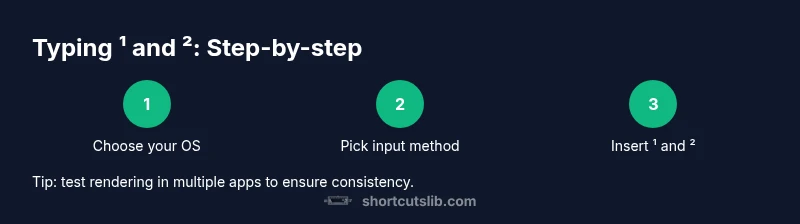
Keyboard shortcut for 1 2 symbol: Superscripts guide
Learn practical keyboard shortcuts to type superscript digits 1 and 2 (¹ and ²) across Windows, macOS, and common apps. This guide covers Unicode input, built-in features, and quick copy-paste methods from Shortcuts Lib for reliable results.


Goal: Insert the 1 and 2 superscripts quickly across apps. The most reliable path is to use built-in superscript formatting or Unicode entry. Whether you’re on Windows, macOS, or Linux, you can access dedicated menus, symbol viewers, or Unicode code points and convert them to superscripts. Shortcuts Lib confirms multiple routes depending on your app and OS.
What the 1 and 2 superscripts are and why you’d use them
Superscripts are smaller numbers that sit slightly above the baseline, commonly used for mathematical exponents, ordinal indicators, and footnotes. The 1 and 2 superscripts (¹ and ²) help keep formulas tidy and readable, especially in scientific notes, typography-focused documents, or code comments that reference powers. In practice, inserting ¹ and ² can be done through a mix of built-in formatting, Unicode input, or simple copy-paste. According to Shortcuts Lib, understanding the underlying method you choose matters for consistency and accessibility across platforms. When you adopt a stable approach, you’ll save time and avoid font or rendering quirks that appear when relying on font tricks alone. For keyboard enthusiasts, the ability to switch quickly between methods is a baseline skill in any shortcuts toolkit.
In this guide we’ll compare OS-level methods, app-specific tips, and universal Unicode strategies so you can pick a path that works for your workflow. We’ll also discuss font compatibility and when to choose copy-paste as a fallback. By the end, you’ll have a practical set of steps you can reuse in documents, emails, or code comments with confidence.
OS-specific approaches to superscripts (Windows, macOS, Linux)
Different operating systems offer distinct pathways to enter superscripts. On Windows, you can leverage Unicode input through the numeric keypad after enabling the numeric input mode, or you can use the Character Map to copy ¹ and ² into your document. macOS users commonly access the Emoji & Symbols viewer or use the built-in superscript styling in rich text editors. Linux environments vary by distribution and desktop environment, often providing a character picker or Unicode entry in the terminal. Shortcuts Lib emphasizes practicing a few reliable routes per OS to maintain speed and reduce context switching. The key is to identify the method that your most-used apps support and stick with it for consistency.
In-app methods: Word, Google Docs, Sheets, and IDEs
Office suites and editors often have dedicated tools for superscripts. In Word, you can toggle superscript in the Font group or use a keyboard sequence that applies to the current cursor context. Google Docs exposes superscript via the Format menu or a keyboard shortcut in many browsers. Spreadsheets like Excel and Google Sheets typically rely on font-styling or custom number formatting to achieve a superscript effect in a cell label. Integrated development environments (IDEs) rarely have a direct superscript keyboard shortcut, so you’ll usually insert ¹ or ² via Unicode entry or paste from a symbol map. The overarching recommendation is to use the app’s native styling when possible to preserve searchability and accessibility.
Unicode input and symbol maps: universal methods
Unicode input provides a universal route regardless of the app. You can type the code point for ¹ and ² and then convert to a superscript using the editor’s style options or an input method that supports on-the-fly conversion. If you prefer, you can consult a symbol map (Character Map on Windows, Emoji & Symbols on macOS, or a Linux character map) to locate ¹ and ² and copy them into your text. Using Unicode input is especially helpful when you’re composing in plain text, HTML, or Markdown, where fonts and rendering engines may differ. Shortcuts Lib recommends keeping a small reference card of the most-used symbols to speed up your workflow.
Copy-paste workflows and templates
Copy-paste remains the fastest method when you already know the exact characters you need. Keep a personal template with ¹ and ² readily available in your clipboard manager or a dedicated text snippet file. For web content, pasting these characters into your HTML or Markdown usually preserves the intended encoding, though you should verify that the document uses UTF-8. If a document widens or fonts change, you may see fallback glyphs; in that case, switch to a font that supports superscripts or revert to a Unicode-based input method.
Font and rendering considerations for accessibility
Not all fonts render ¹ and ² consistently; some fonts may render overly thin or misaligned glyphs at small sizes. If you rely on superscripts for critical information, test across devices and font families to ensure legibility. For screen readers, superscripts are typically read as regular digits or words depending on the reader’s configuration, so consider providing explicit alternative text when presenting important numerical exponents in accessible formats. Shortcuts Lib highlights that accessibility should guide your choice of method, not just aesthetics.
Practical examples: when and where to use superscripts
In scientific notes, exponents are common in chemical formulas and physics equations, where ¹ and ² convey isotopes, charges, or powers. In business writing, superscripts might denote footnotes or ordinal references. In coding documentation, superscripts can annotate versions or experimental notes. The best practice is to apply Superscripts with a method you know will render consistently in your target environment and to keep formatting uniform across a document set. Shortcuts Lib’s guidance is to standardize on one method per project to minimize inconsistency.
Troubleshooting: what if superscripts don’t render correctly?
If ¹ and ² don’t display correctly, check font coverage first. Some displays fall back to default digits that look similar but aren’t true superscripts. Verify that the document encoding is UTF-8 and that the target application supports Unicode characters. In web contexts, ensure your CSS does not override superscript styling unintentionally. If you encounter persistent issues, switch to Unicode input or copy-paste from a trusted symbol source, then test across your most-used platforms.
Building a personal shortcut cheat sheet
Create a small, portable cheat sheet that lists the three primary methods you use for typing ¹ and ². Include OS-specific steps, app-specific notes, and a quick copy-paste fallback. Keep this sheet in your notes app or as a pinned document in your workspace. A personal cheat sheet reduces hesitation during fast typing and helps you stay consistent across tasks—a habit Shortcuts Lib consistently promotes.
Tools & Materials
- Document or text field(Where you want to insert superscripts)
- Operating system (Windows, macOS, or Linux)(Choose the method appropriate to your OS)
- Symbol input method (Unicode input, Character Map, Emoji & Symbols, or built-in superscript)(Needed to insert ¹ and ²)
- Clipboard or paste buffer(For copy-paste method)
- Internet connection (optional)(Use to look up Unicode or symbol references)
Steps
Estimated time: 20-40 minutes
- 1
Open your target document
Open the document or text field where you want to insert the superscripts. Ensure the cursor is placed where you want the characters to appear. This step sets the context for the chosen input method.
Tip: If you’re working in a browser-based editor, ensure the tab is active to avoid losing focus. - 2
Choose your input method
Decide whether you’ll use Unicode input, a symbol map, or built-in superscript formatting. The choice depends on your OS and the application you’re using. The goal is to pick a path you can repeat quickly.
Tip: If you use Unicode, know which method your OS supports to enter code points efficiently. - 3
Enter ¹ via your chosen method
Apply the method to insert the first superscript. For example, select the Unicode entry or locate ¹ in a symbol map and insert it at the cursor. Confirm that the glyph is correctly positioned as a superscript.
Tip: Double-check font-scaling so the glyph sits properly relative to the baseline. - 4
Enter ² via the same method
Repeat the method to insert ² directly after the first superscript or within the same word, depending on your needs. Ensure there is no unwanted spacing that could disrupt readability.
Tip: Some editors auto-space after punctuation; disable that if you want fused superscripts. - 5
Test rendering across apps
Paste or type the sequence into different apps you use (Docs, email, code editor) to ensure consistent rendering. If any app misrenders, switch to an alternative method for that app.
Tip: Keep a small checklist for the apps you use most to quick-verify rendering. - 6
Create a fallback strategy
If a target app lacks proper superscript support, use a visually equivalent approach (plain text with caret exponents or font-embedded alternatives) and note the limitation in your document.
Tip: Document any caveats in a footnote so readers aren’t surprised by inconsistent rendering.
Questions & Answers
How do I type ¹ and ² on Windows?
On Windows, use a Unicode input method or a symbol map to insert ¹ and ², then continue editing with your preferred app. If available, enable numeric keypad input for faster entry. Always test font rendering after insertion.
Windows supports Unicode input and symbol maps to insert ¹ and ²; test font rendering after you insert them.
How can I type these in Google Docs?
In Google Docs, you can use the Format menu to apply superscript styling or rely on Unicode input and paste the characters. The browser may impact shortcuts, so choose a method that is consistent with your workflow.
Google Docs supports superscript via the Format menu or Unicode paste; pick one method for consistency.
Can I create a custom keyboard shortcut for superscripts?
Yes, some editors allow custom shortcuts or macros to insert specific characters like ¹ and ². Check the editor’s shortcut settings or create a small automation script if you work with repetitive use.
You can often create a custom shortcut or macro to insert superscripts in many editors.
Do superscripts work in all fonts?
Not all fonts include standalone superscript glyphs. If rendering issues occur, switch to a font with robust Unicode support, or use a Unicode input with a consistent font family.
Font support varies; pick fonts with solid Unicode coverage for reliable superscripts.
Is there a difference between Unicode input and Alt codes?
Unicode input is broader and more consistent across platforms, while Alt codes rely on specific numeric codes that may vary by layout. Prefer Unicode entry or symbol maps for cross-platform work.
Unicode input is generally more universal than platform-specific Alt codes.
How do I type superscripts in code or a terminal?
In code editors or terminals, insert ¹ and ² via Unicode input or paste from a symbol map, then ensure the file encoding is UTF-8. Some terminals may not display superscripts in monospaced fonts.
Use Unicode input or paste when typing superscripts in code or terminals, and verify UTF-8 encoding.
Watch Video
Main Points
- Use OS-native methods for reliability.
- Unicode input offers universal compatibility.
- Font support determines rendering quality.
- Copy-paste is fastest for a few characters.